

Setup time: 10 Min
Create Outbound Integration
- Click on the
Outbound Integrationstab. - Click on
+ Create.
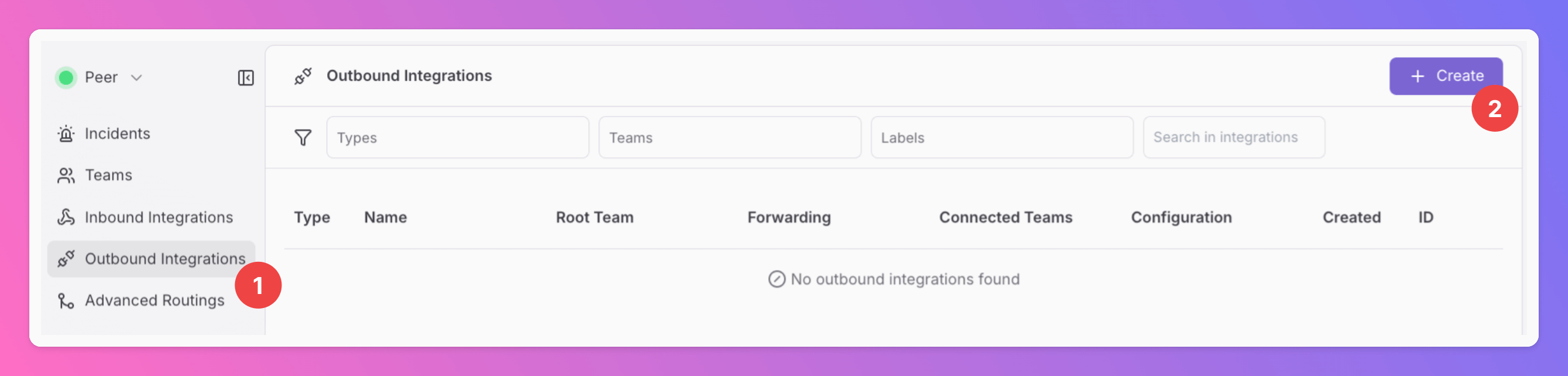
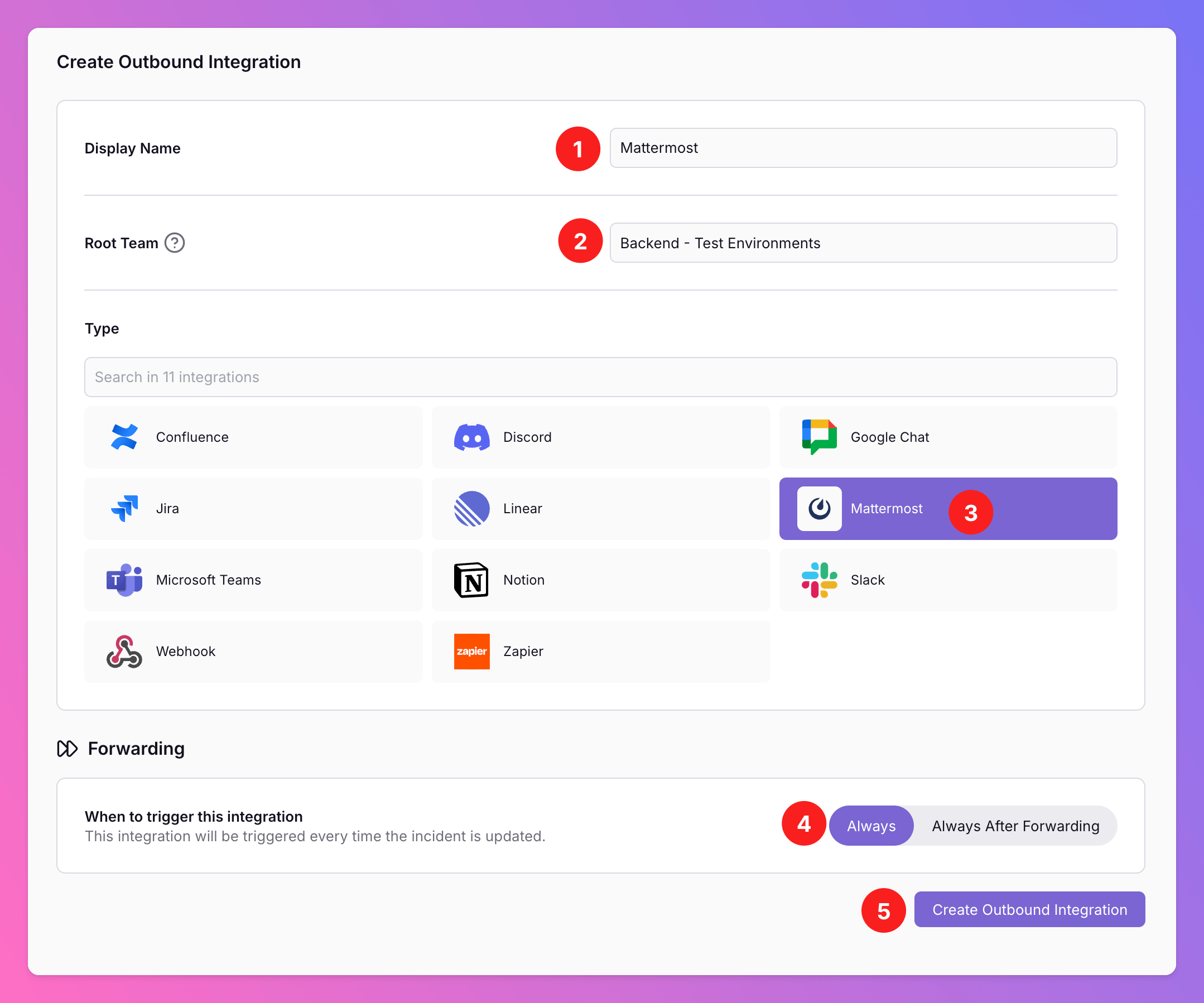
- Enter a
Display Namefor your integration, e.g. “Mattermost”. - Select a
Team.For Organizations with Pro and Enterprise plan: This is going to be the root team of your integration. You will be able to add additional teams in the next step. - Select
Mattermostas the integration’s type. - Forwarding settings:
- Default:
Alwayswill automatically forward all incidents to your Mattermost Server, unless excluded by advanced routing rules. - Alternative:
Always After Forwarding- Messages will only be sent if users manually forward specific incidents or if you set up advanced routing rules that automatically forward incidents in specific scenarios. After the initial Forwarding, all updates will automatically be sent.
- Default:
- Click
Create Outbound Integration.
Send All Quiet Incidents to Mattermost
Once you’ve successfully created your new outbound integration, you’ll automatically be redirected to itsSettings page.
- Observe that the installation status is still pending.
- To activate the outbound integration, enable the toggle
Send incidents to Mattermostand follow the next steps in this guide. - To activate the inbound integratoin, enable the toggle
Create incidents from Mattermostand follow this part of the setup guide.
In the
Edit tab, you can change general settings like the integration’s Forwarding settings. You can also enable Anonymize Outbound Logs (disabled by default). When enabled, activity log entries for this integration are stored without descriptions, external identifiers, error details, and payload data. Only operational metadata such as operation, outcome, and HTTP status is kept.Only for Pro and Enterprise plan - Manage your
Team Connections: The root team is pre-selected, and you can add the integration to further teams within the root team’s organization. Team Administrators can add / remove those teams they are an Administrator in, Organization Administrators & Organization Owners can manage the connections to all teams of the organization. 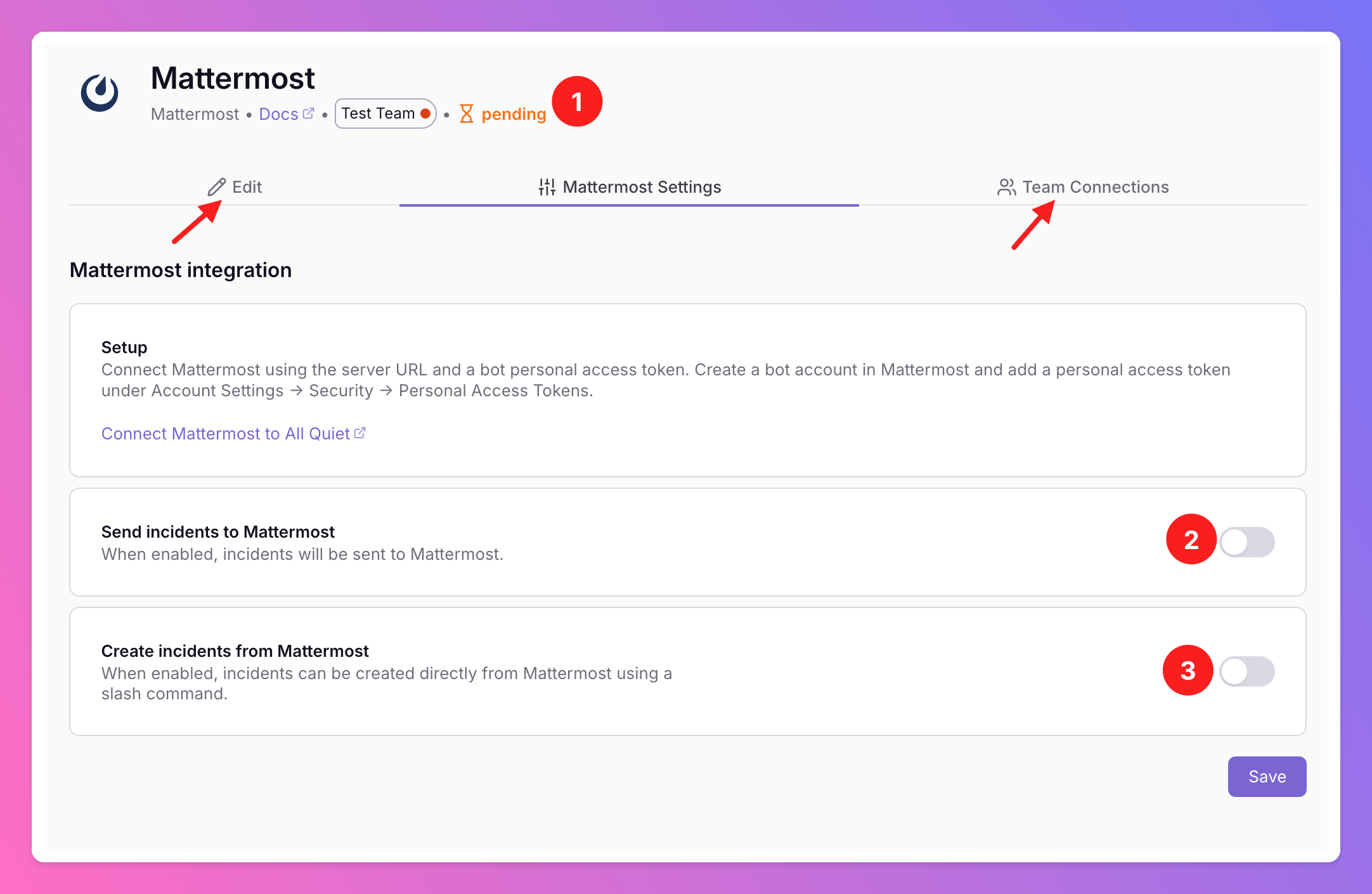
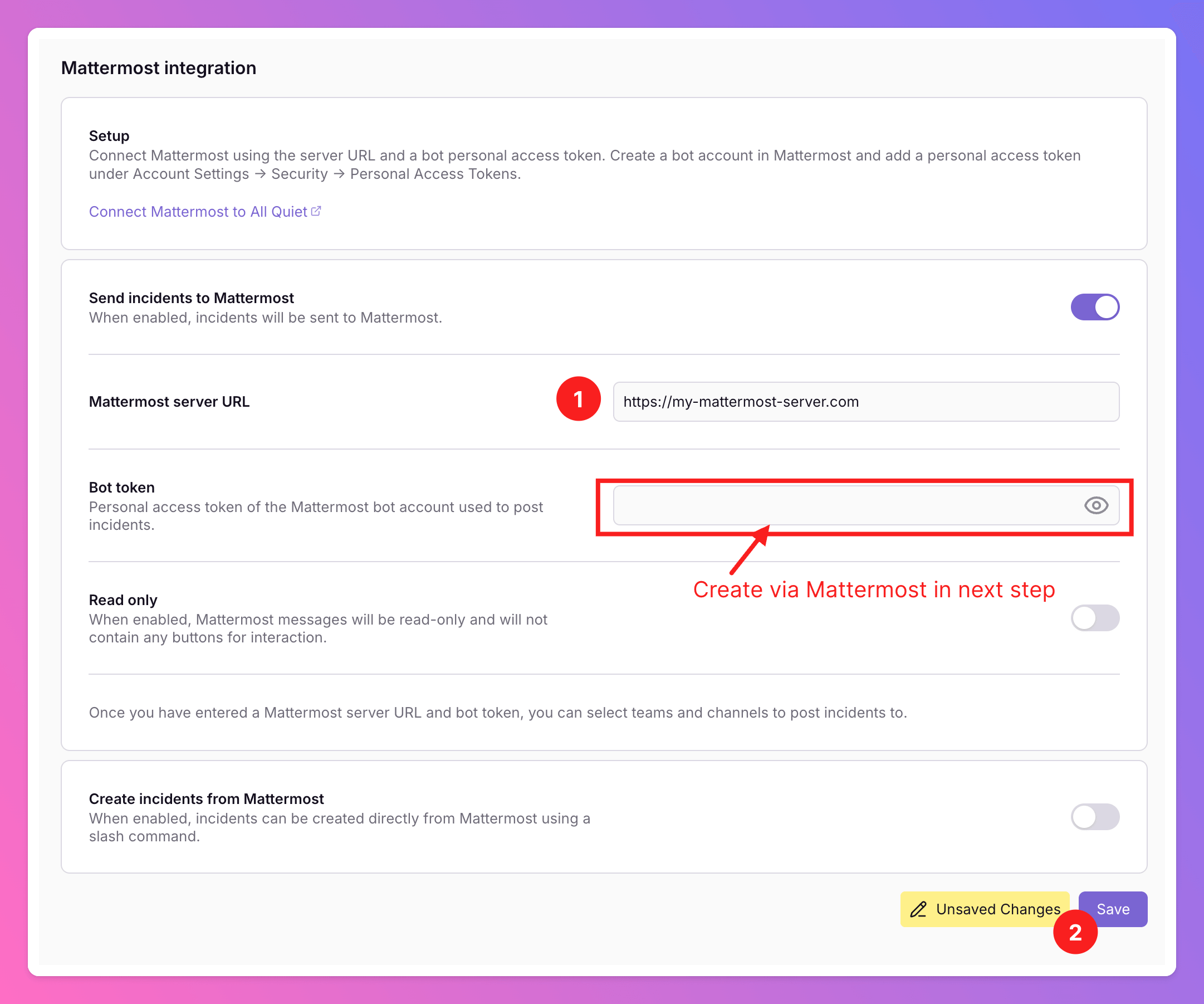
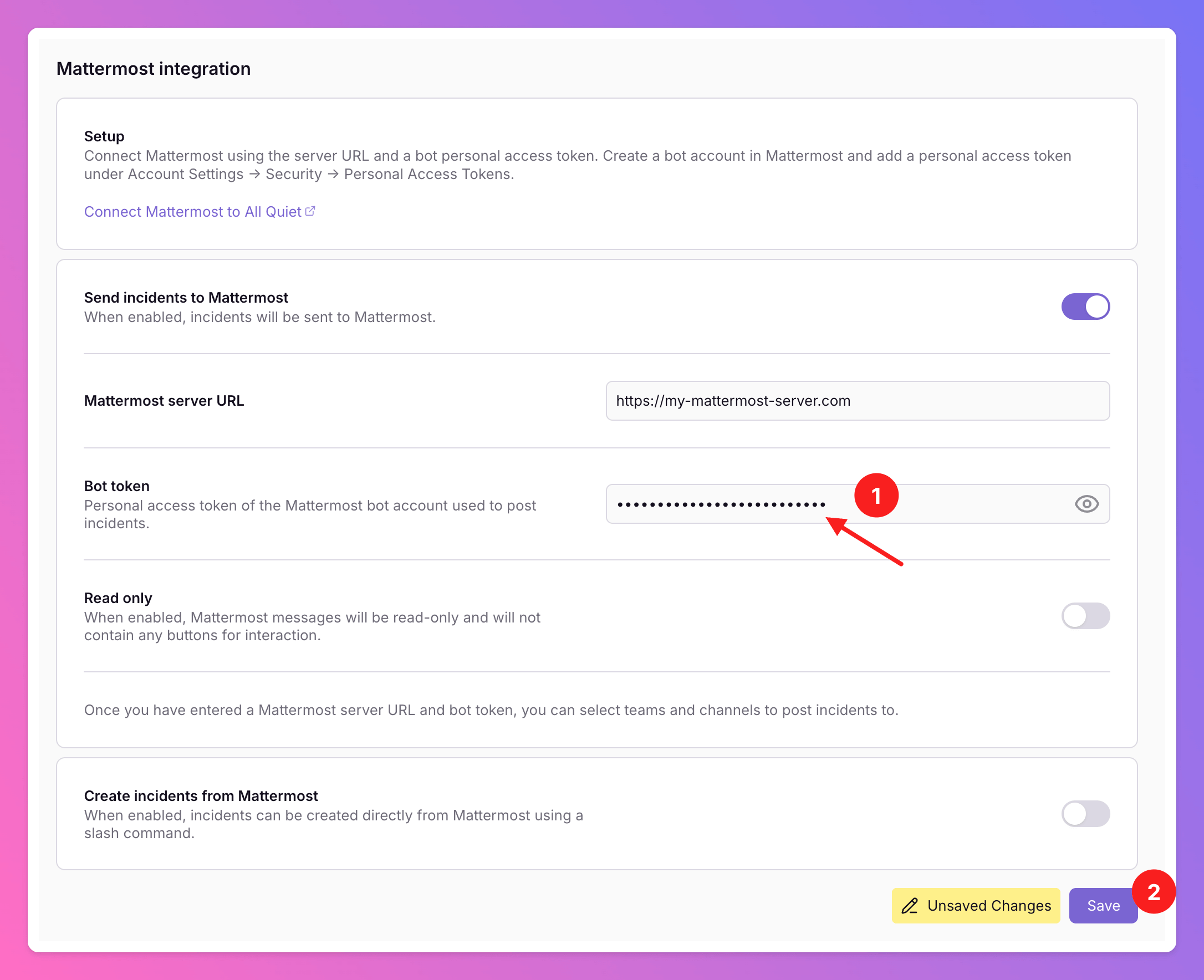
Send incidents to Mattermost to send All Quiet incidents to Mattermost, you add a bit more information.
- Add the URL of your Mattermost server.
- Click
Save.
- Open the menu in the top left corner.
- In the menu, select
Integrations.
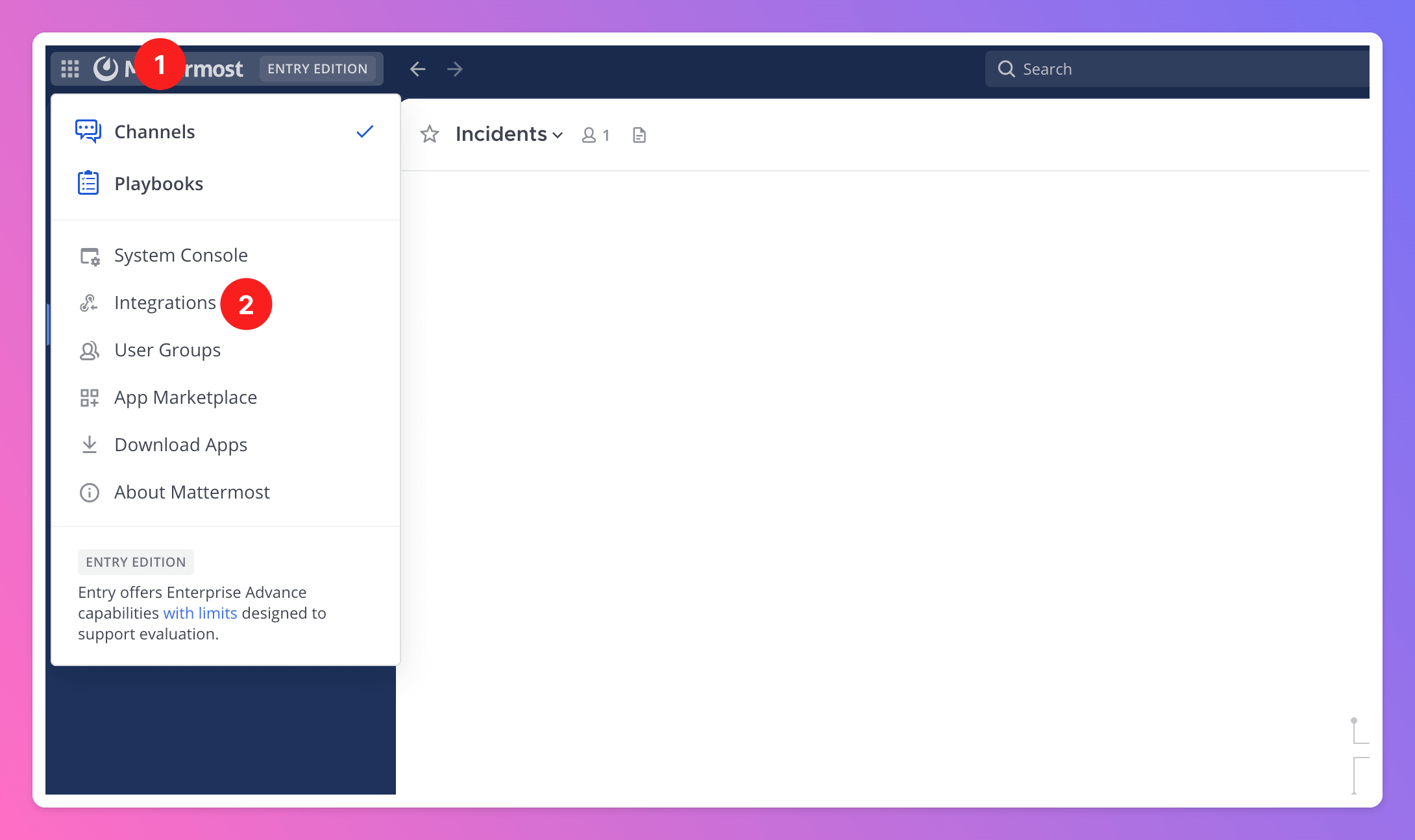
Bot Accounts as integration type.
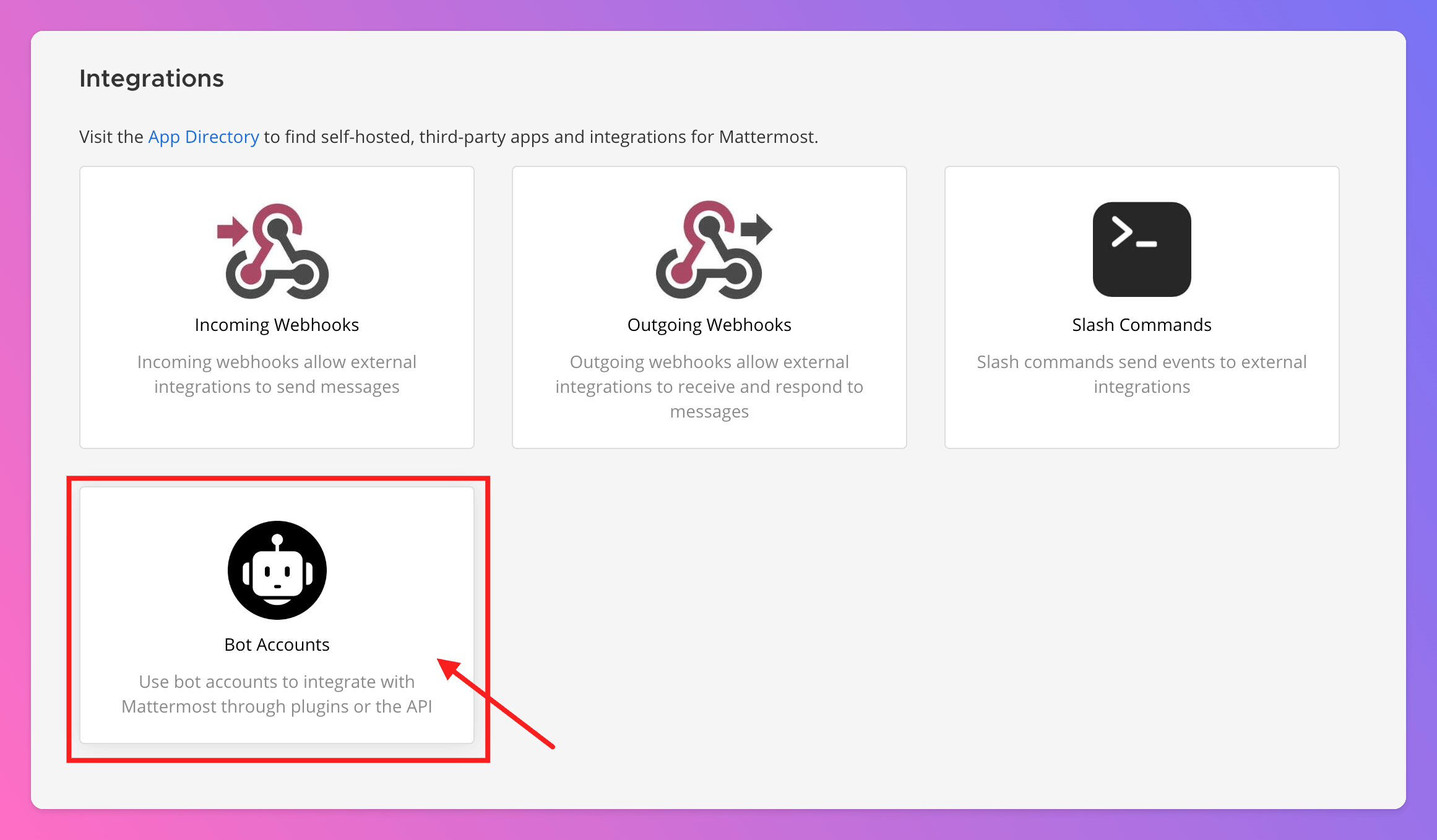
Add Bot Account.
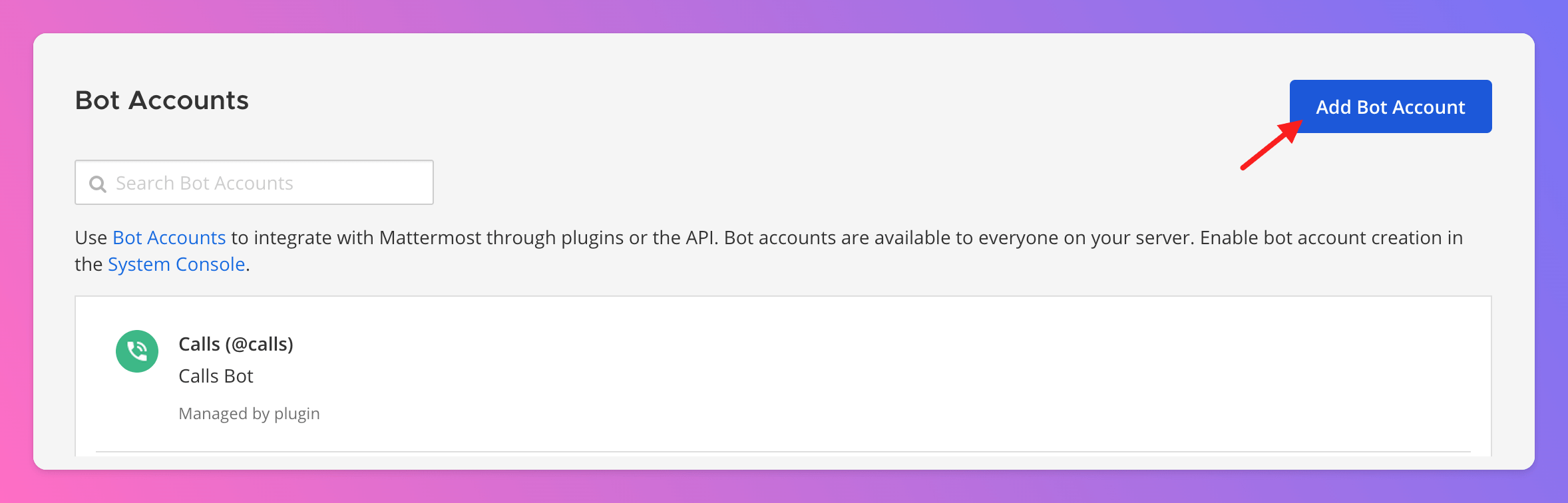
- Give your Bot a descriptive
Username, like “all_quiet”. - You may want to add our Logo as
Bot Icon. - Optionally, you can add a descriptive
Display Namethat adds more information than theUsername, like “All Quiet Incidents” or “Incident from All Quiet”. - “Member”
Roleis sufficient. - We recommend to enable
post:allto enable the Bot to post into a maximum number of channels. - Finish the setup by clicking
Create Bot Account.
Token. You will need it in the next step to activate the connection in All Quiet.
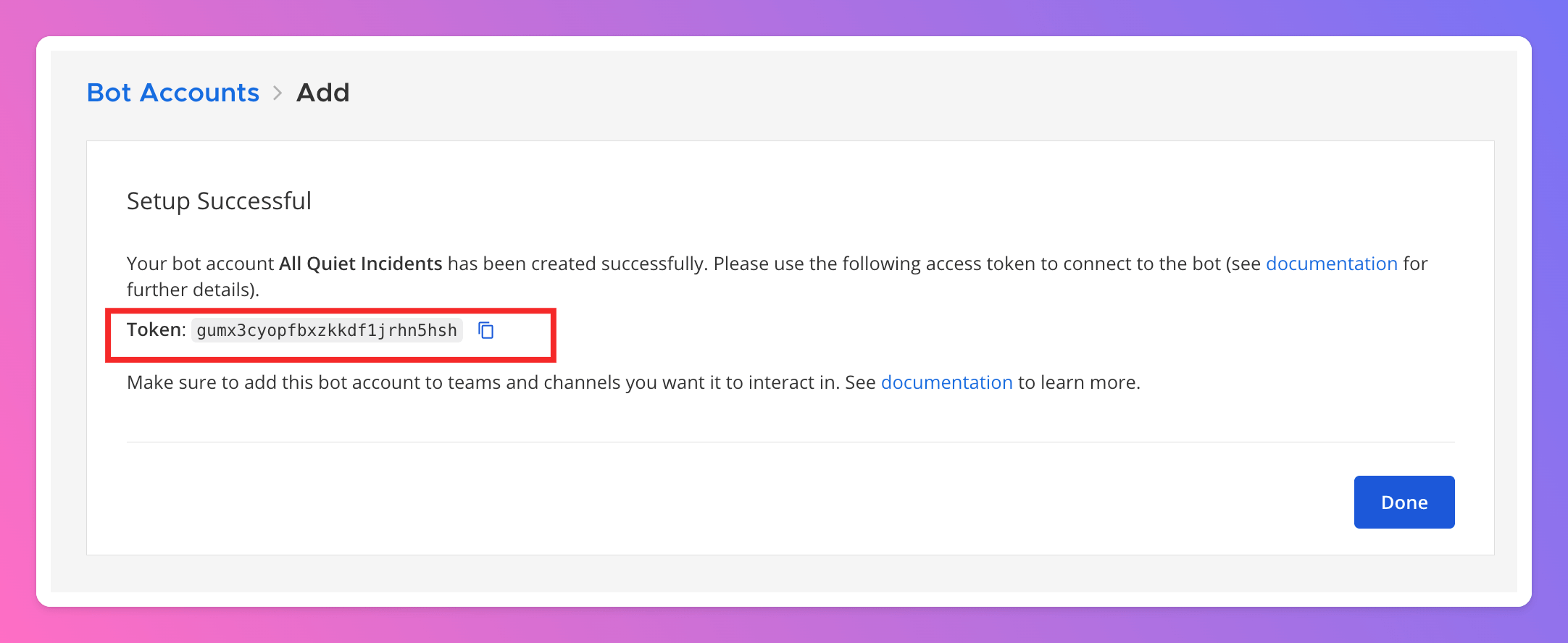
- paste the
Tokeninto theBot Access Tokenfield. Saveyour settings.
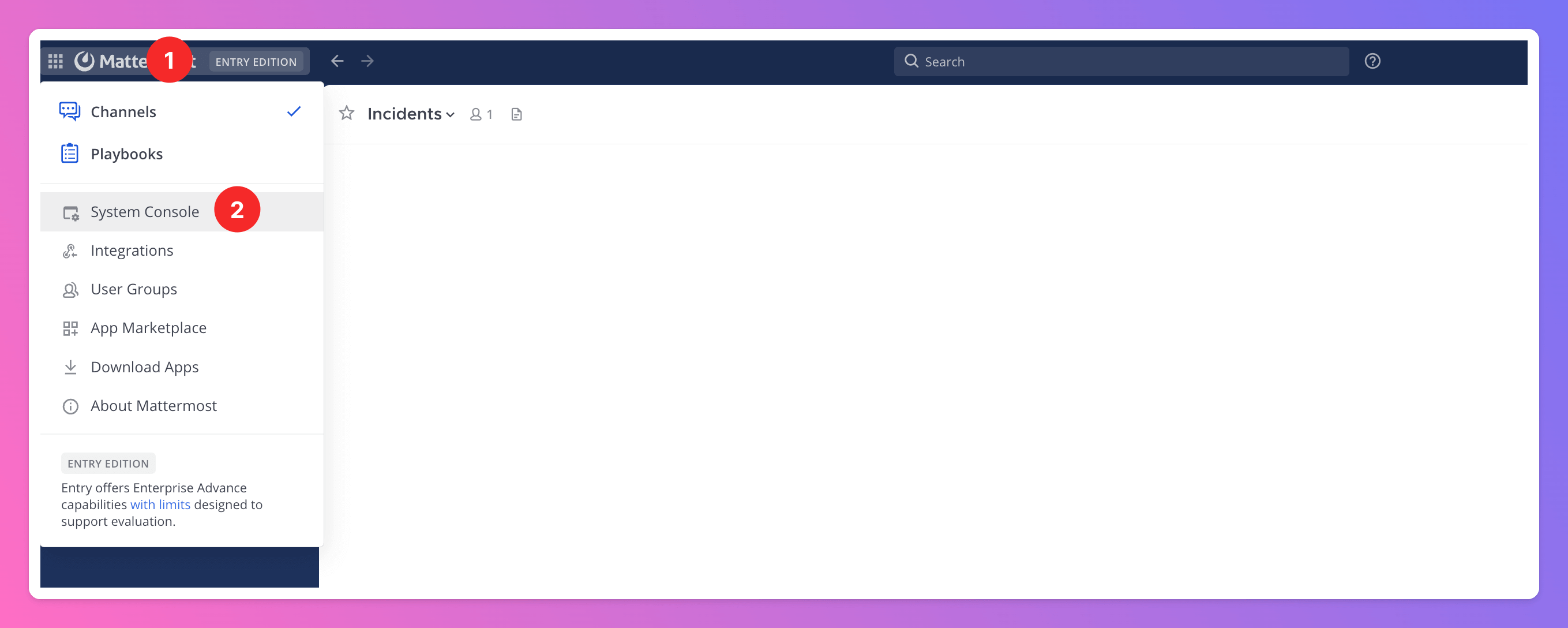
- Open the menu in the top left corner.
- In the menu, select
System Console.
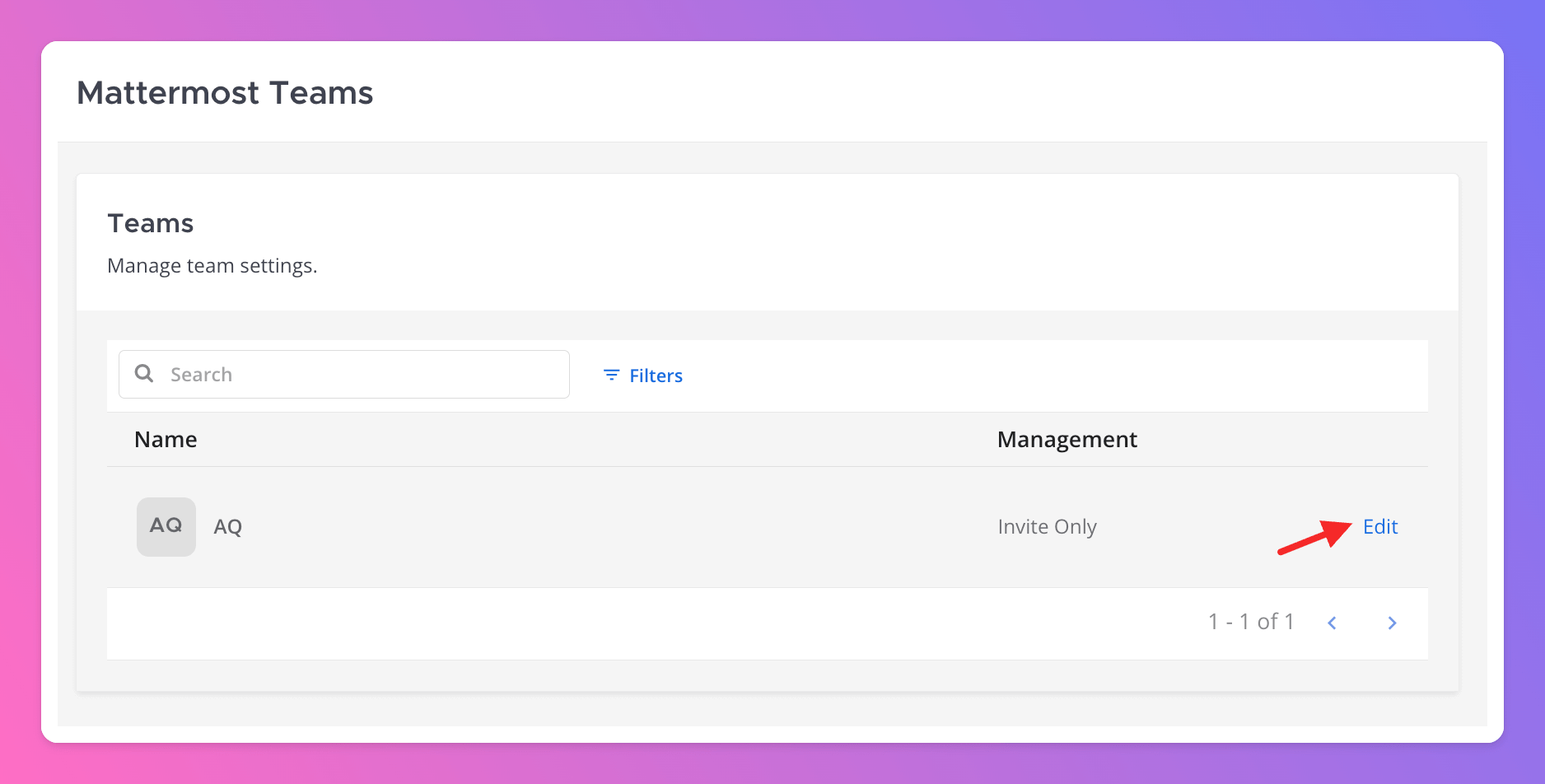
User Management > Teams (1).
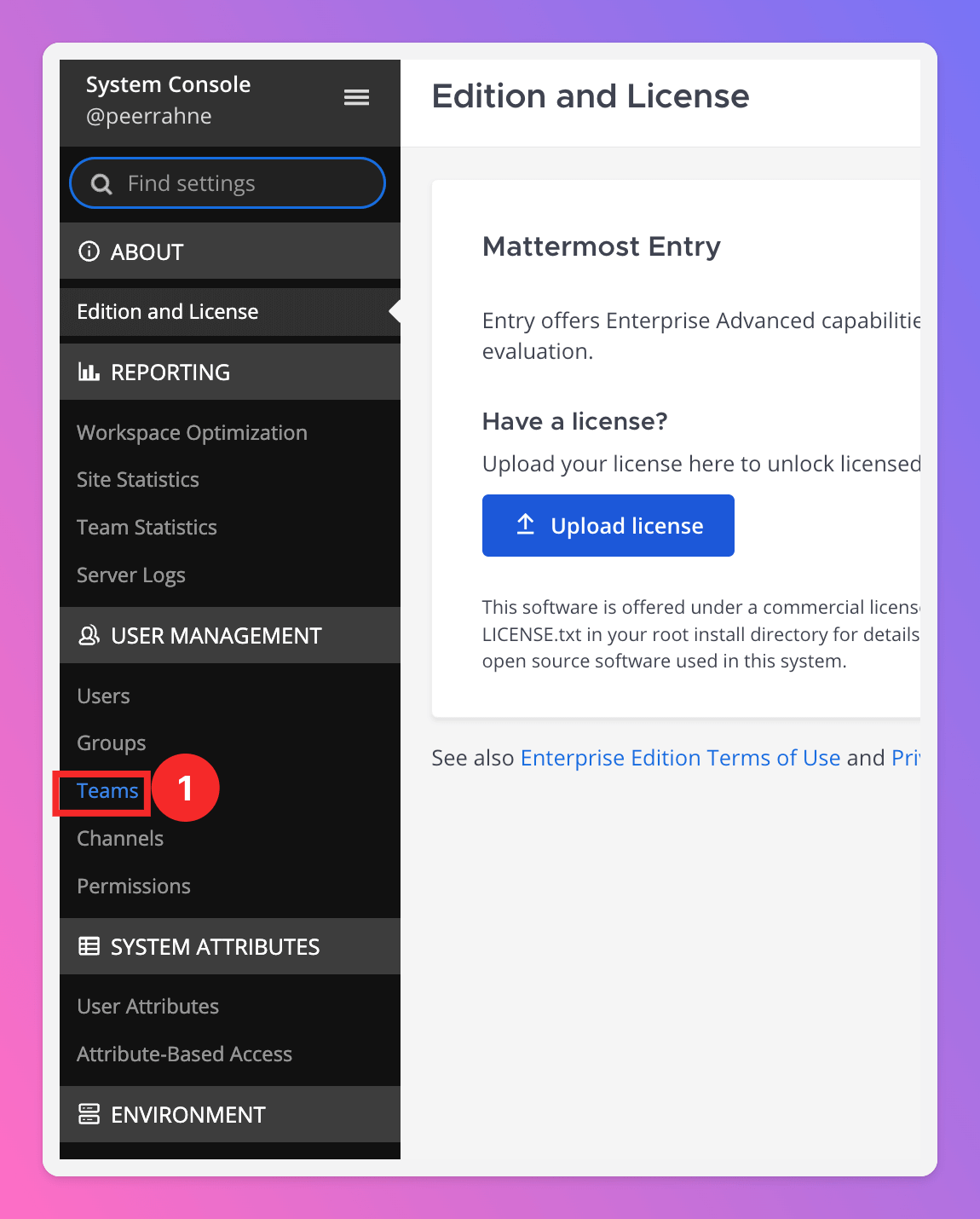
Edit.
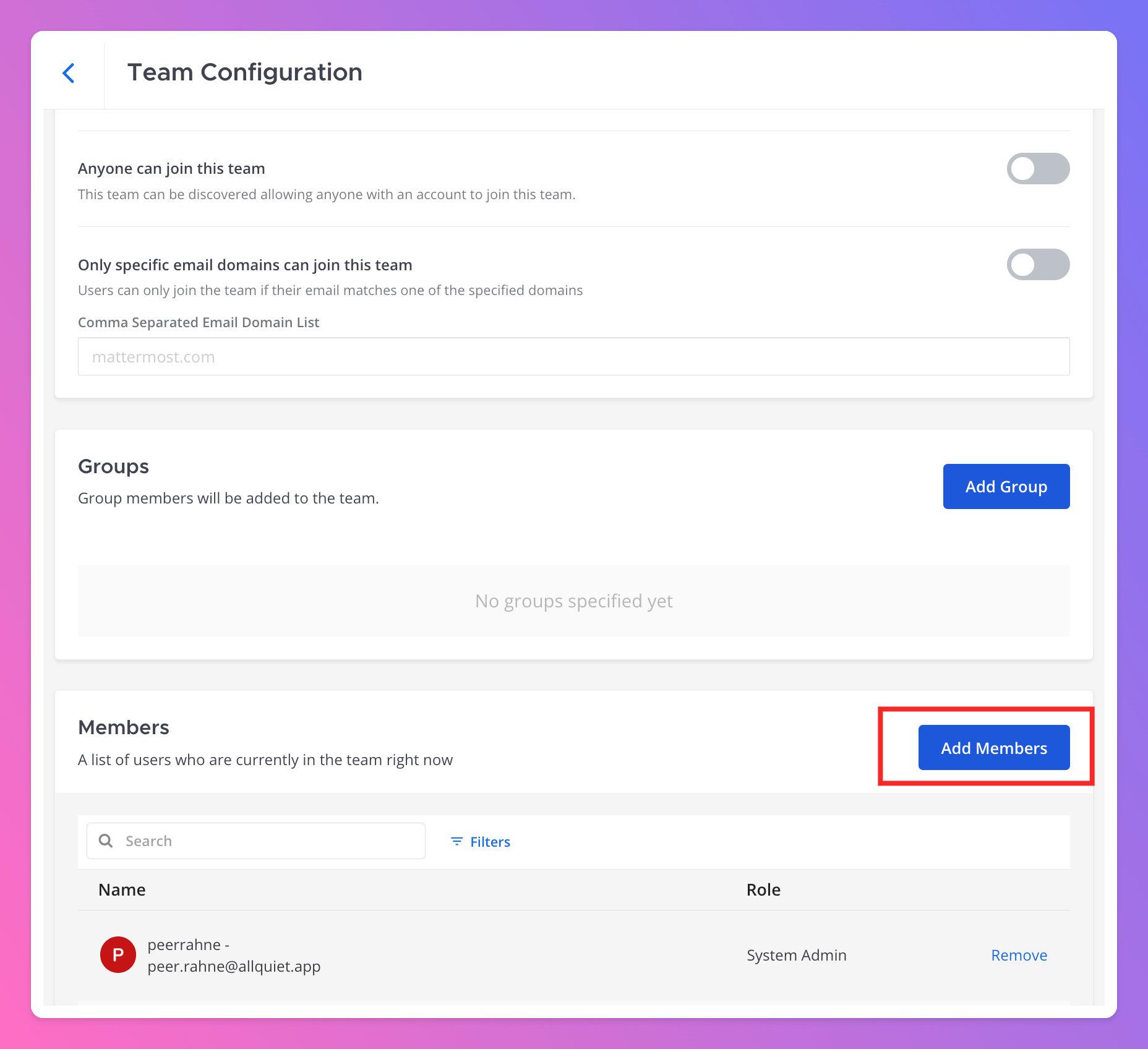
Team Configuration page, scroll down to the Members section. Click Add Members.
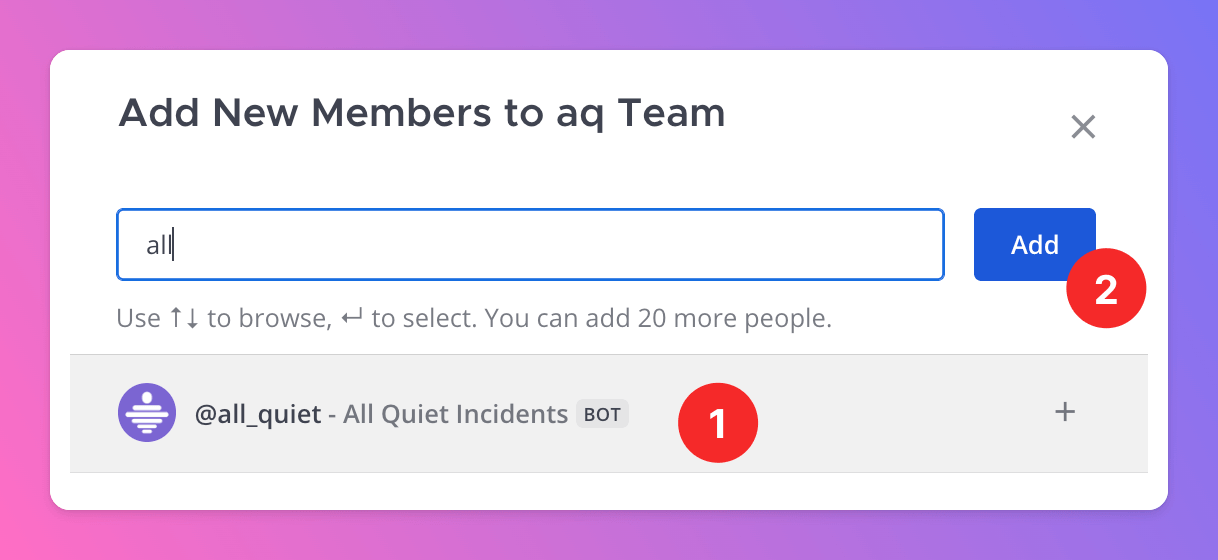
- Select the Bot from the list.
- Click
Add.
Save your team configuration with your newly added member.
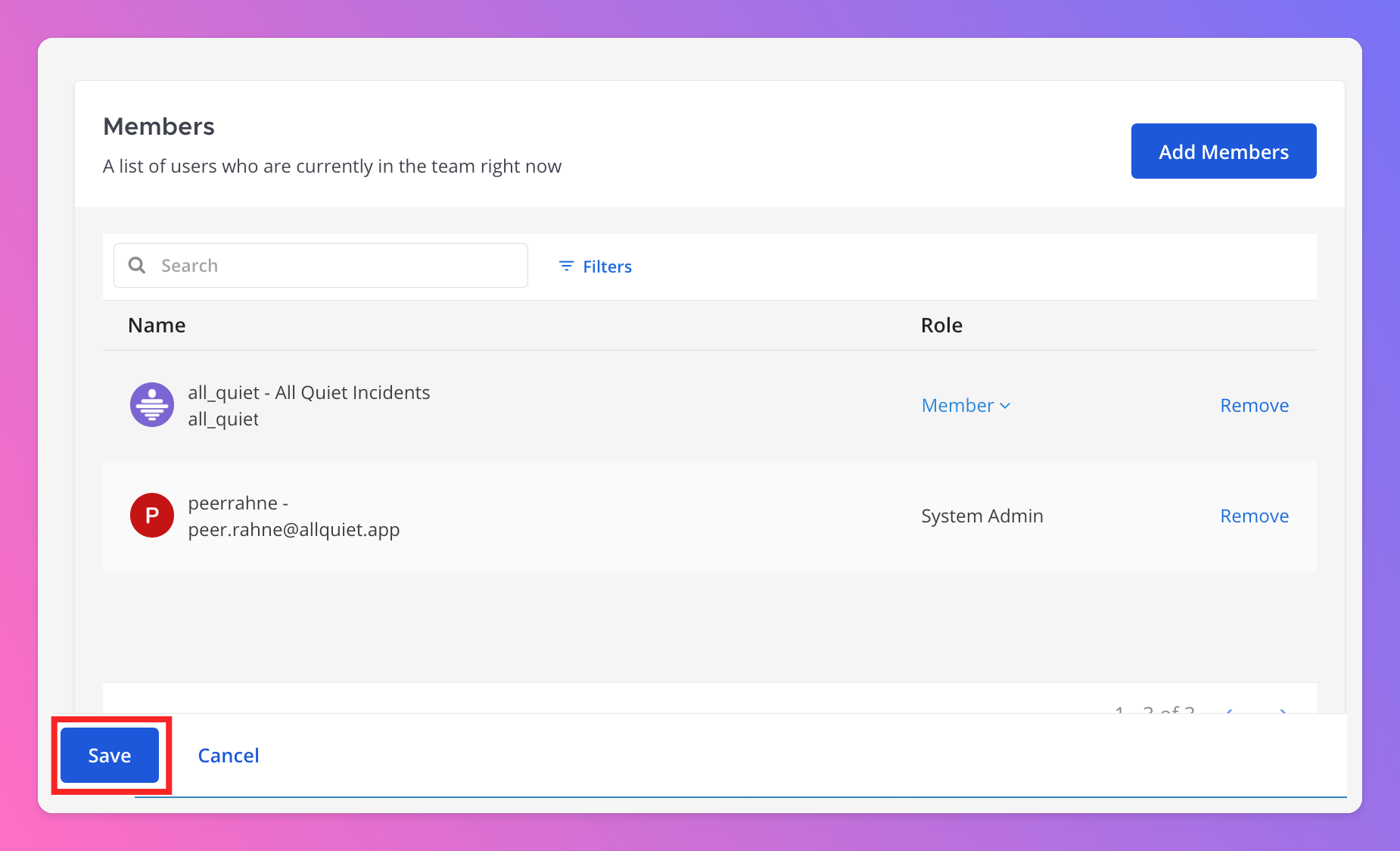
- As you can see, we successfully added the Bot to your Mattermost
Teamin the last step. Select the Mattermost Team you want to connect and send incidents to. - You can change your integration settings to “Read Only”. In this mode, we will not send any action buttons to Mattermost, meaning users cannot interact with the messages. This is ideal if you want to use the integration for internal stakeholder management.
- Configure where All Quiet sends incident updates in the Fixed Channels and Dynamic Channels sections.
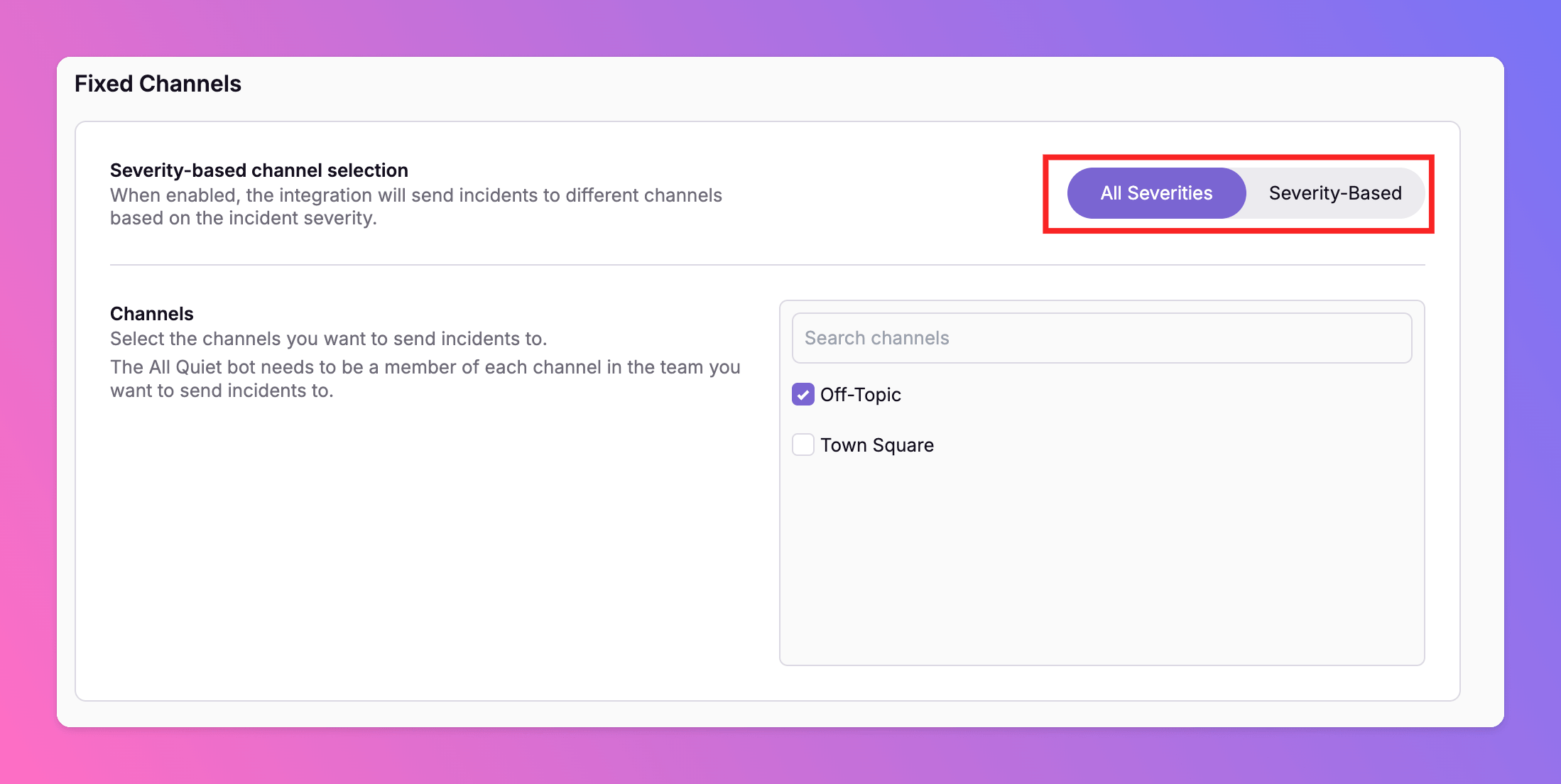
Fixed Channels
Select the MattermostChannels you want to send incidents to. You can decide to either:
- Send all incidents to the same channels.
- Route incidents to different channels based on incident severity.
You need to invite the Bot to the desired Mattermost channels first. After that, the channels will appear in All Quiet, and you can select them. This works for both public and private channels.
Dynamic Channels
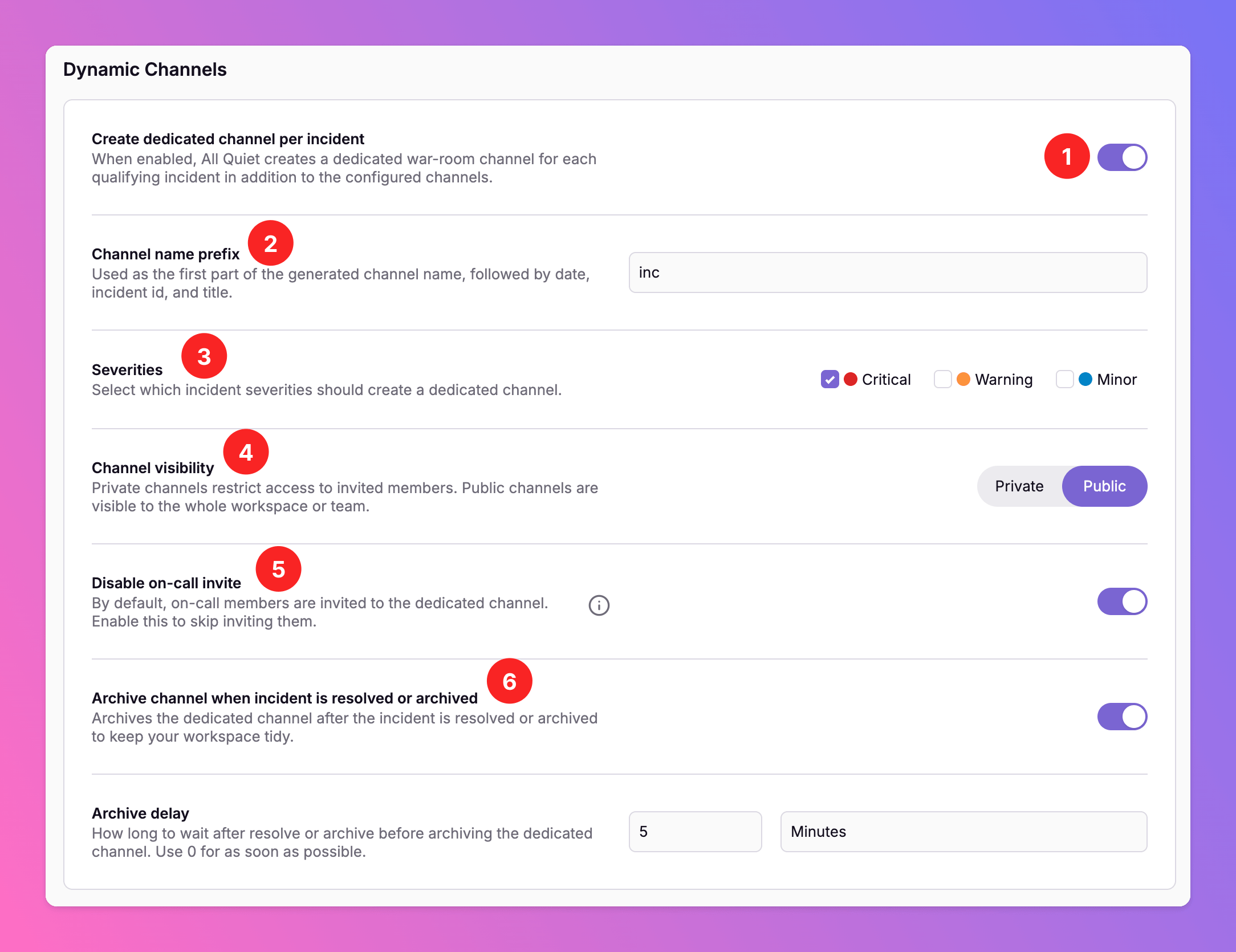
Instead of—or in addition to—Fixed Channels, you can create a dedicated Mattermost channel per incident. When an incident matches your configured severities, All Quiet creates a new channel, posts all incident updates there, and manages the channel lifecycle for you.- Enable Dedicated channels per incident.
- Set a channel name prefix. Channel names are generated from the prefix, date, title slug, and short incident ID, then sanitized to fit Mattermost’s naming limits.
- Select the severities that should trigger a dedicated channel.
- Choose whether new channels are public or private.
- Optionally enable Invite on-call members to add currently on-call users to the channel when it is created.
- Configure archiving:
- Auto-Archive on resolve or archive — archive the channel when the incident is resolved or archived in All Quiet.
- Optionally set an archive delay to wait before archiving (useful if you want a short grace period after resolution or need the channel for a post-mortem analysis).
If an incident is reopened, All Quiet unarchives the dedicated channel so updates continue there.
Settings.
Your outbound integration is now fully set up. Now it’s time to send incidents to your Mattermost channels.
Engage with Incidents Directly in Mattermost
Only Teams that are connected with the integration in All Quiet will send their incidents to Mattermost. You can always change the current settings via the
Team Connections page. If incident grouping is enabled, All Quiet will only include the grouping attributes in the Mattermost messages we send (the same fields used to group events into an incident). Learn more in our Inbound Integrations docs.
For compliance reasons, only Users with rights in the All Quiet team(s) connected to the incident can interact with the Message. Additionally, if users create incidents manually they can alway interact with the specific incident no matter which team(s) are assigned.
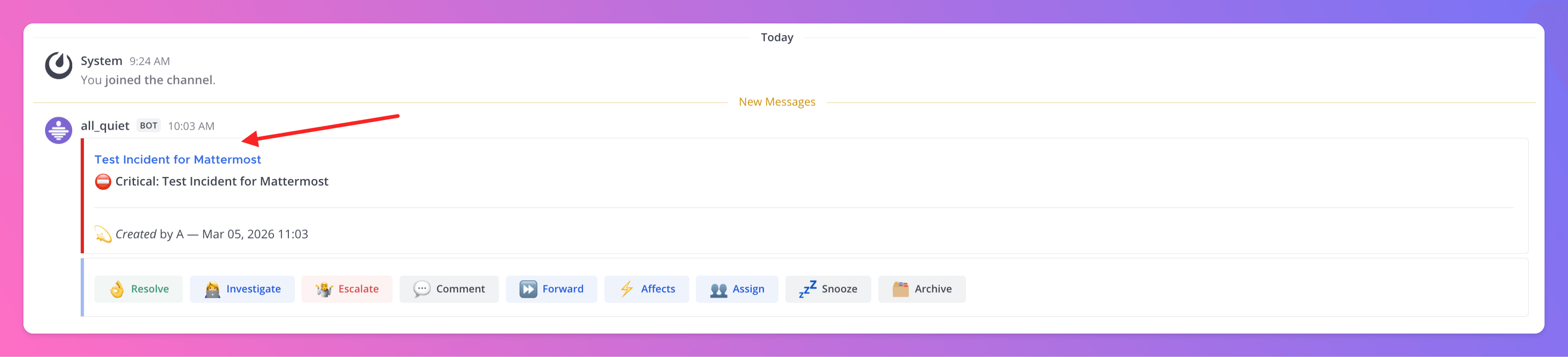
Mattermost is now integrated with All Quiet, simplifying incident management by consolidating notifications and actions in one place.
Create Incidents from Mattermost
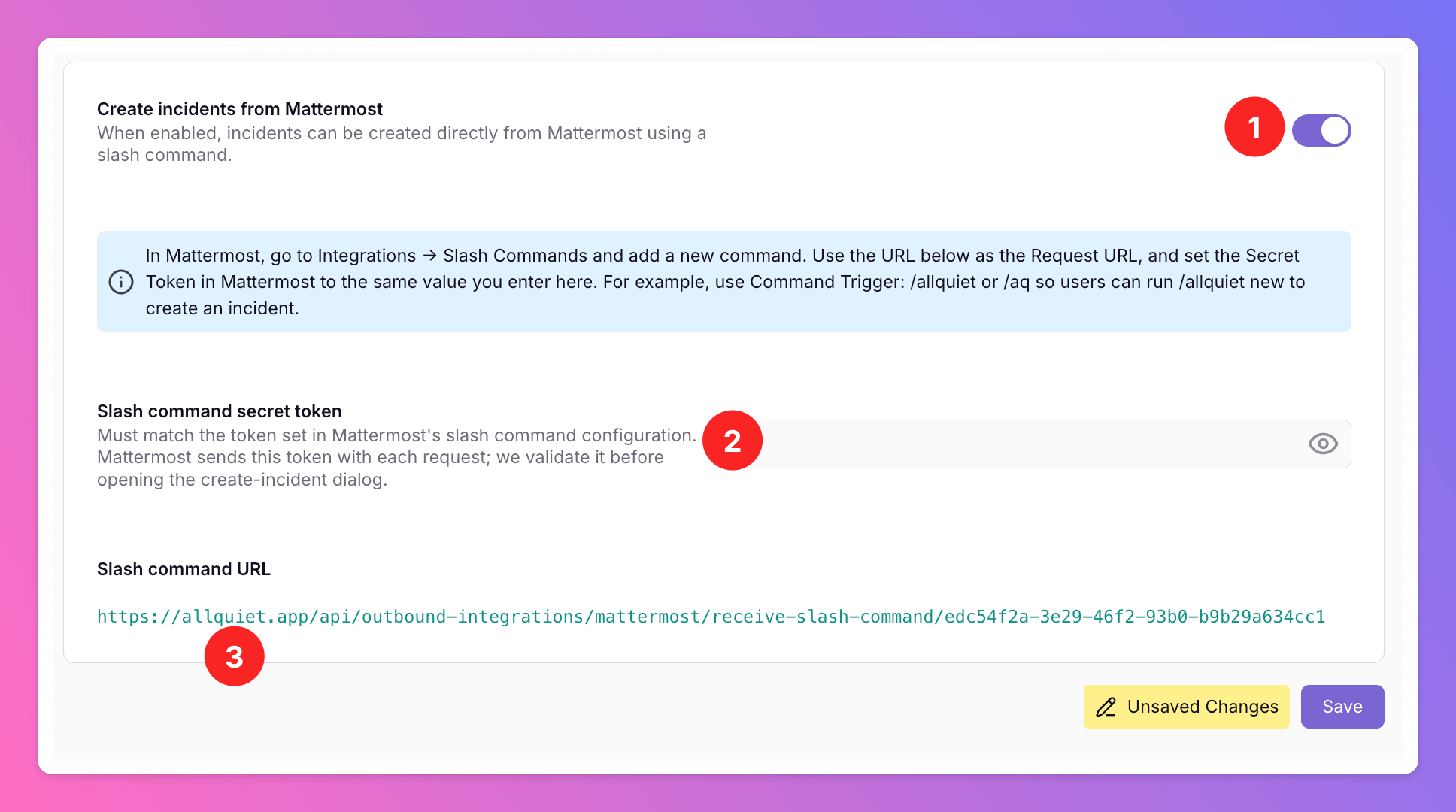
You can create All Quiet incidents from Mattermost using custom slash commands. To createAll Quiet incidents from Mattermost,
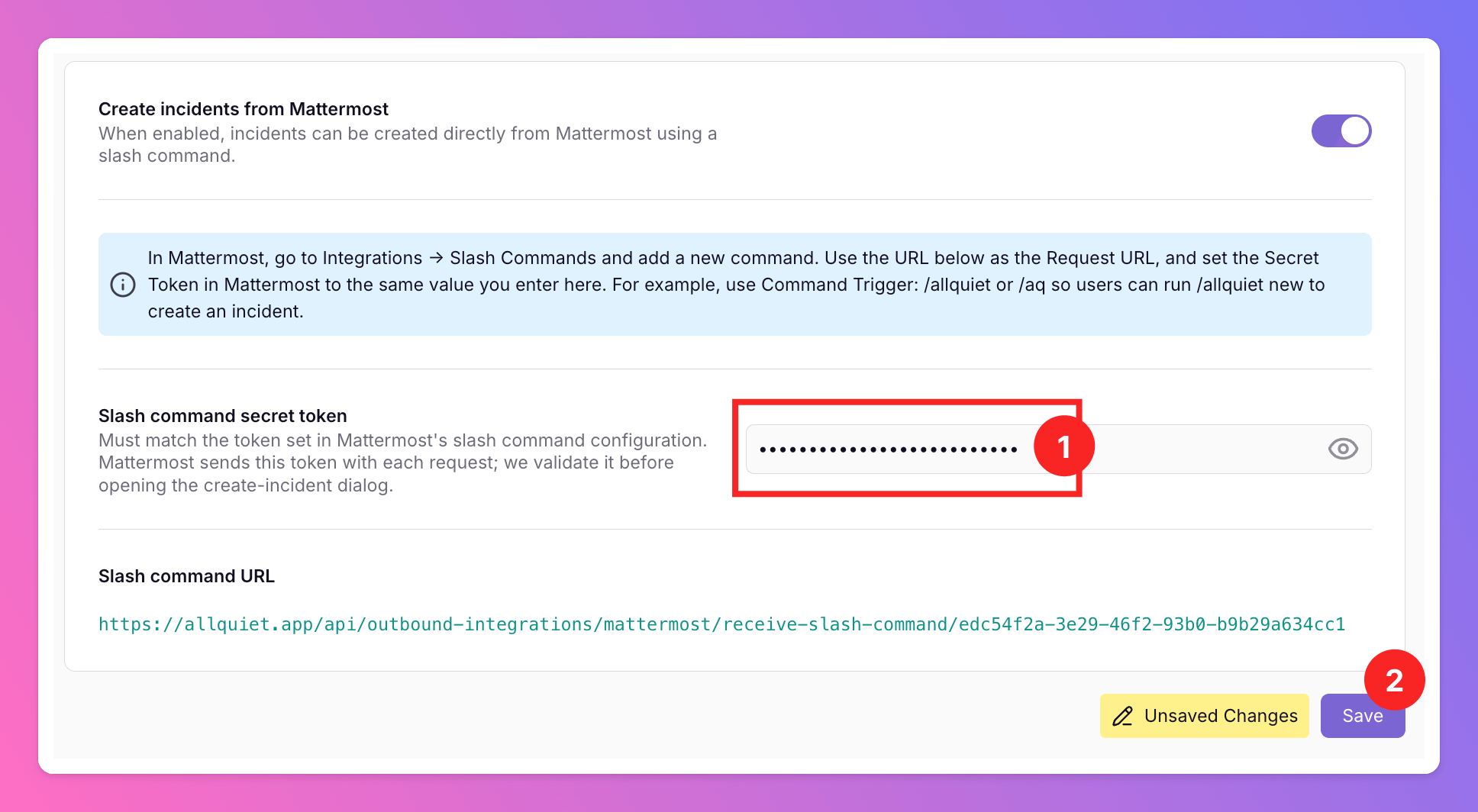
- enable the respective toggle in your Mattermost integration settings in All Quiet.
- Note that we need to genererate a
Slash command secret tokenand past it here. We will generate the token in the next steps. - Copy the
Slash command URLby clicking on it. You will need it to connect the Mattermost slash command with All Quiet.
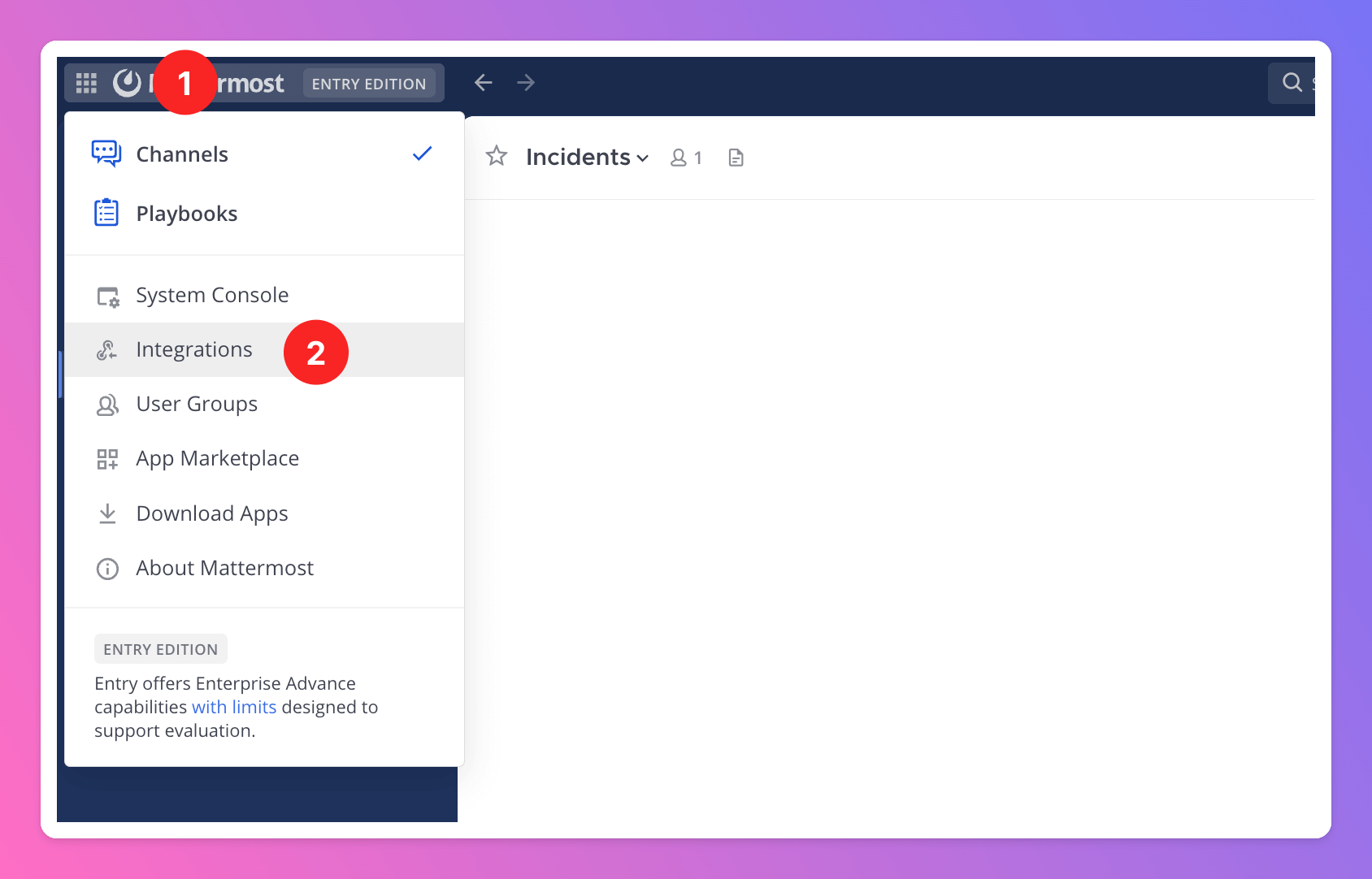
- Open the menu in the top left corner.
- In the menu, select
Integrations.
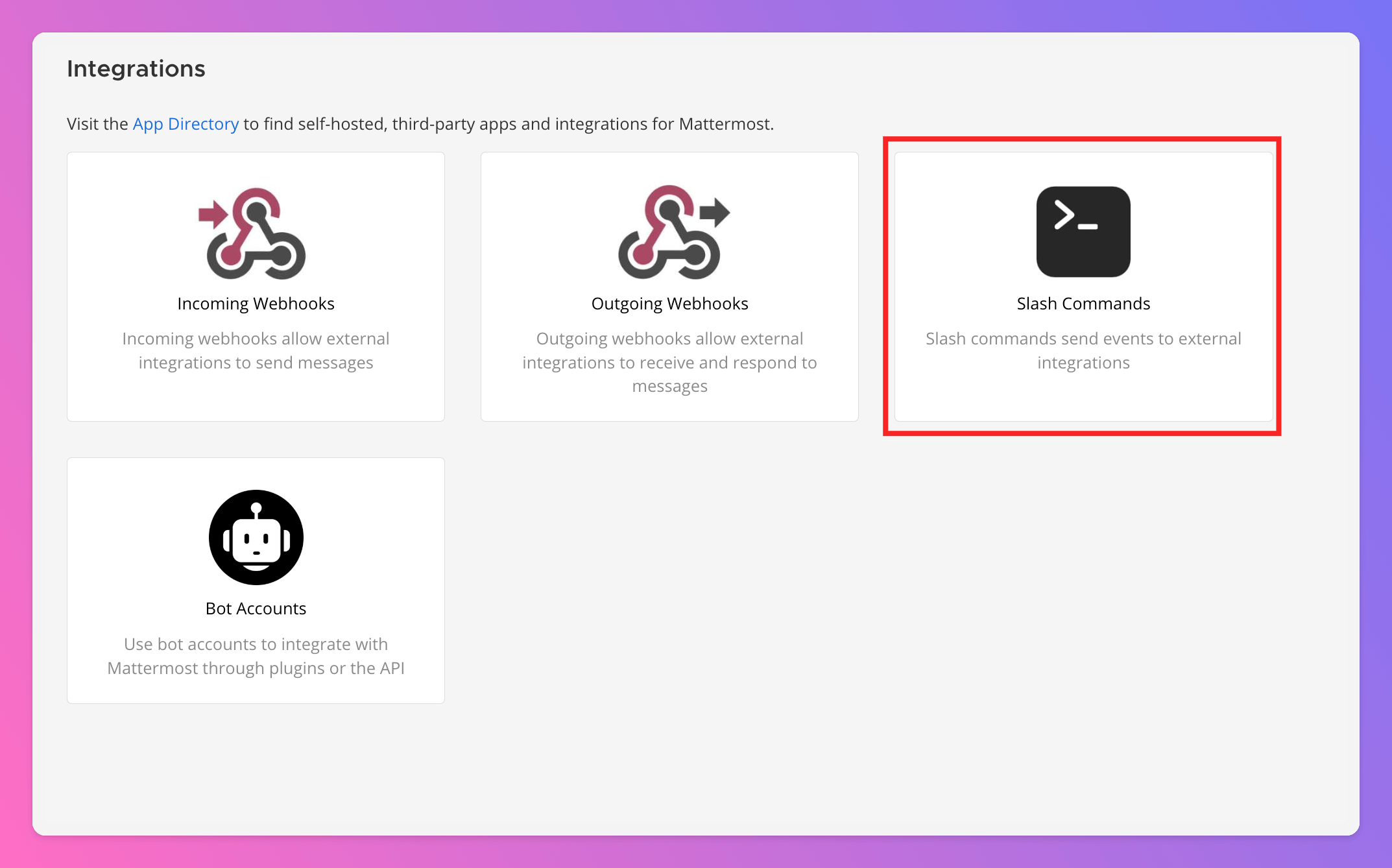
Slash Commands as integration type.
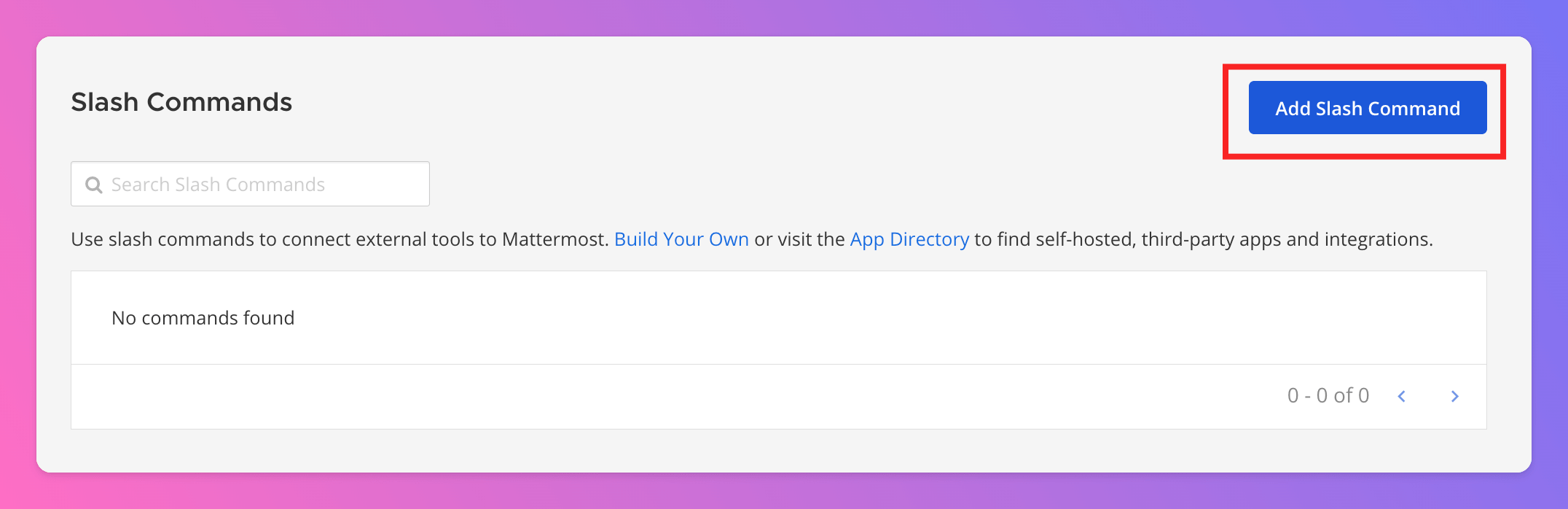
Add Slash Command.
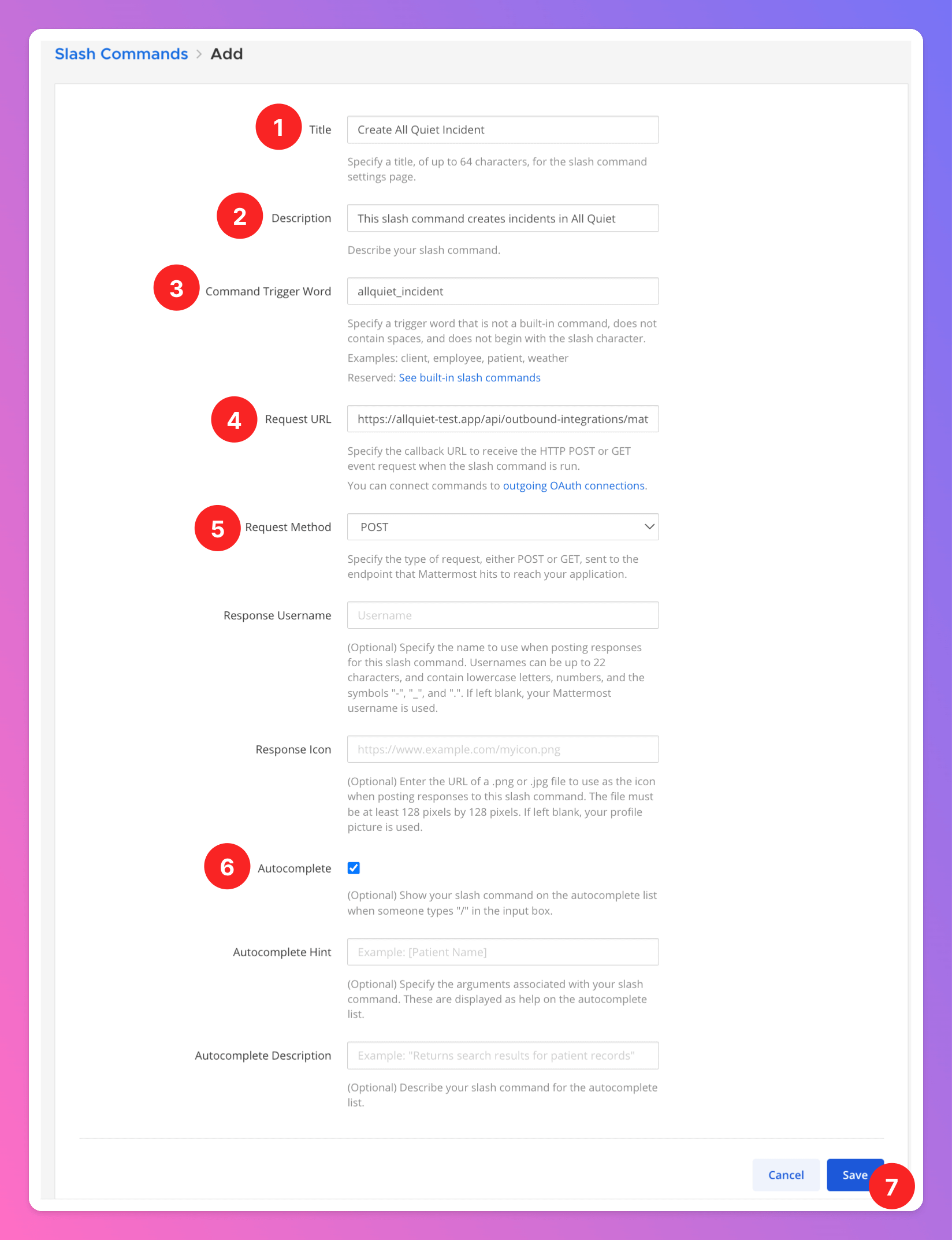
- Add a
Titlefor the slash command, likeCreate All Quiet Incident. - You may add a
Description. - Define the
Command Trigger Word. Select something that is easy to remember and descriptive enough for you users to understand what the command does, e.g.allquiet_incident. - Paste in the
Request URL. This is theSlash command URLyou copied on All Quiet. - As request method, select
Post. - We recommend activating
Autocomplete. When activated, your users will see the full command after typing ”/”. You can even addAutocomplete HintsorAutocomplete Descriptionsto clarify what the slash command does. Savethe slash command.
Token. You will need it in the next step to connect the command with All Quiet.
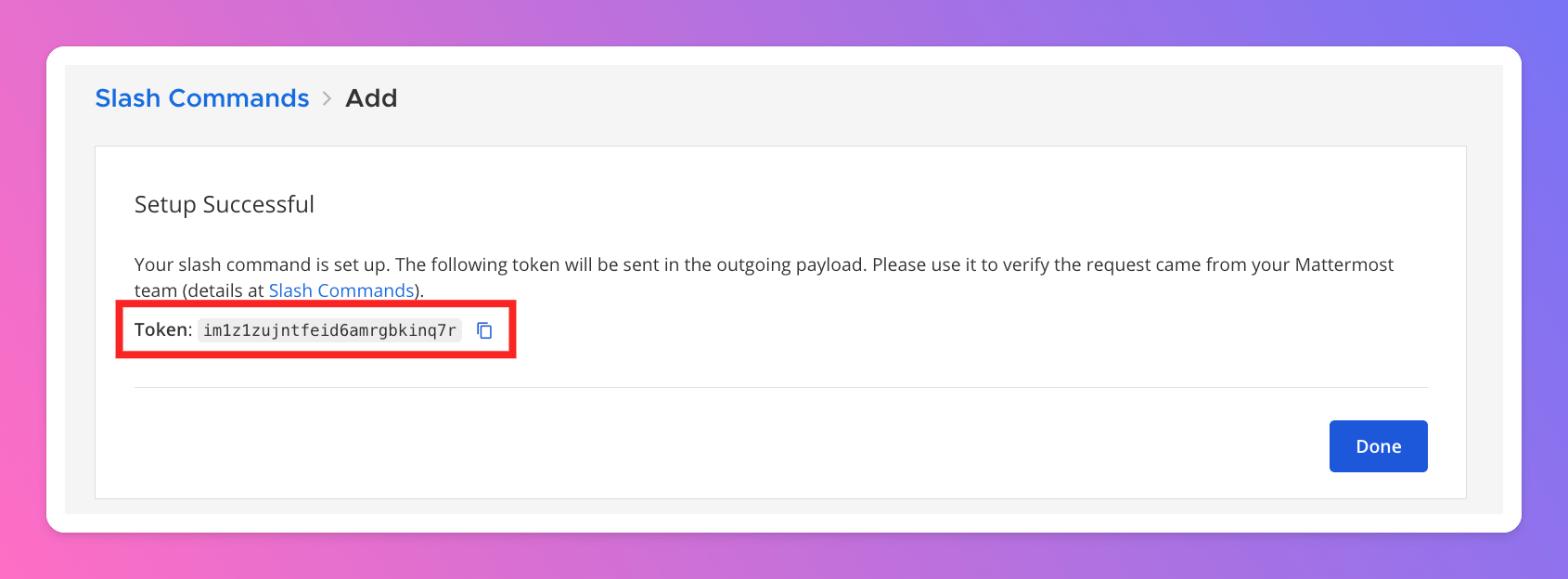
- paste the
Slash command secret tokeninto your Mattermost integration settings. - Save your settings.
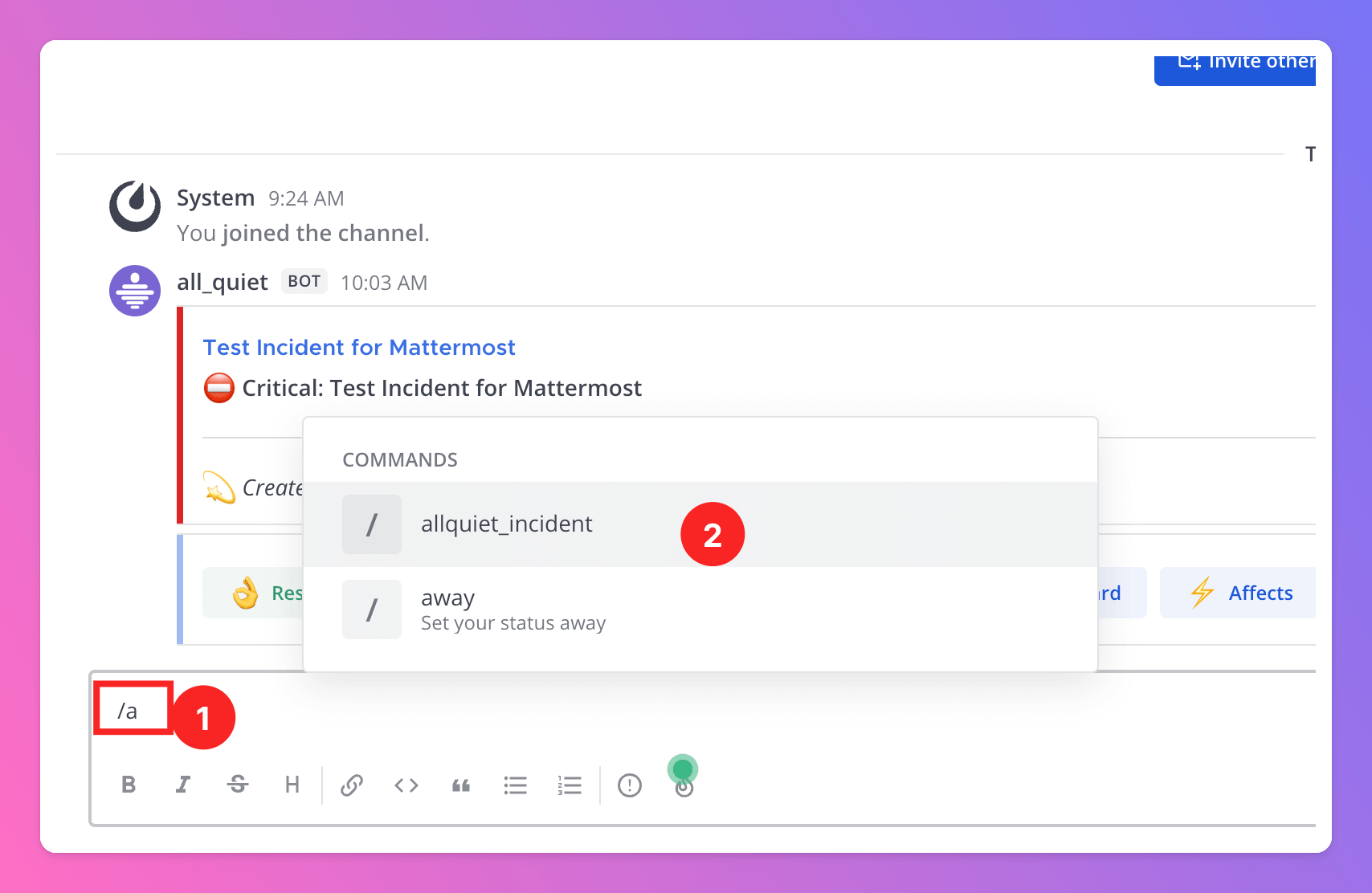
Now, your users can create All Quiet incidents from your Mattermost channels.
- Once typing ”/” into the input field,
- the autocomplete function shows the newly created slash command. Select it and click enter.
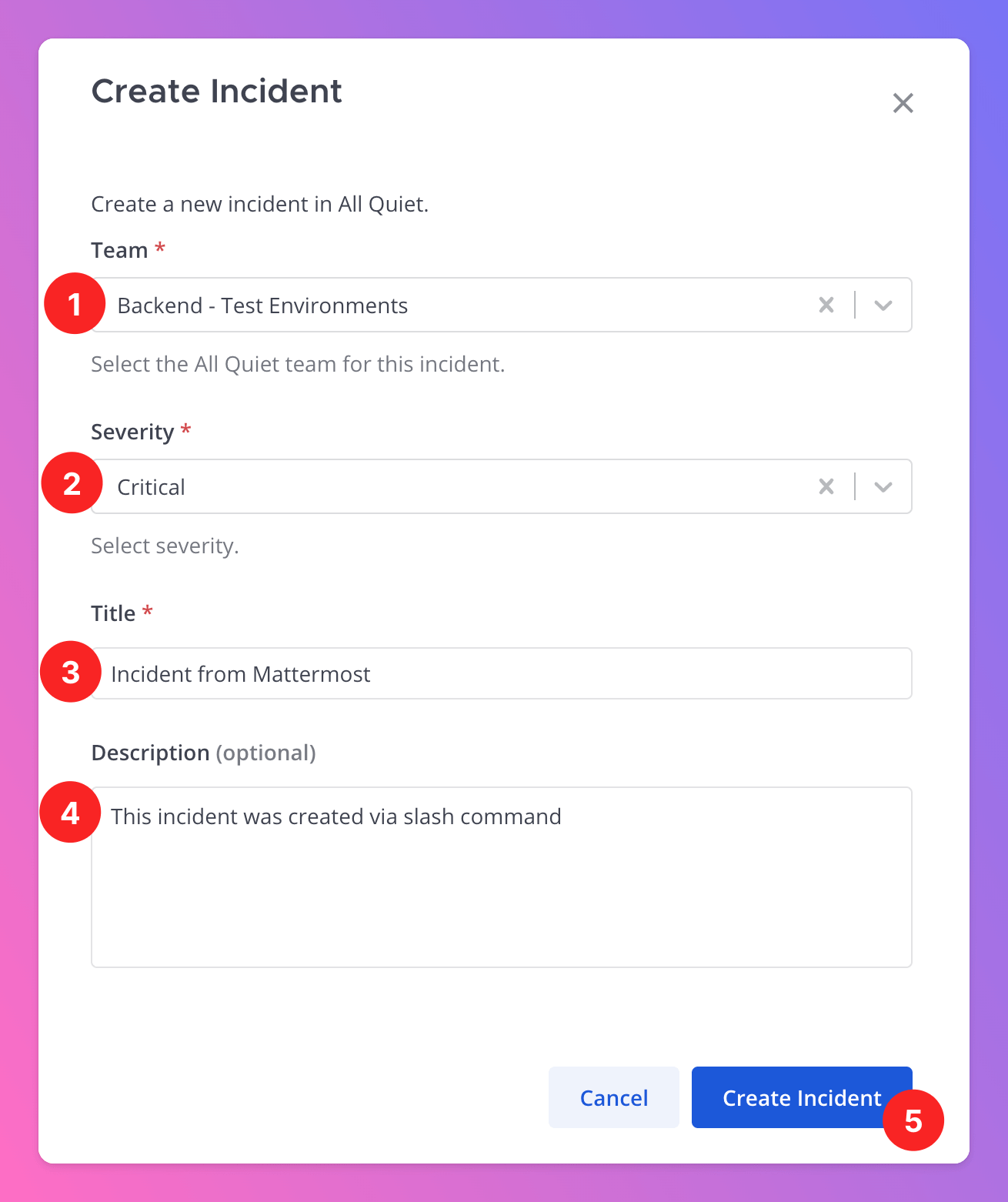
- Choose the team you want to create the incident in.
For compliance reasons, Users will only be able to select from the All Quiet teams they have roles in and that are connected to the Mattermost integration.
- Select the severity of the incident.
- Add the Incident Title.
- Optional and recommended: Add a
Descriptionto give context. - Click
Creat Incidentto create the incident in All Quiet.
The incident is successfully created in the selected All Quiet team and triggers it’s escalations.

Hints and Troubleshooting
- Team Administrators, Organization Administrators, and Organization Owners can troubleshoot this integration using the History tab (Outbound History) on the integration details page. See Outbound History for what is logged, who can access it, and how to read outcomes.
- Deactivating the Toggles to
Send incidents to Mattermost/Create Incidents from Mattermostdoes not delete saved settings or tokens but simply pauses outbound / inbound functionality. - If you set up > 1 Mattermost outbound integration and two bots are in the channel, there will only be one incident message (sent by the first bot who was triggered) that users of both bots can interact with.