This documentation explains how to get a Twilio number and connect it with All Quiet.
Already have a Twilio number connected to your All Quiet account and want to set up live call routing? See Live Call Routing.
Already have a Twilio number connected to your All Quiet account and want to set up live call routing? See Live Call Routing.
Step 1: Buy a two-way phone number in Twilio
In Twilio, purchase a phone number that can both receive inbound calls and be used for call routing (outbound calling).How to buy the number
- In Twilio Console, go to Phone Numbers or Numbers and Senders.
- Choose Buy a number.
- Search for a number in the destination country/region.
- Ensure the number supports Voice (and your inbound & outbound calling capabilities).
- Complete the purchase.
Make sure the number is activated and works
Before connecting it to All Quiet, confirm that the number is active and reachable. Recommended quick test- Call the new Twilio number from a real phone.
- In Twilio Console, open Monitor → Logs → Calls (Call Logs).
- Confirm that your test call shows up and is marked as received.
If the call does not appear in the logs, the issue is usually outside All Quiet (for example number not fully provisioned, wrong region, carrier restrictions, or account configuration). Make sure to check your Twilio account settings and the number’s capabilities.
Step 2: Create the Twilio integration in All Quiet
In All Quiet, Live Call Routing is only available for the Pro and Enterprise plan. Call Routing Numbers can be created by Organization Administrators and Organization Owners only. Team Administrators can edit existing numbers whose Root Team is a team they administer — but cannot create new ones.
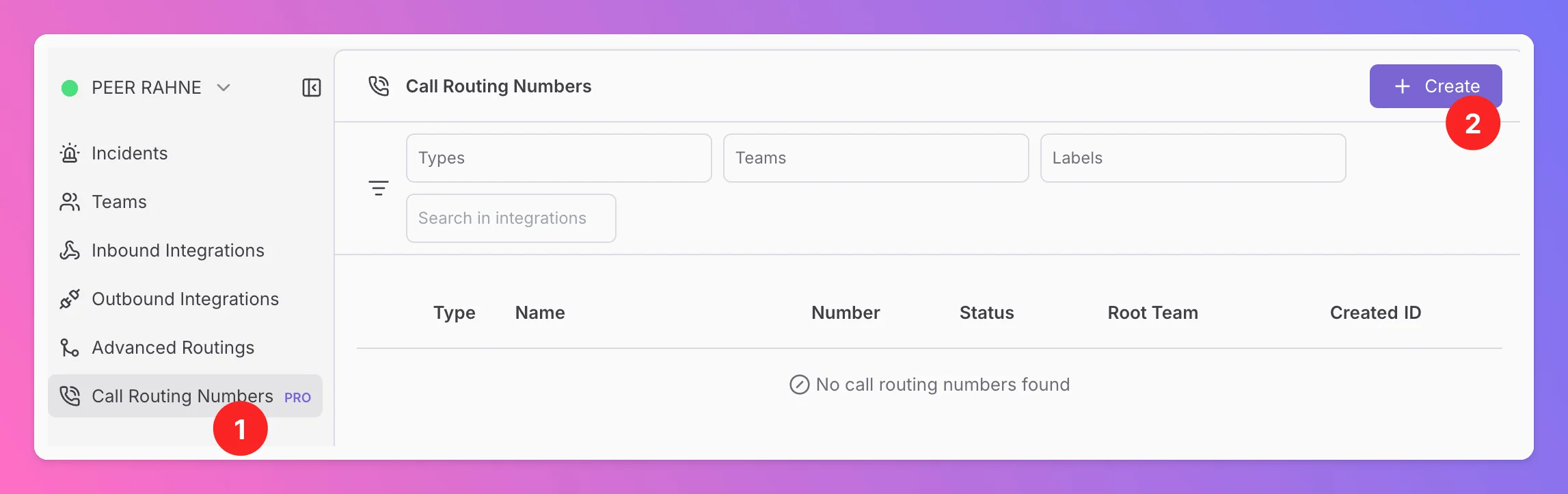
- Go to the Call Routing Numbers tab
- Click on + Create in the top right corner.
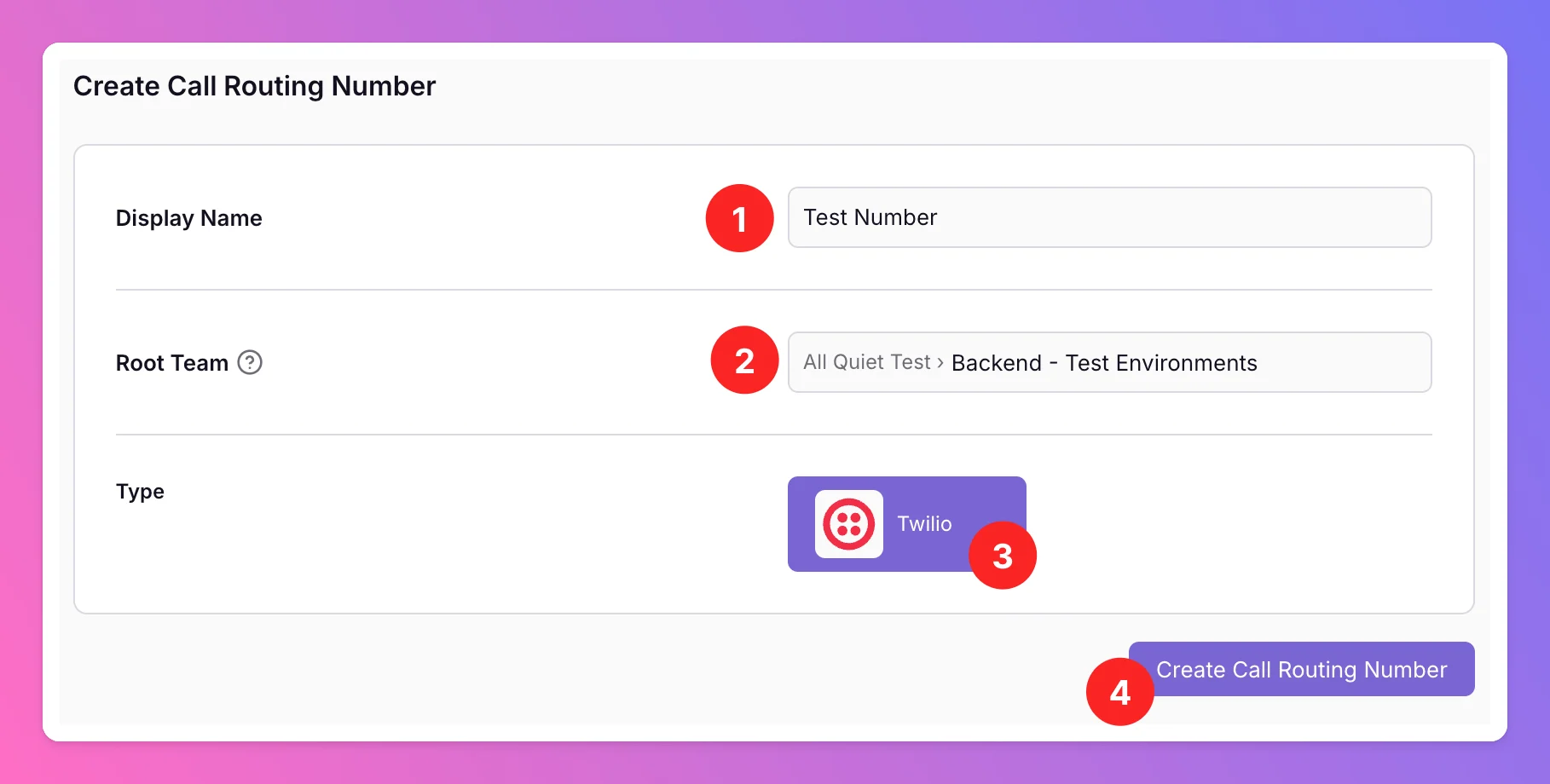
- Select a
Display Namefor the number. You can use the actual phone number as theDisplay Name, but we recommend combining it with a descriptive name to make it easier to identify. - Select the Root Team of the integration. Organization Administrators and Organization Owners can select from teams within any organization they have access to.
The selected
Root Team is the default team for this number. Later — depending on your permissions — you can route calls to other teams within that team’s organization. Team Administrators can edit numbers for teams they administer and select those teams in route settings; Organization Administrators and Organization Owners can select from all teams in the organization.- Select Twilio as the integration
Type.. - Click Create Call Routing Number.
Fill in the Twilio credentials on the Twilio settings page
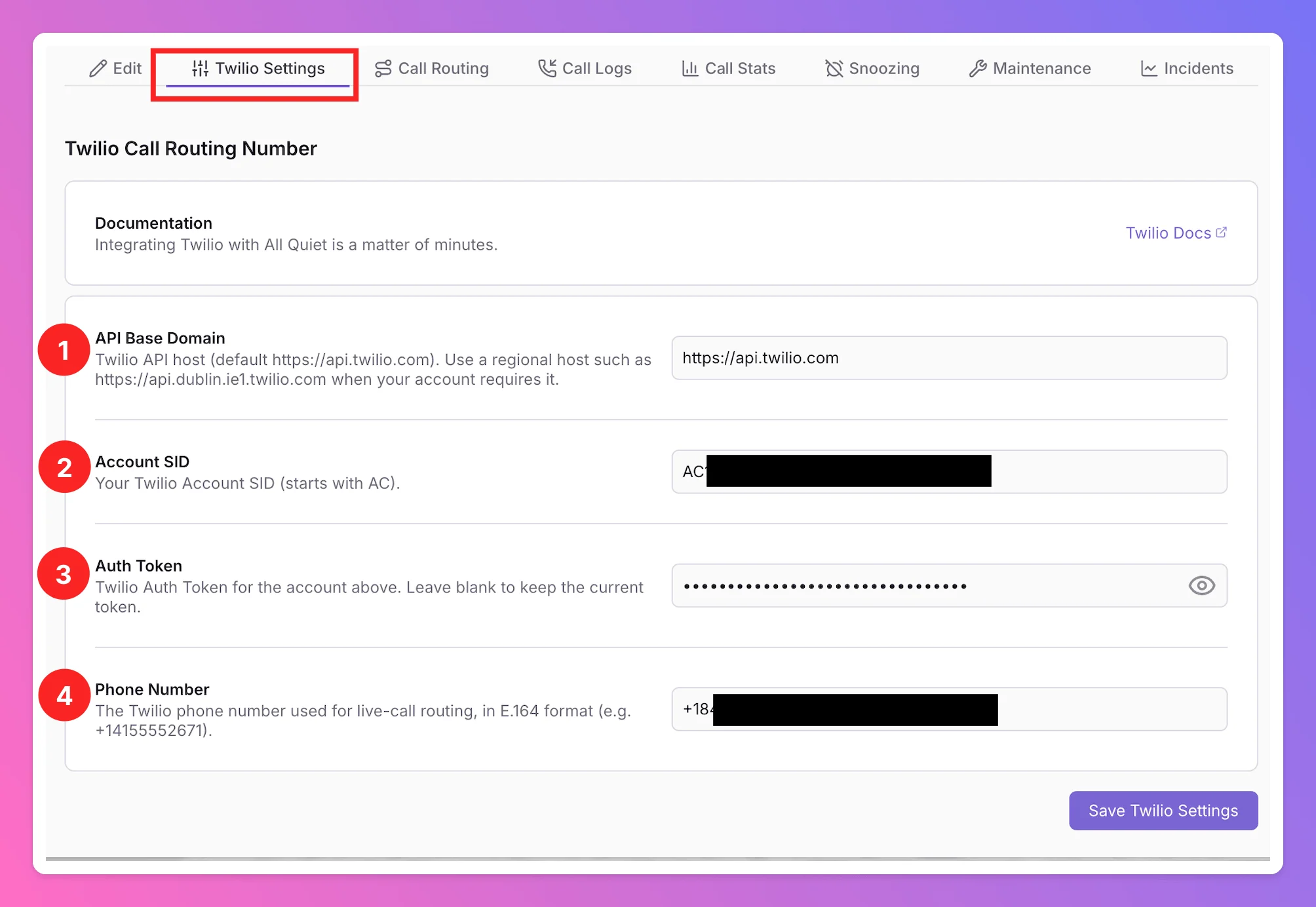
After creating the integration, you are forwarded to theTwilio Settings tab of your new Call Routing Number in All Quiet.
To connect your Twilio number to All Quiet, you need to provide the following values from your Twilio account:
- API Base Domain: Use your Twilio API base domain (default is the US API domain).
- Where to find it: In Twilio Console navigate to Numbers & Senders > Phone Numbers, than select your phone number.
- In the Regional tab, check your phone number’s active region.
- For United States (US1) region, the API base domain is
https://api.twilio.com. For other regions, follow this guide to find the correct API base domain.
- Where to find it: In Twilio Console navigate to Numbers & Senders > Phone Numbers, than select your phone number.
- Account SID: Enter your Twilio Account SID (starts with
AC...).- Where to find it: In Twilio Console open Settings > Account Settings and look for the Account SID starting with
AC...
- Where to find it: In Twilio Console open Settings > Account Settings and look for the Account SID starting with
- Auth Token: Enter the auth token for the Account SID above.
- Where to find it: In Twilio Console open Settings > Account Settings > API key & auth tokens and open the auth tokens tab and look for the Primary Auth Token for the respective Account SID.
- Phone number: Select/enter the phone number you bought and verified in Step 1.
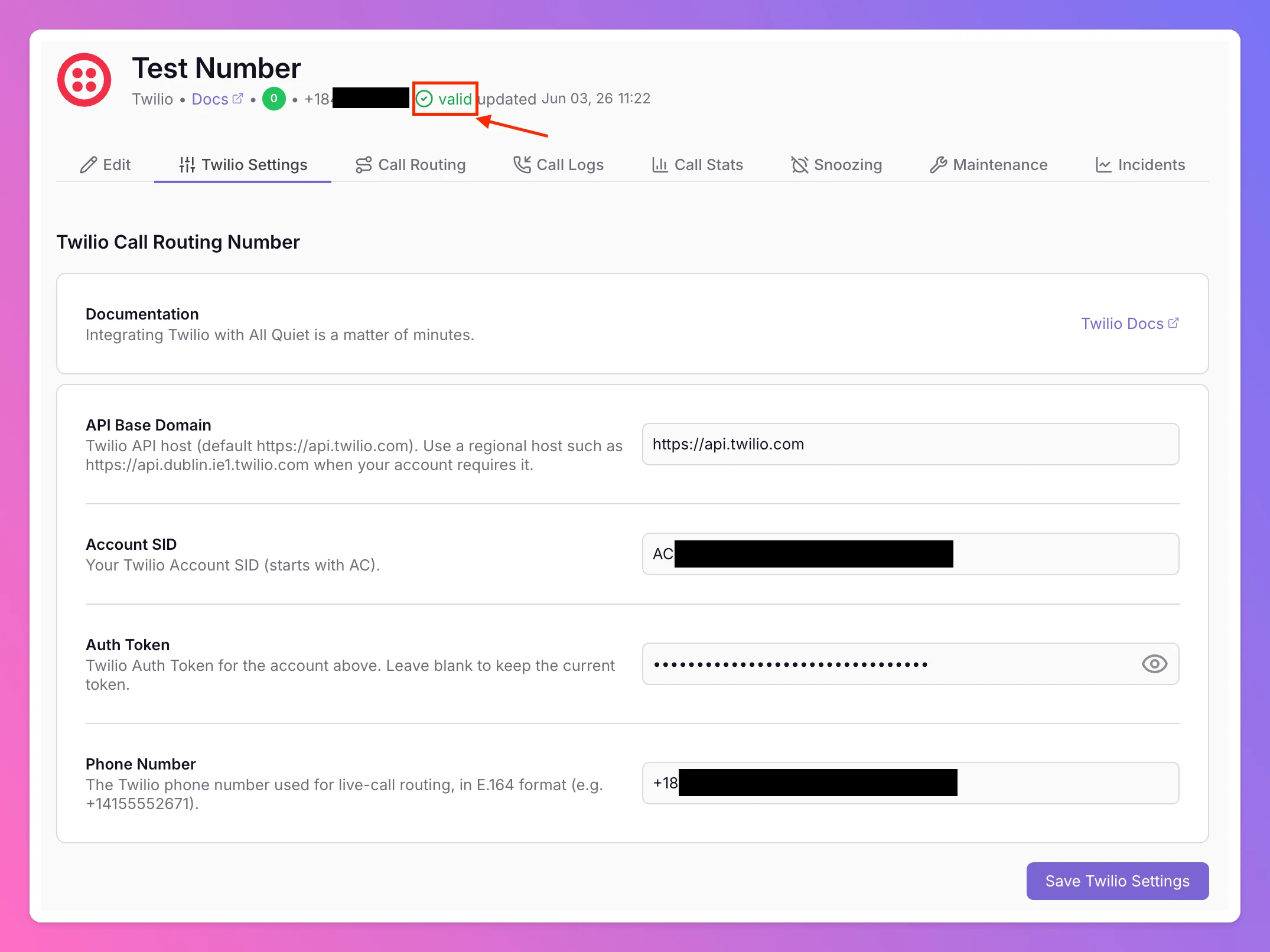
Once saved, your Twilio number is connected to All Quiet and ready to be used for Live Call Routing. You will see that the connection is valid if there’s a green checkmark at the top of the page.