Setup time: 5 Min
The ServiceNow Inbound integration lets ServiceNow drive All Quiet incidents: when your ServiceNow workflow sends payloads, All Quiet can open new incidents or resolve existing ones to match ServiceNow.
Use this together with the ServiceNow Outbound integration to keep All Quiet and ServiceNow incidents in sync in both directions. The outbound side creates and updates ServiceNow from All Quiet; the inbound side applies ServiceNow state to All Quiet.

What this integration does

  • Accepts inbound traffic from ServiceNow (for example when an incident is opened or reaches a resolved state).
  • Maps those events to open or resolved All Quiet incidents according to your configuration.
  • Works on its own if you only need ServiceNow → All Quiet updates, or alongside the outbound integration for full loop synchronization.

Create ServiceNow Inbound integration

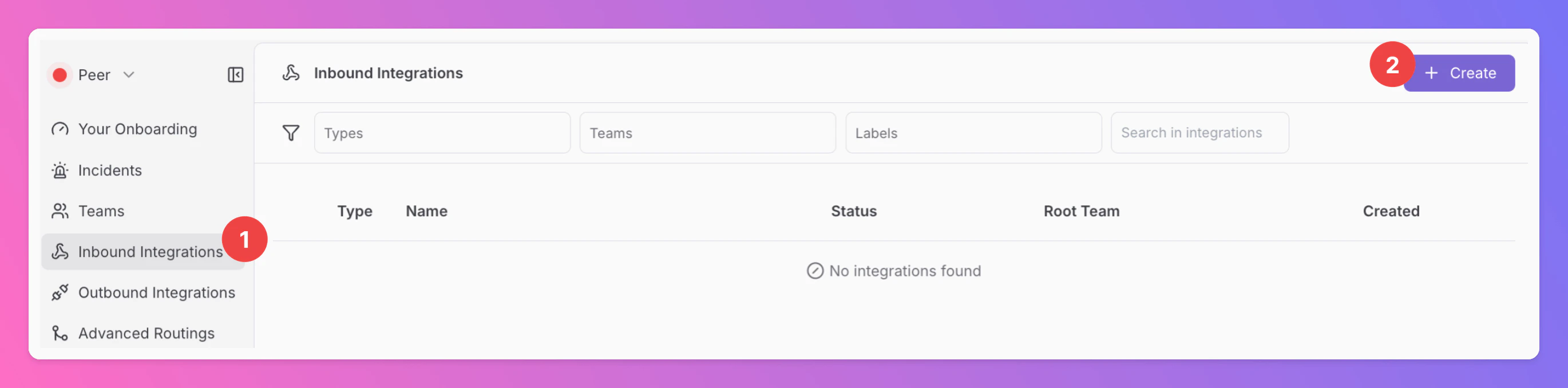
  1. In All Quiet, open the Inbound Integrations tab.
  2. Click + Create.
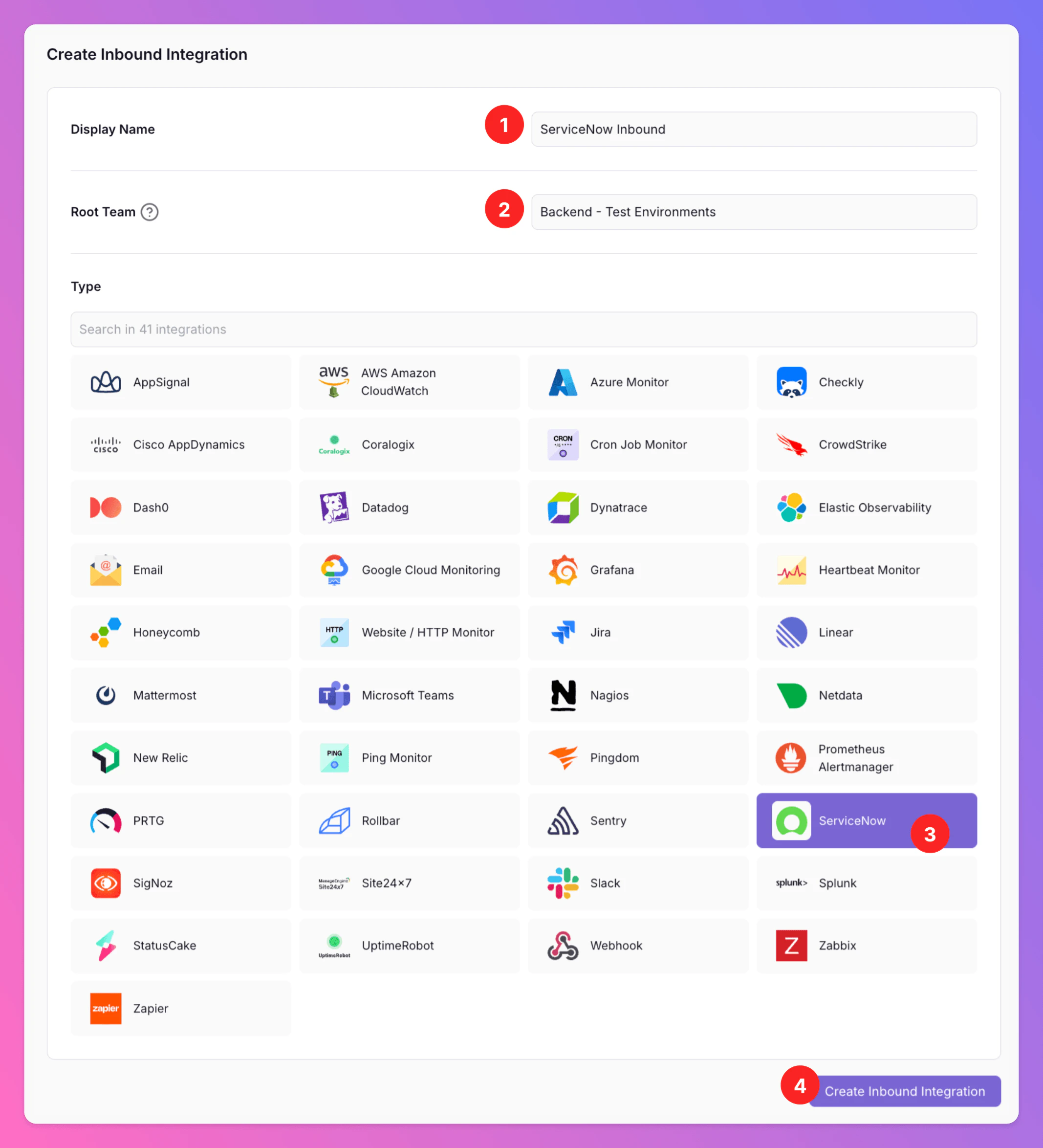
  1. Enter a Display Name (for example ServiceNow Inbound).
  2. Select a Team for this integration.
  3. Choose ServiceNow as the integration type.
  4. Click Create Inbound Integration.

After creating the inbound integration

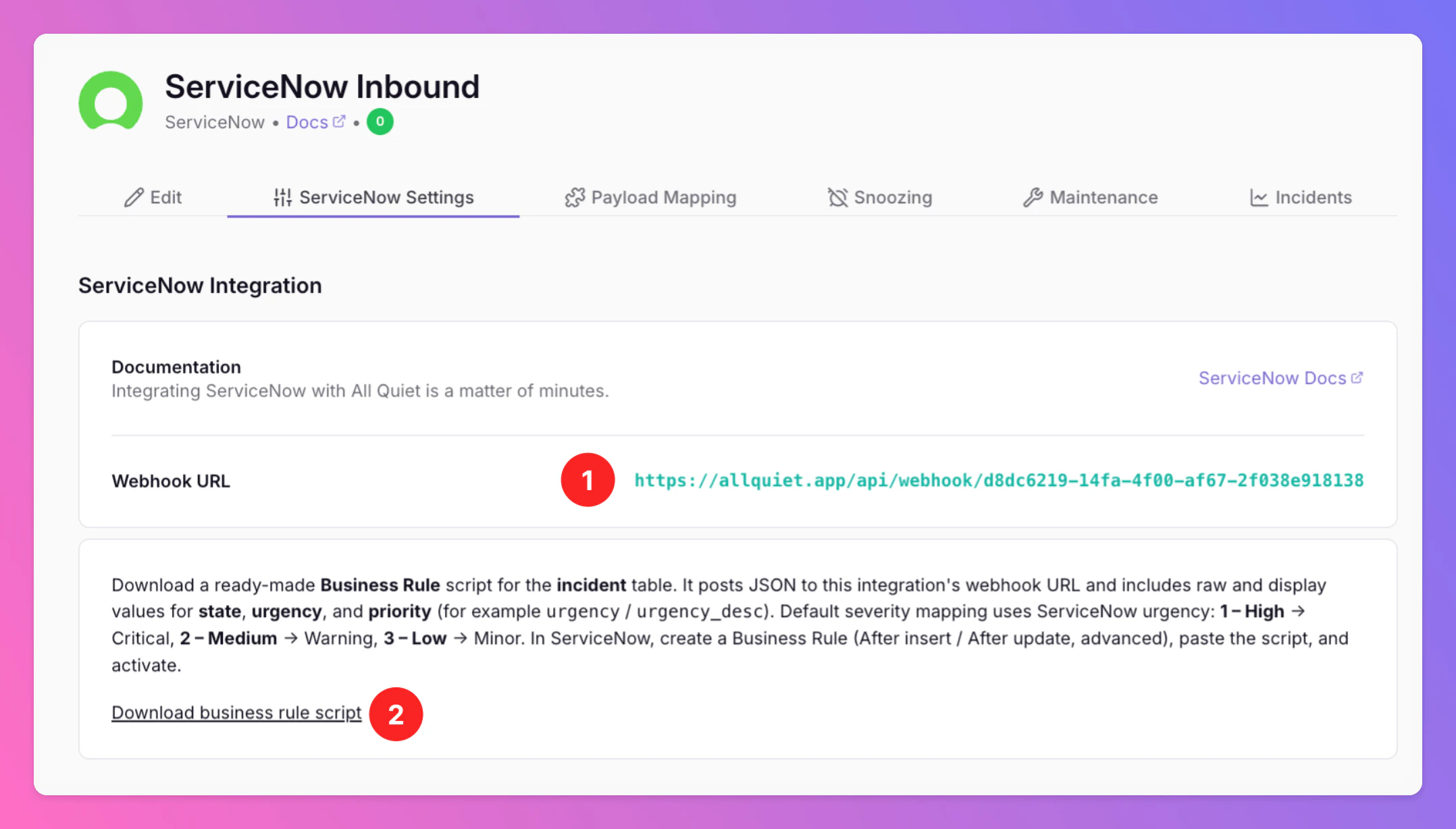
Open the ServiceNow Settings tab of your new ServiceNow inbound integration in All Quiet. You will find two important things:
  1. Find and copy the webhook URL. You will use this URL in ServiceNow.
  2. In ServiceNow, you will need to create a Business Rule that runs the script you can download here. This script will ensure each relevant incident change posts to that URL.
Step 2 — Create a Business Rule in ServiceNow

In ServiceNow, there are multipe ways to navigate to the Business Rules page. We recommend using the Filter navigator (search field, usually top left) and typing “Business Rules”.
  1. Navigate to System DefinitionBusiness Rules.
    If you don’t seee Business Rules in the menu, sign in with a user that can create Business Rules (often a admin or someone with business_rule_admin / equivalent).
  2. Click New.
  3. Configure the rule. You need to set the following fields:
FieldValue
NameSend Incident to All Quiet
TableIncident
Whenafter
Insert✅ (enabled)
Update✅ (enabled)
Advanced✅ (enabled)
Active✅ (enabled)
This ensures the webhook runs after changes are saved.
You can of course adjust the name of the rule to your liking. Also, the table you are looking for might be called differently than “Incident” in your instance.

Step 3 — Add the script

Open the “Advanced” Tab of your new Business rule. Paste the script you dowloaded on the ServiceNow Settings tab into the Script field. If you missed it, here it is again:
servicenow business rule script
(function executeRule(current, previous /*null when async*/) {

    var webhookUrl = 'https://YOUR-ALL-QUIET-WEBHOOK';

    try {
        var rm = new sn_ws.RESTMessageV2();
        rm.setEndpoint(webhookUrl);
        rm.setHttpMethod('post');
        rm.setRequestHeader('Content-Type', 'application/json');

        var payload = {
            source: "servicenow",
            eventType: getEventType(current, previous),
            incident: {
                sys_id: current.sys_id.toString(),
                number: current.number.toString(),
                state: current.state.getValue(),
                state_desc: current.state.getDisplayValue(),
                priority: current.priority.getValue(),
                priority_desc: current.priority.getDisplayValue(),
                urgency: current.urgency.getValue(),
                urgency_desc: current.urgency.getDisplayValue(),
                impact: current.impact.getValue(),
                impact_desc: current.impact.getDisplayValue(),
                short_description: current.short_description.toString(),
                description: current.description ? current.description.toString() : "",
                assigned_to: current.assigned_to.nil() ? "" : current.assigned_to.getDisplayValue(),
                assignment_group: current.assignment_group.nil() ? "" : current.assignment_group.getDisplayValue(),
                service: primaryIncidentService(current),
                updated_at: new GlideDateTime().getDisplayValue(),
                url: normalizeInstanceBase(getInstanceUrl()) + "incident.do?sys_id=" + current.sys_id
            }
        };

        rm.setRequestBody(JSON.stringify(payload));

        var response = rm.execute();
        var status = response.getStatusCode();

        gs.info("All Quiet webhook sent. Status: " + status);

    } catch (ex) {
        gs.error("All Quiet webhook failed: " + ex.message);
    }

    function getEventType(current, previous) {
        if (!previous) return "created";

        if (current.state.changes()) {
            var state = current.state.getDisplayValue().toLowerCase();
            if (state.includes("resolved") || state.includes("closed")) {
                return "resolved";
            }
        }

        return "updated";
    }

    function primaryIncidentService(inc) {
        try {
            if (!inc.cmdb_ci.nil()) {
                var ciName = inc.cmdb_ci.getDisplayValue();
                if (ciName) {
                    return ciName.toString().trim();
                }
            }
            if (inc.isValidField("service_offering") && !inc.service_offering.nil()) {
                var soName = inc.service_offering.getDisplayValue();
                if (soName) {
                    return soName.toString().trim();
                }
            }
            var gr = new GlideRecord("task_ci");
            gr.addQuery("task", inc.sys_id);
            gr.query();
            if (gr.next() && !gr.ci_item.nil()) {
                var taskCiName = gr.ci_item.getDisplayValue();
                if (taskCiName) {
                    return taskCiName.toString().trim();
                }
            }
        } catch (e) {
        }
        return "";
    }

    function getInstanceUrl() {
        return gs.getProperty("glide.servlet.uri");
    }

    function normalizeInstanceBase(base) {
        if (!base) {
            return "";
        }
        return base.charAt(base.length - 1) === "/" ? base : base + "/";
    }

})(current, previous);

Step 4 — Replace the webhook URL

Make sure your replace https://YOUR-ALL-QUIET-WEBHOOK with your actual All Quiet webhook URL (copied from the inbound integration).

Step 5 — Test the integration

Open any incident in ServiceNow. You should see the corresponding incident in All Quiet. If you update the incident in ServiceNow (e.g resolve it), you will see the update in All Quiet as well.

Payload example

This is what All Quiet receives:
jsonBody of the payload
{
  "source": "servicenow",
    "eventType": "updated",
    "incident": {
      "sys_id": "abc123",
      "number": "INC0010001",
      "state": "2",
      "state_desc": "In Progress",
      "priority": "3",
      "priority_desc": "3 - Moderate",
      "urgency": "2",
      "urgency_desc": "2 - Medium",
      "impact": "3",
      "impact_desc": "3 - Moderate",
      "short_description": "Interaction",
      "description": "Description",
      "assigned_to": "Assignee Name",
      "assignment_group": "",
      "service": "Example Service",
      "updated_at": "2026-03-31 11:08:03",
      "url": "https://yourservicenowinstance.com//incident.do?sys_id=abc123"
  }

How All Quiet correlates incidents

All Quiet uses incident.sys_id as the primary identifier so updates map to the same All Quiet incident over time.

Default Severity Mapping

Default severity mapping uses ServiceNow urgency: 1 – High → Critical, 2 – Medium → Warning, 3 – Low → Minor. You can adjust this mapping in the payload mapping anytime.

Optional improvements

Only send important updates You can reduce noise by adding a condition on the Business Rule, for example:
current.state.changes() || current.priority.changes()
Add authentication (recommended) You can add a header in the script, for example:
rm.setRequestHeader('Authorization', 'Bearer YOUR_TOKEN');
Custom field mapping If your ServiceNow instance uses custom fields, extend the payload object, for example:
custom_field: current.u_custom_field.toString()
You’re ready. All Quiet will now create incidents based on all your ServiceNow alerts.

Adjust Payload Mapping

Looking to customize the fields of your incidents by adjusting the pre-built payload mapping? Simply head over to the “Payload” tab within your integration and make the necessary edits to the mapping. For detailed guidance, you may check out our payload mapping documentation.
Using our Terraform provider? Download the default mapping of the allquiet_integration_mapping resource for the SigNoz integration. Simply copy the syntax to your .tf file and tailor the resource to your team’s needs!

Troubleshooting

Nothing happens
  • Ensure the Business Rule is Active.
  • Open System LogsAll and look for log lines such as All Quiet webhook sent.
  • If the rule fails, check for All Quiet webhook failed and the error message in the logs.

Work with ServiceNow Outbound

If you also enable ServiceNow Outbound, All Quiet incidents created or updated from ServiceNow can be reflected back in ServiceNow, and incidents that originate in All Quiet can still be linked to ServiceNow records depending on your forwarding and routing rules. Incidents that did not start in ServiceNow (for example from an observability tool) can still be represented in ServiceNow when outbound is configured—the outbound integration creates and updates ServiceNow incidents from All Quiet regardless of the original source.