

Setup time: 10 Min
1. Create Observium Integration on All Quiet
Sign in to your All Quiet account.Create Integration
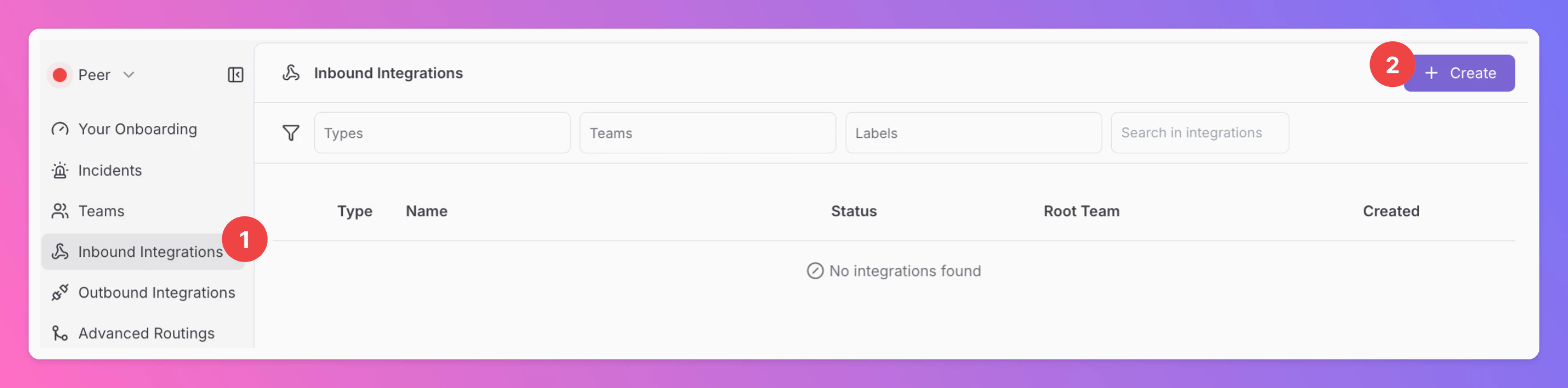
- Click on the
Inbound Integrationstab. - Click on
+ Create.
Select Observium as the integration’s type
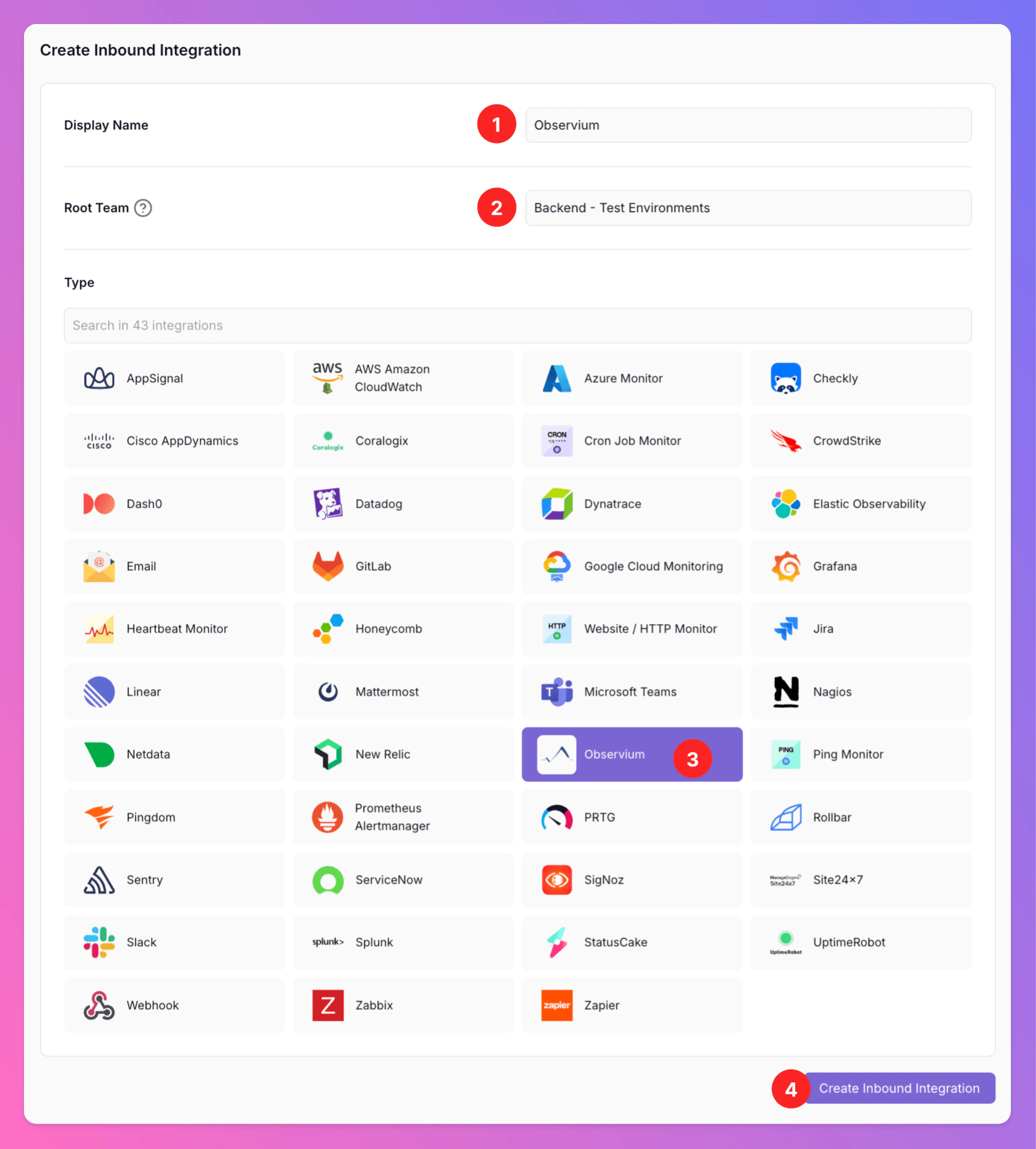
- Enter a
Display Namefor your integration, e.g. “Observium”. - Select a
Team. - Select
Observiumas the integration’s type. - Click
Create Inbound Integration.
Copy Webhook URL
After creating the integration on All Quiet, copy the webhook URL. You will require this URL in step 2 when configuring Observium.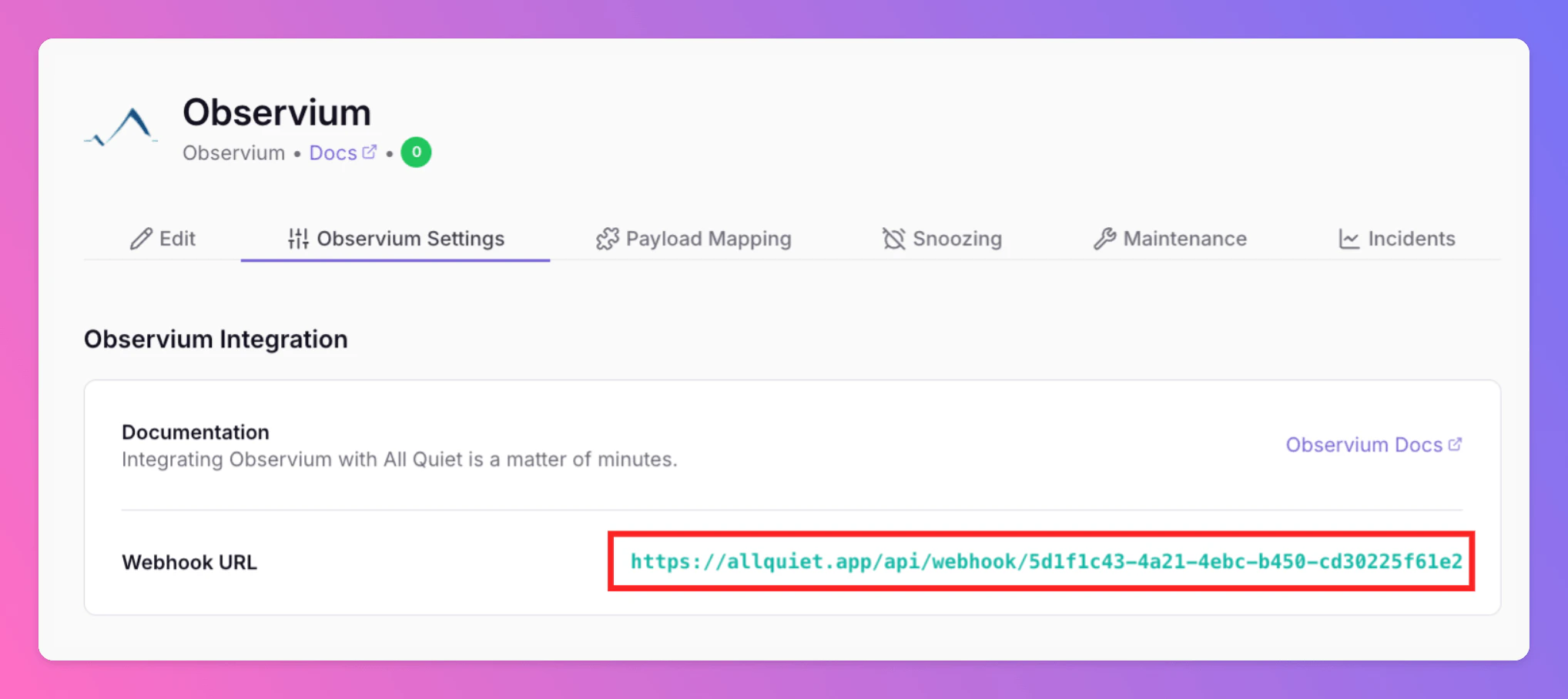
Optionally toggle
Enable additional Authentication & Security below the webhook URL to restrict who can POST payloads.- IP Filter — Allow requests only from specific IPs or CIDR ranges. Failed checks return 404 Not Found.
- Bearer authentication — Require
Authorization: Bearer YOUR_TOKEN. Missing or invalid tokens return 401 Unauthorized.
2. Configure the Integration with Observium
Once you’ve set up an integration of type “Observium” with All Quiet, you can configure an alert transport script on your Observium host to forward alerts to All Quiet.Alert statuses (important)
Observium provides an alert status that indicates whether this is an alert, a recovery, or a suppressed/delayed notification.alert_status = 0: alert → creates / updates an incidentalert_status = 1: recovery → resolves the incidentalert_status = 2: delayed → dropped (does not create/update incidents in All Quiet default mapping)alert_status = 3: suppressed → dropped (does not create/update incidents in All Quiet default mapping)
Add an All Quiet alert script
Create a script on the Observium server, for example at/usr/local/bin/observium-allquiet.sh.
This script is intentionally shaped to match the default Observium mapping shipped with All Quiet (correlation = alert_id + entity_id, status and severity mapping, title composed from host + message, plus URL, conditions, metrics, entity type).
observium-allquiet.sh
Wire the script into Observium alerting
Configure Observium to execute the script when alerts fire and recover. Example invocation context (conceptually; Observium sets env vars and runs the script without args):OBSERVIUM_ALERT_STATUS=1 (the script forwards it as alert_status).
Manual test (optional):
3. Test Your Integration
Navigate back to All Quiet and open thePayload Mapping tab of the integration you just created.
- Trigger a test alert in Observium.
- Verify the payload shows up in
Latest payloads. - Check that the pre-built mapping creates an incident with the expected
Title,Status, andSeverity.
You’re ready to go. If you set up your integration this way, Observium alerts will automatically create and update All Quiet incidents.