

Setup time: 2 Min
Create Outbound Integration
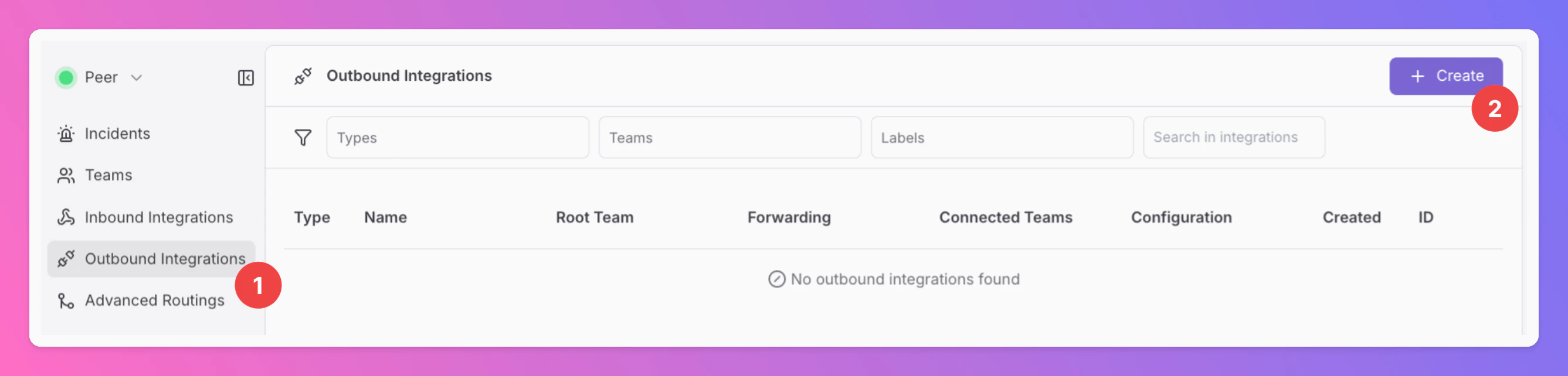
- Click on the
Outbound Integrationstab. - Click on
+ Create.
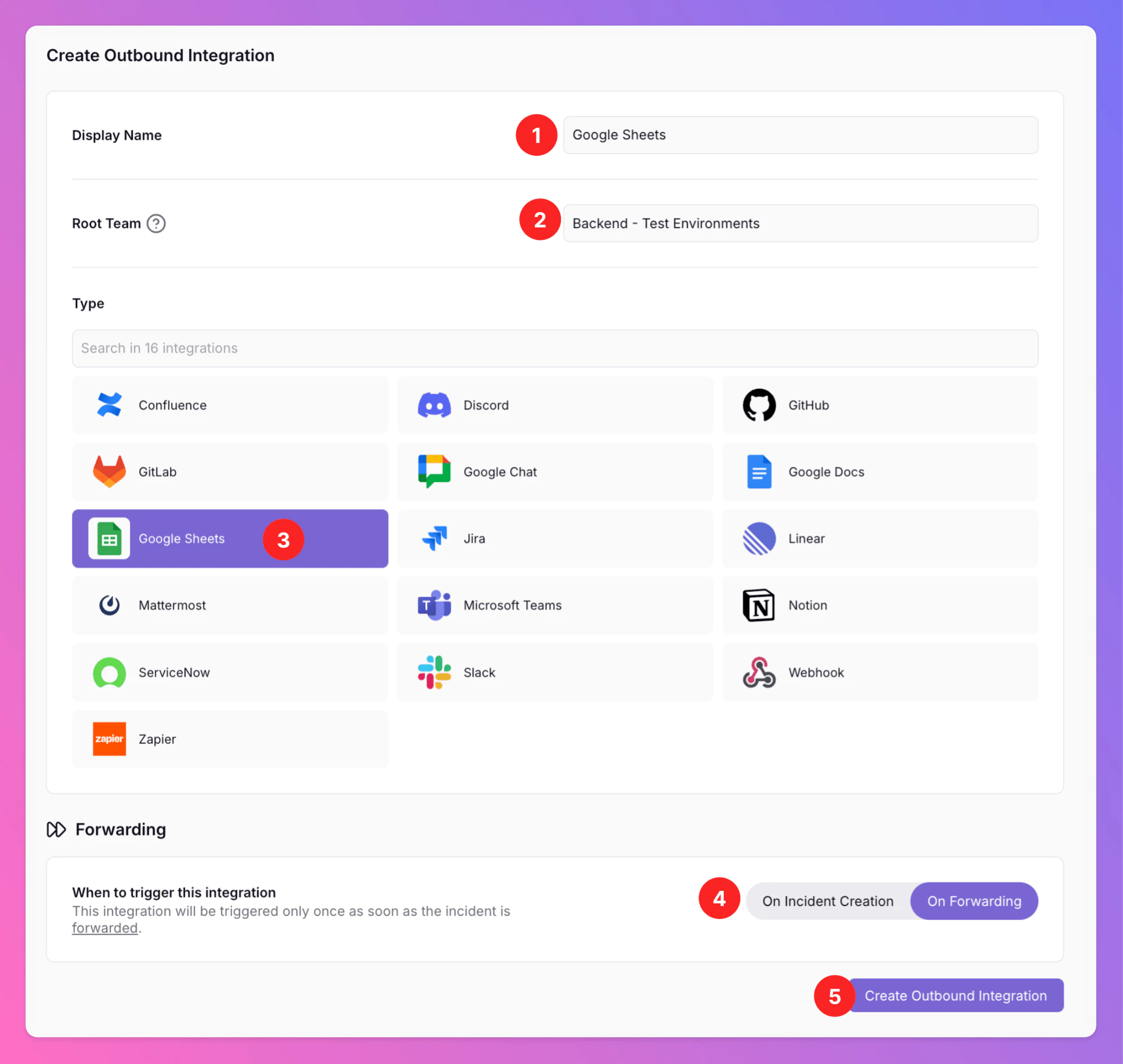
- Enter a
Display Namefor your integration, e.g. “Google Sheets”. - Select a
Root Team.For Organizations with Pro and Enterprise plan: You will be able to add additional teams in the next step. - Select
Google Sheetsas the integration’s type. - Forwarding settings:
- Default:
On Forwarding- Google Sheets will only be created if users manually forward specific incidents or if you set up advanced routing rules for your Google Sheets integration that automatically forward incidents in specific scenarios. - Alternative:
On Incident Creationwill automatically forward all incidents to Google Sheets as soon as they are created and create a new sheet for each incident.
- Default:
- Click
Create Outbound Integration.
Connect Google and configure Google Sheets
Once you’ve successfully created your new outbound integration, you’ll automatically be redirected to itsSettings page.
- Observe that the installation status of the All Quiet integration is still pending.
- To complete the integration with your Google account, click
Connect Google(or the Google sign-in action shown in the product).
In the
Edit tab, you can change general settings like the integration’s Forwarding settings. You can also enable Anonymize Outbound Logs (disabled by default). When enabled, activity log entries for this integration are stored without descriptions, external identifiers, error details, and payload data. Only operational metadata such as operation, outcome, and HTTP status is kept.Only for Pro and Enterprise plan - Manage your
Team Connections: The root team is pre-selected, and you can add the integration to further teams within the root team’s organization. Team Administrators can add / remove those teams they are an Administrator in, Organization Administrators & Organization Owners can manage the connections to all teams of the organization. 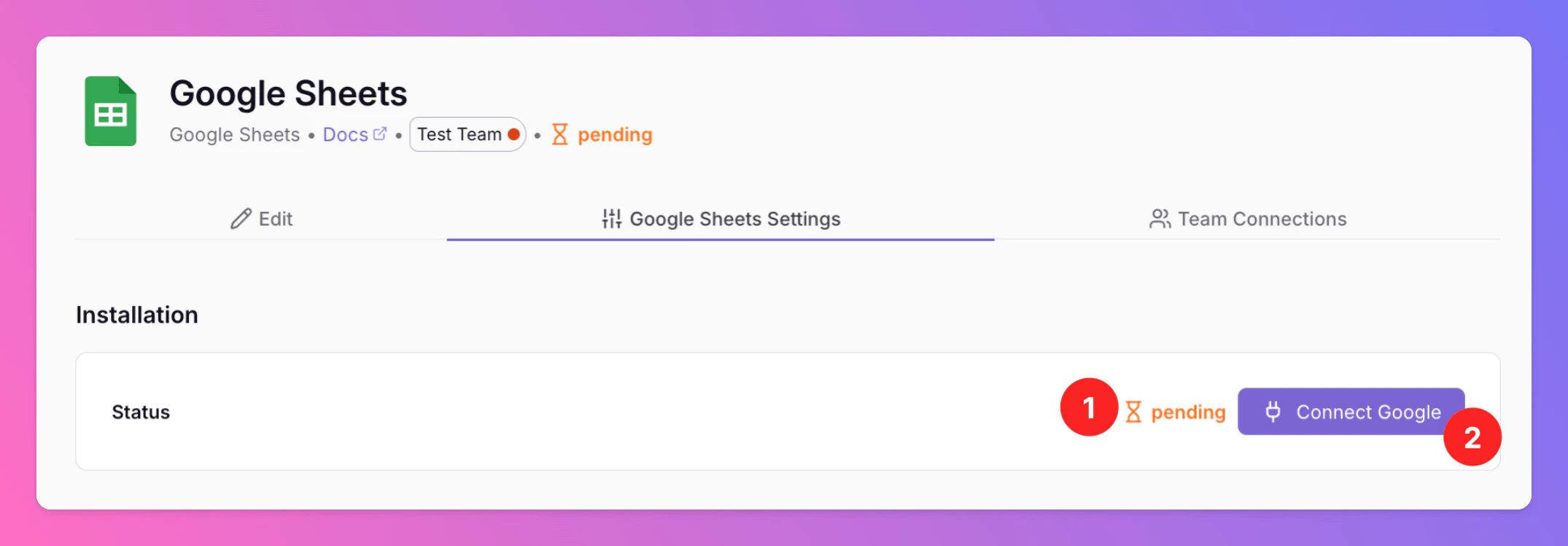
Connect Google, you’ll be redirected to Google, where you may need to sign in. After sign-in, grant All Quiet the permissions required to read and update spreadsheets on your behalf.
We request only the permissions essential for All Quiet to operate correctly. These permissions are utilized solely when you interact with the app and are never used for any other purpose.
After giving All Quiet the required rights in your Google Workspace, you are then redirected back to your Google Sheets integration’s details page in All Quiet. Next, configure the spreadsheet that should receive incident rows.
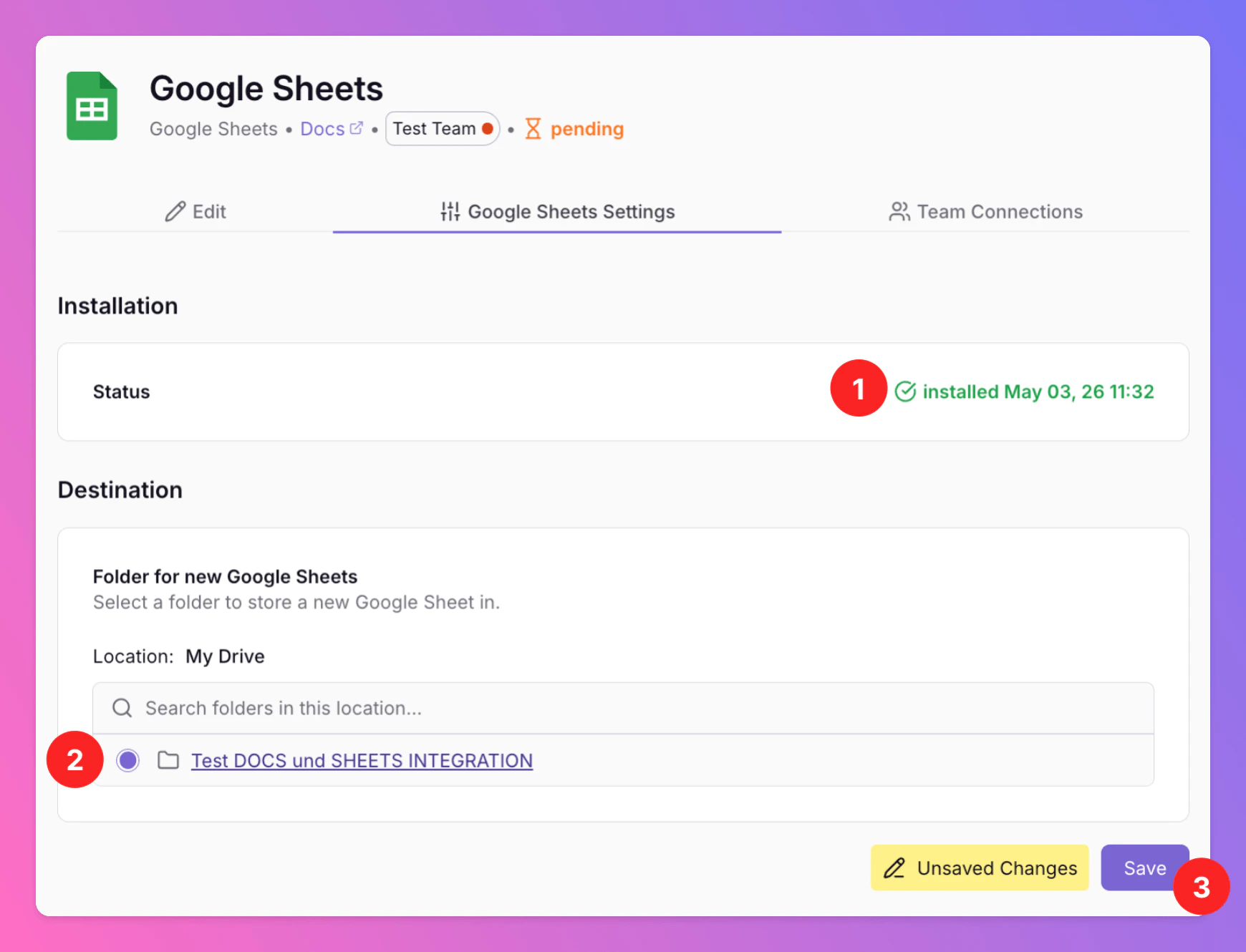
- As you can see, the Installation Status changed to
installed. - Select the Google Drive Folder All Quiet should write and add new Google Sheets to. You can also navigate to and select subfolders within your Drive by clicking on the underlined title of a folder.
- Make sure to
saveyour Google Sheets settings, otherwise forwarding will not work.
Google Sheets is now integrated with All Quiet. Depending on your setup, All Quiet incidents can now be forwarded manually and recorded in new Google Sheets, or Sheets can be added automatically according to your forwarding option.
Creating a Google Sheet for an incident
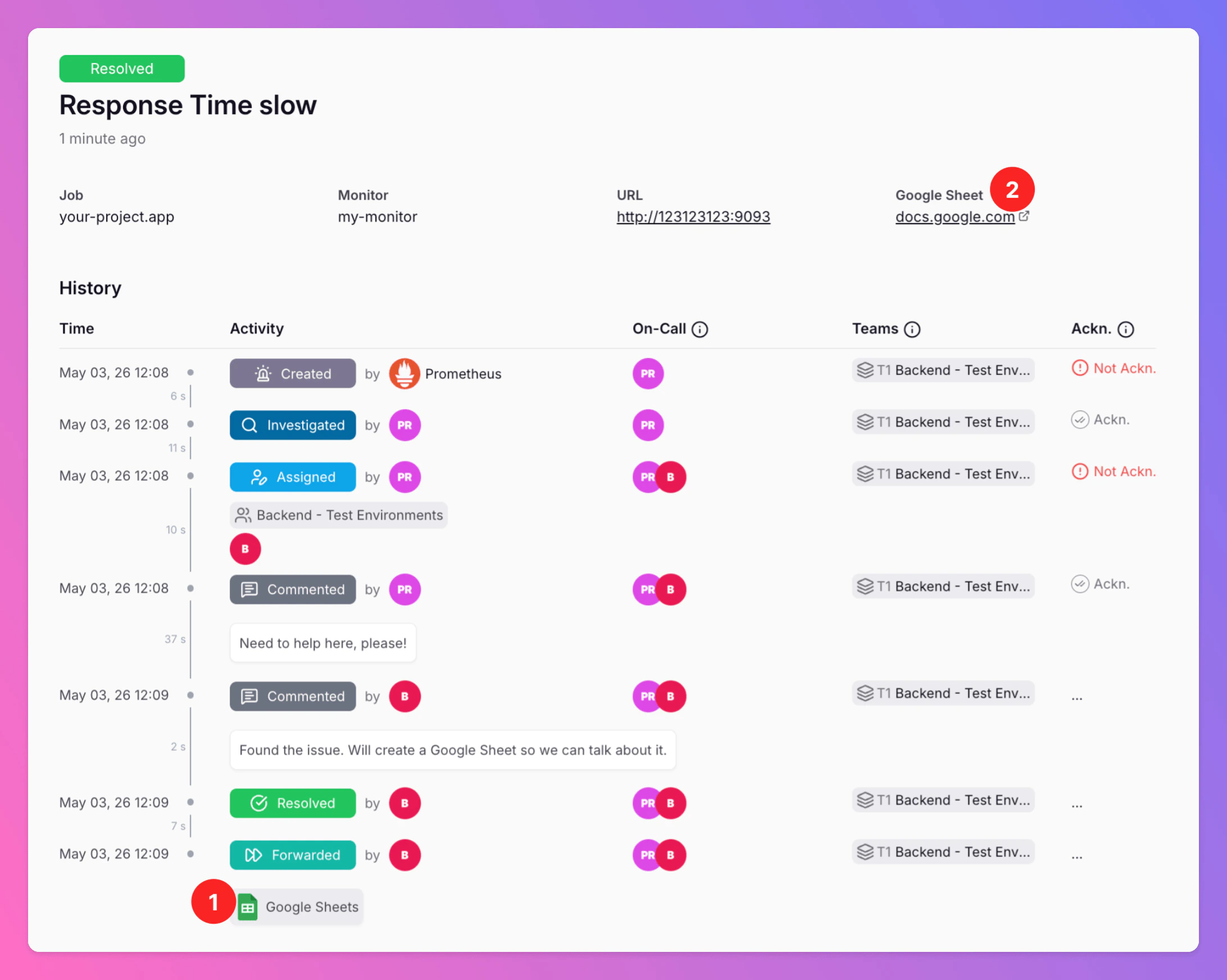
The following section describes what you typically see when an incident is exported to a new spreadsheet.- After discussion in All Quiet, the team may forward the incident to Google Sheets. The incident in All Quiet links to the respective Google Sheet in your Drive.
- Click on the link to open the Google Sheet and to review it.
As defined in your integration settings, the incident is written to the Google Drive Folder you selected in All Quiet. The document title is a combination of the timestamp of the incident’s creation and the incident title in All Quiet. Timestamps in the title are based on your team’s timezone. Only team members with respective access rights to the Google document / drive folder open the link.
- Identifying fields such as the incident title, creation time, and a link to the incident in All Quiet. Timestamps follow your team’s timezone where applicable.
- Main incident details and any additional attributes from your mapping engine, depending on how columns are configured.
- The incident history, including all events and on-call information until the incident was exported.