> ## Documentation Index
> Fetch the complete documentation index at: https://docs.allquiet.app/llms.txt
> Use this file to discover all available pages before exploring further.
# Billing & Subscription
> Fair and transparent pricing for modern teams
## Trial Phase
All Quiet offers a **free 14-Day free trial**. No credit card required! After 30 days you need to subscribe to our services to continue using All Quiet effectively.
You can subscribe in the `Billing` section of your dashboard. Select between our three different pricing plans based on your needs.
The `Billing & Subscription` section is only accessible for *Billable Users* of at least one team / organization.
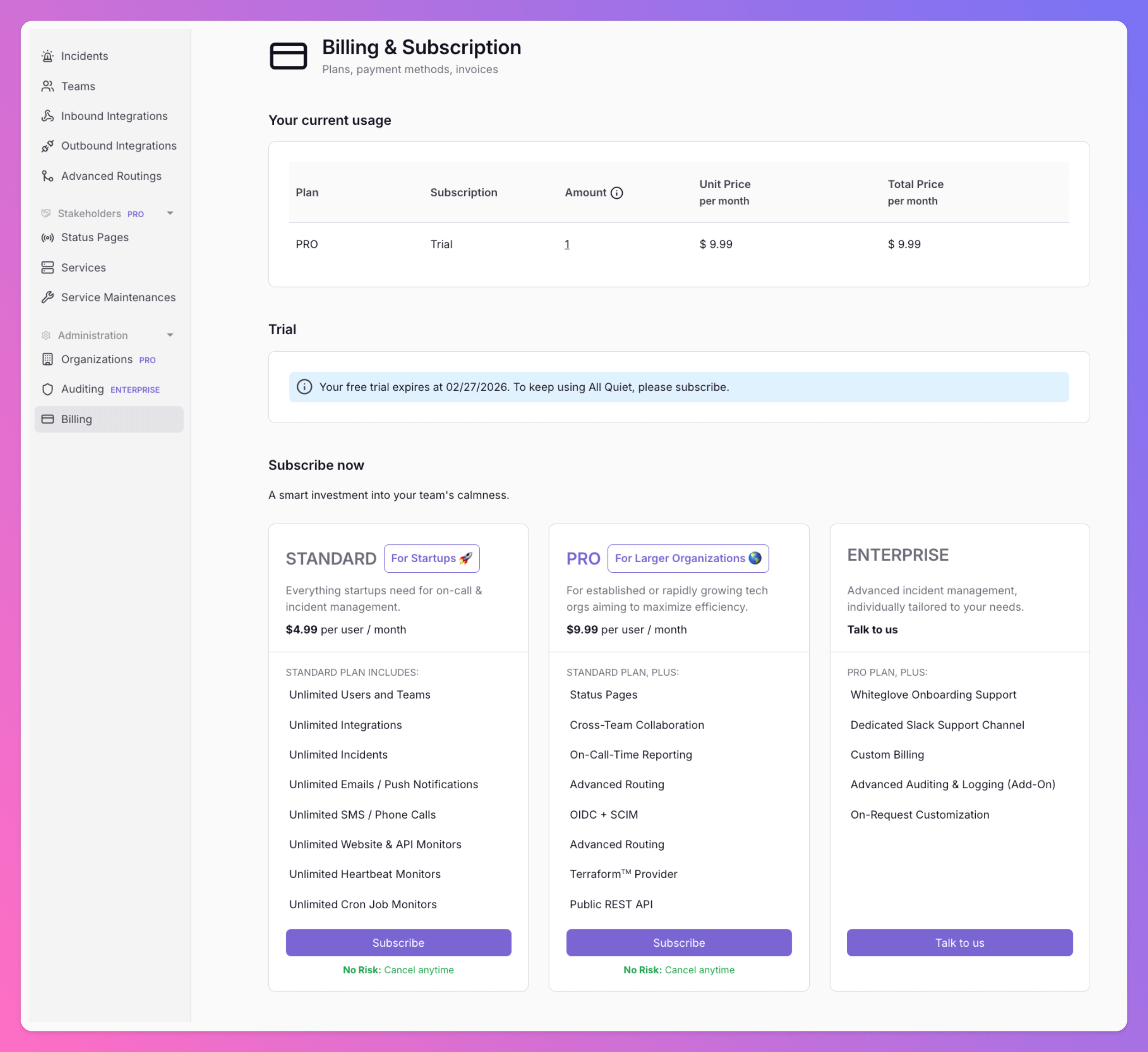 We are using the payment processor Stripe to process your subscription, and we'll never save your payment details on our side.
* ✅ **Risk-Free:** you can cancel any time.
* ✅ **Flexible:** change users any time.
* ✅ **Cost Management:** billed monthly.
* 🪨 **Rock-solid availability:** Our app is always on, so you can be too!
## Manage Billing & Subscription
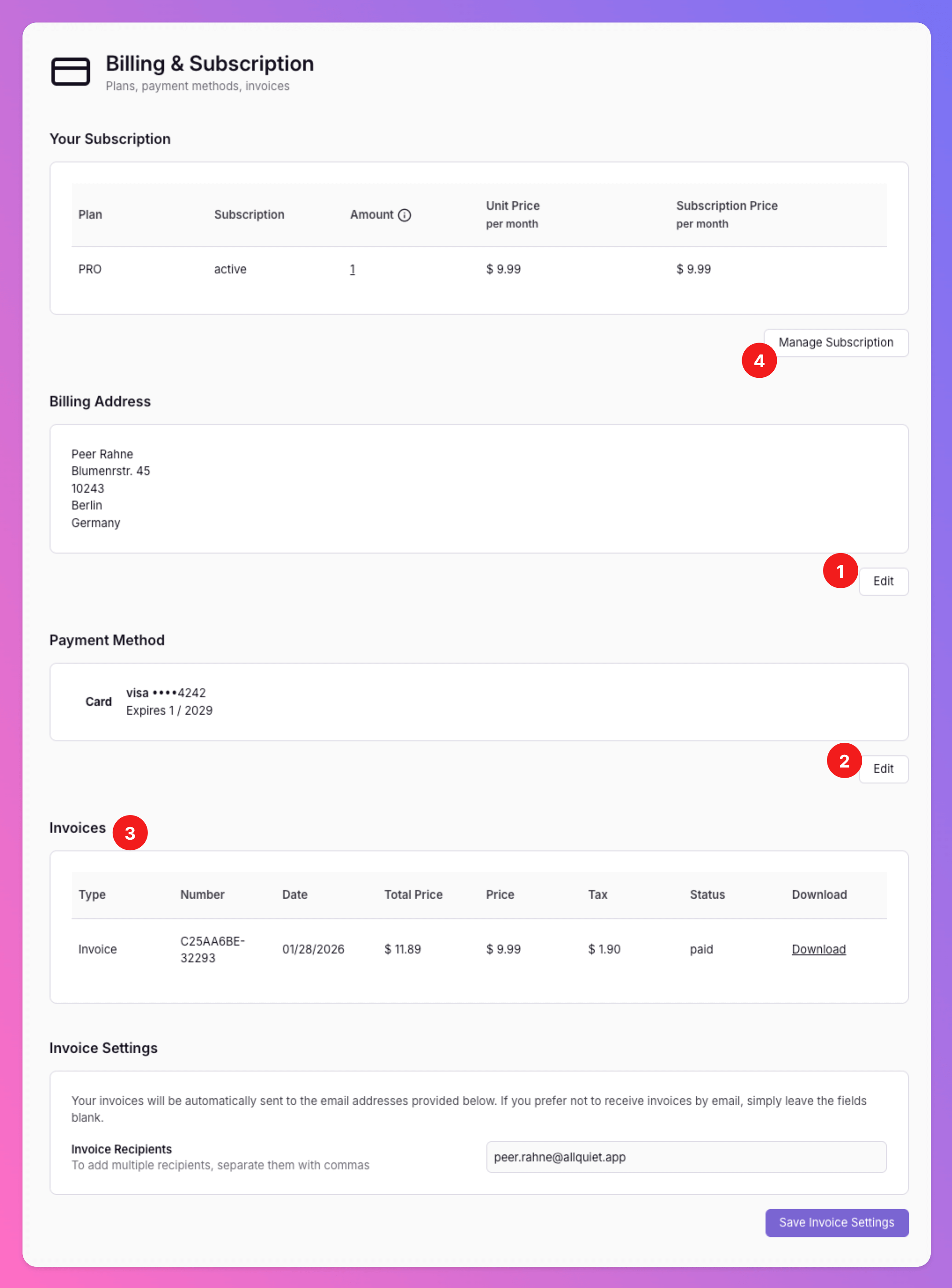
After subscribing, you can manage your subscription and billing settings on the `Billing & Subscription` page.
1. You can easily edit your current billing address.
2. Also, you can change your payment method for future payments.
3. Your invoices will be available for download. Besides, you can edit the invoice recipients.
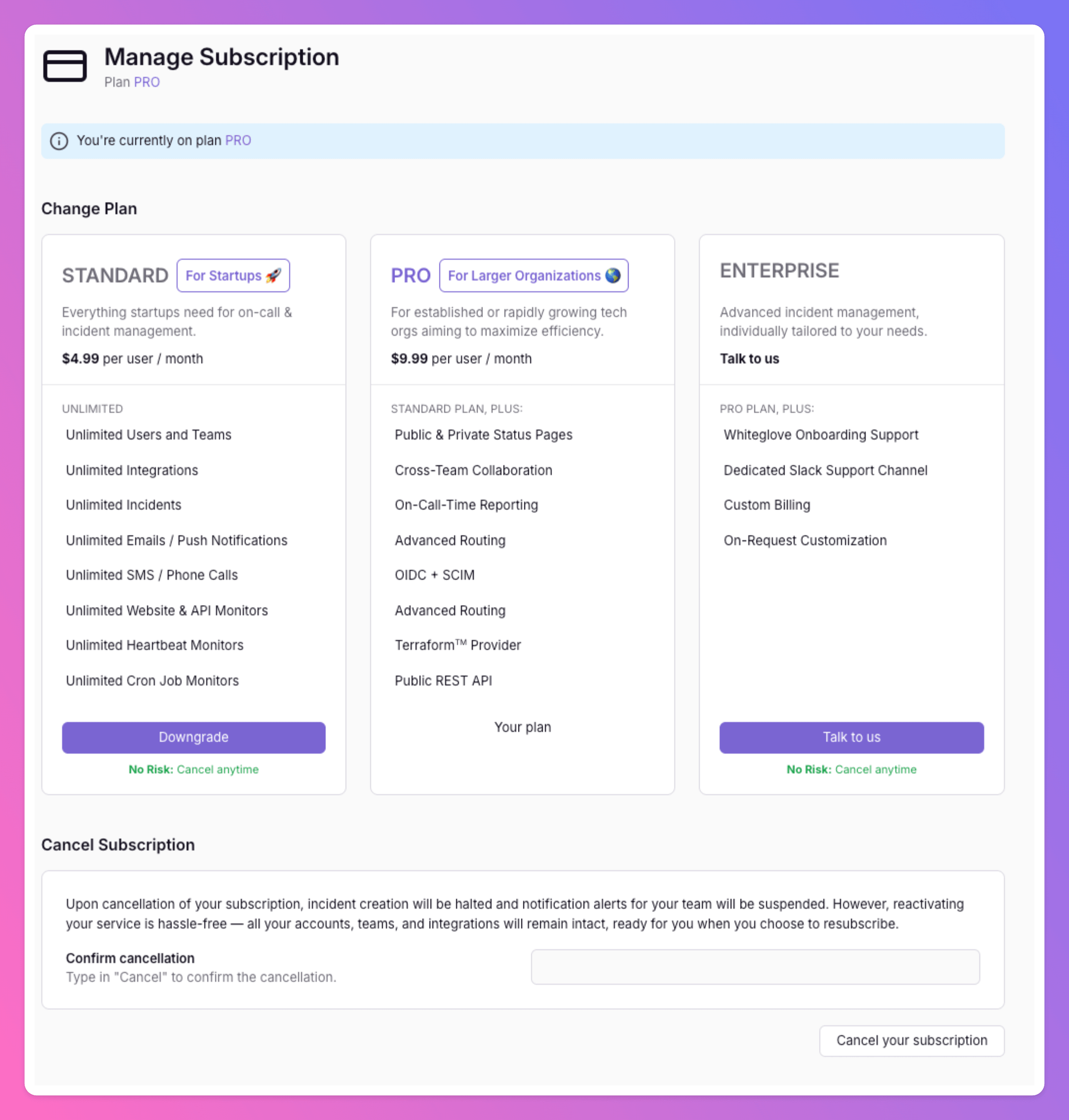
4. After clicking **Manage Subscription**, you're redirected to the `Manage Subscription` page. Here, you can either switch between our different plans or cancel your subscription.
We are using the payment processor Stripe to process your subscription, and we'll never save your payment details on our side.
* ✅ **Risk-Free:** you can cancel any time.
* ✅ **Flexible:** change users any time.
* ✅ **Cost Management:** billed monthly.
* 🪨 **Rock-solid availability:** Our app is always on, so you can be too!
## Manage Billing & Subscription
After subscribing, you can manage your subscription and billing settings on the `Billing & Subscription` page.
1. You can easily edit your current billing address.
2. Also, you can change your payment method for future payments.
3. Your invoices will be available for download. Besides, you can edit the invoice recipients.
4. After clicking **Manage Subscription**, you're redirected to the `Manage Subscription` page. Here, you can either switch between our different plans or cancel your subscription.
 `Manage Subscription` page.
 ### How Is The Number of Billed Users Calculated?
Billing is based on your plan and on the number of **Unique Users with Team Memberships** across all teams billed by the *Billable User*.
If you have a running subscription and no billed users, we will keep your subscription active with the minimum quantity of **1 billed user**. You can explicitly cancel your subscription at any time.
You can view all billed users under "Billing & Subscription > Your Subscription". To add / remove users, go to your [Teams'](/essentials/teams#members) membership settings.
### How Is The Number of Billed Users Calculated?
Billing is based on your plan and on the number of **Unique Users with Team Memberships** across all teams billed by the *Billable User*.
If you have a running subscription and no billed users, we will keep your subscription active with the minimum quantity of **1 billed user**. You can explicitly cancel your subscription at any time.
You can view all billed users under "Billing & Subscription > Your Subscription". To add / remove users, go to your [Teams'](/essentials/teams#members) membership settings.
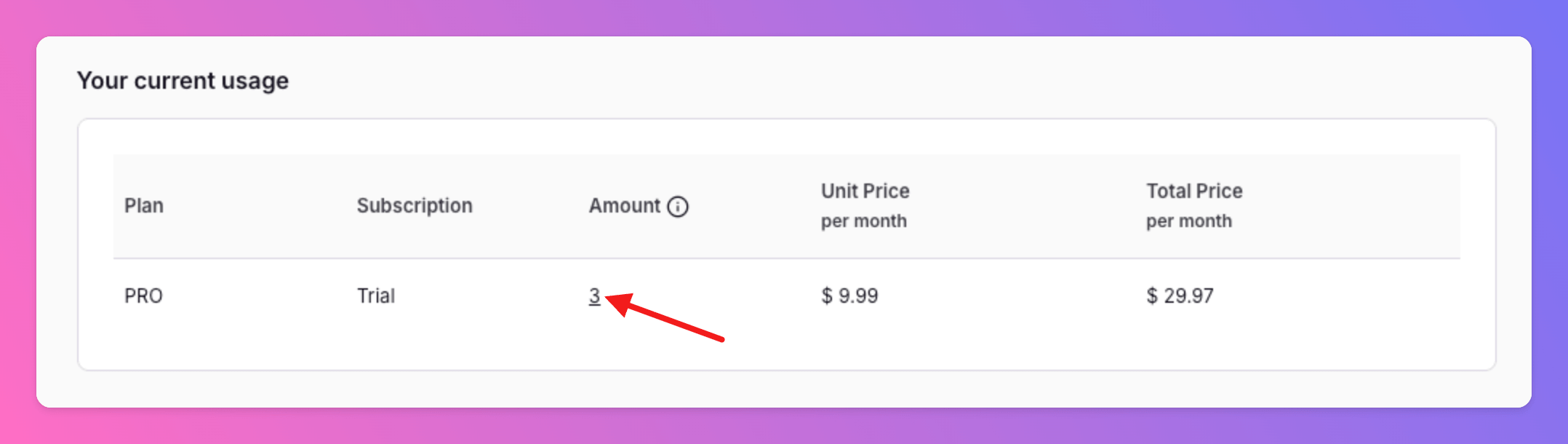 Example:
* User A is the *Billable User* of Team 1 & 2
* Team 1 Memberships: User A, User B, User C
* Team 2 Memberships: User B, User D
There's a total of 4 unique users across both teams, so 4 users are being billed to User A. Pricing depends on User A's [plan](https://allquiet.app/pricing).
## How to change the Billable User
Here's how want to change the *Billable User* for your [Team](/essentials/teams) or [Organization](/advanced/organizations).
### Teams
If the team is part of an Organization, read the [Organizations](/miscellaneous/billing#organizations) section to learn how to change the *Billable User*.
Go to the `Teams` view and select `Edit`.
Example:
* User A is the *Billable User* of Team 1 & 2
* Team 1 Memberships: User A, User B, User C
* Team 2 Memberships: User B, User D
There's a total of 4 unique users across both teams, so 4 users are being billed to User A. Pricing depends on User A's [plan](https://allquiet.app/pricing).
## How to change the Billable User
Here's how want to change the *Billable User* for your [Team](/essentials/teams) or [Organization](/advanced/organizations).
### Teams
If the team is part of an Organization, read the [Organizations](/miscellaneous/billing#organizations) section to learn how to change the *Billable User*.
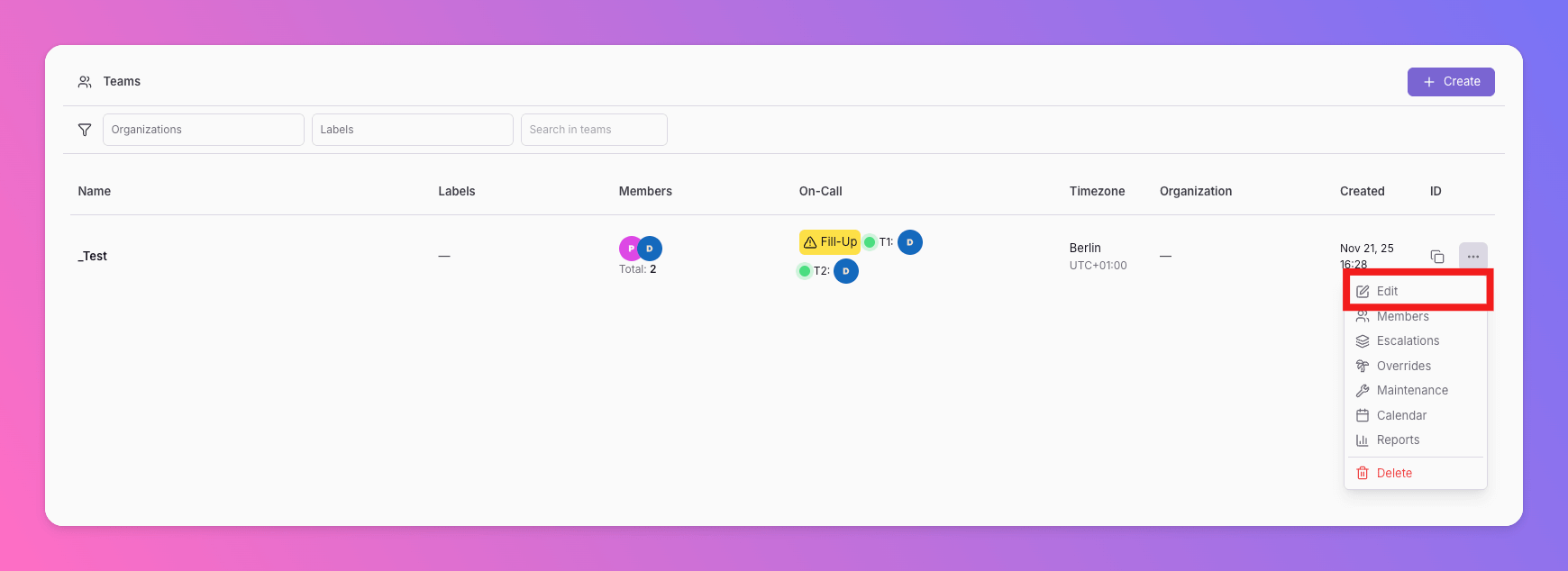
Go to the `Teams` view and select `Edit`.
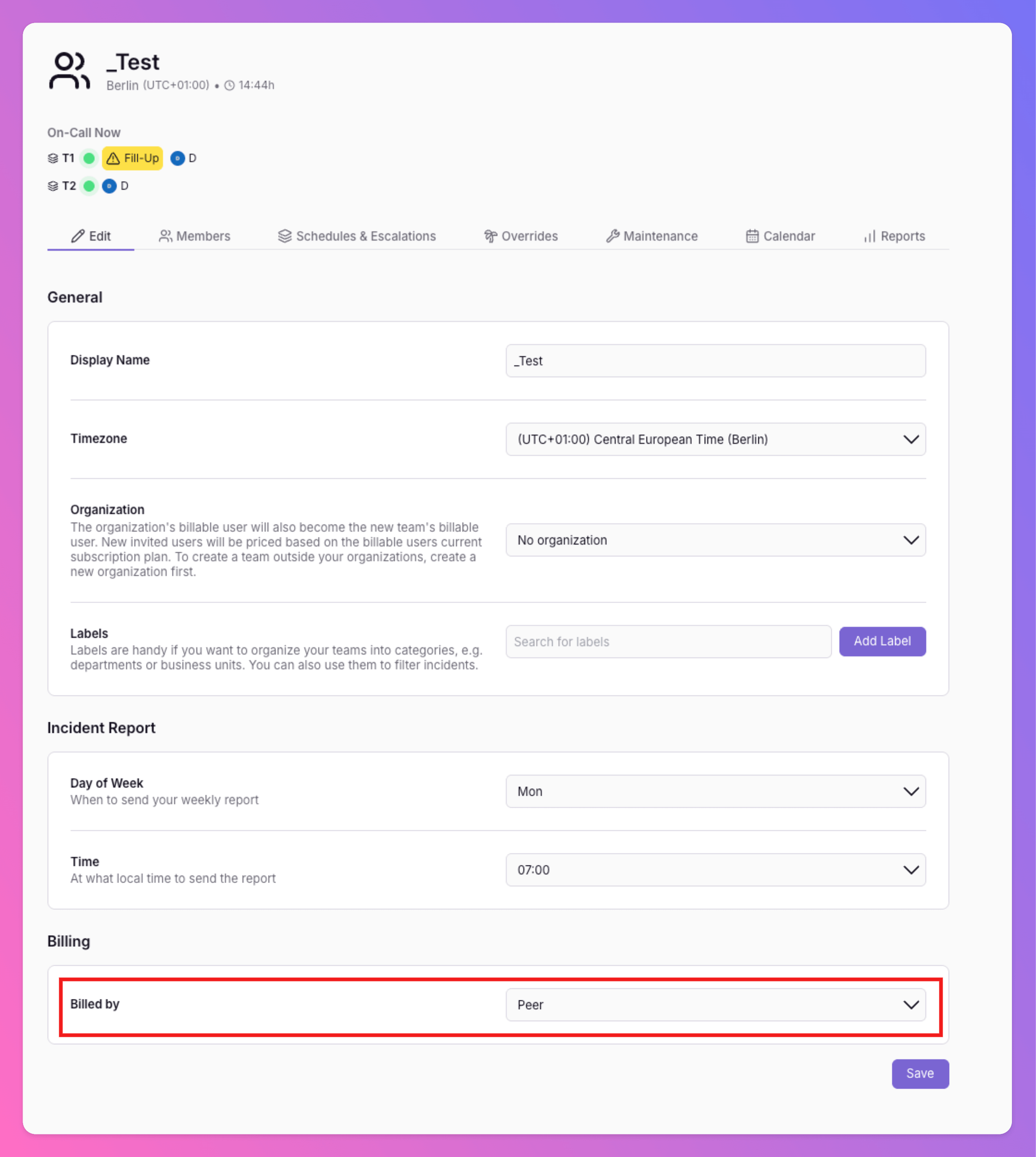
 Go to field `Billed by` to change the *Billable User* of the Team. You can choose other *Team Administrators* to become the new *Billable User*.
Be careful when changing the *Billable User*. A subscription is attached to a User, not to a Team. The new *Billable User* will have to resubscribe and create a new subscription. Otherwise, no new incidents will be created for this Team. **Exception**: The Trial is still active.
Go to field `Billed by` to change the *Billable User* of the Team. You can choose other *Team Administrators* to become the new *Billable User*.
Be careful when changing the *Billable User*. A subscription is attached to a User, not to a Team. The new *Billable User* will have to resubscribe and create a new subscription. Otherwise, no new incidents will be created for this Team. **Exception**: The Trial is still active.
 ### Organizations
All teams in an [Organization](/advanced/organizations) have a single *Billable User*. This *Billable User* is the *Billable User* of all teams within that Organization.
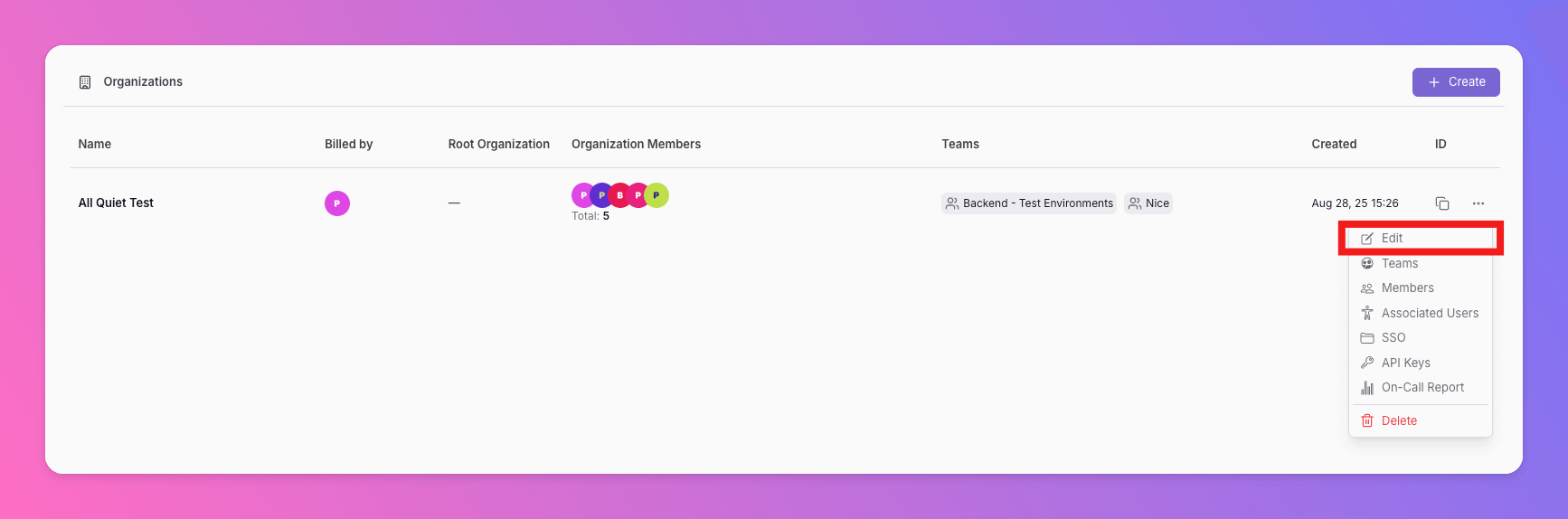
Go to the `Organizations` view and select `Edit`
### Organizations
All teams in an [Organization](/advanced/organizations) have a single *Billable User*. This *Billable User* is the *Billable User* of all teams within that Organization.
Go to the `Organizations` view and select `Edit`
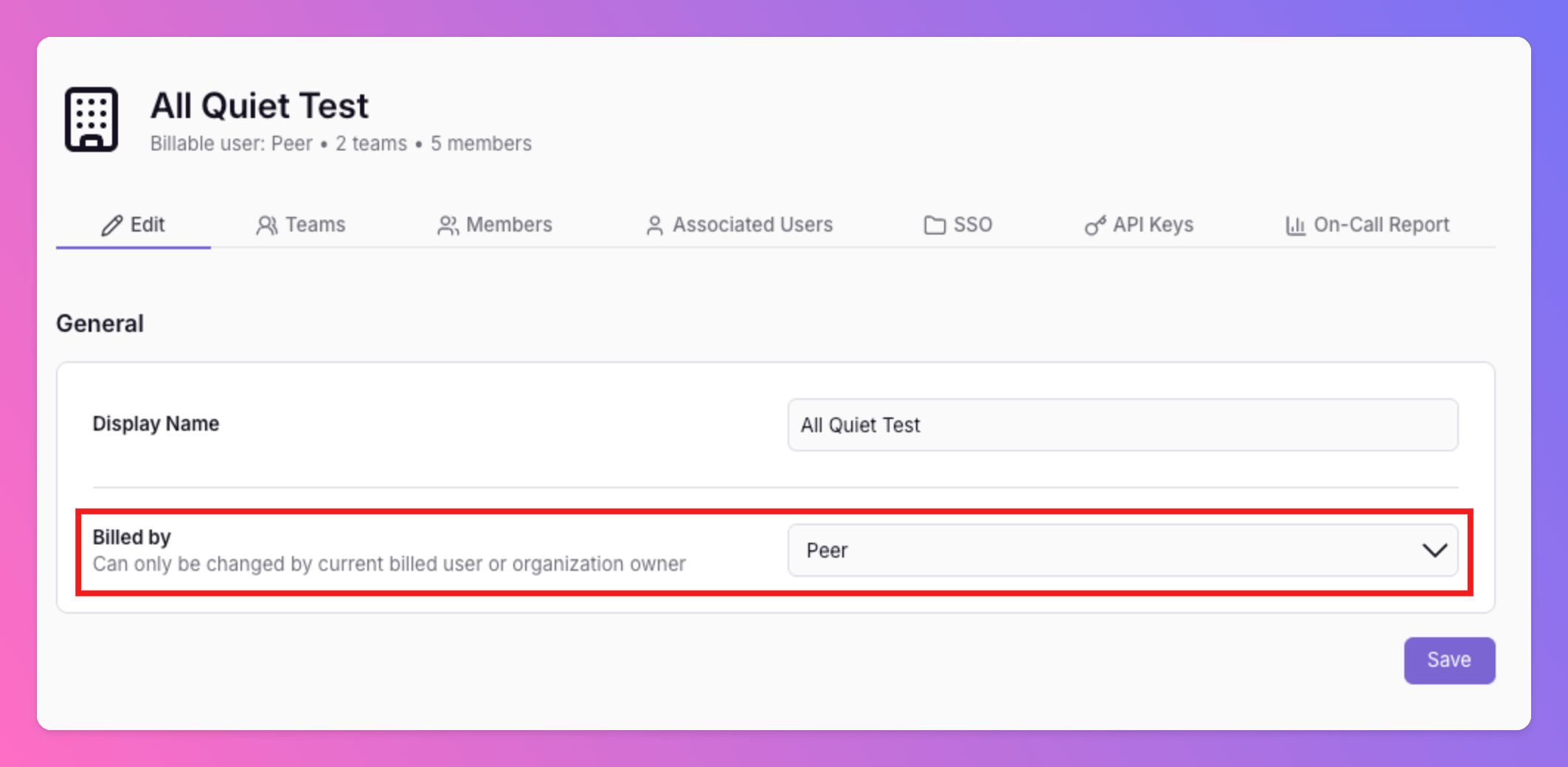
 Go to field `Billed by` to change the *Billable User* of the Organization. You can choose other *Organization Owners* to become the new *Billable User*.
Be careful when changing the *Billable User*. A subscription is attached to a User, not to an Organization. The new *Billable User* will have to resubscribe and create a new subscription. Otherwise, no new incidents will be created for Teams in this Organization. **Exception**: The Trial is still active.
Go to field `Billed by` to change the *Billable User* of the Organization. You can choose other *Organization Owners* to become the new *Billable User*.
Be careful when changing the *Billable User*. A subscription is attached to a User, not to an Organization. The new *Billable User* will have to resubscribe and create a new subscription. Otherwise, no new incidents will be created for Teams in this Organization. **Exception**: The Trial is still active.