> ## Documentation Index
> Fetch the complete documentation index at: https://docs.allquiet.app/llms.txt
> Use this file to discover all available pages before exploring further.
# ServiceNow
> Create and update ServiceNow incidents from All Quiet incidents.
Setup time: 5 Min
The **ServiceNow Outbound** integration connects All Quiet to your ServiceNow instance so incidents in All Quiet **create** and **update** corresponding ServiceNow incidents.
Pair this with the [ServiceNow Inbound integration](/integrations/inbound/servicenow) if you want ServiceNow and All Quiet to stay aligned when both systems change. Inbound sends ServiceNow-driven open and resolved behavior into All Quiet; outbound pushes All Quiet changes into ServiceNow.
## What this integration does
* Creates ServiceNow incidents when All Quiet incidents are forwarded according to your settings.
* Updates the linked ServiceNow incident as the All Quiet incident changes.
* Applies to incidents from **any** source: observability, email, webhook, or ServiceNow via the inbound integration. The outbound integration operates on All Quiet incidents as configured. It does not require the incident to have originated in ServiceNow.
## Create ServiceNow Outbound integration
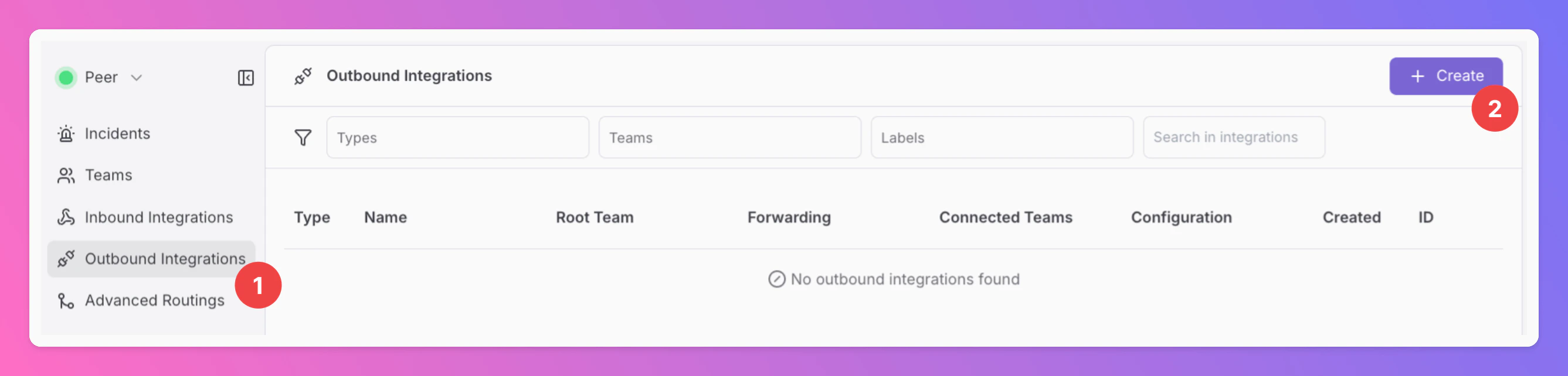
1. Open the `Outbound Integrations` tab.
2. Click `+ Create`.
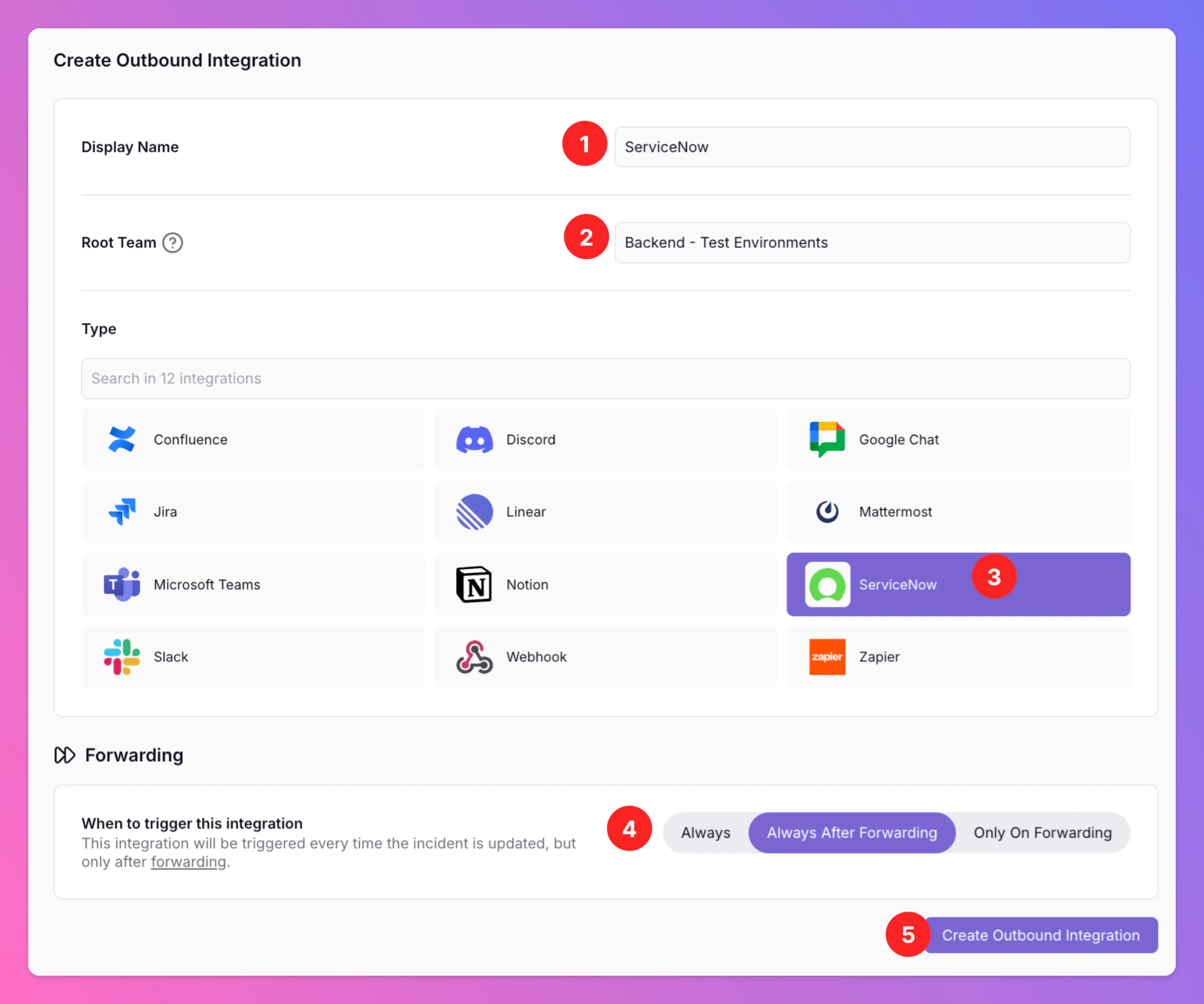
 1. Enter a **Display Name** (for example `ServiceNow`).
2. Select a **Root Team**. For organizations on Pro or Enterprise, you can add further team connections where your plan allows.
3. Choose **ServiceNow** as the integration type.
4. **Forwarding** settings (same idea as other outbound integrations):
* **Default:** `Always After Forwarding` — ServiceNow incidents are created when users [manually forward](/essentials/incident#forwarding) incidents or when [advanced routing](/advanced/routing) forwards them automatically.
* **Alternative 1:** `Always` — forward all incidents to ServiceNow unless excluded by routing rules.
* **Alternative 2:** `Only On Forwarding` — forward a snapshot of the current incident history to ServiceNow in the moment users [manually forward](/essentials/incident#forwarding) or if you set up [advanced routing](/advanced/routing) for your ServiceNow Outbound integration that automatically forwards incidents in specific scenarios. We will **not send** any incident **updates** to ServiceNow **afterwards**.
You can change forwarding behavior later in the integration settings.
5Í. Click `Create Outbound Integration`.
1. Enter a **Display Name** (for example `ServiceNow`).
2. Select a **Root Team**. For organizations on Pro or Enterprise, you can add further team connections where your plan allows.
3. Choose **ServiceNow** as the integration type.
4. **Forwarding** settings (same idea as other outbound integrations):
* **Default:** `Always After Forwarding` — ServiceNow incidents are created when users [manually forward](/essentials/incident#forwarding) incidents or when [advanced routing](/advanced/routing) forwards them automatically.
* **Alternative 1:** `Always` — forward all incidents to ServiceNow unless excluded by routing rules.
* **Alternative 2:** `Only On Forwarding` — forward a snapshot of the current incident history to ServiceNow in the moment users [manually forward](/essentials/incident#forwarding) or if you set up [advanced routing](/advanced/routing) for your ServiceNow Outbound integration that automatically forwards incidents in specific scenarios. We will **not send** any incident **updates** to ServiceNow **afterwards**.
You can change forwarding behavior later in the integration settings.
5Í. Click `Create Outbound Integration`.
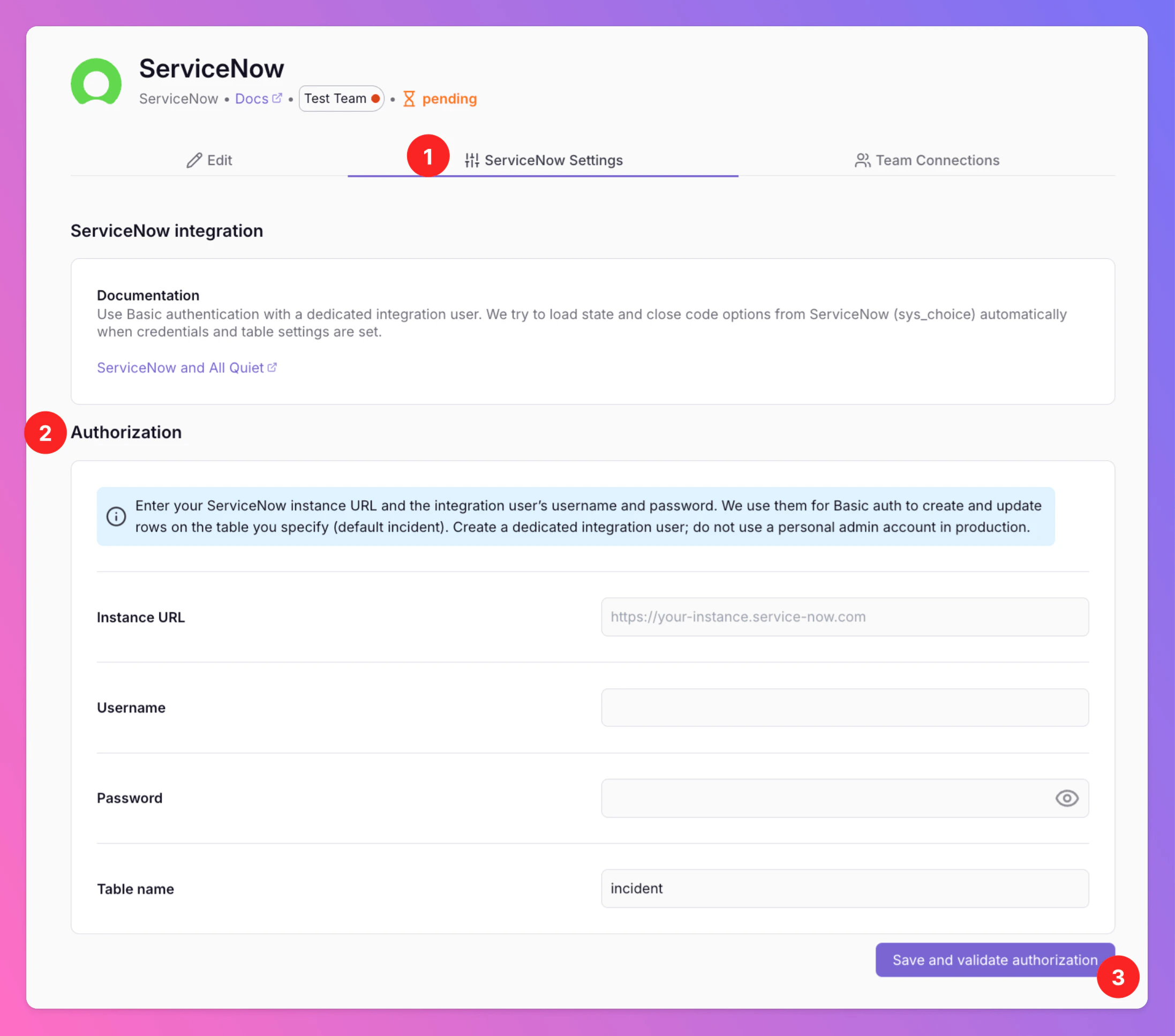
 After creation, the integration's **ServiceNow Settings** page will open. Here you can configure the mapping of All Quiet fields to ServiceNow fields. But in the first step, you will need to add your ServiceNow instance URL and authentication details.
## Step 2 — Add your ServiceNow instance URL and authentication details
**Goal:** All Quiet uses **Basic authentication** (username + password) to call the ServiceNow **Table API** (`/api/now/table/...`): read and write rows on your table (default **`incident`**), and optionally read **`sys_choice`** so the All Quiet UI can load dropdown values for state, close code, and severity fields.
### Create the All Quiet user in ServiceNow
1. In ServiceNow, use the filter navigator (usually top left). Type **users**, then open **User Administration** → **Users**.
2. Click **New**.
3. Fill **User ID** (this is the **username** you'll later enter in your All Quiet **ServiceNow Outbound** integration), **Name**, and set a **Password** if the instance uses local authentication — or follow your organization’s SSO and password policy.
4. **Save** the user.
5. Open the **Roles** tab (or the Roles related list) and assign roles — see [Roles](#roles) below.
Optional: if your organization uses **Web service access only** for integration accounts, configure that according to your policy (not always required).
#### What access the integration needs
| Need | Why |
| -------------------------------------------------------------------------------------------- | ------------------------------------------------------------------------------------------------------------------------------------------------------------------------------------------------------ |
| **Read + write** on the incident table (or whichever **Table name** you configured) via REST | Create incidents from All Quiet (forward path) and **PATCH** state, close fields, and severity on updates. |
| **Read** on **`sys_choice`** | Lets All Quiet load ServiceNow choice lists in the integration form. If this is denied, the UI can still work with manual values; you may see a warning about `sys_choice` or HTTP **403** in the app. |
#### Roles
**Minimum for a real instance:** A **custom role** (or clone of a small role) whose ACLs allow Table API read/write on **incident** (and your configured table) and read on **`sys_choice`** — exact names depend on your instance; your ServiceNow admin should confirm.
**Common “it works” combo on many instances** (still confirm with your admin): **`itil`** — typically covers incident operations used by agents and is often enough for Table API on **incident** if REST access is not blocked by other policies.
If choice lists fail with **HTTP 403** on **`sys_choice`**: an admin must grant **read** on **`sys_choice`** (direct ACL or an additional role that includes that read). Roles that include broader dictionary or choice access **vary by instance** — do not assume a second generic role name; use ACLs or admin guidance.
### After creating the user — connect from All Quiet
1. In All Quiet, open the team’s **ServiceNow** outbound integration → **ServiceNow Settings** → **Authorization** (or equivalent settings for instance credentials).
2. Enter **Instance URL** (for example `https://your-instance.service-now.com`), **Username** (the **User ID** you created in ServiceNow), **Password**, and **Table name** (default **`incident`**).
3. Click **Save** and **Test Connection**.
After creation, the integration's **ServiceNow Settings** page will open. Here you can configure the mapping of All Quiet fields to ServiceNow fields. But in the first step, you will need to add your ServiceNow instance URL and authentication details.
## Step 2 — Add your ServiceNow instance URL and authentication details
**Goal:** All Quiet uses **Basic authentication** (username + password) to call the ServiceNow **Table API** (`/api/now/table/...`): read and write rows on your table (default **`incident`**), and optionally read **`sys_choice`** so the All Quiet UI can load dropdown values for state, close code, and severity fields.
### Create the All Quiet user in ServiceNow
1. In ServiceNow, use the filter navigator (usually top left). Type **users**, then open **User Administration** → **Users**.
2. Click **New**.
3. Fill **User ID** (this is the **username** you'll later enter in your All Quiet **ServiceNow Outbound** integration), **Name**, and set a **Password** if the instance uses local authentication — or follow your organization’s SSO and password policy.
4. **Save** the user.
5. Open the **Roles** tab (or the Roles related list) and assign roles — see [Roles](#roles) below.
Optional: if your organization uses **Web service access only** for integration accounts, configure that according to your policy (not always required).
#### What access the integration needs
| Need | Why |
| -------------------------------------------------------------------------------------------- | ------------------------------------------------------------------------------------------------------------------------------------------------------------------------------------------------------ |
| **Read + write** on the incident table (or whichever **Table name** you configured) via REST | Create incidents from All Quiet (forward path) and **PATCH** state, close fields, and severity on updates. |
| **Read** on **`sys_choice`** | Lets All Quiet load ServiceNow choice lists in the integration form. If this is denied, the UI can still work with manual values; you may see a warning about `sys_choice` or HTTP **403** in the app. |
#### Roles
**Minimum for a real instance:** A **custom role** (or clone of a small role) whose ACLs allow Table API read/write on **incident** (and your configured table) and read on **`sys_choice`** — exact names depend on your instance; your ServiceNow admin should confirm.
**Common “it works” combo on many instances** (still confirm with your admin): **`itil`** — typically covers incident operations used by agents and is often enough for Table API on **incident** if REST access is not blocked by other policies.
If choice lists fail with **HTTP 403** on **`sys_choice`**: an admin must grant **read** on **`sys_choice`** (direct ACL or an additional role that includes that read). Roles that include broader dictionary or choice access **vary by instance** — do not assume a second generic role name; use ACLs or admin guidance.
### After creating the user — connect from All Quiet
1. In All Quiet, open the team’s **ServiceNow** outbound integration → **ServiceNow Settings** → **Authorization** (or equivalent settings for instance credentials).
2. Enter **Instance URL** (for example `https://your-instance.service-now.com`), **Username** (the **User ID** you created in ServiceNow), **Password**, and **Table name** (default **`incident`**).
3. Click **Save** and **Test Connection**.
 If the test passes but choice lists do not load, check the in-app message about **`sys_choice`** and adjust ServiceNow read access as described above.
In the **Edit** tab you can adjust forwarding and other general options for this integration.
## Configure updates and sync
On the integration’s **ServiceNow Settings**, configure how All Quiet maps to your ServiceNow table for **create** and **update**. Defaults assume the **`incident`** table and standard field names; change them if your instance differs.
When you also use [ServiceNow Inbound](/integrations/inbound/servicenow), align these rules with your inbound flow so you do not create conflicting loops — the product settings define which system wins for each transition.
### State Mapping
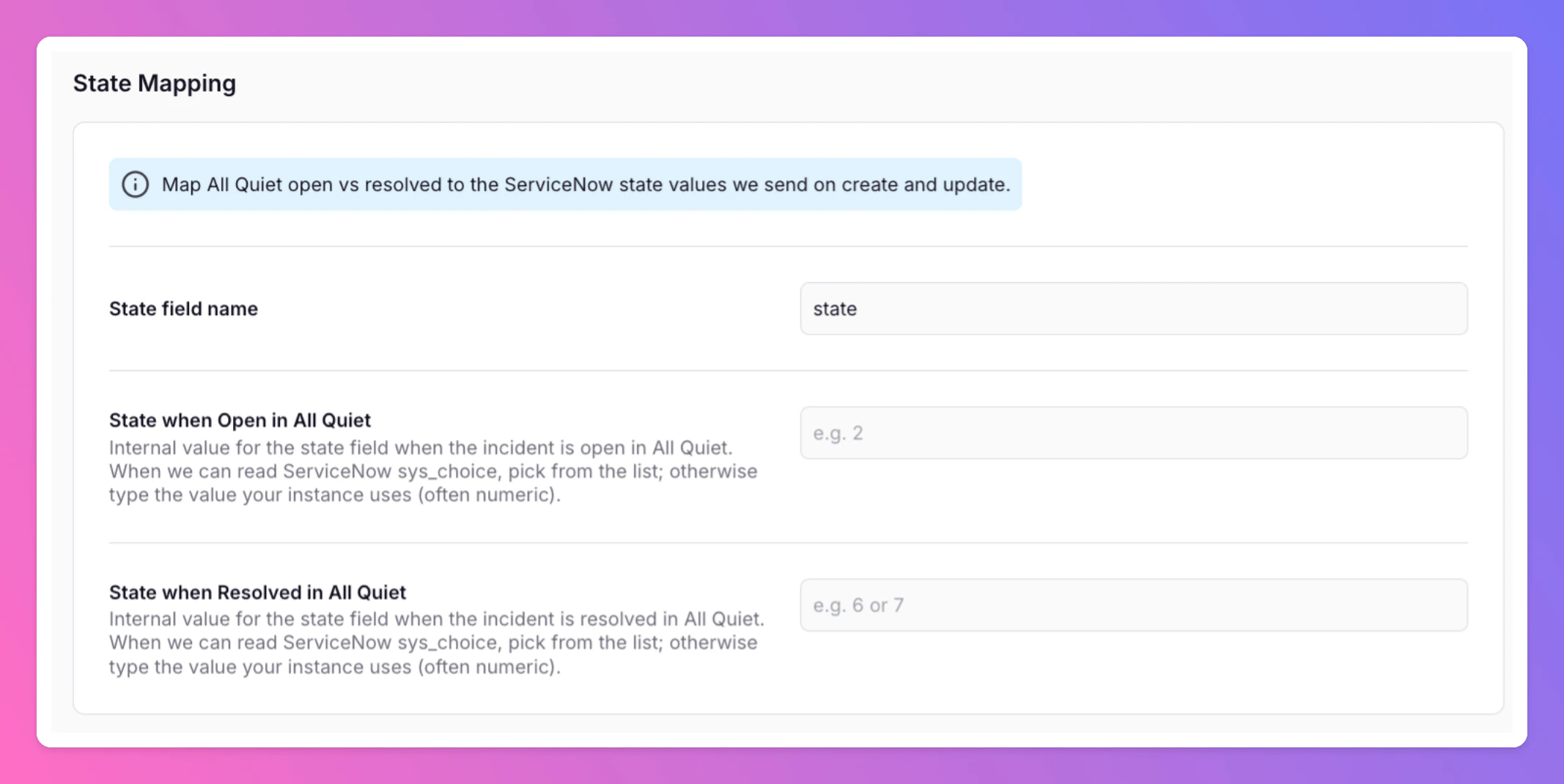
Mapping applies to the **`state`** field by default.
**State when Open in All Quiet**\
Internal ServiceNow value for the **state** field when the incident is **open** in All Quiet. When All Quiet can read ServiceNow **`sys_choice`**, pick from the list; otherwise enter the value your instance uses (often **numeric**).
**State when Resolved in All Quiet**\
Internal ServiceNow value for the **state** field when the incident is **resolved** in All Quiet. Same as above: use the dropdown when **`sys_choice`** is available, or type the internal ServiceNow value your instance expects.
If the test passes but choice lists do not load, check the in-app message about **`sys_choice`** and adjust ServiceNow read access as described above.
In the **Edit** tab you can adjust forwarding and other general options for this integration.
## Configure updates and sync
On the integration’s **ServiceNow Settings**, configure how All Quiet maps to your ServiceNow table for **create** and **update**. Defaults assume the **`incident`** table and standard field names; change them if your instance differs.
When you also use [ServiceNow Inbound](/integrations/inbound/servicenow), align these rules with your inbound flow so you do not create conflicting loops — the product settings define which system wins for each transition.
### State Mapping
Mapping applies to the **`state`** field by default.
**State when Open in All Quiet**\
Internal ServiceNow value for the **state** field when the incident is **open** in All Quiet. When All Quiet can read ServiceNow **`sys_choice`**, pick from the list; otherwise enter the value your instance uses (often **numeric**).
**State when Resolved in All Quiet**\
Internal ServiceNow value for the **state** field when the incident is **resolved** in All Quiet. Same as above: use the dropdown when **`sys_choice`** is available, or type the internal ServiceNow value your instance expects.
 ### Resolving Mapping
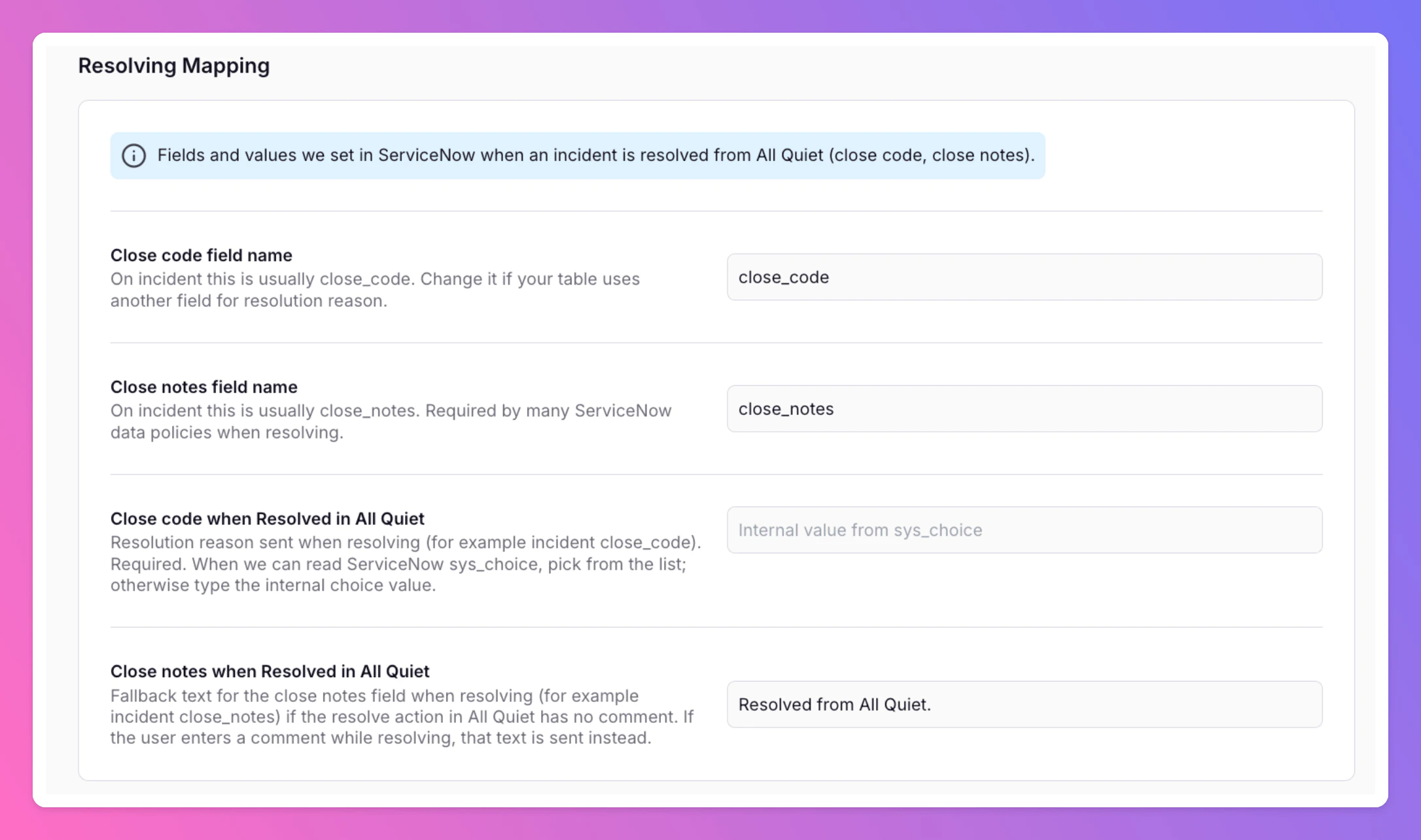
ServiceNow usually requires additional information when resolving an incident. We will send these values to ServiceNow when you resolve an incident in All Quiet.
**Close code field name**\
On **incident**, this is usually **`close_code`**. Change it if your table uses another field for the resolution reason. The standard is **`close_code`**.
**Close notes field name**\
On **incident**, this is usually **`close_notes`**. Many ServiceNow data policies require **close notes** when resolving. The standard is **`close_notes`**.
**Close code when Resolved in All Quiet**\
Resolution reason sent when resolving (for example **`incident.close_code`**). **Required.** When **`sys_choice`** is readable, pick from the list; otherwise enter the internal choice value.
**Close notes when Resolved in All Quiet**\
Fallback text for the close-notes field when resolving (for example **`incident.close_notes`**) if the resolve action in All Quiet has **no** comment. If the user enters a comment while resolving, **that** text is sent instead. A typical default is **`Resolved from All Quiet`**.
### Resolving Mapping
ServiceNow usually requires additional information when resolving an incident. We will send these values to ServiceNow when you resolve an incident in All Quiet.
**Close code field name**\
On **incident**, this is usually **`close_code`**. Change it if your table uses another field for the resolution reason. The standard is **`close_code`**.
**Close notes field name**\
On **incident**, this is usually **`close_notes`**. Many ServiceNow data policies require **close notes** when resolving. The standard is **`close_notes`**.
**Close code when Resolved in All Quiet**\
Resolution reason sent when resolving (for example **`incident.close_code`**). **Required.** When **`sys_choice`** is readable, pick from the list; otherwise enter the internal choice value.
**Close notes when Resolved in All Quiet**\
Fallback text for the close-notes field when resolving (for example **`incident.close_notes`**) if the resolve action in All Quiet has **no** comment. If the user enters a comment while resolving, **that** text is sent instead. A typical default is **`Resolved from All Quiet`**.
 ### Severity mapping
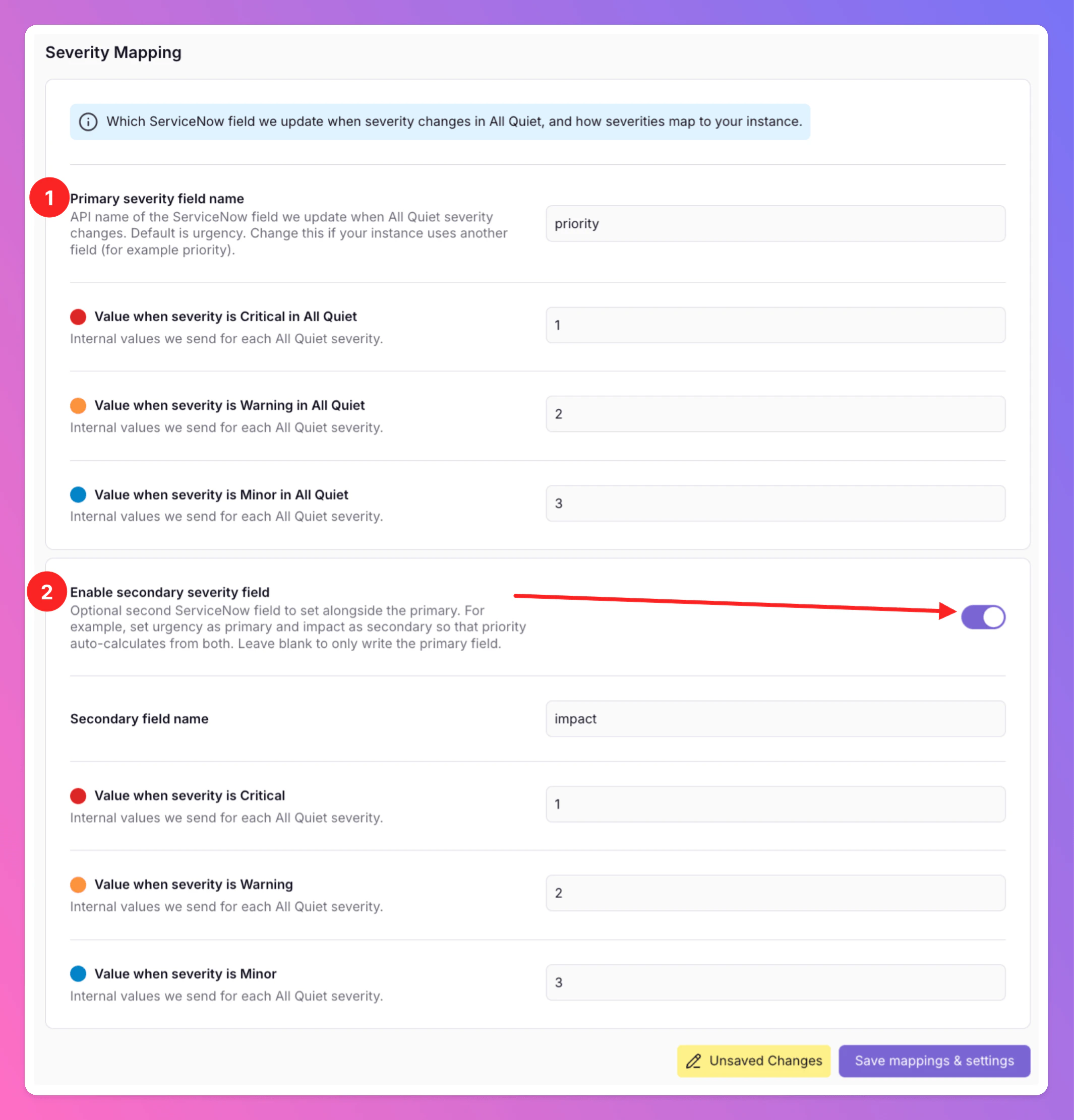
All Quiet uses a **primary + optional secondary** field model for severity:
1. **Primary field** — The main ServiceNow field we update from All Quiet severity. Default API name: **`urgency`**. Change it if your process uses another primary field.
2. **Secondary field (optional)** — Enable with a toggle in the UI (for example **`impact`**). When enabled, we write **both** the primary and secondary fields **on create** and whenever **severity changes** in All Quiet.
If you set `urgency` and `impact` as primary and secondary fields, it lets ServiceNow **derive `priority` from its urgency / impact matrix** instead of writing **`priority`** directly, which matches how many instances calculate incident priority.
If the secondary field is off, only the primary field is updated. Choice lists for each field still come from **`sys_choice`** when your integration user can read them; otherwise enter internal values per field.
**Default mapping (primary field, typical `urgency`)**
Internal values we send for each All Quiet severity to the **primary** field by default. When you enable a **secondary** field, configure its mappings in the UI as well (your instance’s valid values for that field may differ from **`urgency`**).
| All Quiet | ServiceNow primary field (typical internal value) |
| --------- | ------------------------------------------------- |
| Critical | `1` |
| Warning | `2` |
| Minor | `3` |
### Severity mapping
All Quiet uses a **primary + optional secondary** field model for severity:
1. **Primary field** — The main ServiceNow field we update from All Quiet severity. Default API name: **`urgency`**. Change it if your process uses another primary field.
2. **Secondary field (optional)** — Enable with a toggle in the UI (for example **`impact`**). When enabled, we write **both** the primary and secondary fields **on create** and whenever **severity changes** in All Quiet.
If you set `urgency` and `impact` as primary and secondary fields, it lets ServiceNow **derive `priority` from its urgency / impact matrix** instead of writing **`priority`** directly, which matches how many instances calculate incident priority.
If the secondary field is off, only the primary field is updated. Choice lists for each field still come from **`sys_choice`** when your integration user can read them; otherwise enter internal values per field.
**Default mapping (primary field, typical `urgency`)**
Internal values we send for each All Quiet severity to the **primary** field by default. When you enable a **secondary** field, configure its mappings in the UI as well (your instance’s valid values for that field may differ from **`urgency`**).
| All Quiet | ServiceNow primary field (typical internal value) |
| --------- | ------------------------------------------------- |
| Critical | `1` |
| Warning | `2` |
| Minor | `3` |
 ServiceNow is now integrated with All Quiet. Depending on your setup, All Quiet incidents can now be [forwarded manually](/essentials/incident#forwarding) to your ServiceNow Instance or automatically create incidents in ServiceNow.
## ServiceNow API Debugging
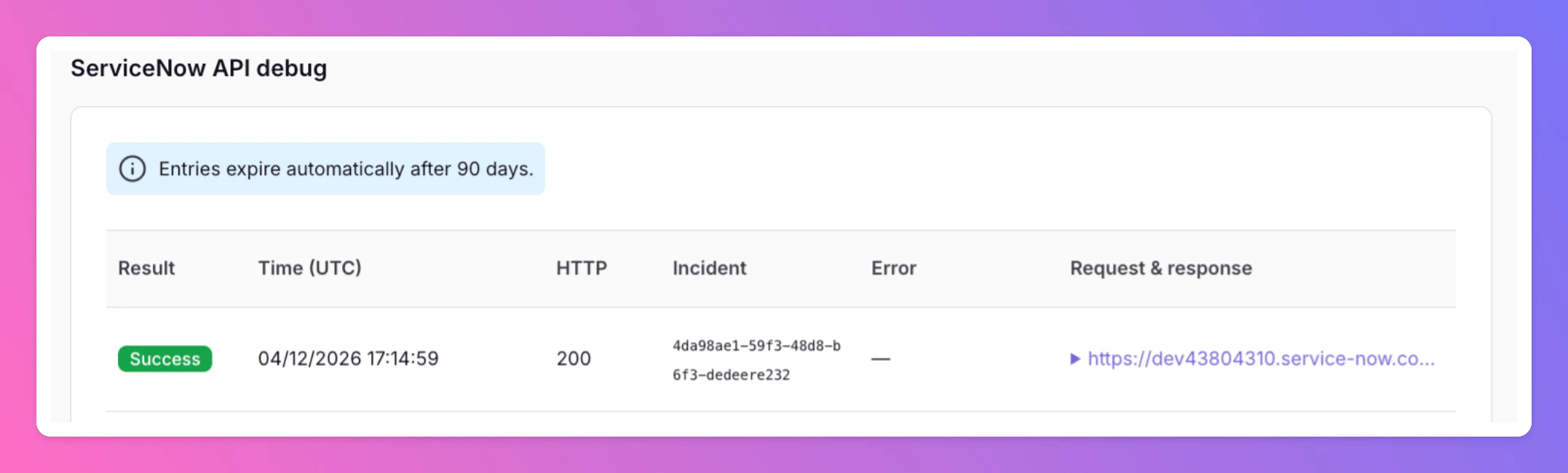
If you encounter issues with the integration, you can debug the API calls by looking at the bottom of your `ServiceNow Settings` tab in All Quiet. You will find the API calls and their responses there.
This view is **separate** from the integration **[History](/essentials/outbound#outbound-history)** tab, which records general outbound integration activity across all operations (same as other outbound integrations).
ServiceNow is now integrated with All Quiet. Depending on your setup, All Quiet incidents can now be [forwarded manually](/essentials/incident#forwarding) to your ServiceNow Instance or automatically create incidents in ServiceNow.
## ServiceNow API Debugging
If you encounter issues with the integration, you can debug the API calls by looking at the bottom of your `ServiceNow Settings` tab in All Quiet. You will find the API calls and their responses there.
This view is **separate** from the integration **[History](/essentials/outbound#outbound-history)** tab, which records general outbound integration activity across all operations (same as other outbound integrations).
 ## Troubleshooting
**Team Administrators**, **Organization Administrators**, and **Organization Owners** can troubleshoot this integration using the **History** tab (**Outbound History**) on the integration details page. See **[Outbound History](/essentials/outbound#outbound-history)** for what is logged, who can access it, and how to read outcomes. This is separate from **[ServiceNow API Debugging](#servicenow-api-debugging)** on the integration settings tab. For broader checks when outbound tools do not fire, see **[Outbound integrations — Troubleshooting](/essentials/outbound#outbound-troubleshooting-routing)** and **[advanced routing](/advanced/routing)**.
## Related
* [ServiceNow Inbound](/integrations/inbound/servicenow) — open and resolve All Quiet incidents from ServiceNow
* [Outbound Integrations](/essentials/outbound) — forwarding modes and concepts
* [Advanced routing](/advanced/routing) — control which incidents reach ServiceNow
## Troubleshooting
**Team Administrators**, **Organization Administrators**, and **Organization Owners** can troubleshoot this integration using the **History** tab (**Outbound History**) on the integration details page. See **[Outbound History](/essentials/outbound#outbound-history)** for what is logged, who can access it, and how to read outcomes. This is separate from **[ServiceNow API Debugging](#servicenow-api-debugging)** on the integration settings tab. For broader checks when outbound tools do not fire, see **[Outbound integrations — Troubleshooting](/essentials/outbound#outbound-troubleshooting-routing)** and **[advanced routing](/advanced/routing)**.
## Related
* [ServiceNow Inbound](/integrations/inbound/servicenow) — open and resolve All Quiet incidents from ServiceNow
* [Outbound Integrations](/essentials/outbound) — forwarding modes and concepts
* [Advanced routing](/advanced/routing) — control which incidents reach ServiceNow