> ## Documentation Index
> Fetch the complete documentation index at: https://docs.allquiet.app/llms.txt
> Use this file to discover all available pages before exploring further.
# Microsoft Teams
> Connect your MS Teams channels with All Quiet to manage incidents effortlessly, all within MS Teams.
Setup time: 3 Min
Seamlessly integrate your MS Teams channels with All Quiet to streamline incident management directly within MS Teams.
The first part of this documentation focuses on creating the integration. The second explains how to send All Quiet incidents to your Microsoft Teams channels (Outbound).
Want to create new incidents from your Microsoft Teams channels (Inbound)? Follow the [third part](/integrations/outbound/microsoft-teams#create-new-all-quiet-incidents-directly-from-ms-teams) of this guideline.
Unlike most of our integrations, this setup begins in your MS Teams channels instead of the All Quiet web app.
## Add All Quiet to your MS Teams Channels
If you are a `Team Member` in MS Teams, ensure you have the necessary permissions to add an app. If not, contact your MS Teams `Team Owner` or `IT Administrator` for assistance.
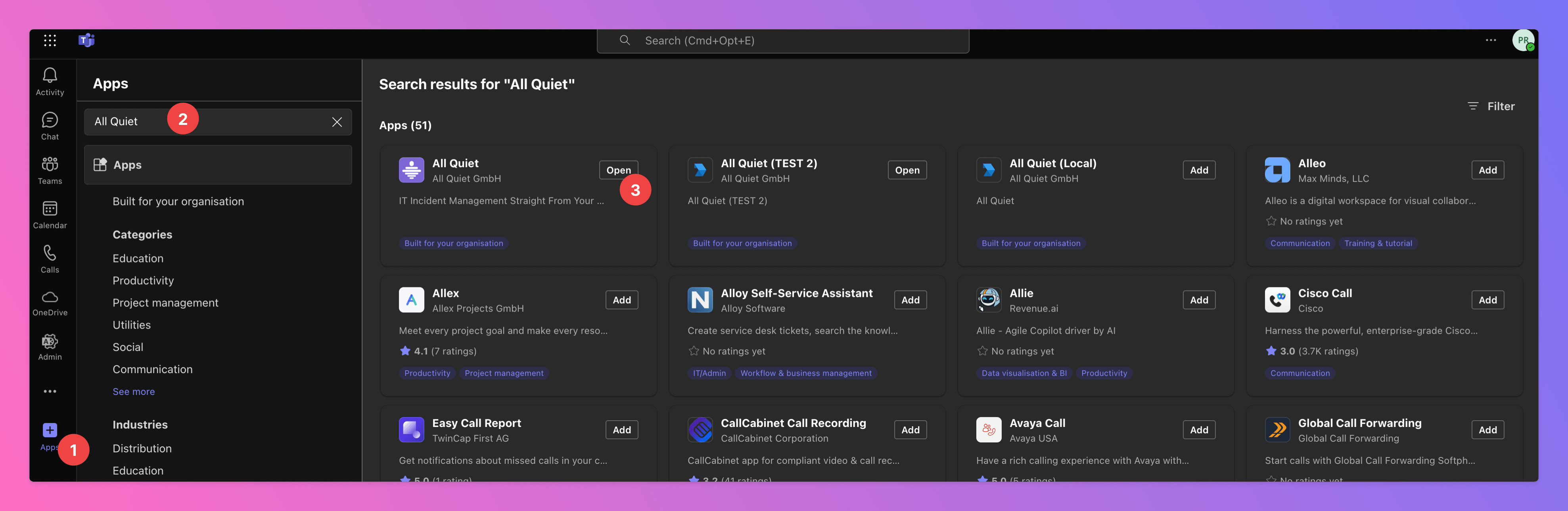
1. In the Microsoft Teams Application, click `Apps`.
2. In the Search Bar, enter `All Quiet`.
3. Select the `All Quiet` app (or, if you are a allquiet.eu user, the `All Quiet EU` app) from the search results and click `Add` or `Open` .
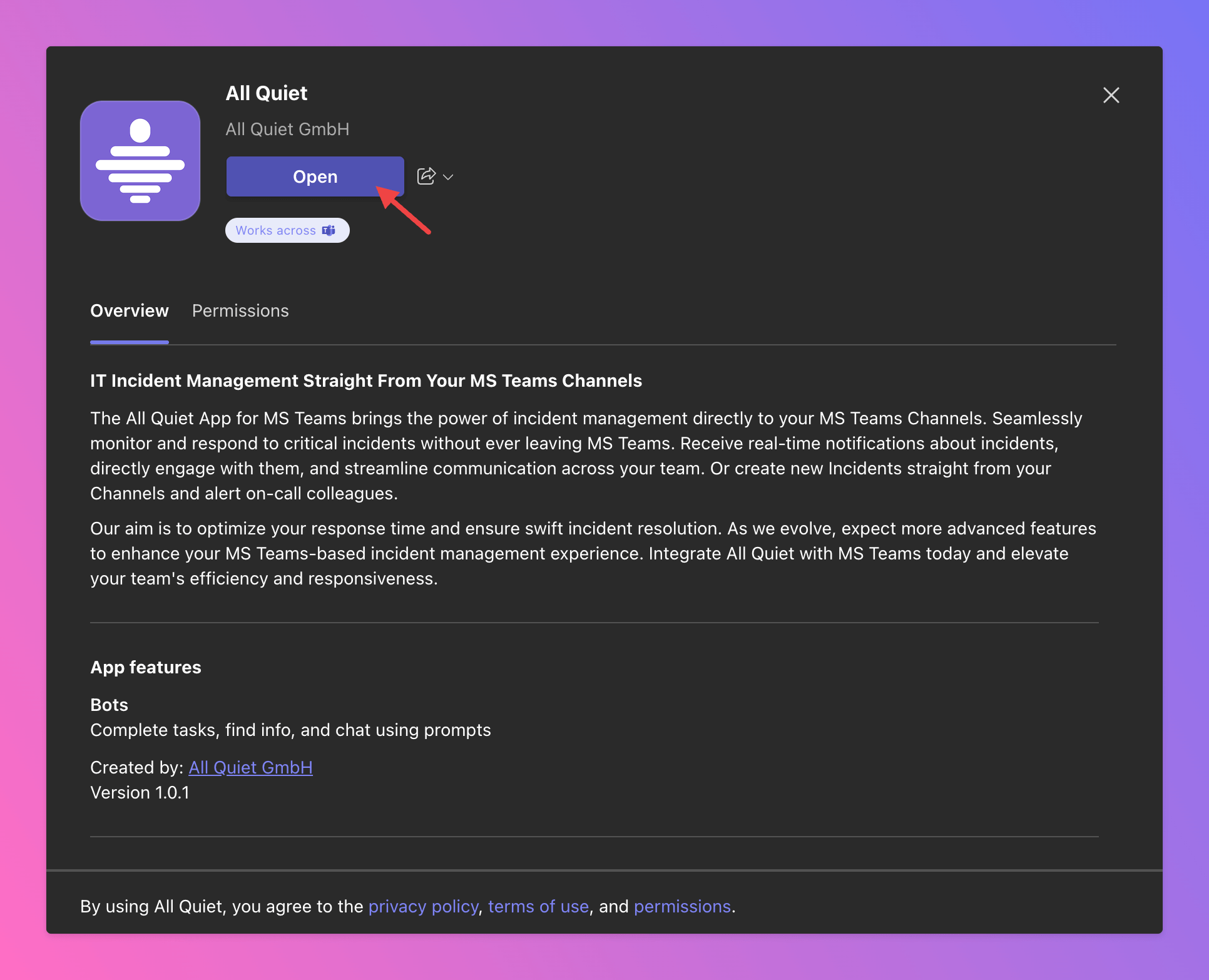
 Next, click `Add` or `Open` in the Pop up.
By using All Quiet, you grant the necessary permissions for the All Quiet MS Teams app. We only request permissions essential for the app to function effectively.
Next, click `Add` or `Open` in the Pop up.
By using All Quiet, you grant the necessary permissions for the All Quiet MS Teams app. We only request permissions essential for the app to function effectively.
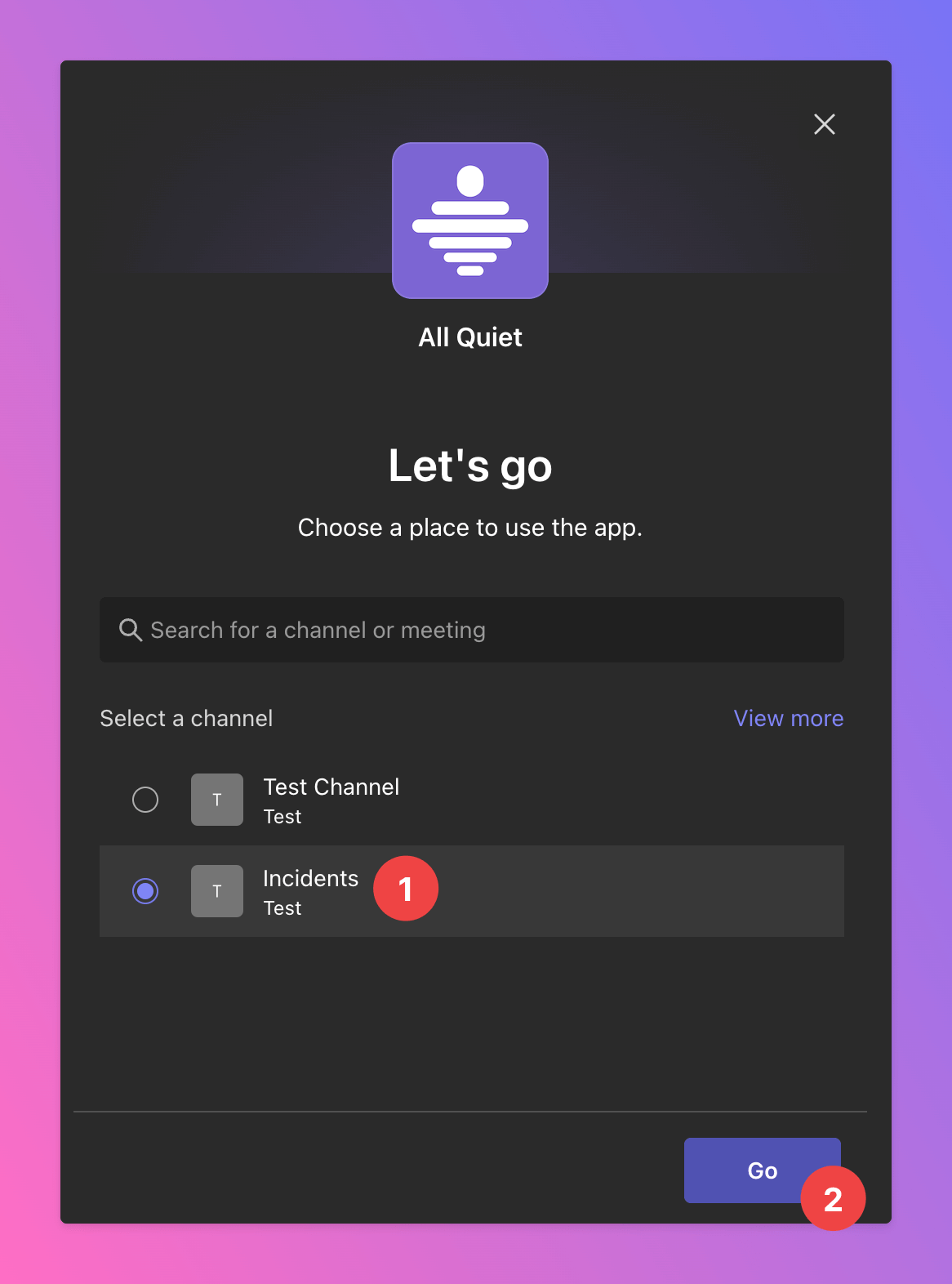
 1. Select the first MS Teams channel to integrate with All Quiet. Later, you can extend All Quiet to all channels within the same MS Team. If you’d like to use All Quiet with another MS Team, simply repeat this process and add it to a channel in that team.
2. Click `Go`.
1. Select the first MS Teams channel to integrate with All Quiet. Later, you can extend All Quiet to all channels within the same MS Team. If you’d like to use All Quiet with another MS Team, simply repeat this process and add it to a channel in that team.
2. Click `Go`.
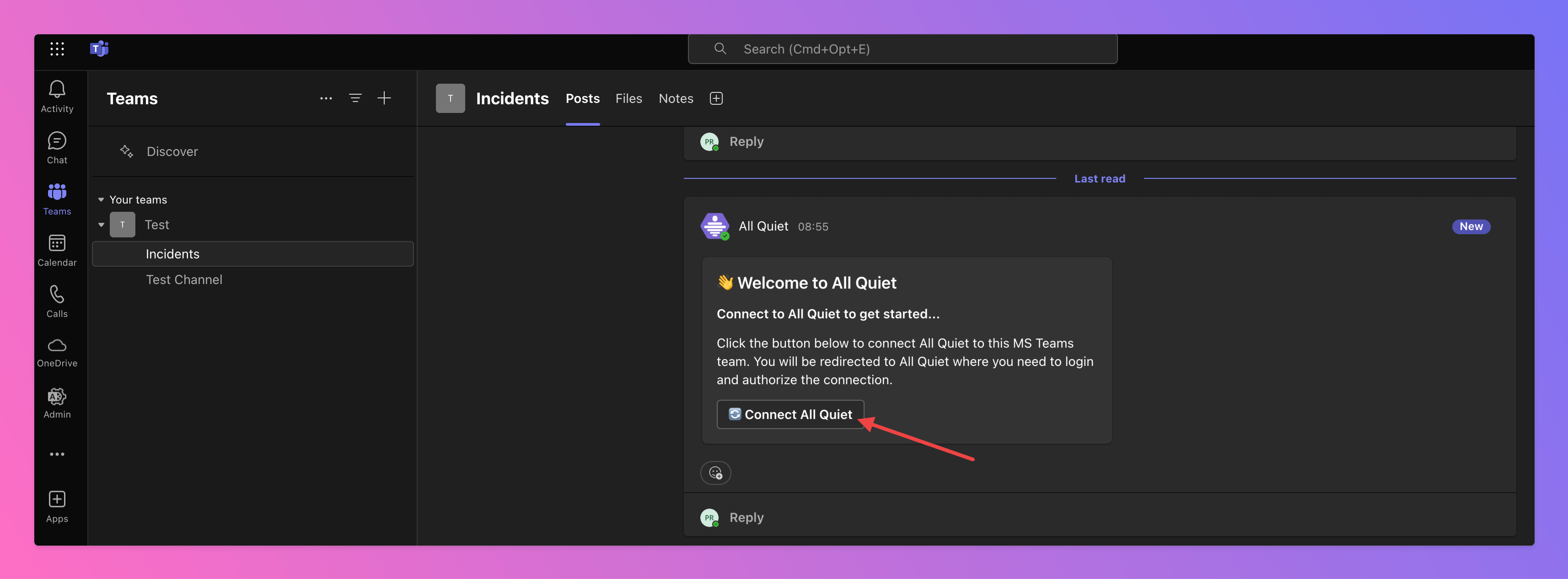
 You will be redirected to the selected MS Teams channel, where you’ll receive a message from the All Quiet app.
Click `Connect All Quiet` to link All Quiet with MS Teams. After that, you will be taken to your All Quiet Web App.
To establish the connection with All Quiet, you must log into your All Quiet account and be a member of at least one team in All Quiet.
You will be redirected to the selected MS Teams channel, where you’ll receive a message from the All Quiet app.
Click `Connect All Quiet` to link All Quiet with MS Teams. After that, you will be taken to your All Quiet Web App.
To establish the connection with All Quiet, you must log into your All Quiet account and be a member of at least one team in All Quiet.
 ### Set up MS Teams Integration in All Quiet
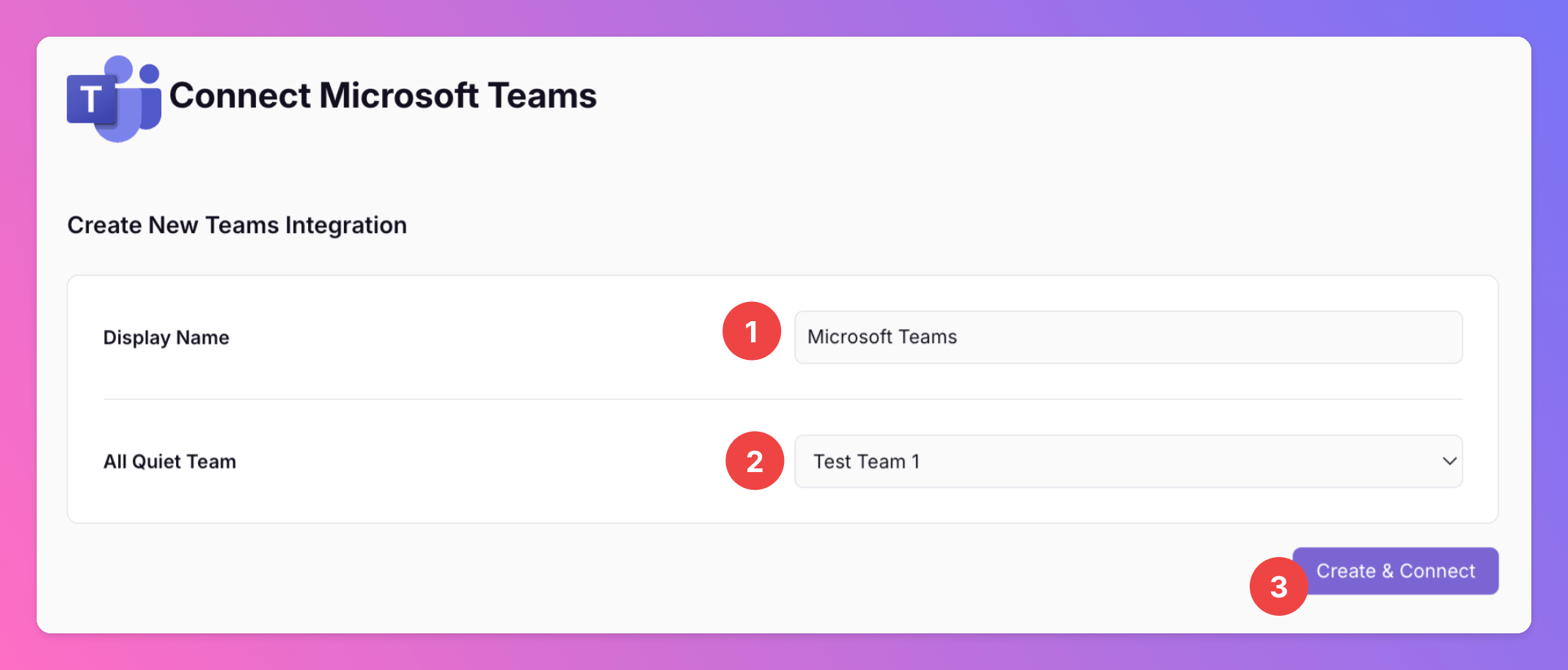
You will be redirected to a draft page for your MS Teams integration in All Quiet.
1. In the `Display Name` field, enter a name for your integration. For example, you can name it "MS Teams".
2. As `All Quiet Team`, select the All Quiet Team you want to connect with MS Teams. This will enable you to send incidents from this All Quiet Team to MS Teams and to create incidents in MS Teams to be sent back to this All Quiet team.
**Standard plan users**: Later, you can connect additional All Quiet Teams using the ["Connect" command](/integrations/outbound/microsoft-teams#connect-additional-all-quiet-teams-with-ms-teams) in MS Teams. This will create an extra MS Teams integration for each All Quiet team.
For **Organizations** with **Pro and Enterprise plan**: You will be able to add additional teams in the next step, allowing you to use the same MS Teams integration across several teams of your organization. This way, you can manage one incident across multiple teams, all from your MS Teams channels.
3. Click `Create & Connect` to connect All Quiet and MS Teams.
### Set up MS Teams Integration in All Quiet
You will be redirected to a draft page for your MS Teams integration in All Quiet.
1. In the `Display Name` field, enter a name for your integration. For example, you can name it "MS Teams".
2. As `All Quiet Team`, select the All Quiet Team you want to connect with MS Teams. This will enable you to send incidents from this All Quiet Team to MS Teams and to create incidents in MS Teams to be sent back to this All Quiet team.
**Standard plan users**: Later, you can connect additional All Quiet Teams using the ["Connect" command](/integrations/outbound/microsoft-teams#connect-additional-all-quiet-teams-with-ms-teams) in MS Teams. This will create an extra MS Teams integration for each All Quiet team.
For **Organizations** with **Pro and Enterprise plan**: You will be able to add additional teams in the next step, allowing you to use the same MS Teams integration across several teams of your organization. This way, you can manage one incident across multiple teams, all from your MS Teams channels.
3. Click `Create & Connect` to connect All Quiet and MS Teams.
 ## Send Incidents From All Quiet to MS Teams
To send All Quiet incidents to your MS Teams channels, you must complete the following additional configuration steps.
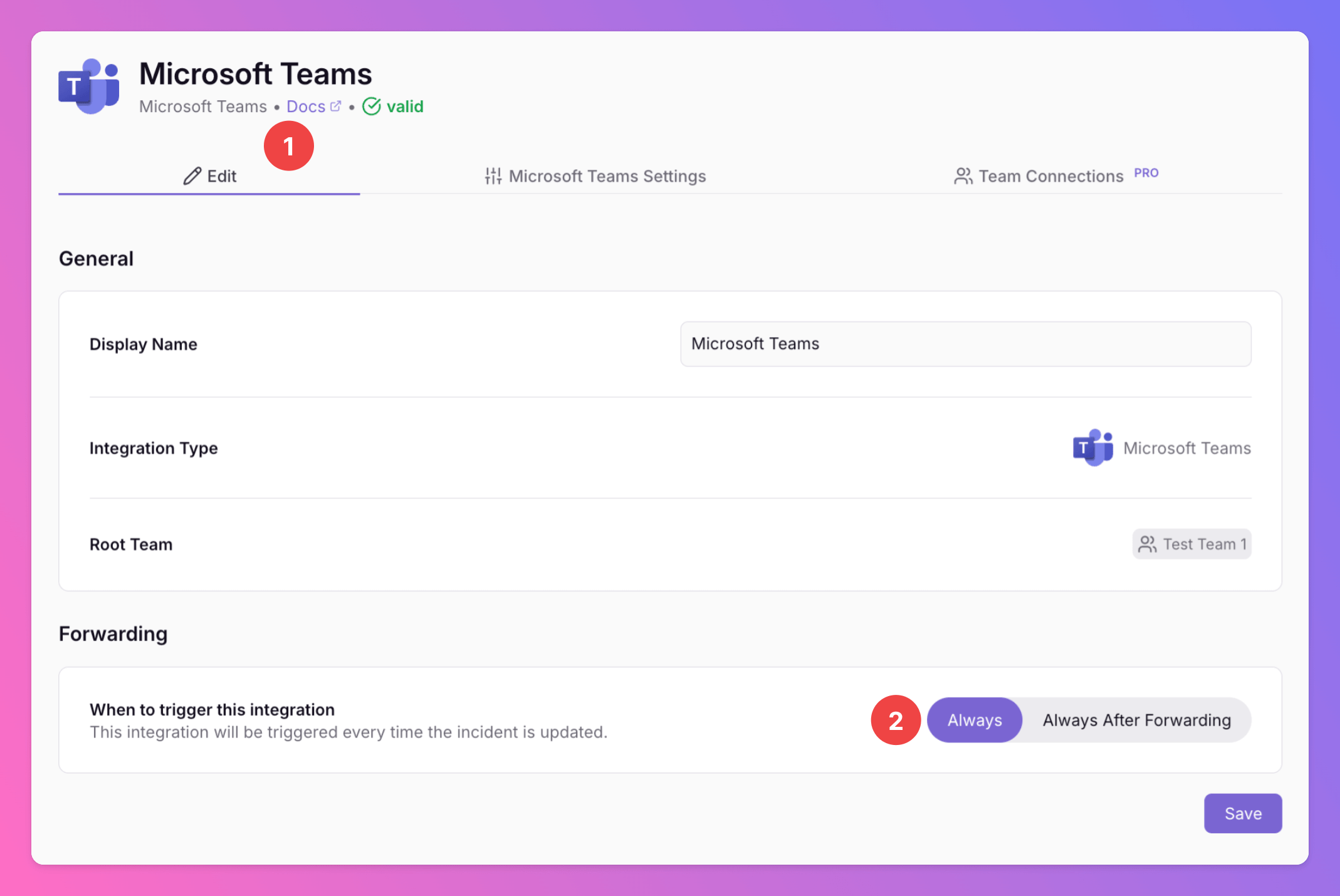
1. Open the `Edit` tab of your Microsoft Teams integration on All Quiet
2. Select your preferred `Forwarding` settings:
1. **Default:** `Always` will automatically forward all incidents to your Microsoft Teams Channels, unless excluded by [advanced routing rules](/advanced/routing).
2. **Alternative**: `Always After Forwarding` - Messages will only be sent if users [manually forward specific incidents](/essentials/incident#forwarding) or if you set up [advanced routing rules](/advanced/routing) for your Microsoft Teams integration that automatically forward incidents in specific scenarios. After the initial Forwarding, all updates will automatically be sent.
You can change your selection anytime.
Confirm by clicking `Save`
## Send Incidents From All Quiet to MS Teams
To send All Quiet incidents to your MS Teams channels, you must complete the following additional configuration steps.
1. Open the `Edit` tab of your Microsoft Teams integration on All Quiet
2. Select your preferred `Forwarding` settings:
1. **Default:** `Always` will automatically forward all incidents to your Microsoft Teams Channels, unless excluded by [advanced routing rules](/advanced/routing).
2. **Alternative**: `Always After Forwarding` - Messages will only be sent if users [manually forward specific incidents](/essentials/incident#forwarding) or if you set up [advanced routing rules](/advanced/routing) for your Microsoft Teams integration that automatically forward incidents in specific scenarios. After the initial Forwarding, all updates will automatically be sent.
You can change your selection anytime.
Confirm by clicking `Save`
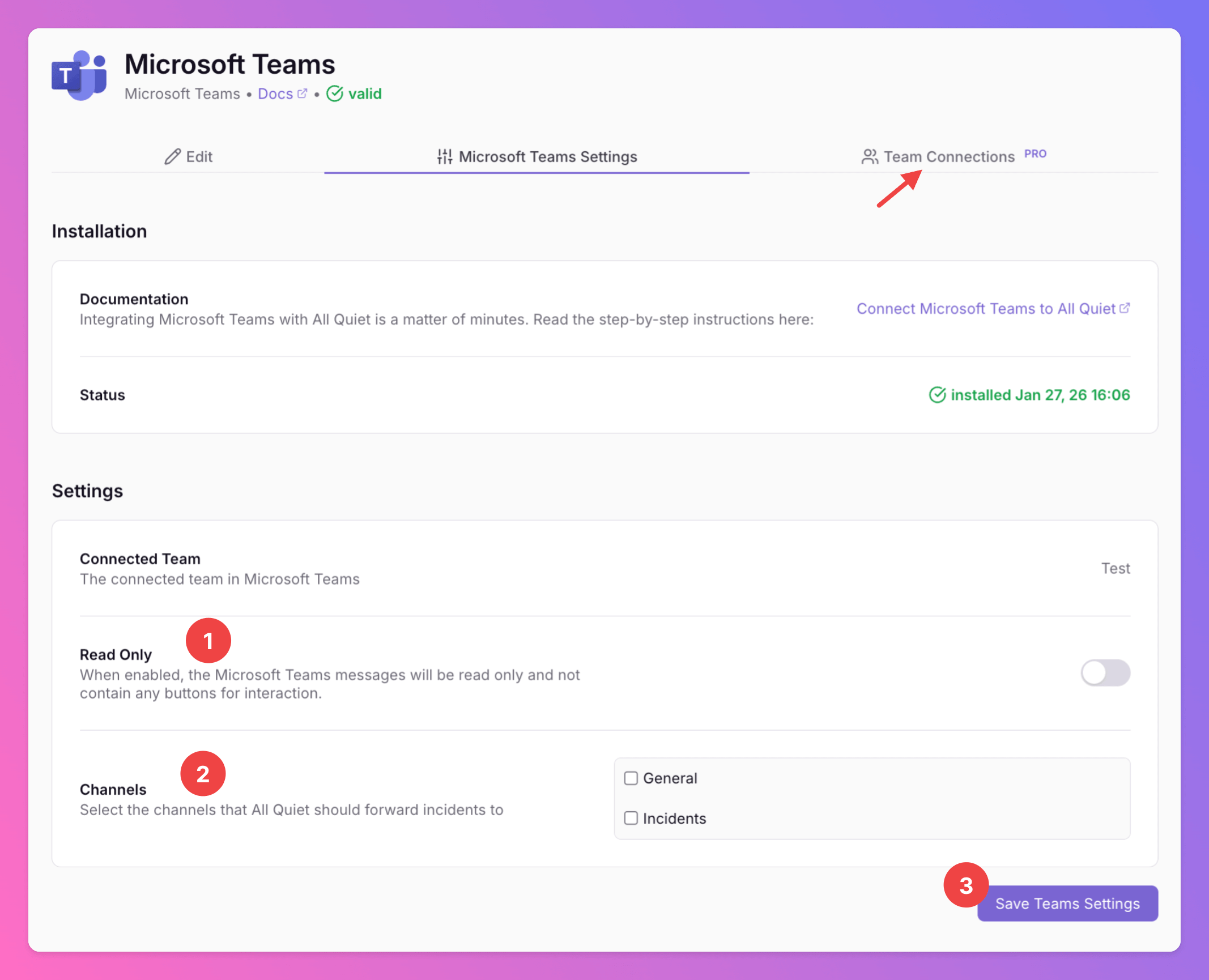
 Next, open the `Microsoft Teams Settings` tab. Here, you can configure additional information.
1. You can change your integration settings to “**Read Only**”. In this mode, we will not send any action buttons to your Microsoft Teams Channels, meaning users cannot interact with the messages. This is ideal if you want to use the integration for internal stakeholder management.
2. Select the MS Teams channels where you want to send All Quiet incidents to. You can choose from every channel in the connected MS Team(s). Regardless of its name in MS Teams, you first connected MS Teams channel will always be referred to as `General` in All Quiet. Unfortunately, this is beyond our control.
3. Click `Save`.
**Only for Pro and Enterprise plan** - Manage your `Team Connections`: The root team is pre-selected, and you can add the integration to further teams within the root team's organization. *Team Administrators* can add / remove those teams they are an Administrator in, *Organization Administrators* & *Organization Owners* can manage the connections to all teams of the organization.
Next, open the `Microsoft Teams Settings` tab. Here, you can configure additional information.
1. You can change your integration settings to “**Read Only**”. In this mode, we will not send any action buttons to your Microsoft Teams Channels, meaning users cannot interact with the messages. This is ideal if you want to use the integration for internal stakeholder management.
2. Select the MS Teams channels where you want to send All Quiet incidents to. You can choose from every channel in the connected MS Team(s). Regardless of its name in MS Teams, you first connected MS Teams channel will always be referred to as `General` in All Quiet. Unfortunately, this is beyond our control.
3. Click `Save`.
**Only for Pro and Enterprise plan** - Manage your `Team Connections`: The root team is pre-selected, and you can add the integration to further teams within the root team's organization. *Team Administrators* can add / remove those teams they are an Administrator in, *Organization Administrators* & *Organization Owners* can manage the connections to all teams of the organization.
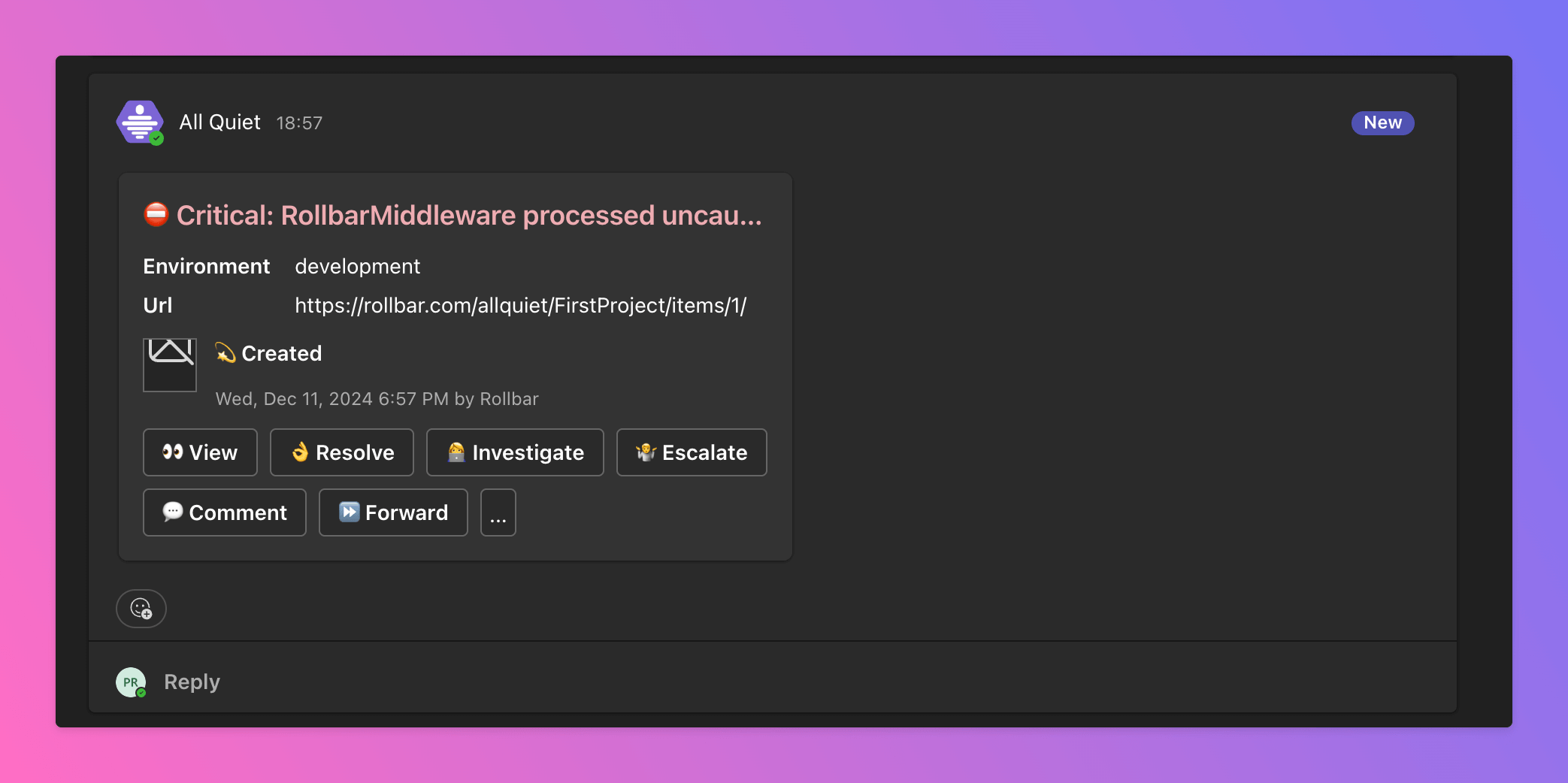
 Here’s an example of how an All Quiet incident will appear in MS Teams. You can manage your entire incident from within MS Teams, including your [status pages](/advanced/status-pages), and [forward](/essentials/incident#forwarding) the incident to other integrations for ticketing or post-mortems.
If incident grouping is enabled, All Quiet will only include the grouping attributes in the Microsoft Teams messages we send (the same fields used to group events into an incident). Learn more in our [Inbound Integrations docs](/essentials/inbound#optional-additional-attribute-keys).
For compliance reasons, only Users with rights in the All Quiet team(s) connected to the incident can interact with the Message.
Here’s an example of how an All Quiet incident will appear in MS Teams. You can manage your entire incident from within MS Teams, including your [status pages](/advanced/status-pages), and [forward](/essentials/incident#forwarding) the incident to other integrations for ticketing or post-mortems.
If incident grouping is enabled, All Quiet will only include the grouping attributes in the Microsoft Teams messages we send (the same fields used to group events into an incident). Learn more in our [Inbound Integrations docs](/essentials/inbound#optional-additional-attribute-keys).
For compliance reasons, only Users with rights in the All Quiet team(s) connected to the incident can interact with the Message.
 You can now use MS Teams as an outbound integration to send All Quiet incidents to your team channels. Below, you’ll find instructions on how to use MS Teams to create new incidents as well.
## Create New All Quiet Incidents Directly From MS Teams
To create a new incident in All Quiet from your MS Teams channel, start a new post and type `@All Quiet`. You can use the Tab key for autocomplete.
You can now use MS Teams as an outbound integration to send All Quiet incidents to your team channels. Below, you’ll find instructions on how to use MS Teams to create new incidents as well.
## Create New All Quiet Incidents Directly From MS Teams
To create a new incident in All Quiet from your MS Teams channel, start a new post and type `@All Quiet`. You can use the Tab key for autocomplete.
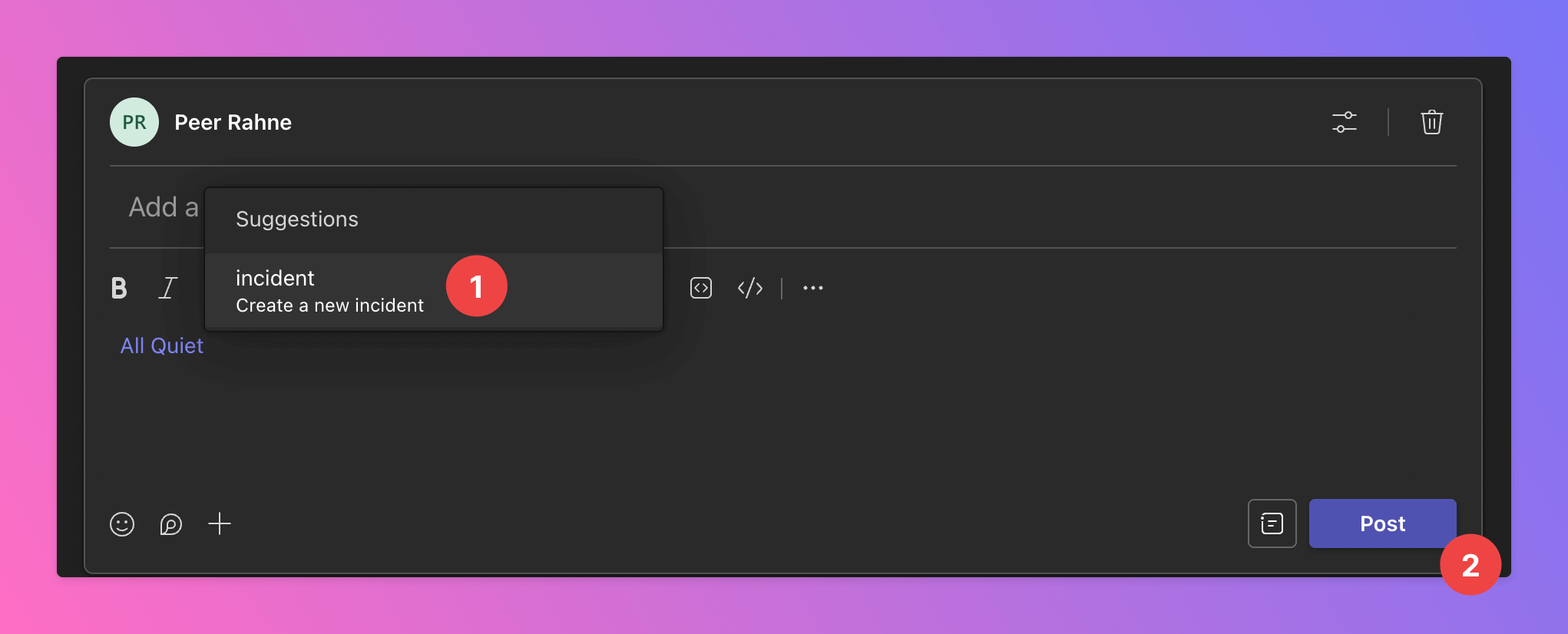
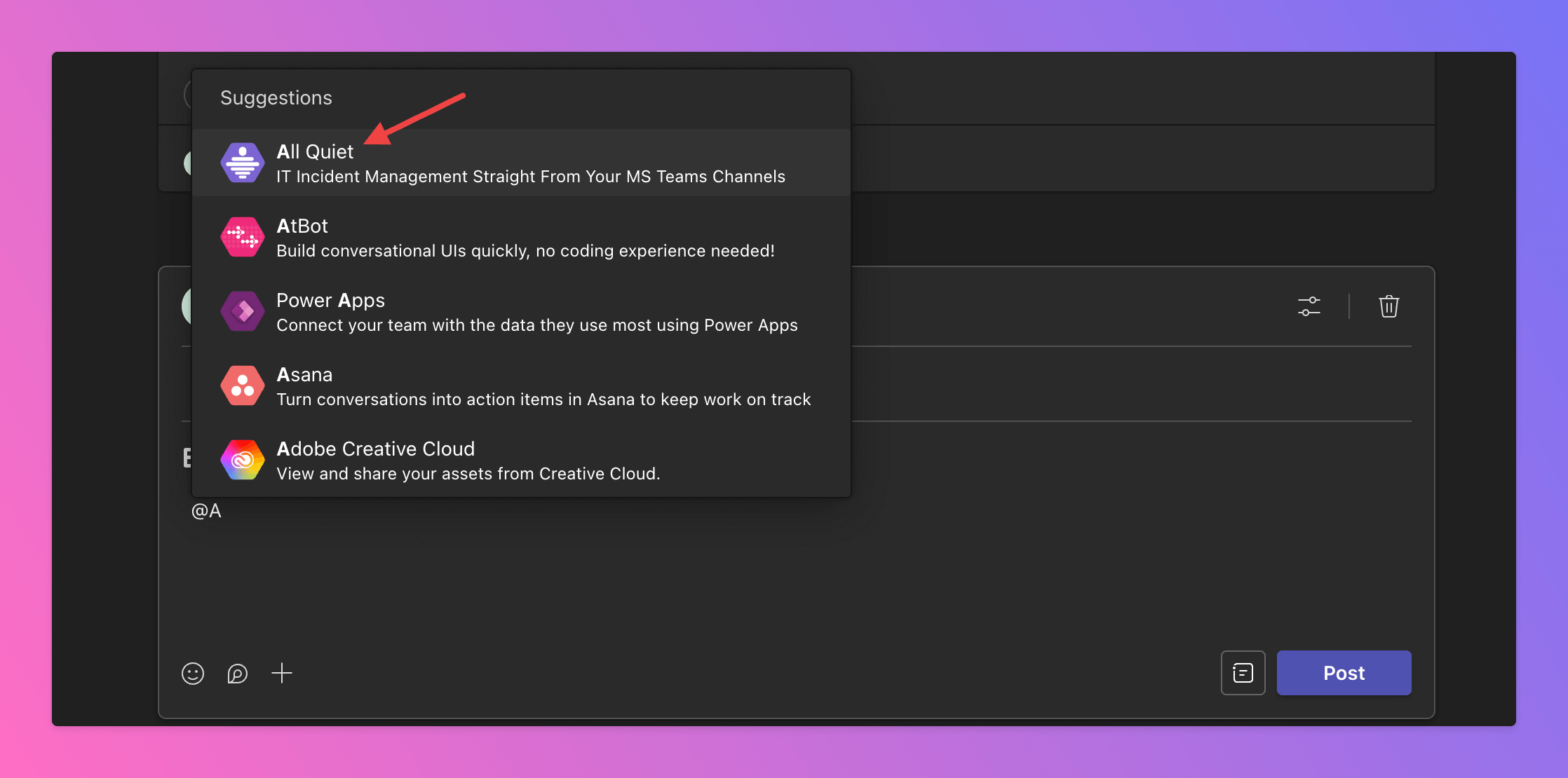 Next, you will receive command suggestions.
1. Select the command `incident` by either clicking on it or typing it.
2. Click `Post` to create the incident form.
Next, you will receive command suggestions.
1. Select the command `incident` by either clicking on it or typing it.
2. Click `Post` to create the incident form.
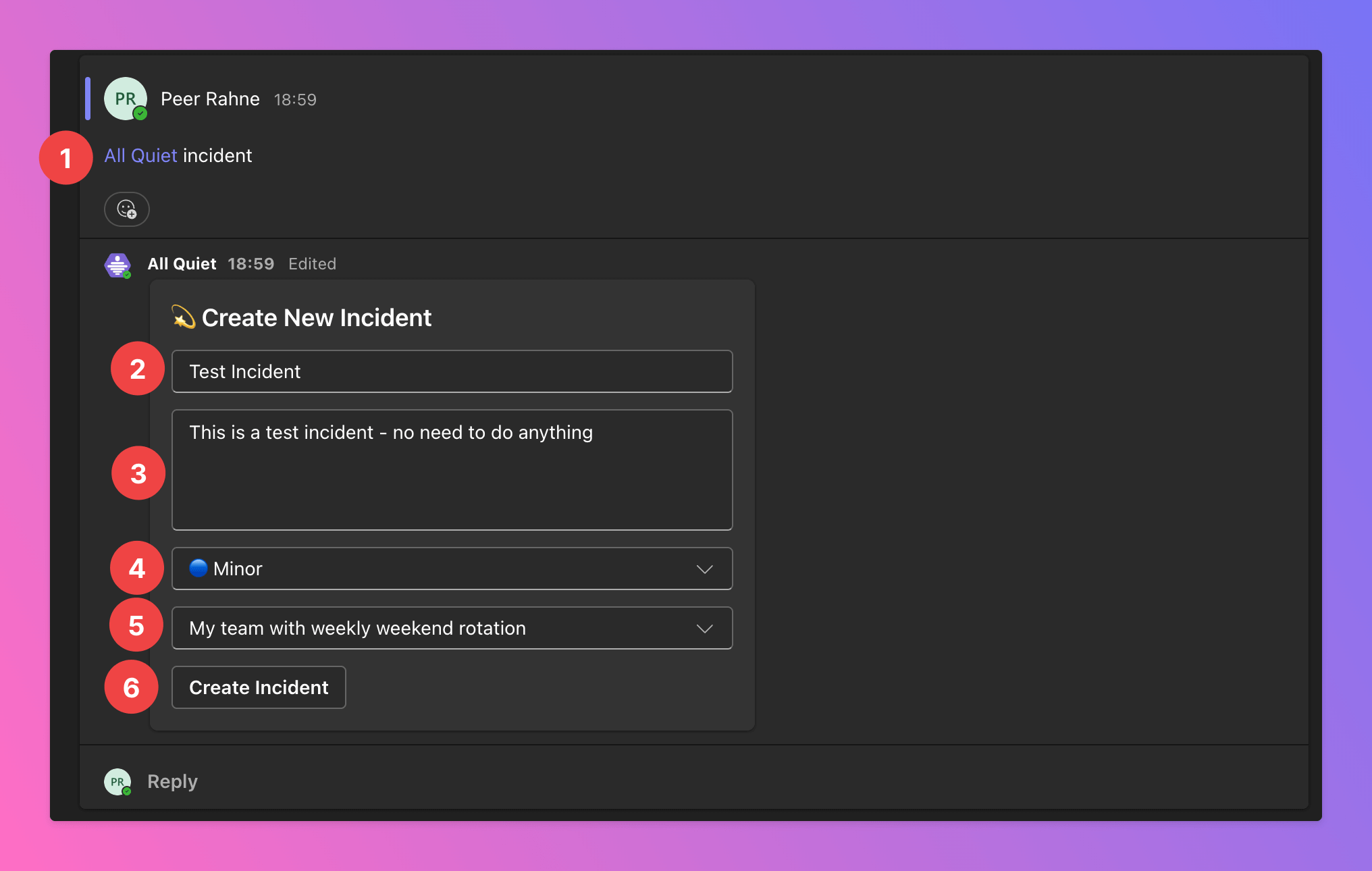
 Fill out the form in order to create an incident.
1. You will see the command that triggered the form.
2. Enter a `Title` for the incident.
3. Enter a `Description`.
4. Select the `Severity`.
5. Select the All Quiet Team where you want to create the incident. If the right team is not listed, you will need to add it first. See [below](/integrations/outbound/microsoft-teams#connect-additional-all-quiet-teams-with-ms-teams) for more. For compliance reasons, Users will only be able to select from the All Quiet teams they have rights in & that are connected to Microsoft Teams via the integration.
6. Click `Create Incident` to submit.
Fill out the form in order to create an incident.
1. You will see the command that triggered the form.
2. Enter a `Title` for the incident.
3. Enter a `Description`.
4. Select the `Severity`.
5. Select the All Quiet Team where you want to create the incident. If the right team is not listed, you will need to add it first. See [below](/integrations/outbound/microsoft-teams#connect-additional-all-quiet-teams-with-ms-teams) for more. For compliance reasons, Users will only be able to select from the All Quiet teams they have rights in & that are connected to Microsoft Teams via the integration.
6. Click `Create Incident` to submit.
 This is how the new incident will appear in MS Teams...
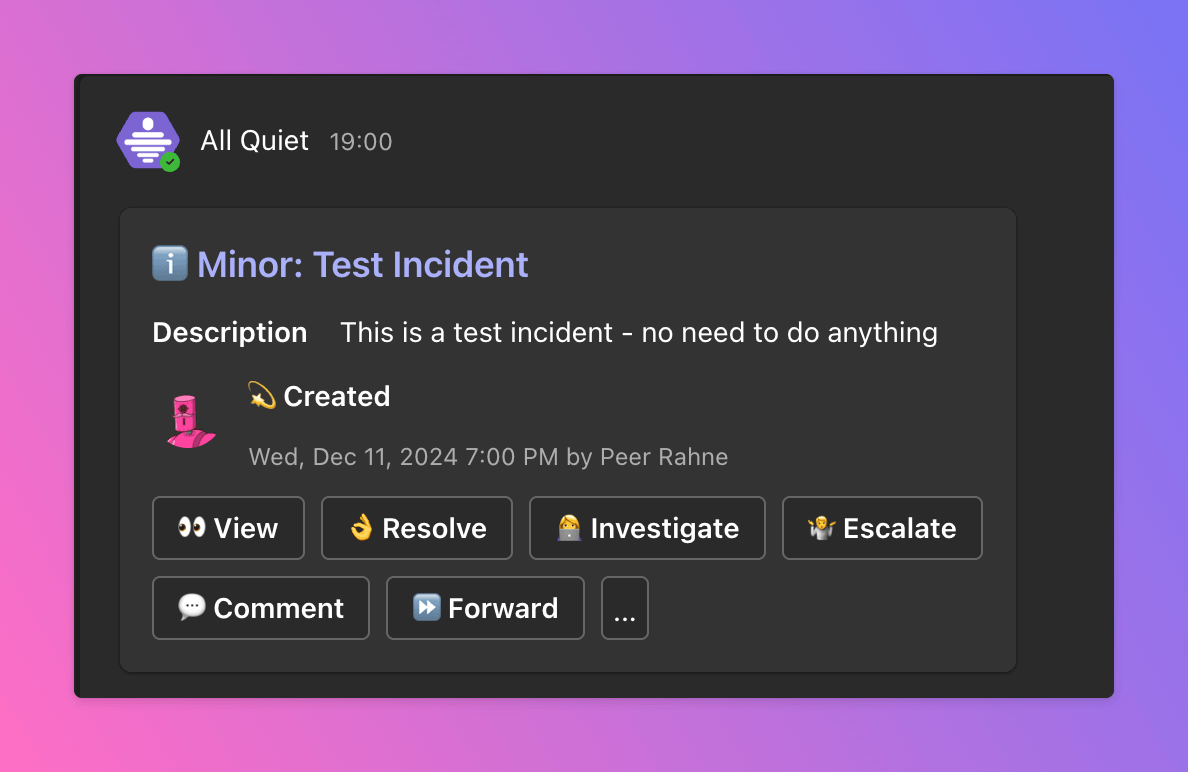 ...and this is how it will look in the incident overview on the All Quiet web app.
 ## Connect Additional All Quiet Teams With MS Teams
With the following command, you will eventually create an additional MS Teams integration for each team in All Quiet. **We recommend Pro and Enterprise users** to add the integration to further All Quiet teams via the [integration's setup page in All Quiet](/integrations/outbound/microsoft-teams#send-incidents-from-all-quiet-to-ms-teams) in case they want to share incidents across several teams.
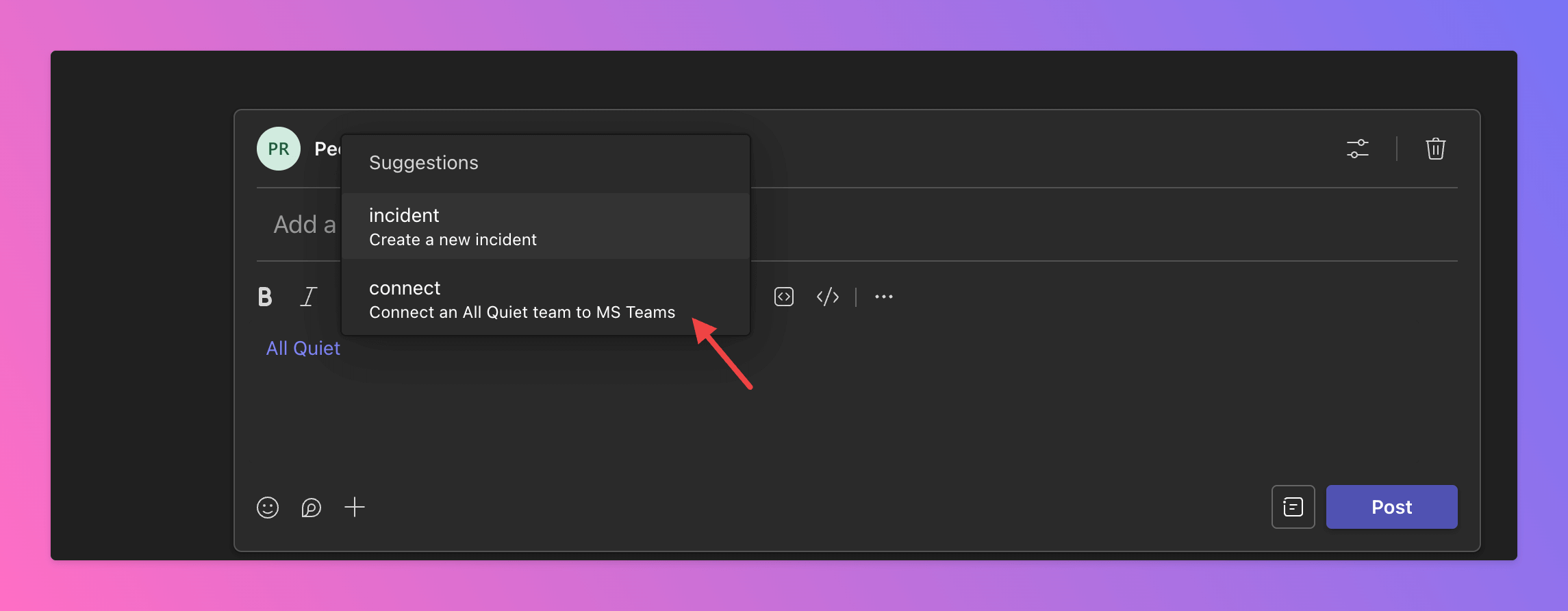
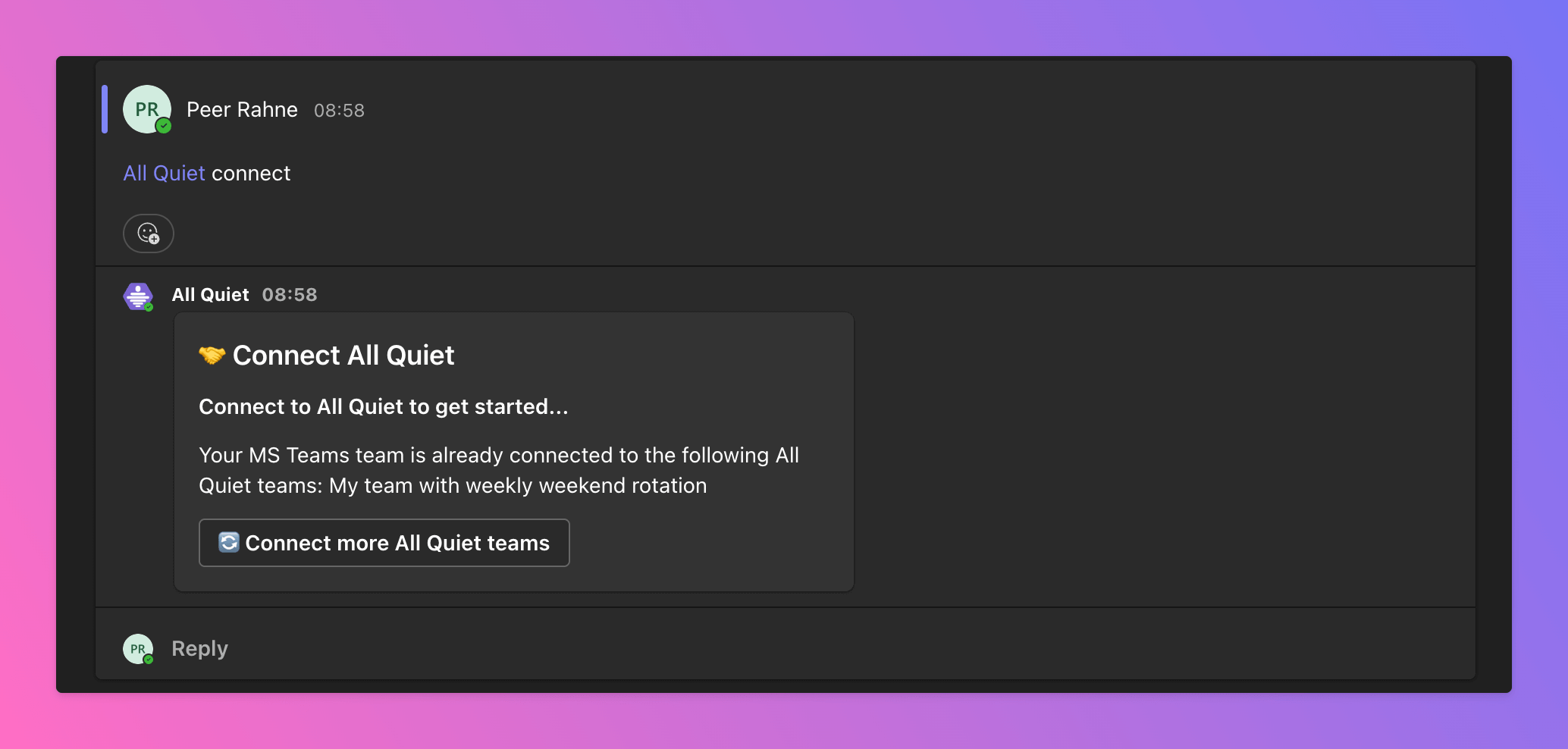
To connect another All Quiet team with MS Teams, simply go to your teams channel and enter `@All Quiet` followed the command `connect`.
## Connect Additional All Quiet Teams With MS Teams
With the following command, you will eventually create an additional MS Teams integration for each team in All Quiet. **We recommend Pro and Enterprise users** to add the integration to further All Quiet teams via the [integration's setup page in All Quiet](/integrations/outbound/microsoft-teams#send-incidents-from-all-quiet-to-ms-teams) in case they want to share incidents across several teams.
To connect another All Quiet team with MS Teams, simply go to your teams channel and enter `@All Quiet` followed the command `connect`.
 This will trigger another `Connect` message. By clicking `Connect more All Quiet teams`, you will be redirected to your All Quiet web app with a drafted MS Teams integration. Simply follow the steps from [above](/integrations/outbound/microsoft-teams#set-up-ms-teams-integration-in-all-quiet) and select the additional All Quiet team wish to connect.
 ## Disconnect All Quiet and MS Teams
**To disconnect** your Microsoft Team from All Quiet, enter the command `@All Quiet disconnect` and confirm by clicking on `Disconnect Now` in the interactive message the bot is sending you afterwards.
## Troubleshooting
**Team Administrators**, **Organization Administrators**, and **Organization Owners** can troubleshoot this integration using the **History** tab (**Outbound History**) on the integration details page. See **[Outbound History](/essentials/outbound#outbound-history)** for what is logged, who can access it, and how to read outcomes. For broader checks when outbound tools do not fire, see **[Outbound integrations — Troubleshooting](/essentials/outbound#outbound-troubleshooting-routing)** and **[advanced routing](/advanced/routing)**.
## Disconnect All Quiet and MS Teams
**To disconnect** your Microsoft Team from All Quiet, enter the command `@All Quiet disconnect` and confirm by clicking on `Disconnect Now` in the interactive message the bot is sending you afterwards.
## Troubleshooting
**Team Administrators**, **Organization Administrators**, and **Organization Owners** can troubleshoot this integration using the **History** tab (**Outbound History**) on the integration details page. See **[Outbound History](/essentials/outbound#outbound-history)** for what is logged, who can access it, and how to read outcomes. For broader checks when outbound tools do not fire, see **[Outbound integrations — Troubleshooting](/essentials/outbound#outbound-troubleshooting-routing)** and **[advanced routing](/advanced/routing)**.