> ## Documentation Index
> Fetch the complete documentation index at: https://docs.allquiet.app/llms.txt
> Use this file to discover all available pages before exploring further.
# Mattermost
> Connect Your Mattermost Server with All Quiet to Manage Incidents from Mattermost
Setup time: 10 Min
Integrate your Mattermost Server with All Quiet for efficient incident management right from within Mattermost.
The first part of this documentation focuses on creating the integration. The second explains how to send All Quiet incidents to your Mattermost channels (Outbound).
Want to create new incidents from your Mattermost channels (Inbound)? Follow the [third part](/integrations/outbound/mattermost#create-incidents-from-mattermost) of this guideline.
## Create Outbound Integration
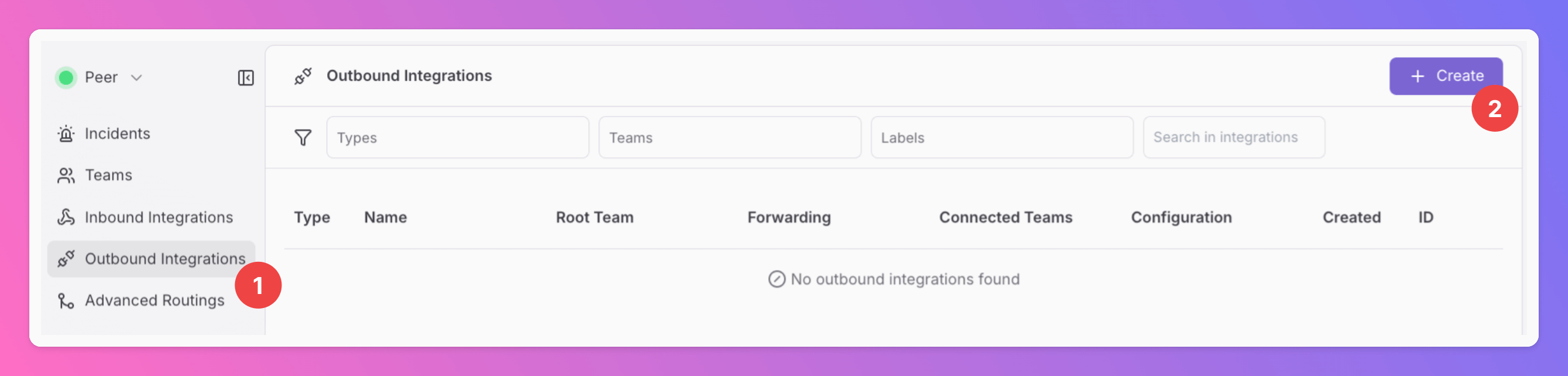
1. Click on the `Outbound Integrations` tab.
2. Click on `+ Create`.
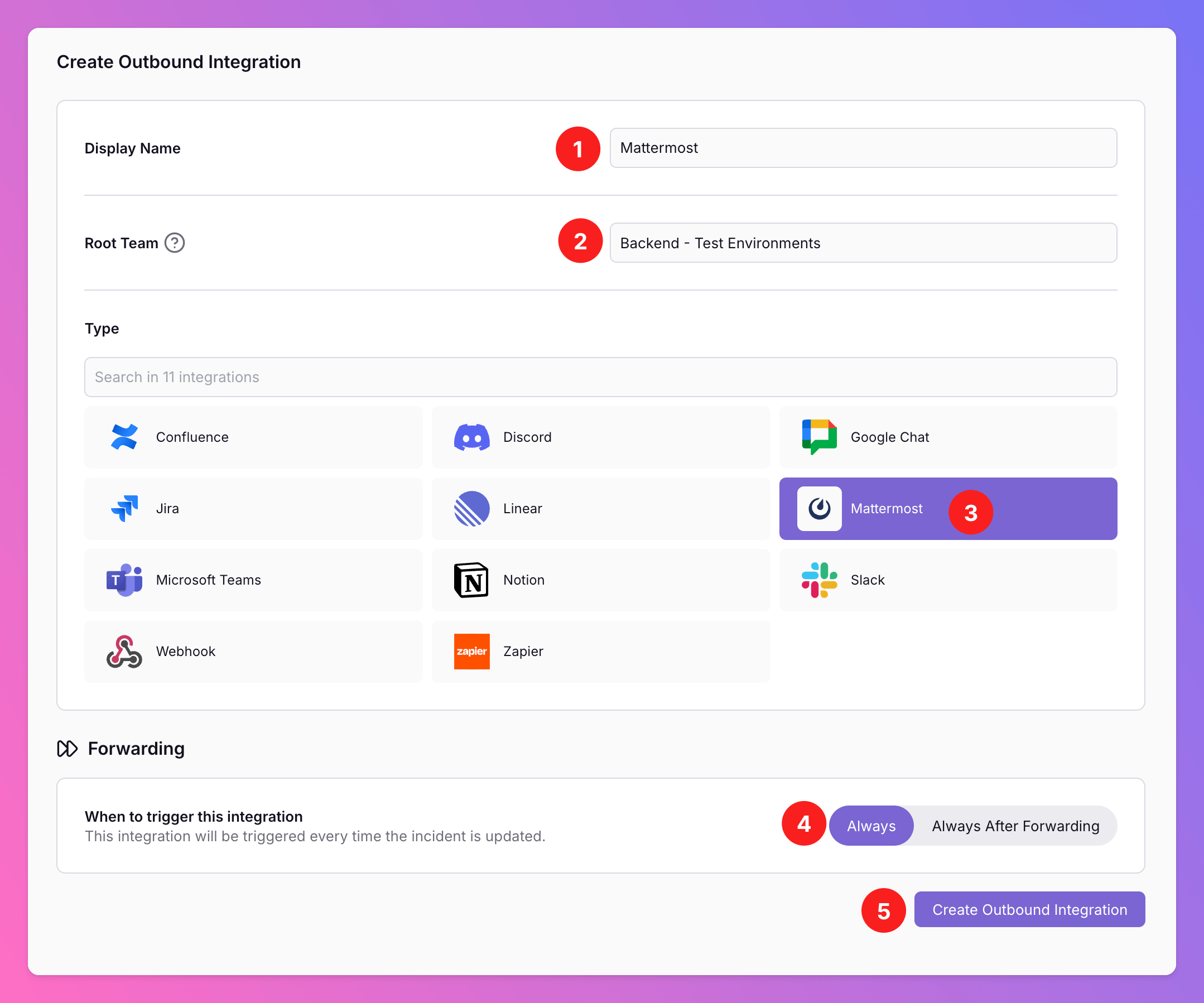
 1. Enter a `Display Name` for your integration, e.g. "Mattermost".
2. Select a `Team`. For Organizations with Pro and Enterprise plan: This is going to be the root team of your integration. You will be able to add additional teams in the next step.
3. Select `Mattermost` as the integration's type.
4. Forwarding settings:
1. **Default:** `Always` will automatically forward all incidents to your Mattermost Server, unless excluded by [advanced routing rules](/advanced/routing).
2. **Alternative**: `Always After Forwarding` - Messages will only be sent if users [manually forward specific incidents](/essentials/incident#forwarding) or if you set up [advanced routing rules](/advanced/routing) that automatically forward incidents in specific scenarios. After the initial Forwarding, all updates will automatically be sent.
You can change your selection anytime.
5. Click `Create Outbound Integration`.
1. Enter a `Display Name` for your integration, e.g. "Mattermost".
2. Select a `Team`. For Organizations with Pro and Enterprise plan: This is going to be the root team of your integration. You will be able to add additional teams in the next step.
3. Select `Mattermost` as the integration's type.
4. Forwarding settings:
1. **Default:** `Always` will automatically forward all incidents to your Mattermost Server, unless excluded by [advanced routing rules](/advanced/routing).
2. **Alternative**: `Always After Forwarding` - Messages will only be sent if users [manually forward specific incidents](/essentials/incident#forwarding) or if you set up [advanced routing rules](/advanced/routing) that automatically forward incidents in specific scenarios. After the initial Forwarding, all updates will automatically be sent.
You can change your selection anytime.
5. Click `Create Outbound Integration`.
 ## Send All Quiet Incidents to Mattermost
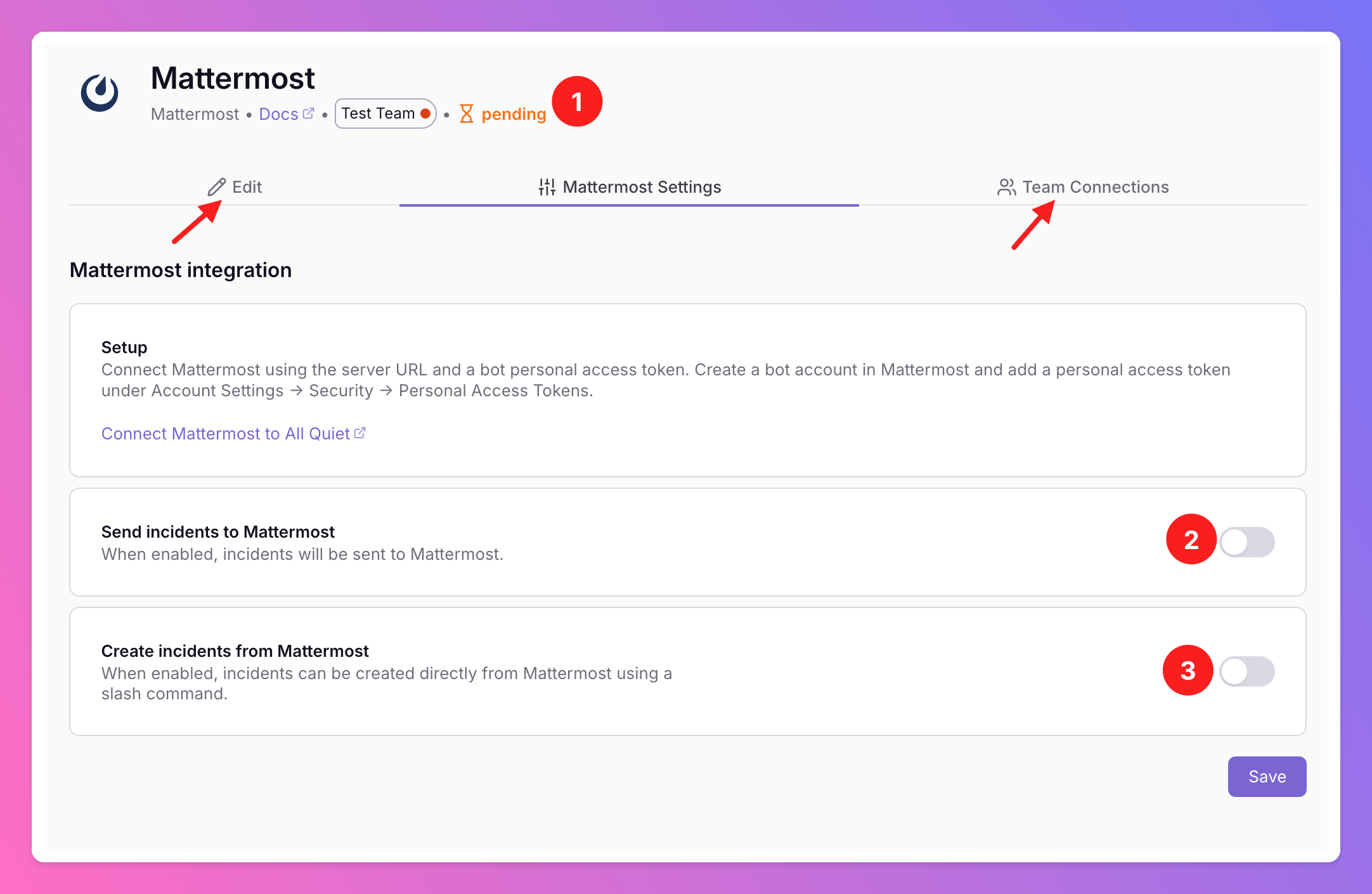
Once you've successfully created your new outbound integration, you'll automatically be redirected to its `Settings` page.
1. Observe that the installation status is still pending.
2. To activate the outbound integration, enable the toggle `Send incidents to Mattermost` and follow the next steps in this guide.
3. To activate the inbound integratoin, enable the toggle `Create incidents from Mattermost` and follow [this part of the setup guide](/integrations/outbound/mattermost#create-incidents-from-mattermost).
In the `Edit` tab, you can change general settings like the integration's [Forwarding settings](/integrations/outbound/slack#create-outbound-integration).
**Only for Pro and Enterprise plan** - Manage your `Team Connections`: The root team is pre-selected, and you can add the integration to further teams within the root team's organization. *Team Administrators* can add / remove those teams they are an Administrator in, *Organization Administrators* & *Organization Owners* can manage the connections to all teams of the organization.
## Send All Quiet Incidents to Mattermost
Once you've successfully created your new outbound integration, you'll automatically be redirected to its `Settings` page.
1. Observe that the installation status is still pending.
2. To activate the outbound integration, enable the toggle `Send incidents to Mattermost` and follow the next steps in this guide.
3. To activate the inbound integratoin, enable the toggle `Create incidents from Mattermost` and follow [this part of the setup guide](/integrations/outbound/mattermost#create-incidents-from-mattermost).
In the `Edit` tab, you can change general settings like the integration's [Forwarding settings](/integrations/outbound/slack#create-outbound-integration).
**Only for Pro and Enterprise plan** - Manage your `Team Connections`: The root team is pre-selected, and you can add the integration to further teams within the root team's organization. *Team Administrators* can add / remove those teams they are an Administrator in, *Organization Administrators* & *Organization Owners* can manage the connections to all teams of the organization.
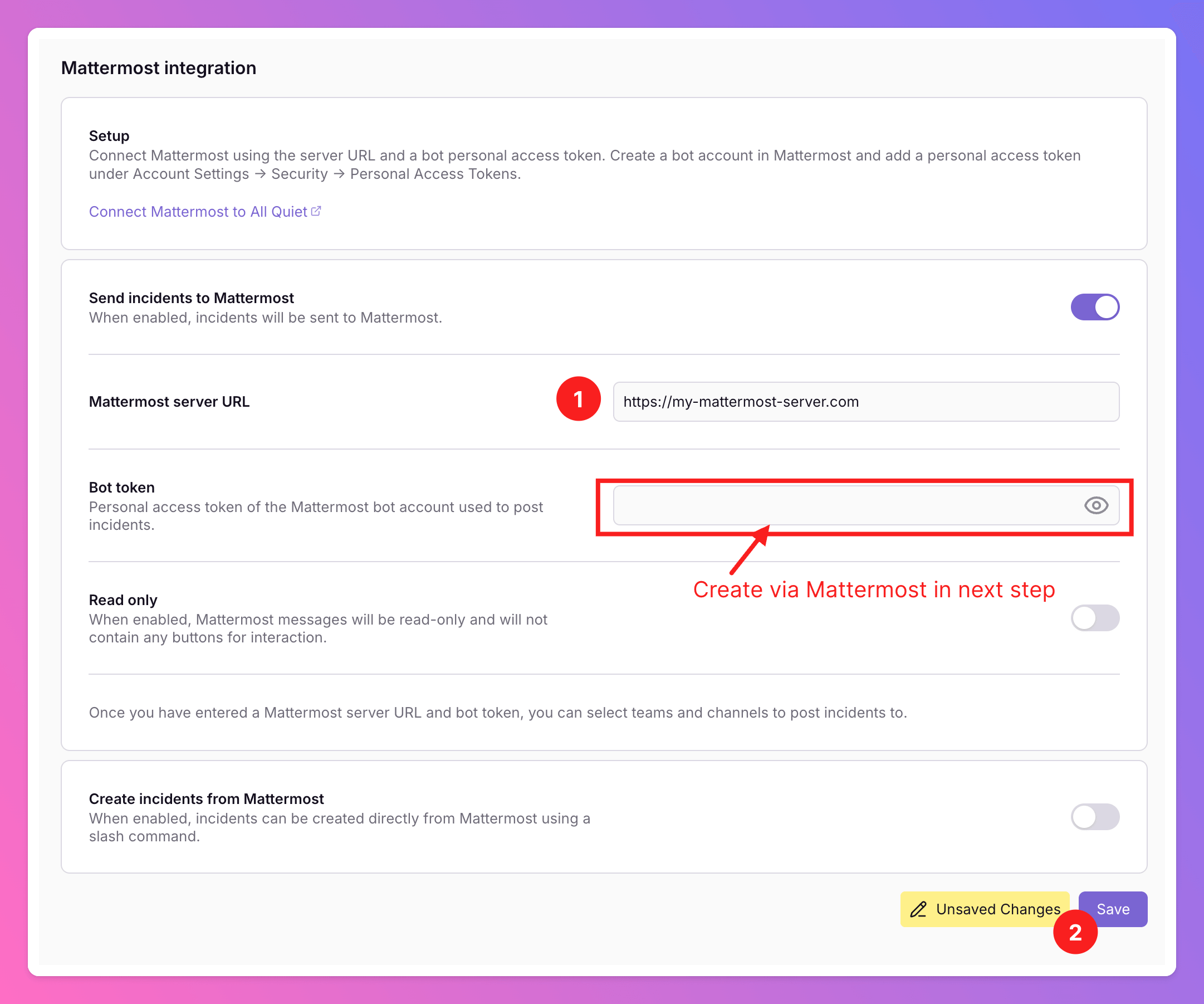
 After enabling `Send incidents to Mattermost` to send All Quiet incidents to Mattermost, you add a bit more information.
1. Add the URL of your Mattermost server.
2. Click `Save`.
To activate the integration, we need to create a Bot on Mattermost in the next step and paste the Bot's access token into our integration settings in All Quiet.
After enabling `Send incidents to Mattermost` to send All Quiet incidents to Mattermost, you add a bit more information.
1. Add the URL of your Mattermost server.
2. Click `Save`.
To activate the integration, we need to create a Bot on Mattermost in the next step and paste the Bot's access token into our integration settings in All Quiet.
 In Mattermost
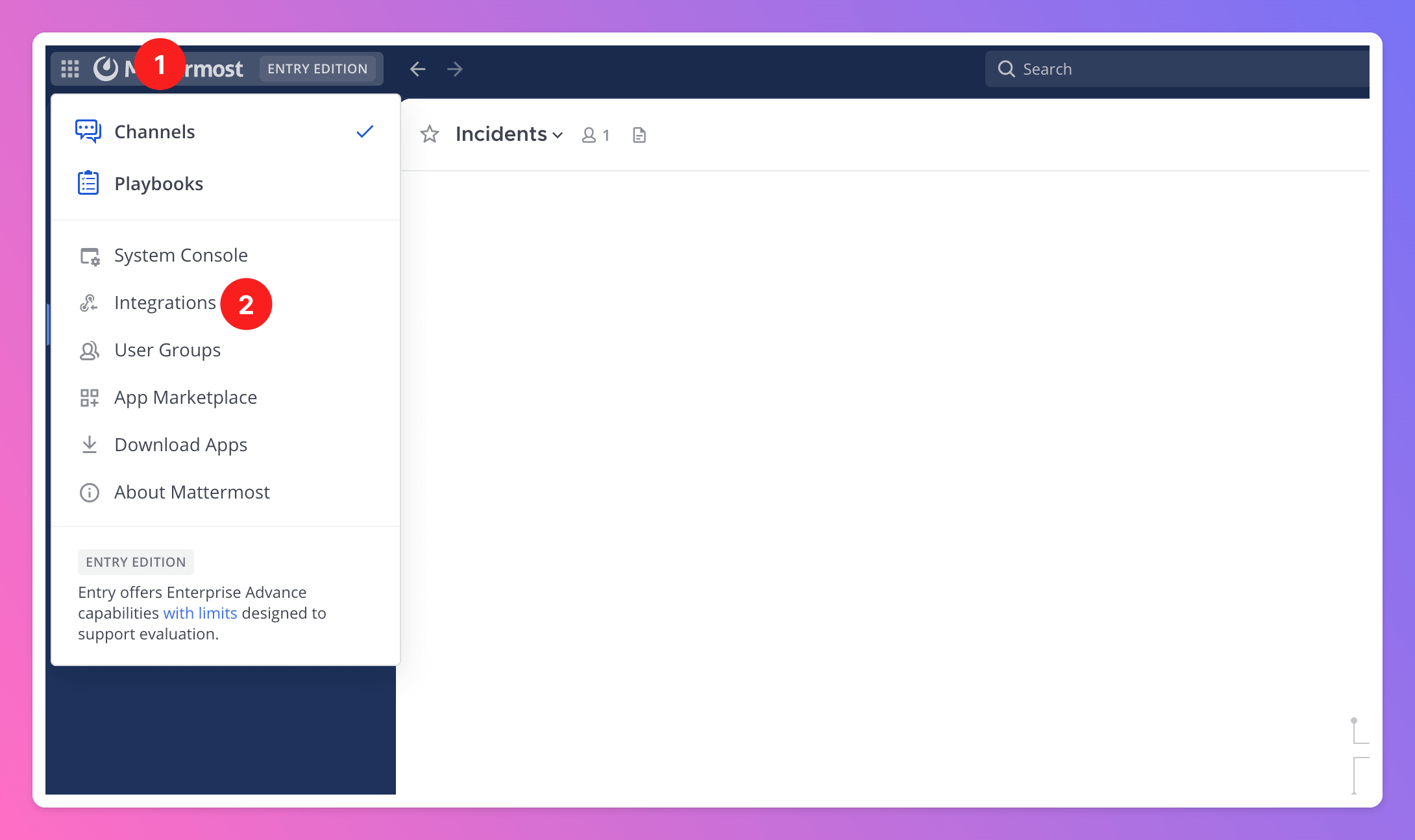
1. Open the menu in the top left corner.
2. In the menu, select `Integrations`.
In Mattermost
1. Open the menu in the top left corner.
2. In the menu, select `Integrations`.
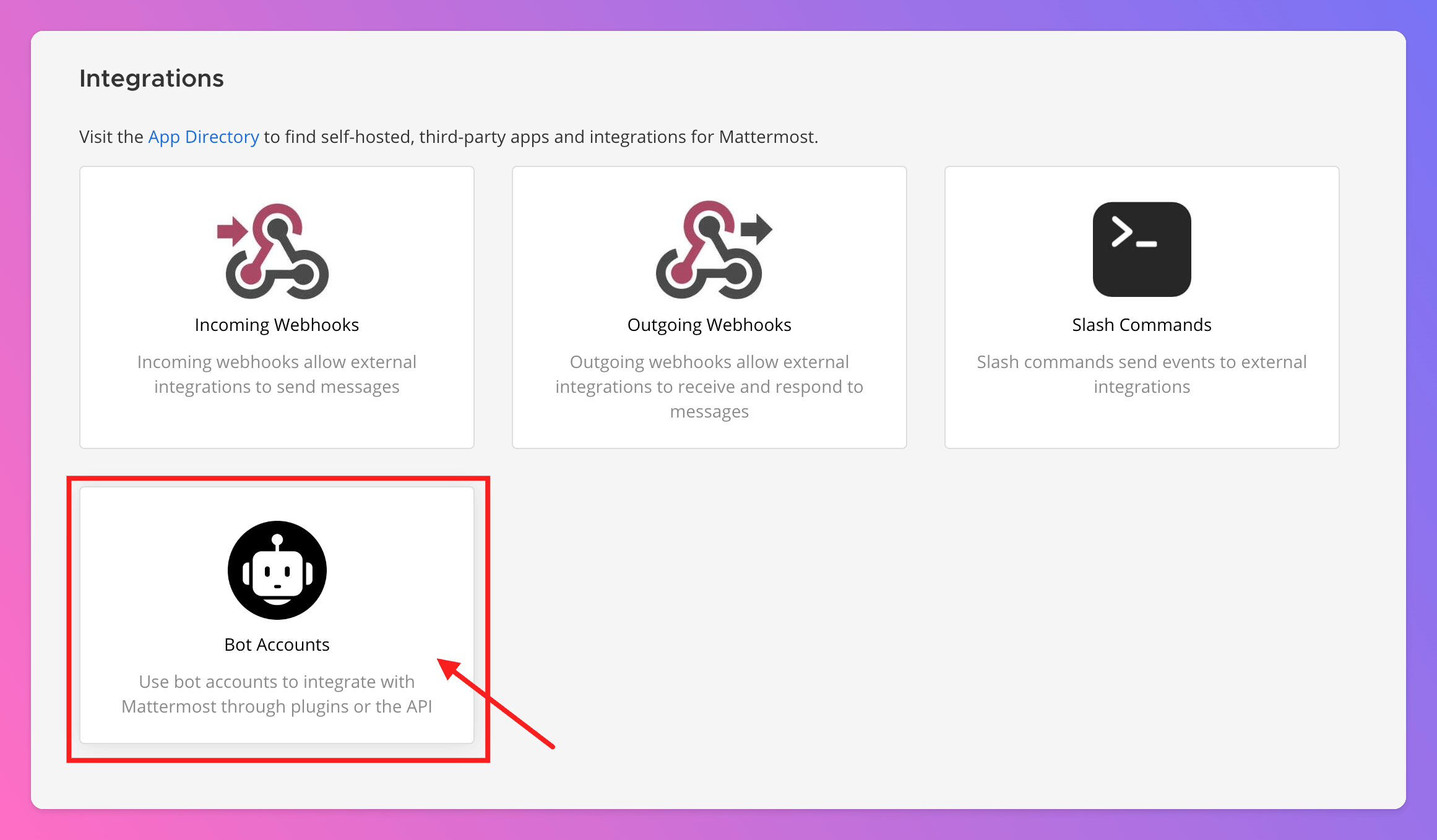
 Next, select `Bot Accounts` as integration type.
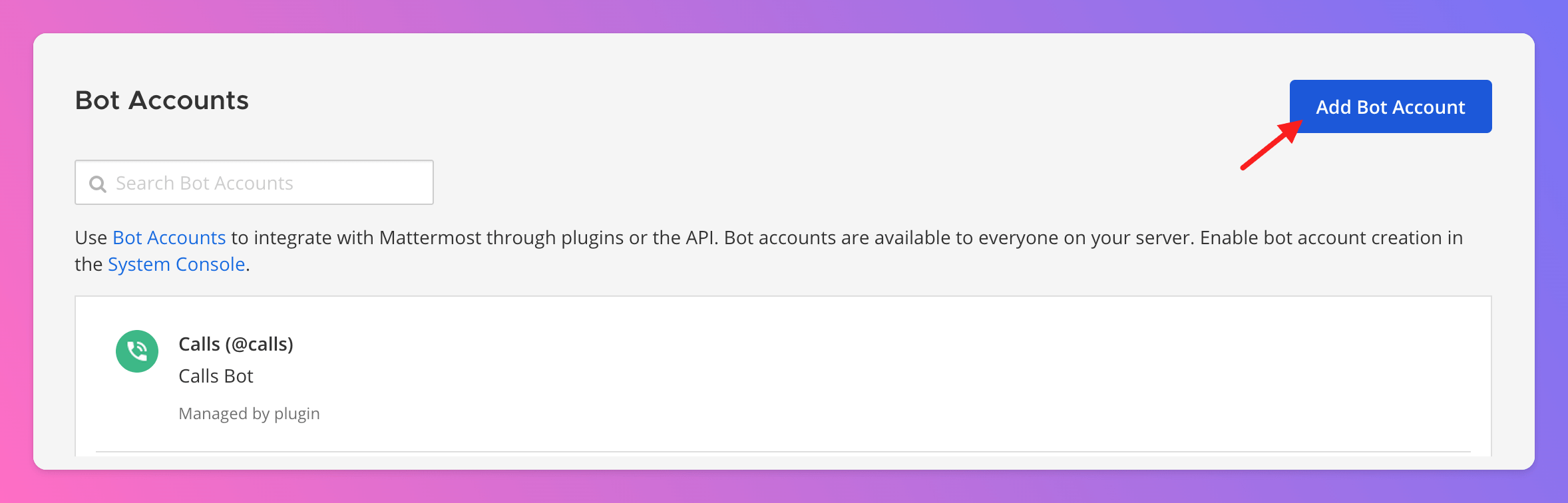
 Click `Add Bot Account`.
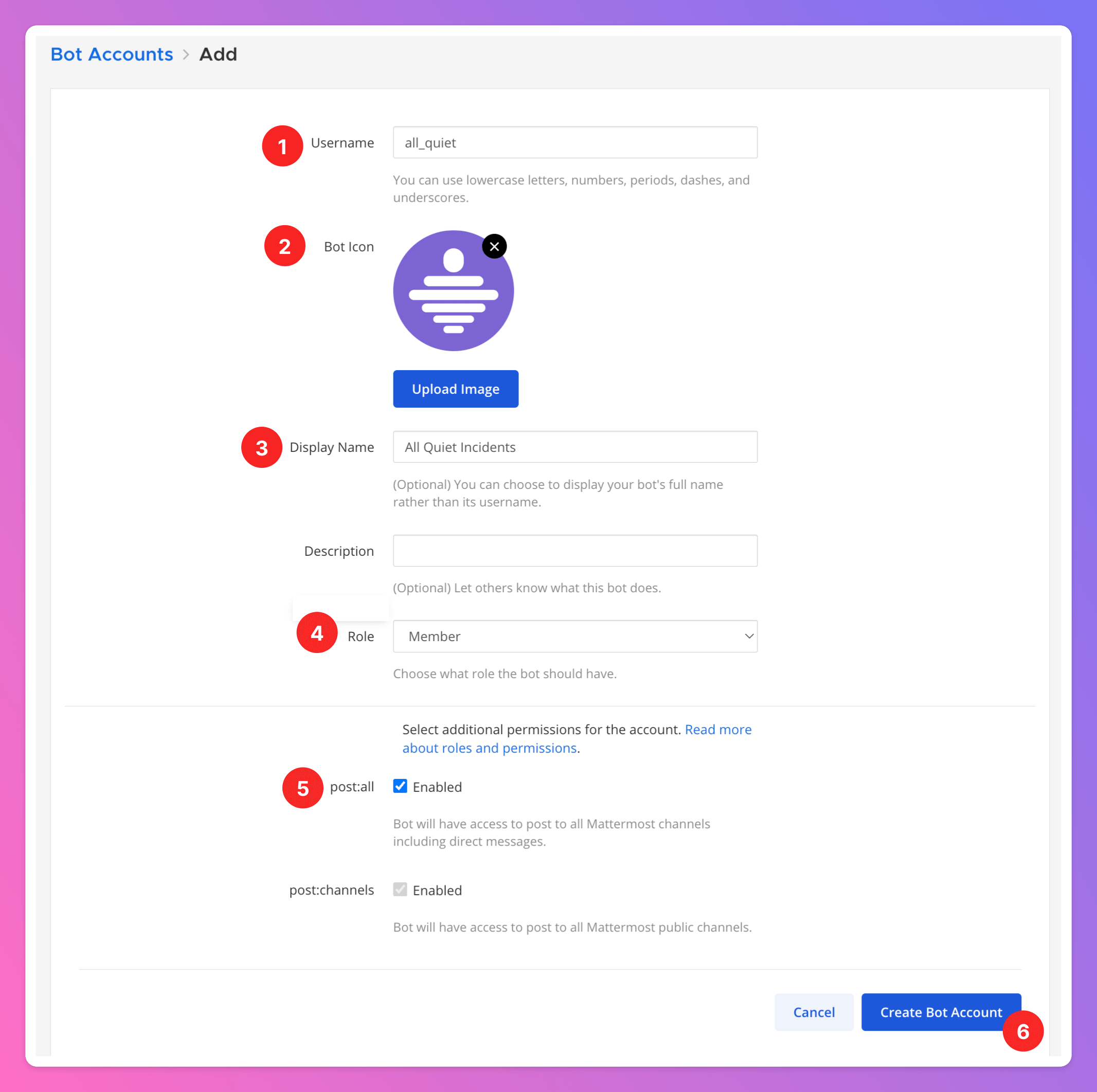
 1. Give your Bot a descriptive `Username`, like "all\_quiet".
2. You may want to add our Logo as `Bot Icon`.
3. Optionally, you can add a descriptive `Display Name` that adds more information than the `Username`, like "All Quiet Incidents" or "Incident from All Quiet".
4. "Member" `Role` is sufficient.
5. We recommend to enable `post:all` to enable the Bot to post into a maximum number of channels.
6. Finish the setup by clicking `Create Bot Account`.
1. Give your Bot a descriptive `Username`, like "all\_quiet".
2. You may want to add our Logo as `Bot Icon`.
3. Optionally, you can add a descriptive `Display Name` that adds more information than the `Username`, like "All Quiet Incidents" or "Incident from All Quiet".
4. "Member" `Role` is sufficient.
5. We recommend to enable `post:all` to enable the Bot to post into a maximum number of channels.
6. Finish the setup by clicking `Create Bot Account`.
 Copy the genererated access `Token`. You will need it in the next step to activate the connection in All Quiet.
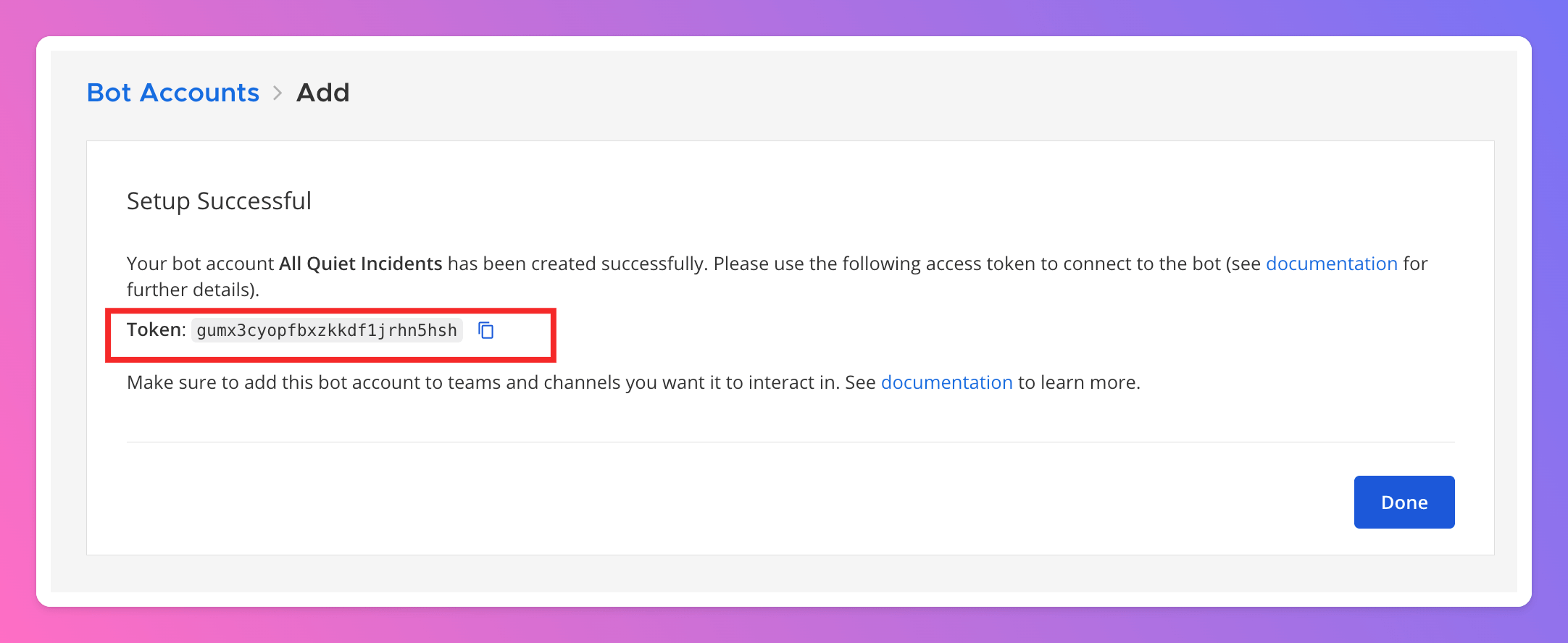 Back in your Mattermost Integration setting in All Quiet,
1. paste the `Token` into the `Bot Access Token` field.
2. `Save` your settings.
Now, before we can add the integration to your Mattermost channels, we need to add the Bot to your Mattermost team(s).
Back in your Mattermost Integration setting in All Quiet,
1. paste the `Token` into the `Bot Access Token` field.
2. `Save` your settings.
Now, before we can add the integration to your Mattermost channels, we need to add the Bot to your Mattermost team(s).
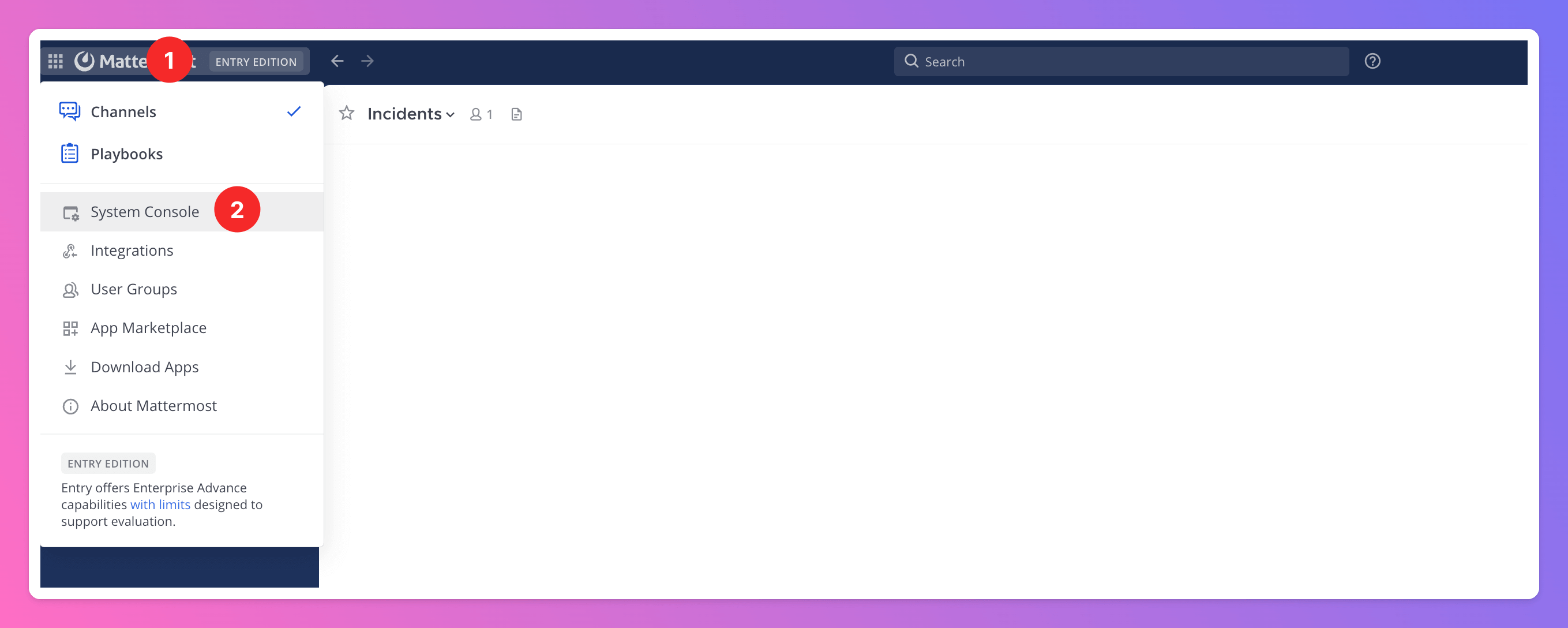
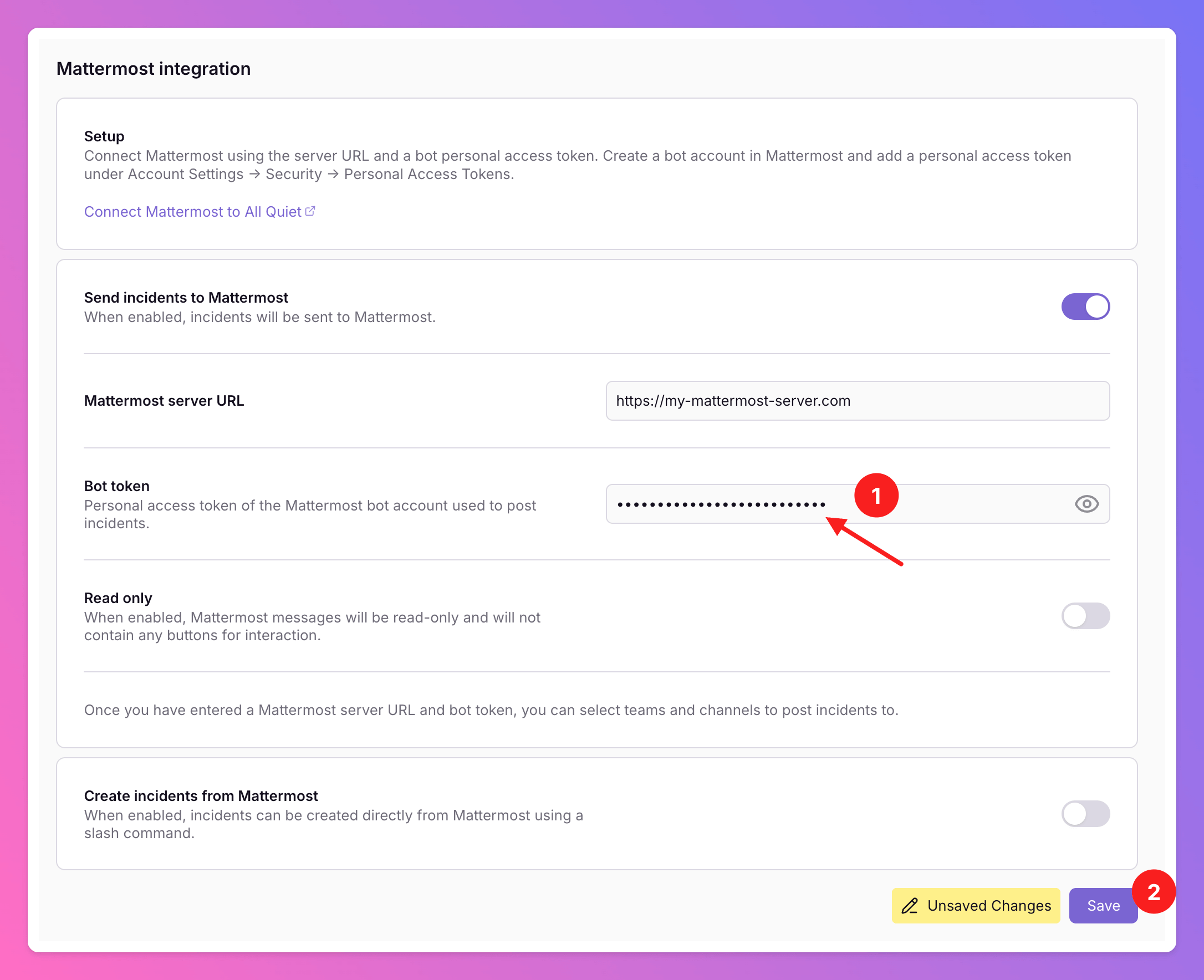 To add the Bot to your Mattermost teams, go back to Mattermost.
1. Open the menu in the top left corner.
2. In the menu, select `System Console`.
To add the Bot to your Mattermost teams, go back to Mattermost.
1. Open the menu in the top left corner.
2. In the menu, select `System Console`.
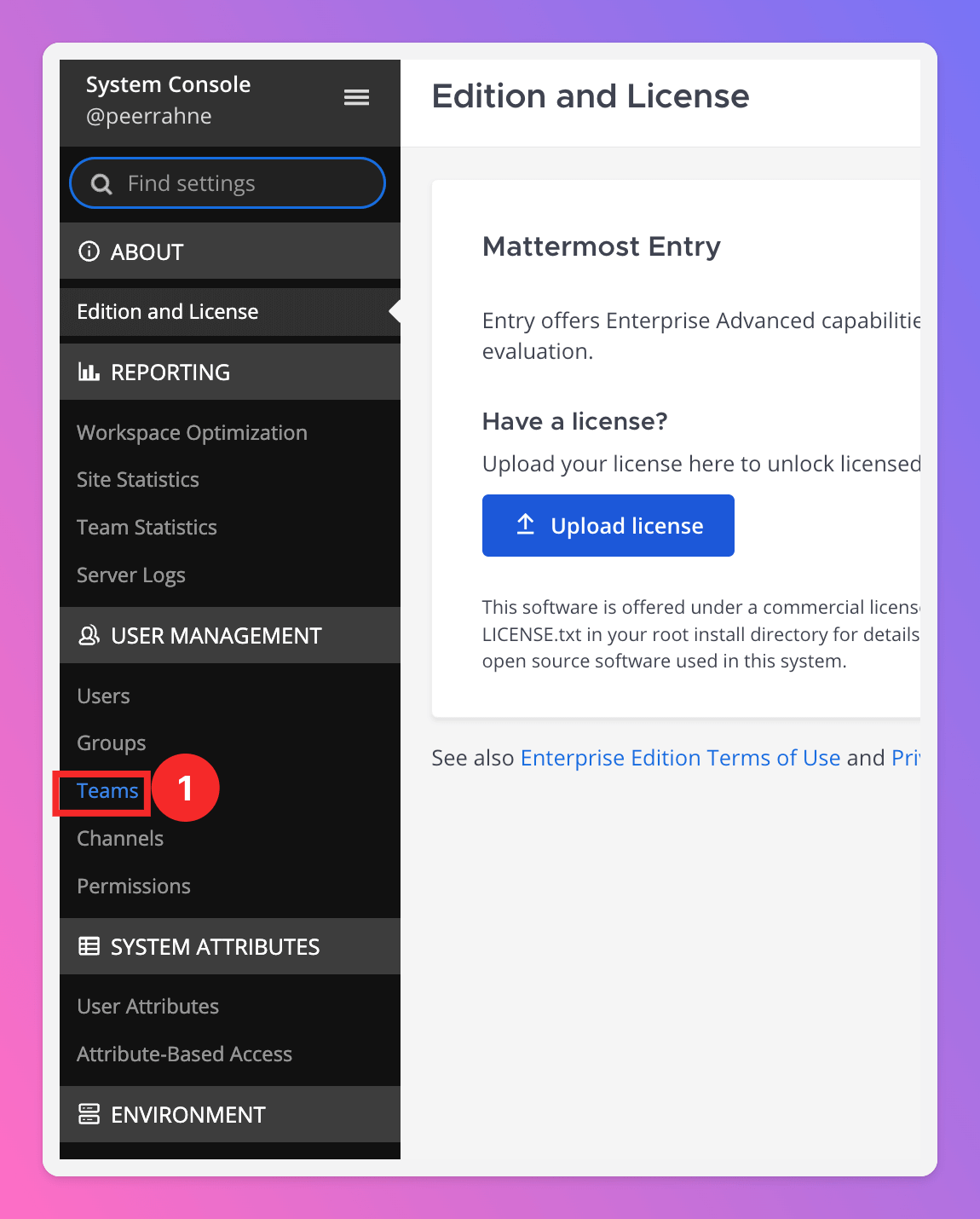
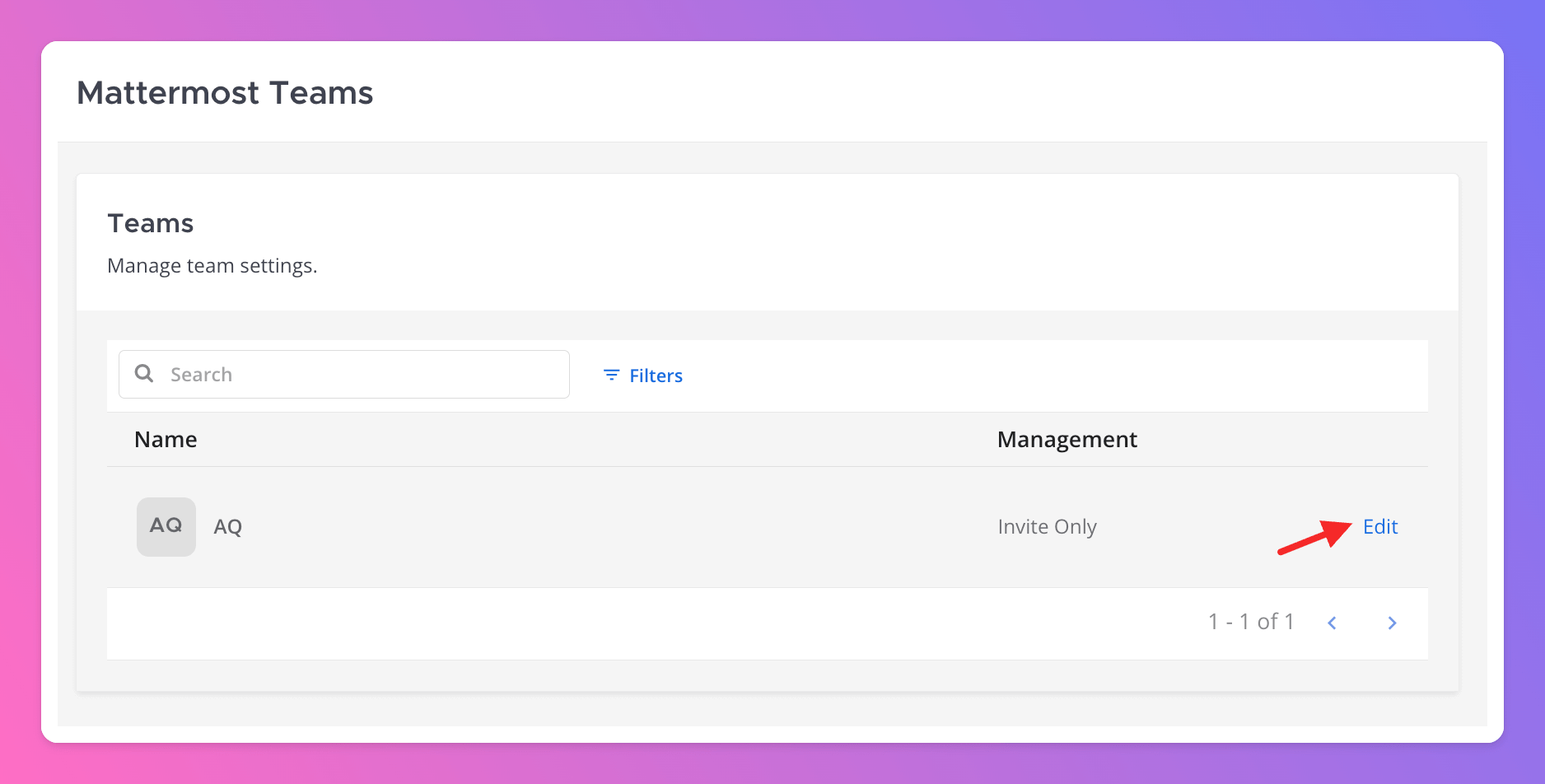
 In the sidebar, select `User Management` > `Teams` (1).
 Select the team you want to add the Bot to and click `Edit`.
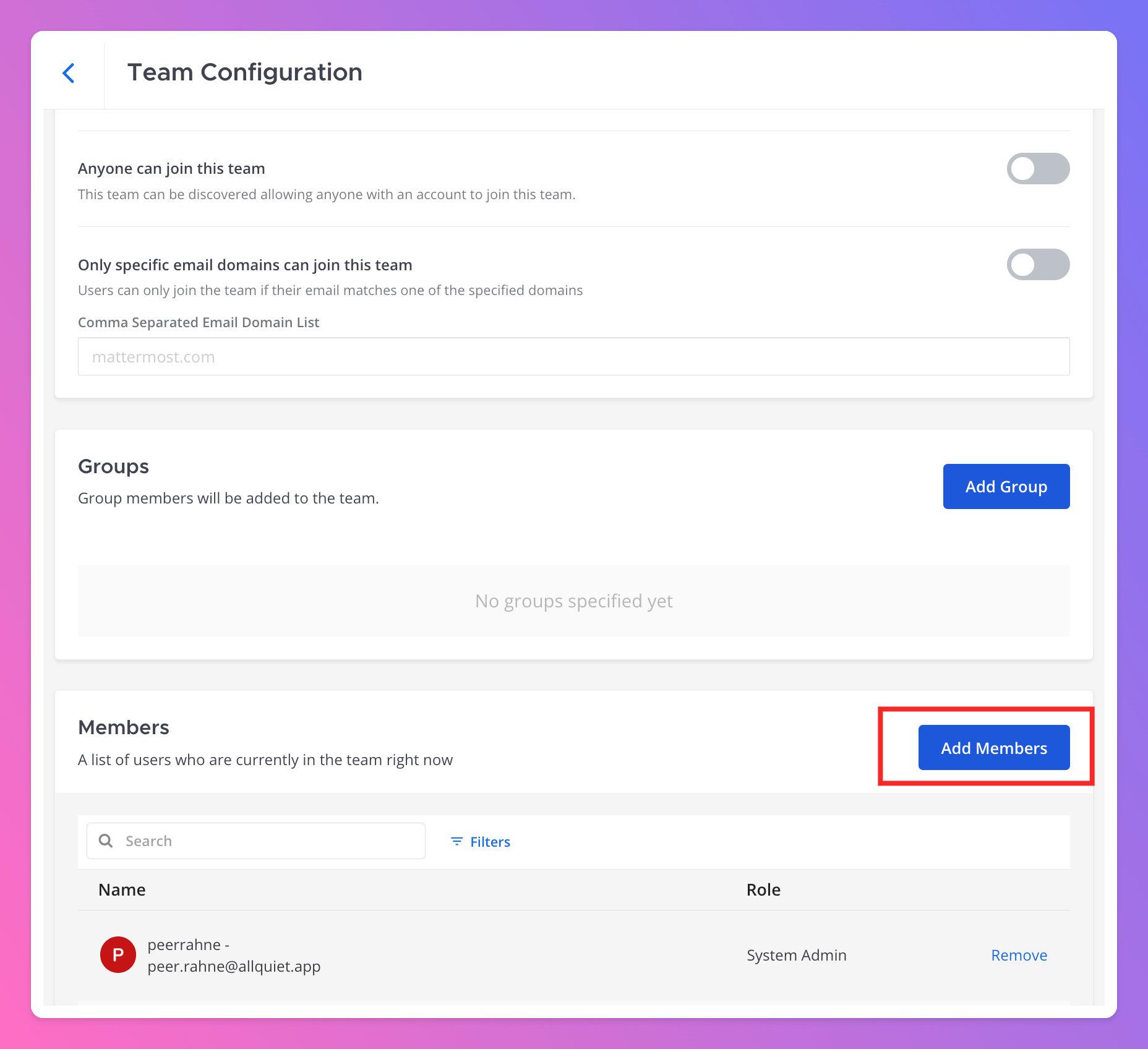
 On the `Team Configuration` page, scroll down to the `Members` section. Click `Add Members`.
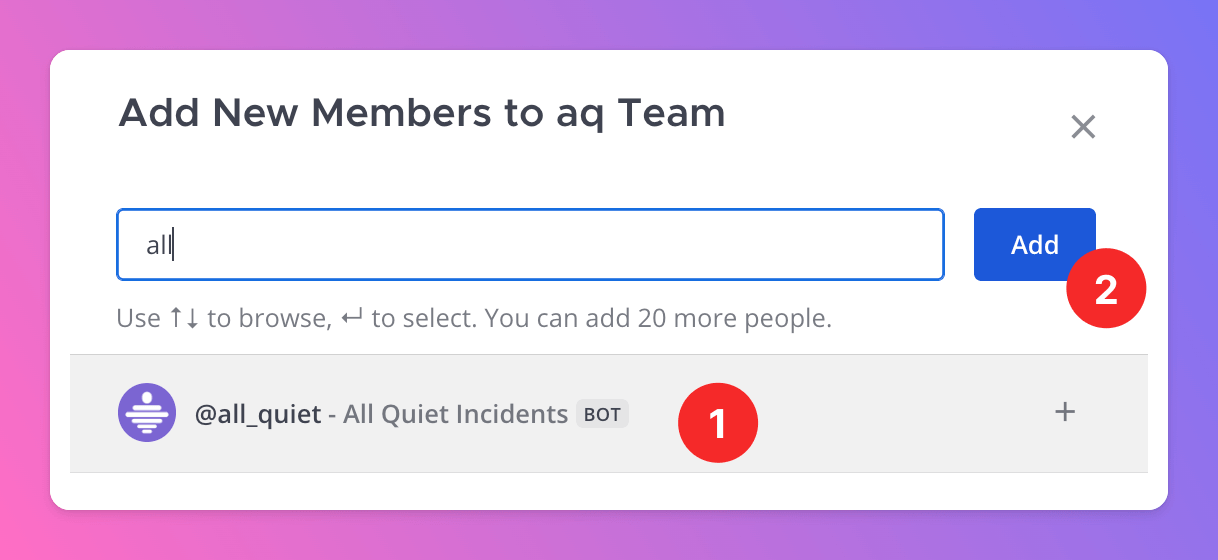
 1. Select the Bot from the list.
2. Click `Add`.
1. Select the Bot from the list.
2. Click `Add`.
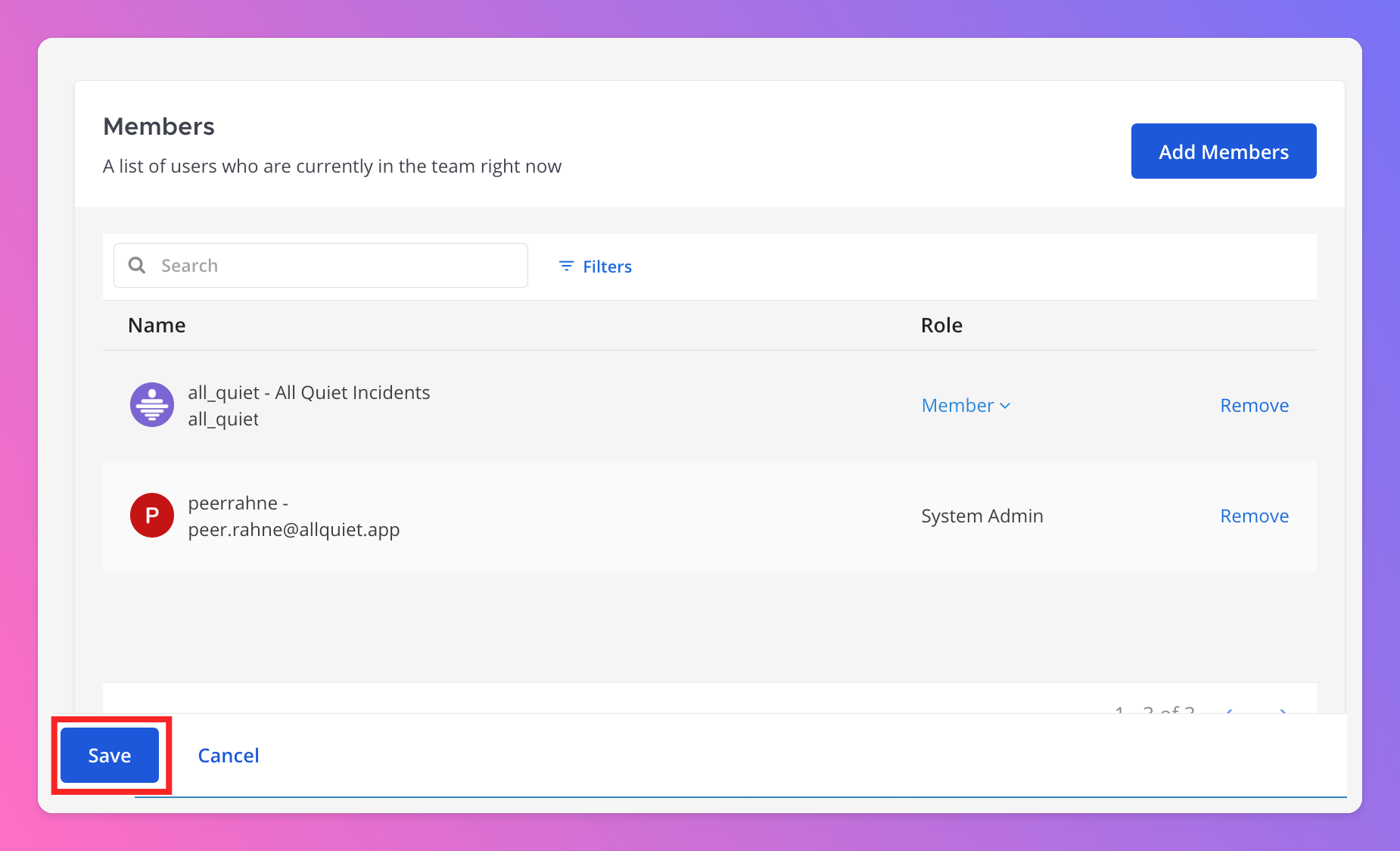
 `Save` your team configuration with your newly added member.
 Now, open the your Mattermost Integration settings in All Quiet.
You might need to refresh the screen to see the new options
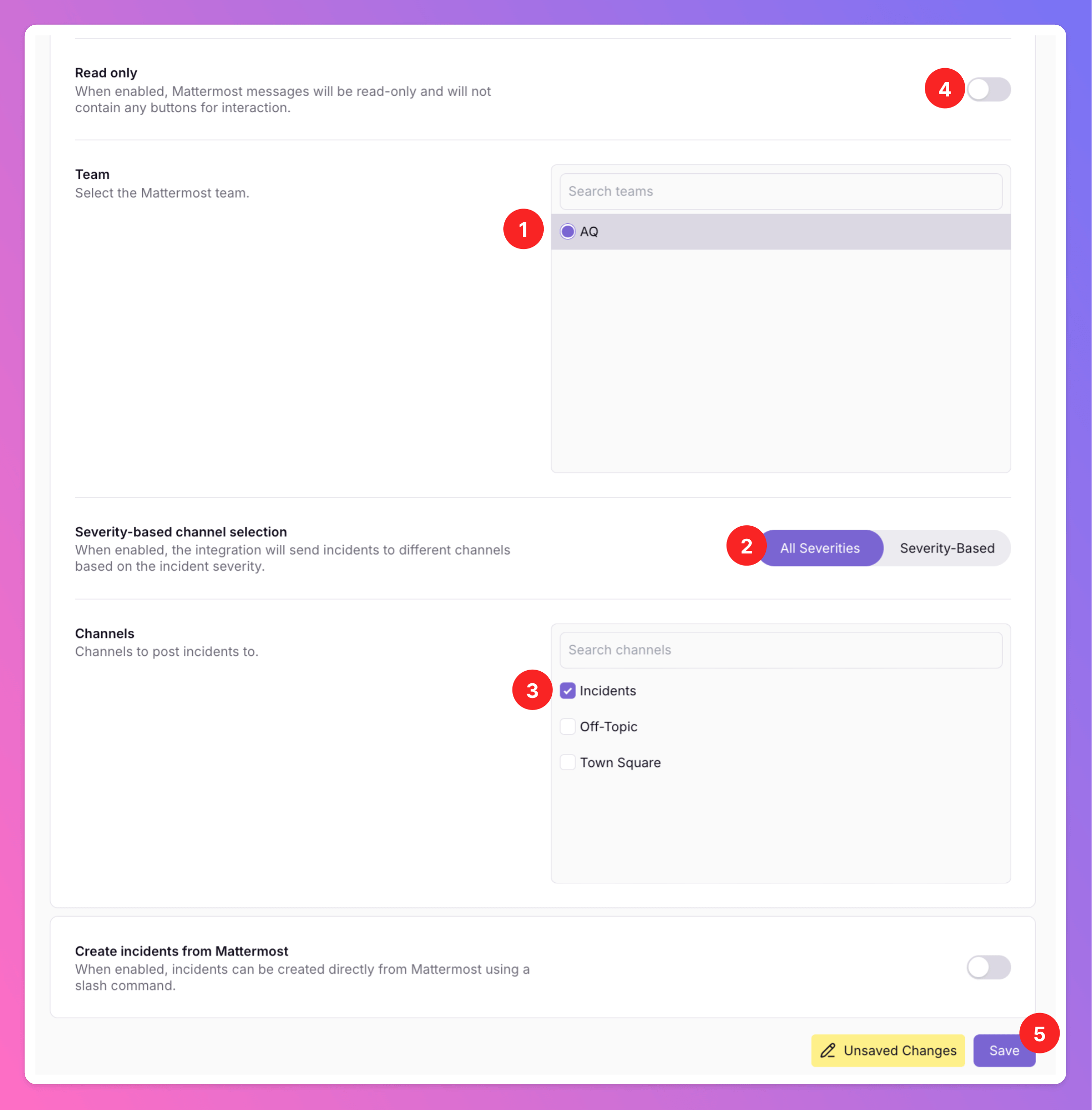
1. As you can see, we successfully added the Bot to your Mattermost `Team` in the last step. Select the Mattermost Team you want to connect and send incidents to.
2. Now it's time to select the Mattermost `Channels` you want to sent incidents to. You can decide to either
* Send all incidents to the same channels.
* Select different channels based on incident severity.
3. Select the `Channels`.
You need to invite the Bot to the desired Mattermost channels first. After that, the channels will appear in All Quiet, and you can select them. This works for both public and private channels.
4. You can change your integration settings to “**Read Only**”. In this mode, we will not send any action buttons to Mattermost, meaning users cannot interact with the messages. This is ideal if you want to use the integration for internal stakeholder management.
5. Save your integration `Settings`.
Now, open the your Mattermost Integration settings in All Quiet.
You might need to refresh the screen to see the new options
1. As you can see, we successfully added the Bot to your Mattermost `Team` in the last step. Select the Mattermost Team you want to connect and send incidents to.
2. Now it's time to select the Mattermost `Channels` you want to sent incidents to. You can decide to either
* Send all incidents to the same channels.
* Select different channels based on incident severity.
3. Select the `Channels`.
You need to invite the Bot to the desired Mattermost channels first. After that, the channels will appear in All Quiet, and you can select them. This works for both public and private channels.
4. You can change your integration settings to “**Read Only**”. In this mode, we will not send any action buttons to Mattermost, meaning users cannot interact with the messages. This is ideal if you want to use the integration for internal stakeholder management.
5. Save your integration `Settings`.
 Your outbound integration is now fully set up. Now it's time to send incidents to your Mattermost channels.
### Engage with Incidents Directly in Mattermost
Only Teams that are connected with the integration in All Quiet will send their incidents to Mattermost. You can always change the current settings via the [`Team Connections` page](/integrations/outbound/mattermost#create-outbound-integration).
After finishing the setup, our integration sends an interactive message to your designated Mattermost channels. This allows you to manage incidents seamlessly, mirroring the experience on our iOS, Android, and Web Apps, all without leaving Mattermost.
If incident grouping is enabled, All Quiet will only include the grouping attributes in the Mattermost messages we send (the same fields used to group events into an incident). Learn more in our [Inbound Integrations docs](/essentials/inbound#optional-additional-attribute-keys).
For compliance reasons, only Users with rights in the All Quiet team(s) connected to the incident can interact with the Message. Additionally, if users create incidents manually they can alway interact with the specific incident no matter which team(s) are assigned.
Your outbound integration is now fully set up. Now it's time to send incidents to your Mattermost channels.
### Engage with Incidents Directly in Mattermost
Only Teams that are connected with the integration in All Quiet will send their incidents to Mattermost. You can always change the current settings via the [`Team Connections` page](/integrations/outbound/mattermost#create-outbound-integration).
After finishing the setup, our integration sends an interactive message to your designated Mattermost channels. This allows you to manage incidents seamlessly, mirroring the experience on our iOS, Android, and Web Apps, all without leaving Mattermost.
If incident grouping is enabled, All Quiet will only include the grouping attributes in the Mattermost messages we send (the same fields used to group events into an incident). Learn more in our [Inbound Integrations docs](/essentials/inbound#optional-additional-attribute-keys).
For compliance reasons, only Users with rights in the All Quiet team(s) connected to the incident can interact with the Message. Additionally, if users create incidents manually they can alway interact with the specific incident no matter which team(s) are assigned.
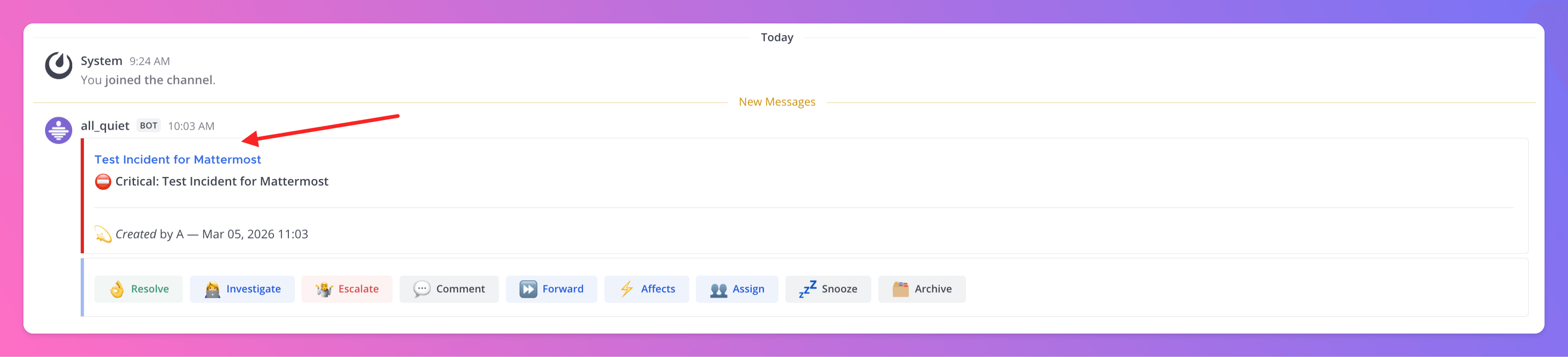 Mattermost is now integrated with All Quiet, simplifying incident management by consolidating notifications and actions in one place.
## Create Incidents from Mattermost
You can create All Quiet incidents from Mattermost using custom slash commands.
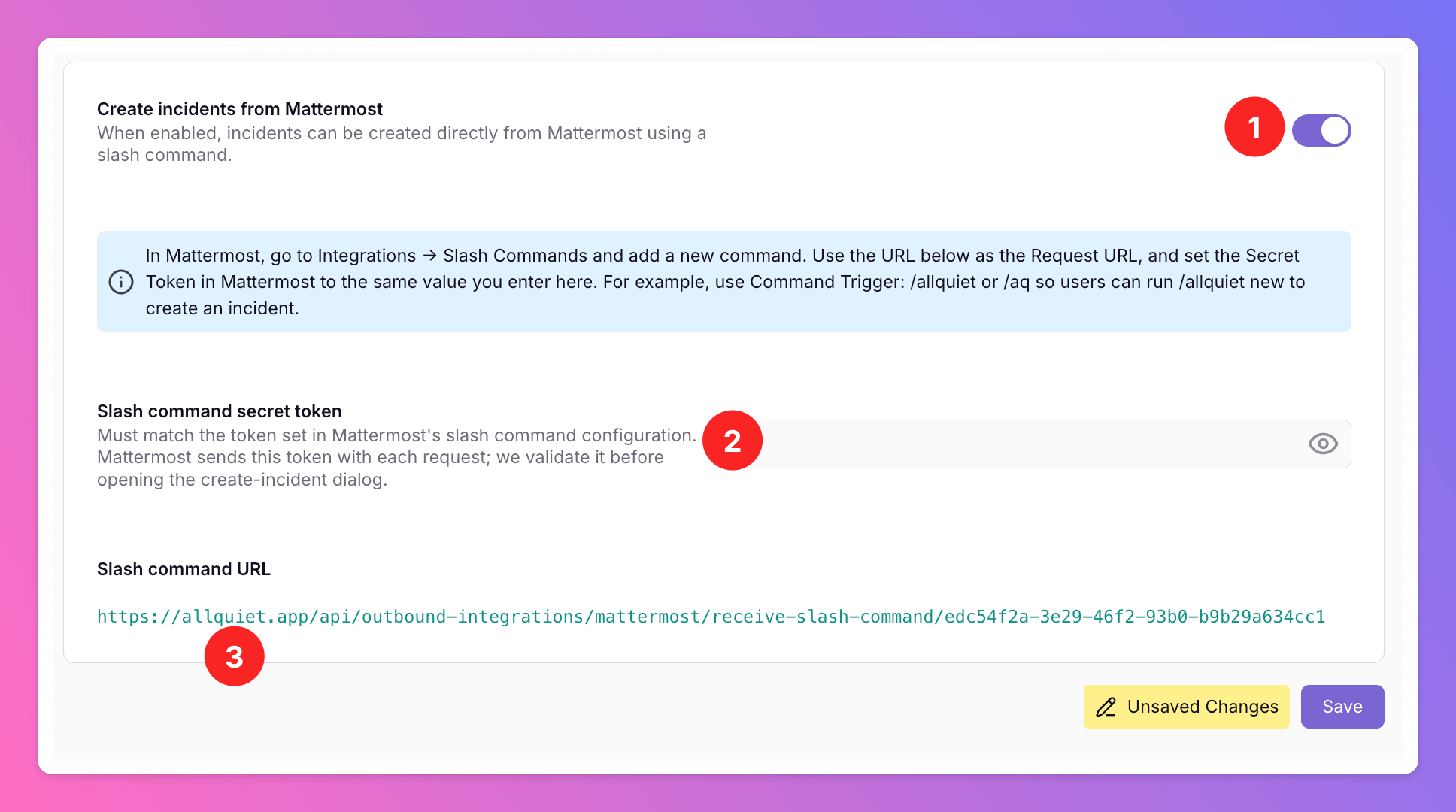
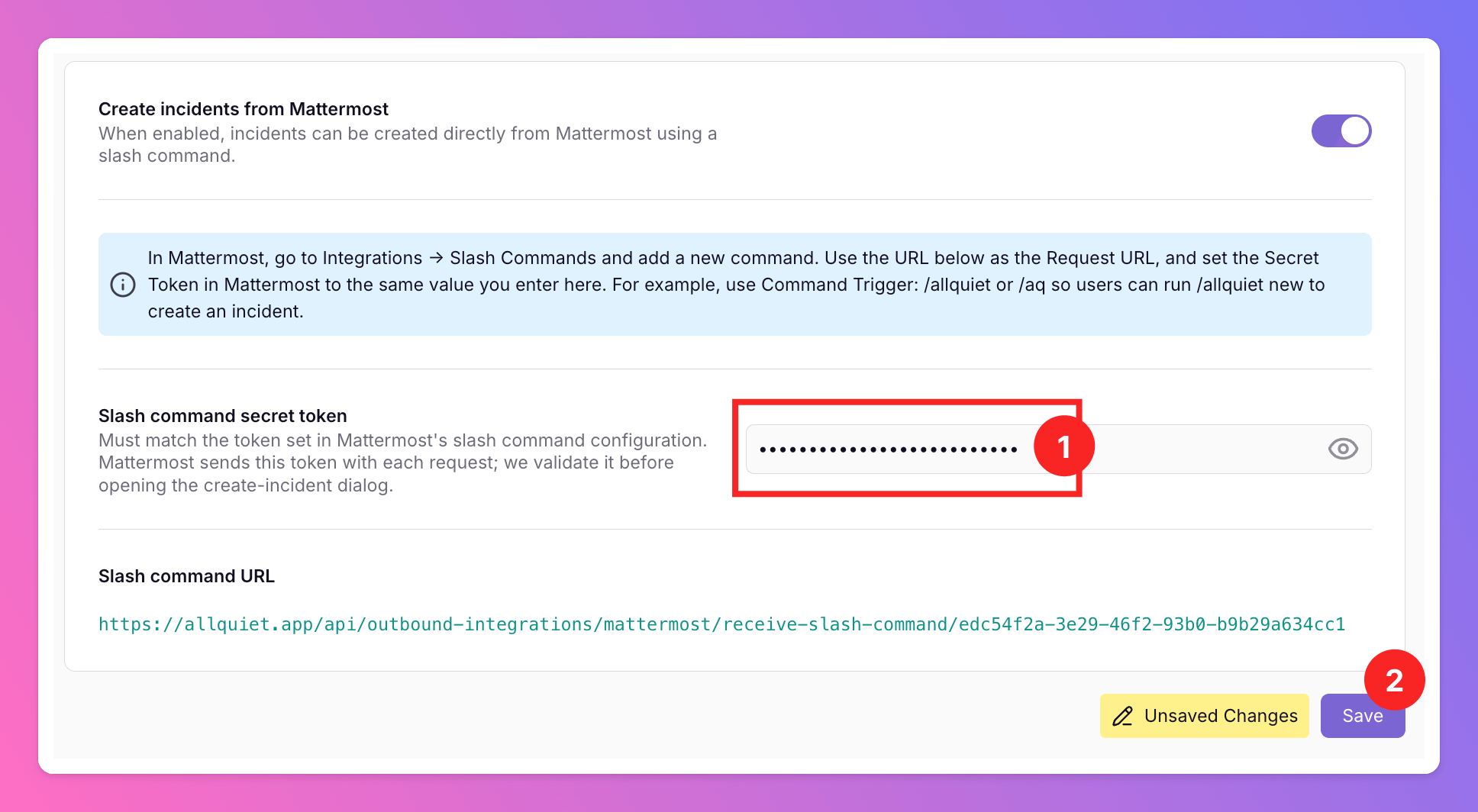
To create `All Quiet incidents from Mattermost`,
1. enable the respective toggle in your Mattermost integration settings in All Quiet.
2. Note that we need to genererate a `Slash command secret token` and past it here. We will generate the token in the next steps.
3. Copy the `Slash command URL` by clicking on it. You will need it to connect the Mattermost slash command with All Quiet.
Mattermost is now integrated with All Quiet, simplifying incident management by consolidating notifications and actions in one place.
## Create Incidents from Mattermost
You can create All Quiet incidents from Mattermost using custom slash commands.
To create `All Quiet incidents from Mattermost`,
1. enable the respective toggle in your Mattermost integration settings in All Quiet.
2. Note that we need to genererate a `Slash command secret token` and past it here. We will generate the token in the next steps.
3. Copy the `Slash command URL` by clicking on it. You will need it to connect the Mattermost slash command with All Quiet.
 Back in Mattermost
1. Open the menu in the top left corner.
2. In the menu, select `Integrations`.
Back in Mattermost
1. Open the menu in the top left corner.
2. In the menu, select `Integrations`.
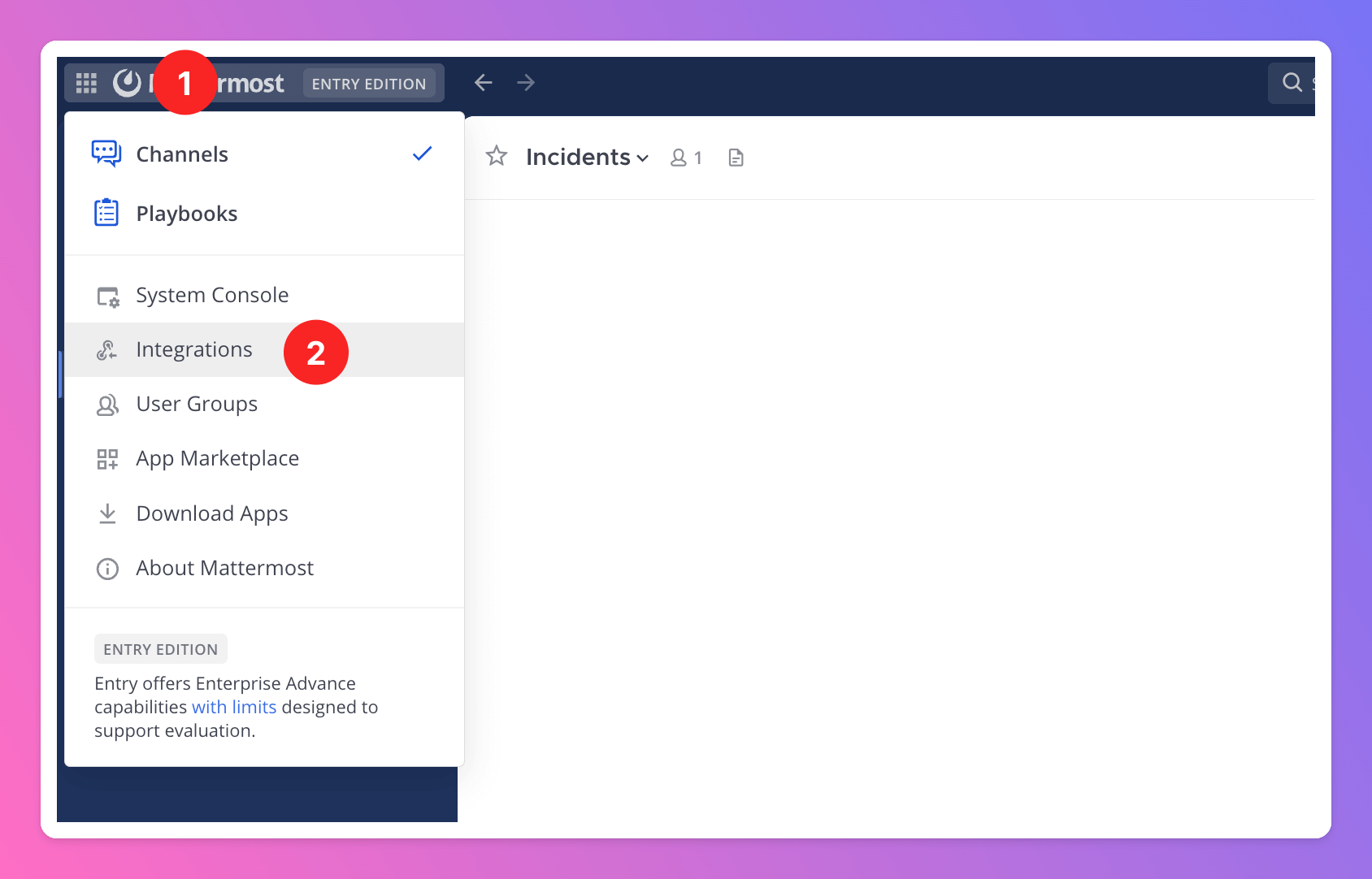 This time, select `Slash Commands` as integration type.
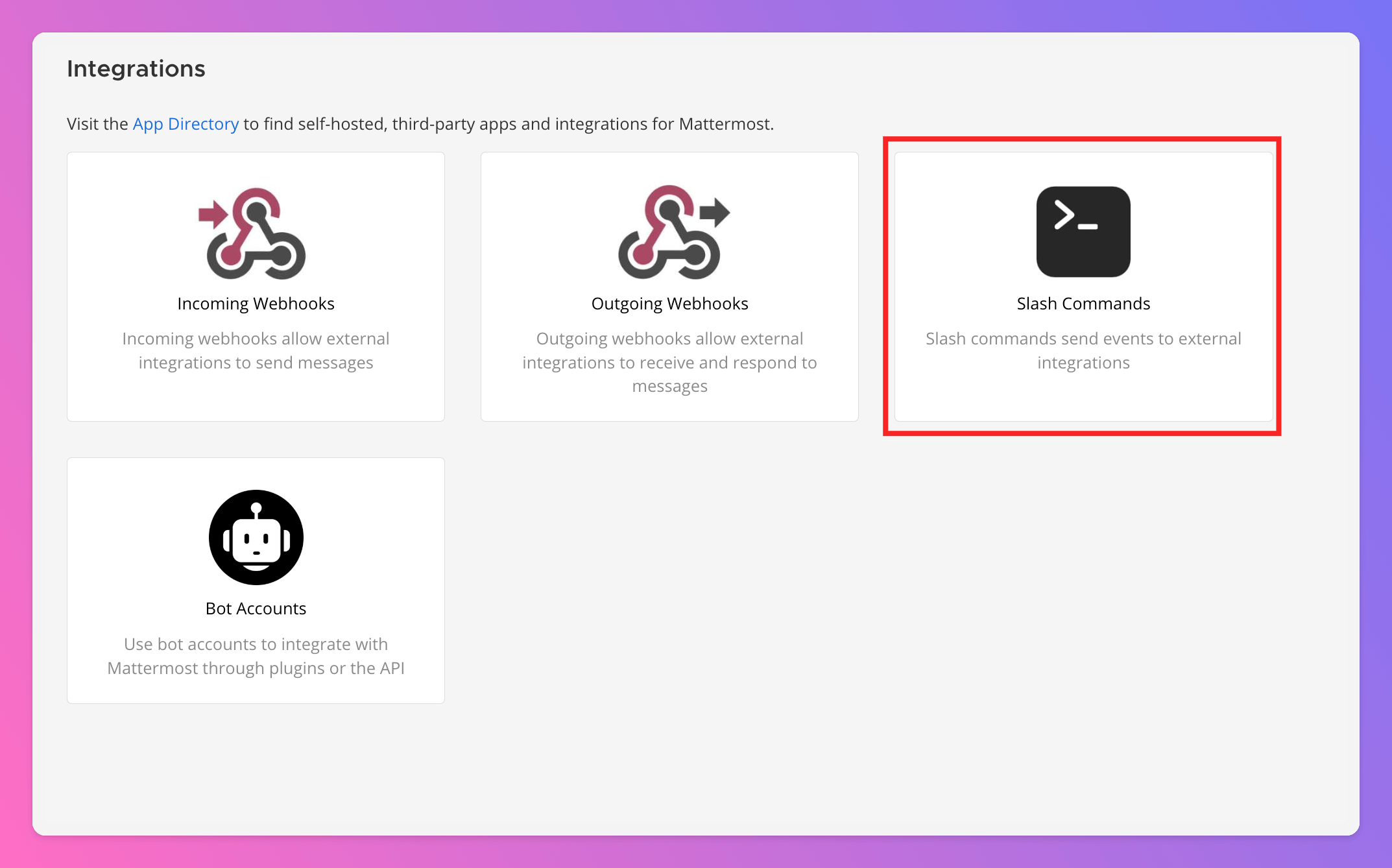 Click `Add Slash Command`.
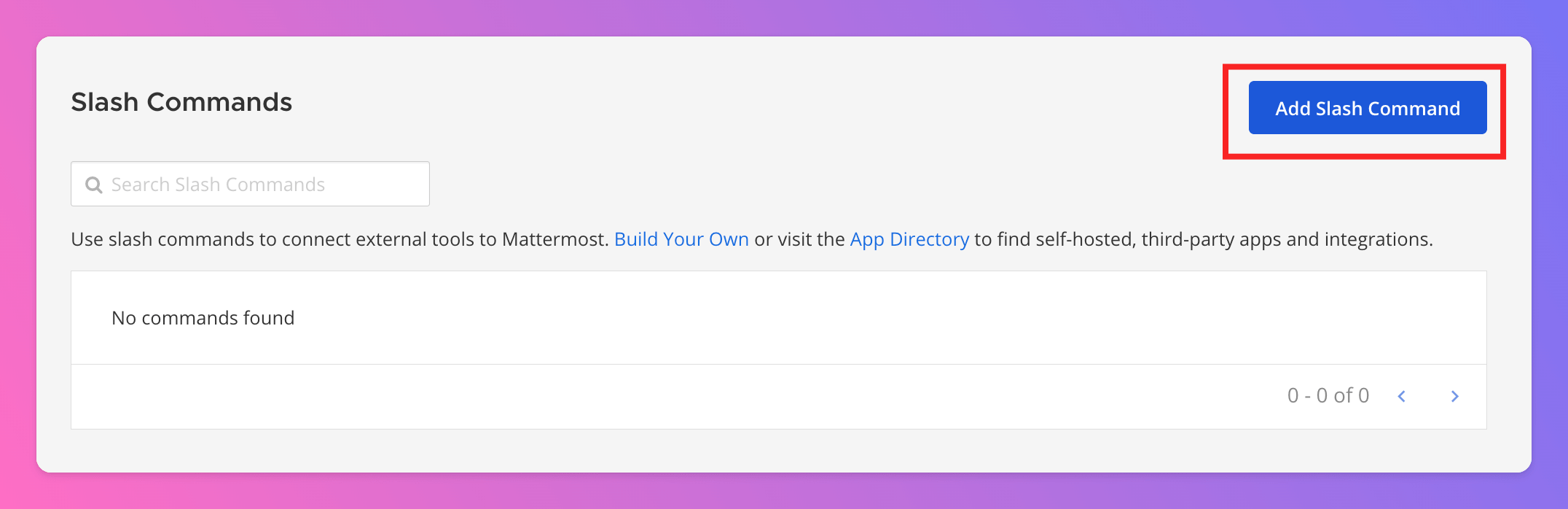 1. Add a `Title` for the slash command, like `Create All Quiet Incident`.
2. You may add a `Description`.
3. Define the `Command Trigger Word`. Select something that is easy to remember and descriptive enough for you users to understand what the command does, e.g. `allquiet_incident`.
If you add more than one Mattermost integration to your All Quiet Organization, you will need to add different slash commands for each integration. Use descriptive commands, e.g. include the connected All Quiet Teams in the command.
4. Paste in the `Request URL`. This is the `Slash command URL` you copied on All Quiet.
5. As request method, select `Post`.
6. We recommend activating `Autocomplete`. When activated, your users will see the full command after typing "/". You can even add `Autocomplete Hints`or `Autocomplete Descriptions` to clarify what the slash command does.
7. `Save` the slash command.
1. Add a `Title` for the slash command, like `Create All Quiet Incident`.
2. You may add a `Description`.
3. Define the `Command Trigger Word`. Select something that is easy to remember and descriptive enough for you users to understand what the command does, e.g. `allquiet_incident`.
If you add more than one Mattermost integration to your All Quiet Organization, you will need to add different slash commands for each integration. Use descriptive commands, e.g. include the connected All Quiet Teams in the command.
4. Paste in the `Request URL`. This is the `Slash command URL` you copied on All Quiet.
5. As request method, select `Post`.
6. We recommend activating `Autocomplete`. When activated, your users will see the full command after typing "/". You can even add `Autocomplete Hints`or `Autocomplete Descriptions` to clarify what the slash command does.
7. `Save` the slash command.
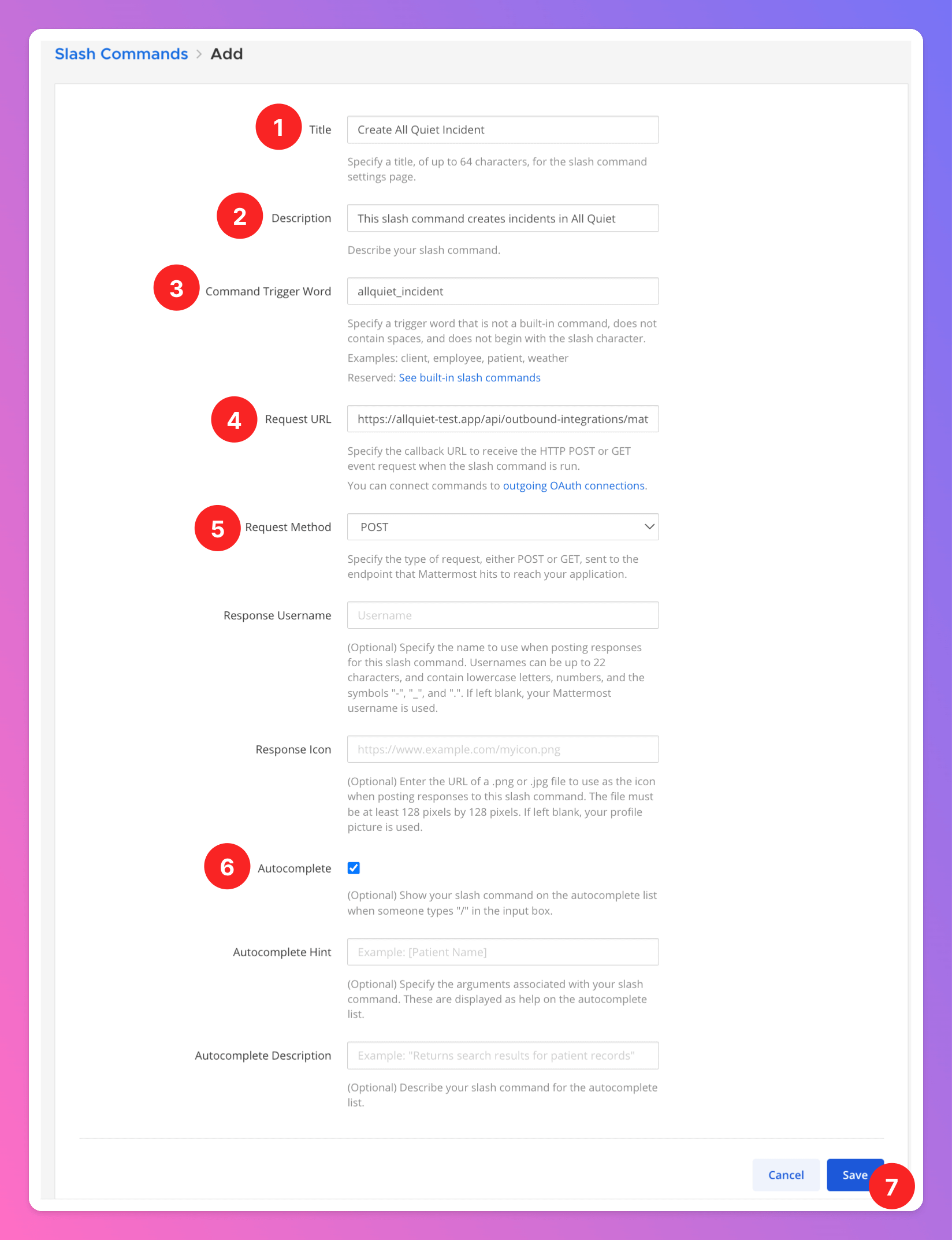 Copy the genererated `Token`. You will need it in the next step to connect the command with All Quiet.
 Back in All Quiet,
1. paste the `Slash command secret token` into your Mattermost integration settings.
2. Save your settings.
Back in All Quiet,
1. paste the `Slash command secret token` into your Mattermost integration settings.
2. Save your settings.
 Now, your users can create All Quiet incidents from your Mattermost channels.
Here's how it works:
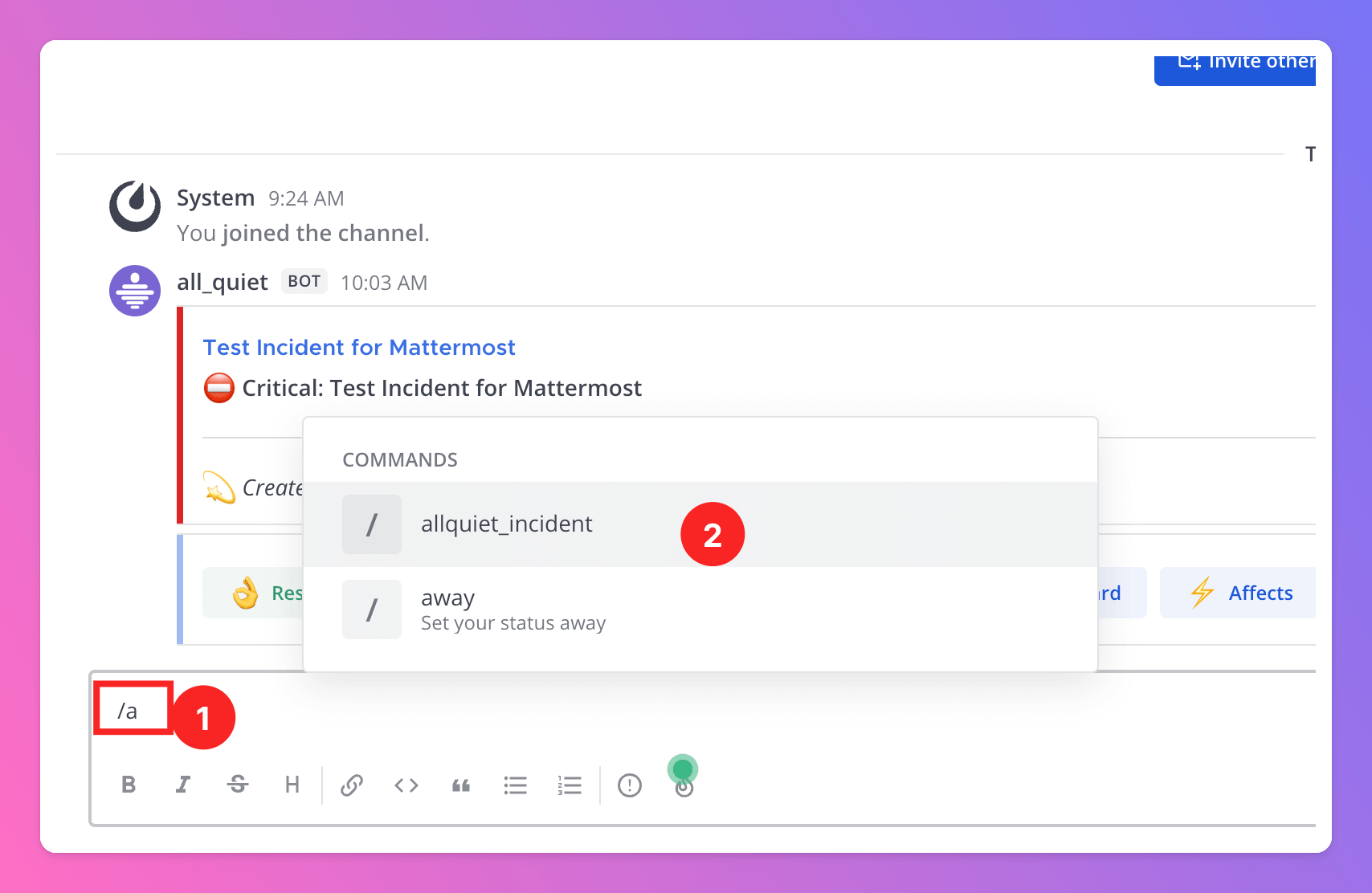
1. Once typing "/" into the input field,
2. the autocomplete function shows the newly created slash command. Select it and click enter.
Now, your users can create All Quiet incidents from your Mattermost channels.
Here's how it works:
1. Once typing "/" into the input field,
2. the autocomplete function shows the newly created slash command. Select it and click enter.
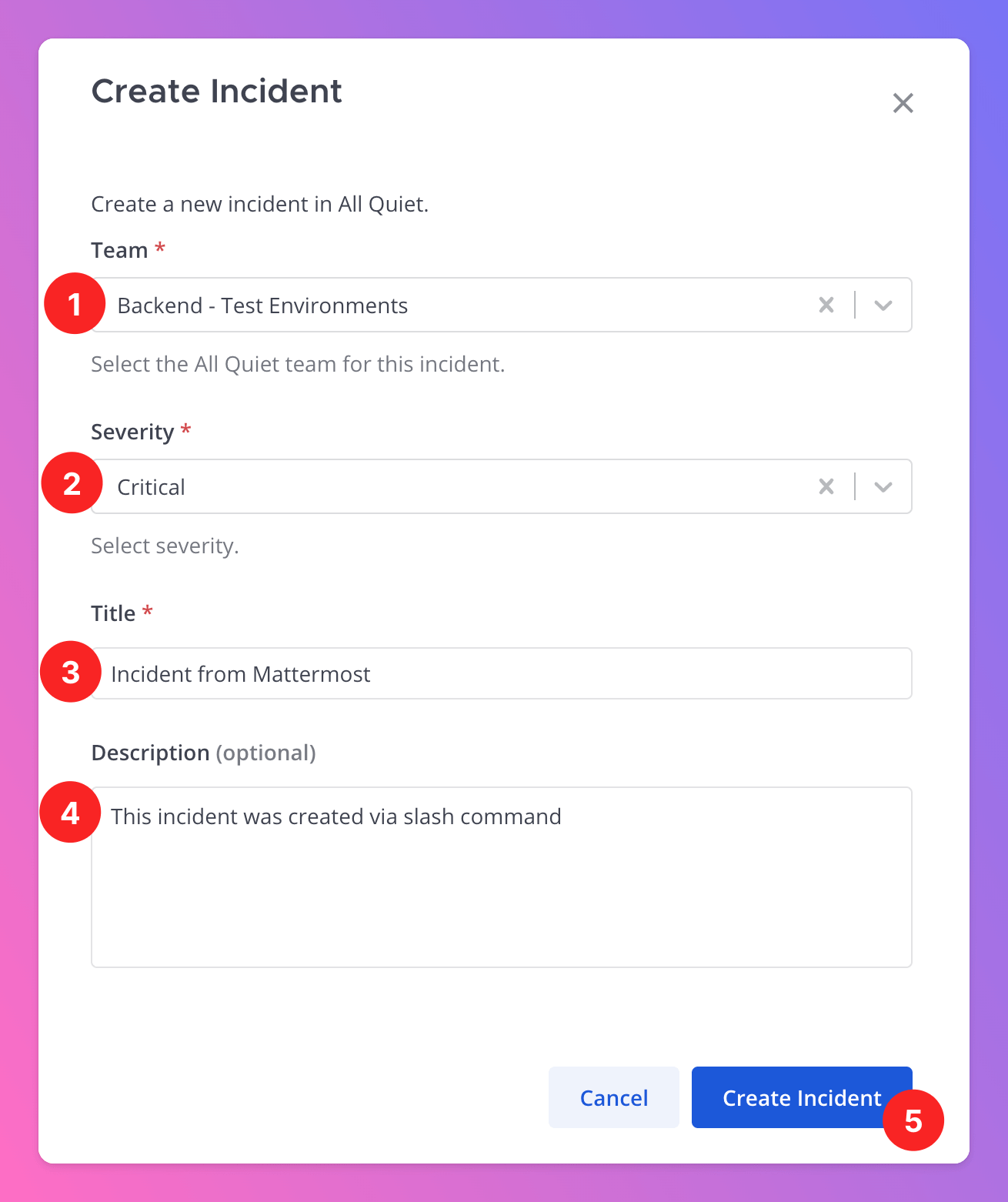
 The command opens a pop-up window in which you can create the incident.
1. Choose the team you want to create the incident in.
For compliance reasons, Users will only be able to select from the All Quiet teams they have roles in and that are connected to the Mattermost integration.
2. Select the severity of the incident.
3. Add the Incident Title.
4. Optional and recommended: Add a `Description` to give context.
5. Click `Creat Incident` to create the incident in All Quiet.
The command opens a pop-up window in which you can create the incident.
1. Choose the team you want to create the incident in.
For compliance reasons, Users will only be able to select from the All Quiet teams they have roles in and that are connected to the Mattermost integration.
2. Select the severity of the incident.
3. Add the Incident Title.
4. Optional and recommended: Add a `Description` to give context.
5. Click `Creat Incident` to create the incident in All Quiet.
 The incident is successfully created in the selected All Quiet team and triggers it's escalations.
 ## Hints and Troubleshooting
* **Team Administrators**, **Organization Administrators**, and **Organization Owners** can troubleshoot this integration using the **History** tab (**Outbound History**) on the integration details page. See **[Outbound History](/essentials/outbound#outbound-history)** for what is logged, who can access it, and how to read outcomes.
* Deactivating the Toggles to `Send incidents to Mattermost` / `Create Incidents from Mattermost` does not delete saved settings or tokens but simply pauses outbound / inbound functionality.
* If you set up > 1 Mattermost outbound integration and two bots are in the channel, there will only be one incident message (sent by the first bot who was triggered) that users of both bots can interact with.
## Hints and Troubleshooting
* **Team Administrators**, **Organization Administrators**, and **Organization Owners** can troubleshoot this integration using the **History** tab (**Outbound History**) on the integration details page. See **[Outbound History](/essentials/outbound#outbound-history)** for what is logged, who can access it, and how to read outcomes.
* Deactivating the Toggles to `Send incidents to Mattermost` / `Create Incidents from Mattermost` does not delete saved settings or tokens but simply pauses outbound / inbound functionality.
* If you set up > 1 Mattermost outbound integration and two bots are in the channel, there will only be one incident message (sent by the first bot who was triggered) that users of both bots can interact with.