> ## Documentation Index
> Fetch the complete documentation index at: https://docs.allquiet.app/llms.txt
> Use this file to discover all available pages before exploring further.
# Google Sheets
> Connect Google Sheets with All Quiet to record incident details or retrospectives as rows in a spreadsheet.
Setup time: 2 Min
Connect Google Sheets with All Quiet for structured, filterable post-incident records in a spreadsheet your team already uses.
## Create Outbound Integration
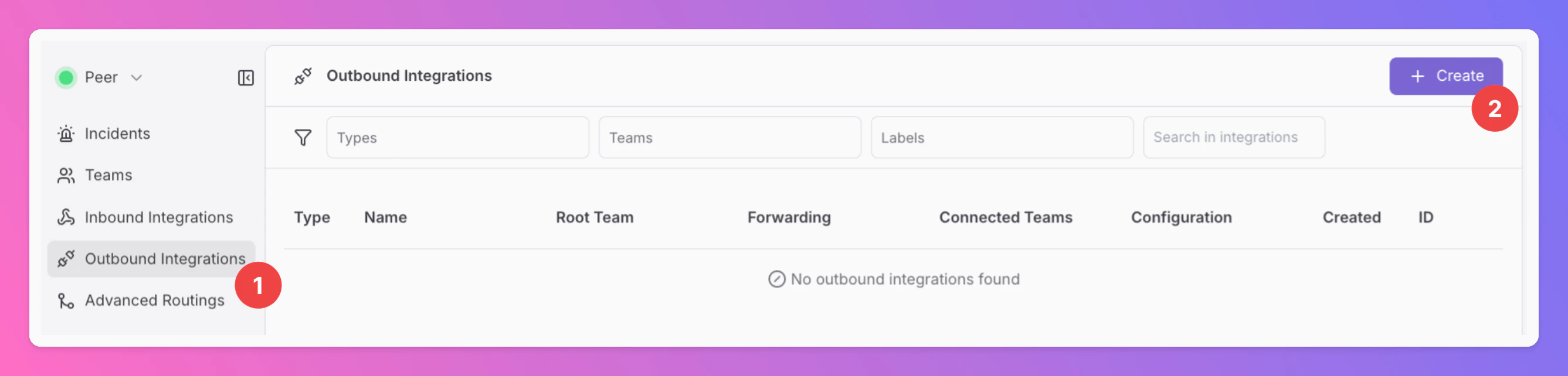
1. Click on the `Outbound Integrations` tab.
2. Click on `+ Create`.
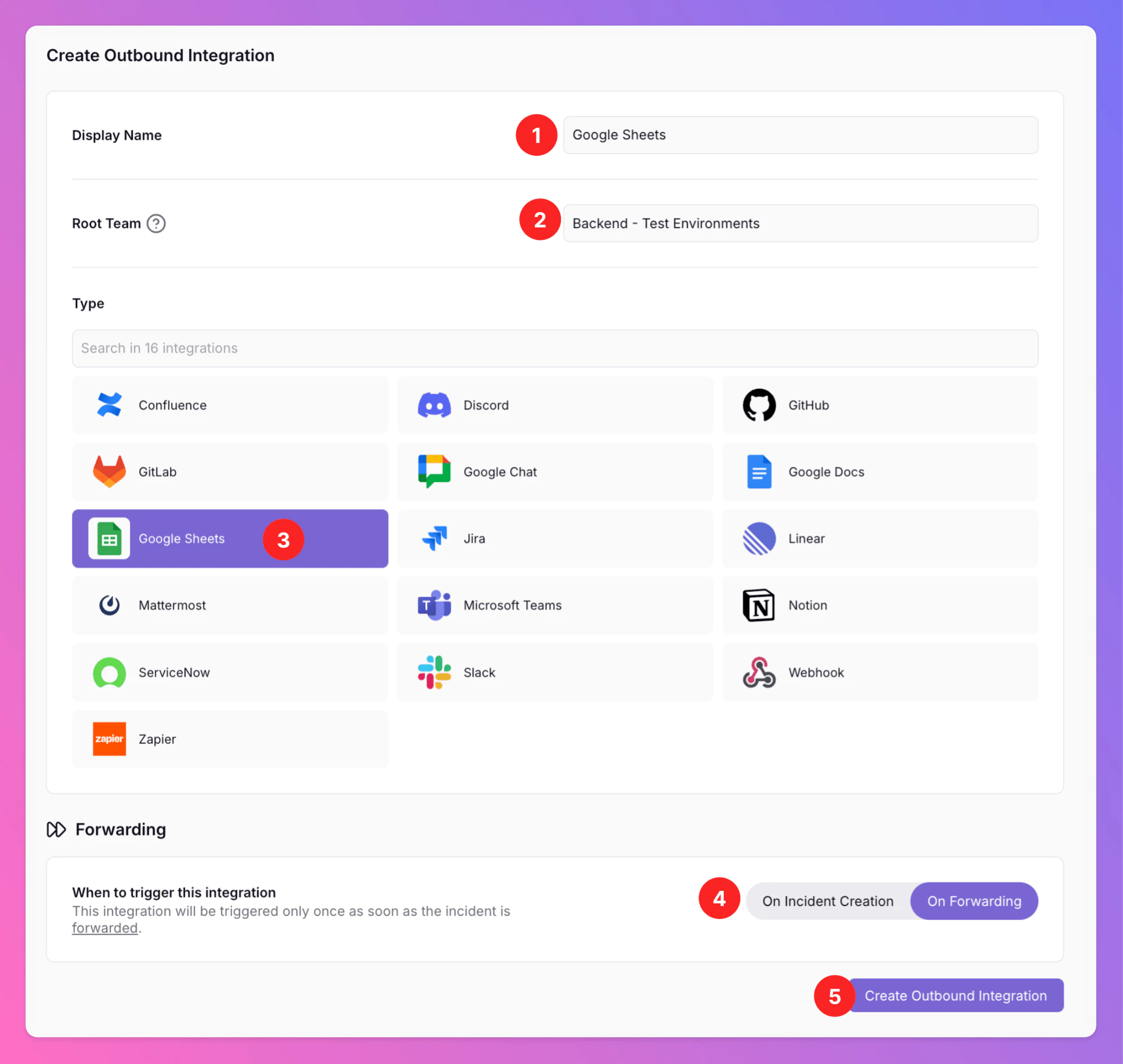
 1. Enter a `Display Name` for your integration, e.g. "Google Sheets".
2. Select a `Root Team`. For Organizations with Pro and Enterprise plan: You will be able to add additional teams in the next step.
3. Select `Google Sheets` as the integration's type.
4. Forwarding settings:
1. **Default:** `On Forwarding` - Google Sheets will only be created if users [manually forward specific incidents](/essentials/incident#forwarding) or if you set up [advanced routing rules](/advanced/routing) for your Google Sheets integration that automatically forward incidents in specific scenarios.
2. **Alternative:** `On Incident Creation` will automatically forward all incidents to Google Sheets as soon as they are created and create a new sheet for each incident.
You can change your selection anytime, but we recommend to select `On Forwarding`. We will explain why in the [example](/integrations/outbound/google-sheets#viewing-an-incident-row-in-google-sheets) below.
5. Click `Create Outbound Integration`.
1. Enter a `Display Name` for your integration, e.g. "Google Sheets".
2. Select a `Root Team`. For Organizations with Pro and Enterprise plan: You will be able to add additional teams in the next step.
3. Select `Google Sheets` as the integration's type.
4. Forwarding settings:
1. **Default:** `On Forwarding` - Google Sheets will only be created if users [manually forward specific incidents](/essentials/incident#forwarding) or if you set up [advanced routing rules](/advanced/routing) for your Google Sheets integration that automatically forward incidents in specific scenarios.
2. **Alternative:** `On Incident Creation` will automatically forward all incidents to Google Sheets as soon as they are created and create a new sheet for each incident.
You can change your selection anytime, but we recommend to select `On Forwarding`. We will explain why in the [example](/integrations/outbound/google-sheets#viewing-an-incident-row-in-google-sheets) below.
5. Click `Create Outbound Integration`.
 ### Connect Google and configure Google Sheets
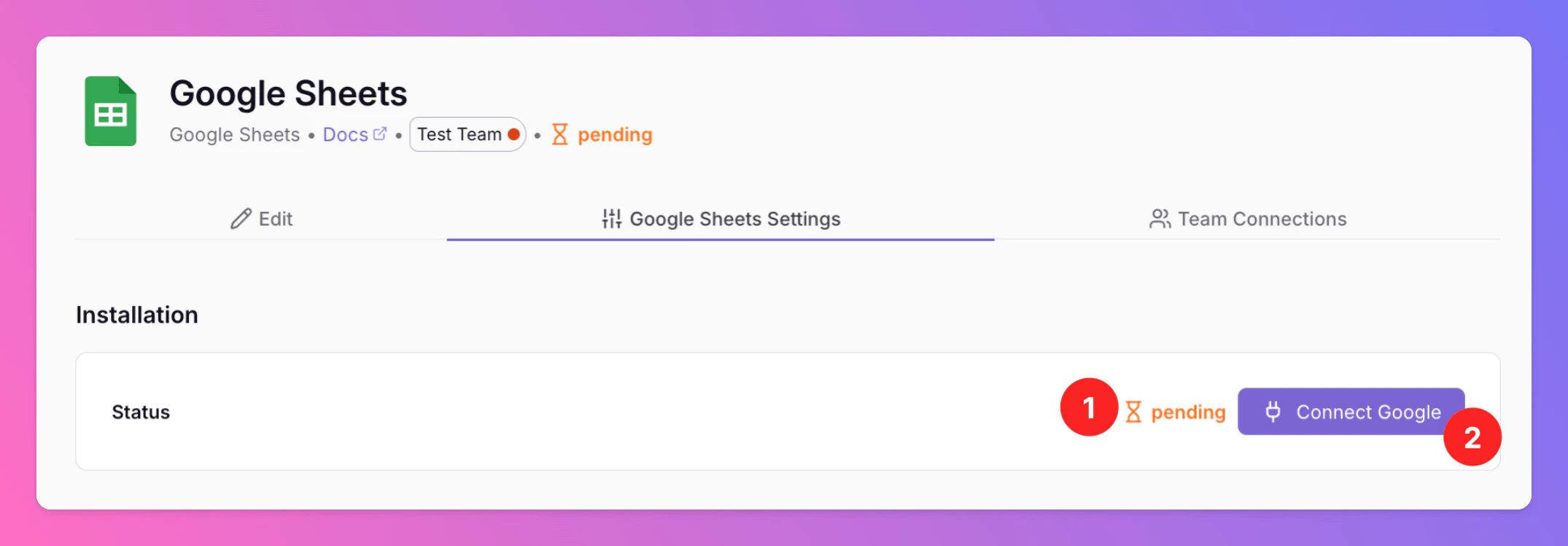
Once you've successfully created your new outbound integration, you'll automatically be redirected to its `Settings` page.
1. Observe that the installation status of the All Quiet integration is still pending.
2. To complete the integration with your Google account, click `Connect Google` (or the Google sign-in action shown in the product).
In the `Edit` tab, you can change general settings like the integration's [Forwarding settings](/integrations/outbound/google-sheets#create-outbound-integration).
**Only for Pro and Enterprise plan** - Manage your `Team Connections`: The root team is pre-selected, and you can add the integration to further teams within the root team's organization. *Team Administrators* can add / remove those teams they are an Administrator in, *Organization Administrators* & *Organization Owners* can manage the connections to all teams of the organization.
### Connect Google and configure Google Sheets
Once you've successfully created your new outbound integration, you'll automatically be redirected to its `Settings` page.
1. Observe that the installation status of the All Quiet integration is still pending.
2. To complete the integration with your Google account, click `Connect Google` (or the Google sign-in action shown in the product).
In the `Edit` tab, you can change general settings like the integration's [Forwarding settings](/integrations/outbound/google-sheets#create-outbound-integration).
**Only for Pro and Enterprise plan** - Manage your `Team Connections`: The root team is pre-selected, and you can add the integration to further teams within the root team's organization. *Team Administrators* can add / remove those teams they are an Administrator in, *Organization Administrators* & *Organization Owners* can manage the connections to all teams of the organization.
 After clicking `Connect Google`, you'll be redirected to Google, where you may need to sign in. After sign-in, grant All Quiet the permissions required to read and update spreadsheets on your behalf.
We request only the permissions essential for All Quiet to operate correctly. These permissions are utilized solely when you interact with the app and are never used for any other purpose.
After giving All Quiet the required rights in your Google Workspace, you are then redirected back to your Google Sheets integration's details page in All Quiet. Next, configure the spreadsheet that should receive incident rows.
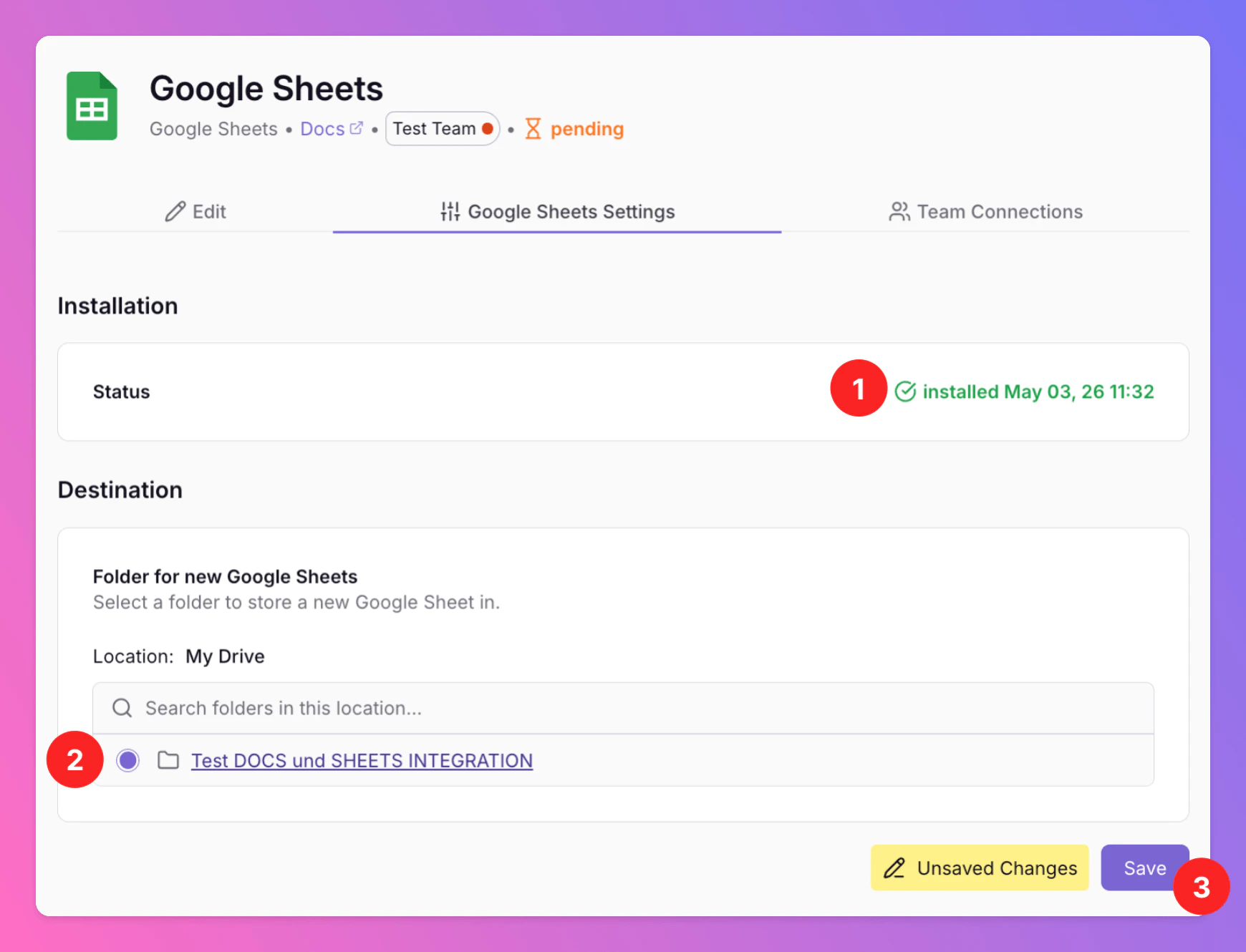
1. As you can see, the Installation Status changed to `installed`.
2. Select the Google Drive Folder All Quiet should write and add new Google Sheets to. You can also navigate to and select subfolders within your Drive by clicking on the underlined title of a folder.
3. Make sure to `save` your Google Sheets settings, otherwise forwarding will not work.
After clicking `Connect Google`, you'll be redirected to Google, where you may need to sign in. After sign-in, grant All Quiet the permissions required to read and update spreadsheets on your behalf.
We request only the permissions essential for All Quiet to operate correctly. These permissions are utilized solely when you interact with the app and are never used for any other purpose.
After giving All Quiet the required rights in your Google Workspace, you are then redirected back to your Google Sheets integration's details page in All Quiet. Next, configure the spreadsheet that should receive incident rows.
1. As you can see, the Installation Status changed to `installed`.
2. Select the Google Drive Folder All Quiet should write and add new Google Sheets to. You can also navigate to and select subfolders within your Drive by clicking on the underlined title of a folder.
3. Make sure to `save` your Google Sheets settings, otherwise forwarding will not work.
 Google Sheets is now integrated with All Quiet. Depending on your [setup](/integrations/outbound/google-sheets#connect-google-and-configure-google-sheets), All Quiet incidents can now be [forwarded manually](/essentials/incident#forwarding) and recorded in new Google Sheets, or Sheets can be added automatically according to your forwarding option.
### Creating a Google Sheet for an incident
The following section describes what you typically see when an incident is exported to a new spreadsheet.
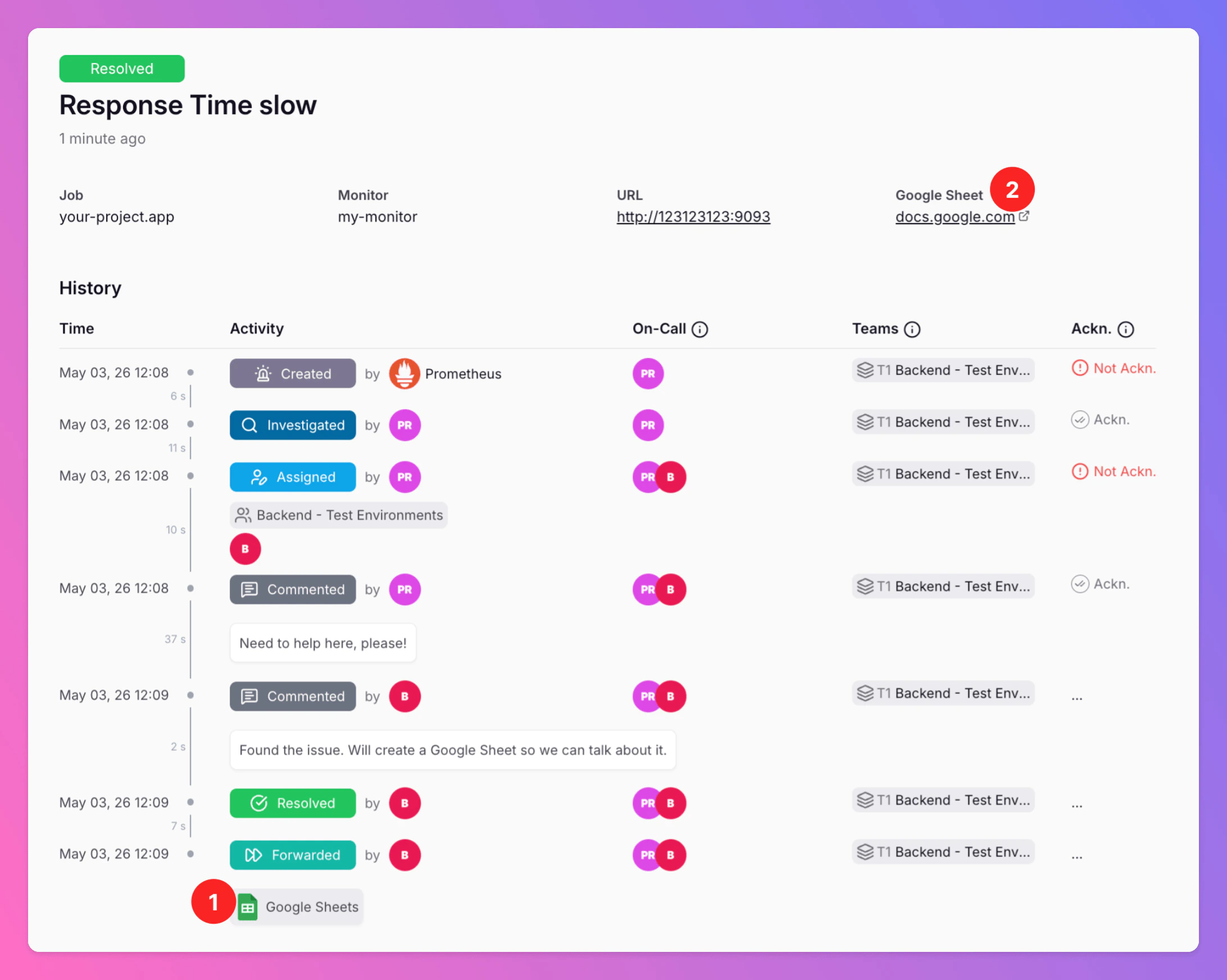
1. After discussion in All Quiet, the team may [forward](/essentials/incident#forwarding) the incident to Google Sheets. The incident in All Quiet links to the respective Google Sheet in your Drive.
2. Click on the link to open the Google Sheet and to review it.
As defined in your [integration settings](/integrations/outbound/google-sheets#connect-google-and-configure-google-sheets), the incident is written to the Google Drive Folder you selected in All Quiet. The document title is a combination of the timestamp of the incident's creation and the incident title in All Quiet. Timestamps in the title are based on your team's timezone. Only team members with respective access rights to the Google document / drive folder open the link.
Google Sheets is now integrated with All Quiet. Depending on your [setup](/integrations/outbound/google-sheets#connect-google-and-configure-google-sheets), All Quiet incidents can now be [forwarded manually](/essentials/incident#forwarding) and recorded in new Google Sheets, or Sheets can be added automatically according to your forwarding option.
### Creating a Google Sheet for an incident
The following section describes what you typically see when an incident is exported to a new spreadsheet.
1. After discussion in All Quiet, the team may [forward](/essentials/incident#forwarding) the incident to Google Sheets. The incident in All Quiet links to the respective Google Sheet in your Drive.
2. Click on the link to open the Google Sheet and to review it.
As defined in your [integration settings](/integrations/outbound/google-sheets#connect-google-and-configure-google-sheets), the incident is written to the Google Drive Folder you selected in All Quiet. The document title is a combination of the timestamp of the incident's creation and the incident title in All Quiet. Timestamps in the title are based on your team's timezone. Only team members with respective access rights to the Google document / drive folder open the link.
 In that Google Sheet you will usually find:
1. Identifying fields such as the incident title, creation time, and a link to the incident in All Quiet. Timestamps follow your team's timezone where applicable.
2. Main incident details and any additional attributes from your [mapping engine](/essentials/inbound#mapping-payloads), depending on how columns are configured.
3. The [incident history](/essentials/incident#incident-history), including all events and on-call information until the incident was exported.
Because each Google Sheet reflects the All Quiet incident at the time of export and the sheet is not updated afterwards, we recommend `On Forwarding` for your Google Sheets integration if you want richer history and event context in the sheet.
## Troubleshooting
**Team Administrators**, **Organization Administrators**, and **Organization Owners** can troubleshoot this integration using the **History** tab (**Outbound History**) on the integration details page. See **[Outbound History](/essentials/outbound#outbound-history)** for what is logged, who can access it, and how to read outcomes. For broader checks when outbound tools do not fire, see **[Outbound integrations — Troubleshooting](/essentials/outbound#outbound-troubleshooting-routing)** and **[advanced routing](/advanced/routing)**.
In that Google Sheet you will usually find:
1. Identifying fields such as the incident title, creation time, and a link to the incident in All Quiet. Timestamps follow your team's timezone where applicable.
2. Main incident details and any additional attributes from your [mapping engine](/essentials/inbound#mapping-payloads), depending on how columns are configured.
3. The [incident history](/essentials/incident#incident-history), including all events and on-call information until the incident was exported.
Because each Google Sheet reflects the All Quiet incident at the time of export and the sheet is not updated afterwards, we recommend `On Forwarding` for your Google Sheets integration if you want richer history and event context in the sheet.
## Troubleshooting
**Team Administrators**, **Organization Administrators**, and **Organization Owners** can troubleshoot this integration using the **History** tab (**Outbound History**) on the integration details page. See **[Outbound History](/essentials/outbound#outbound-history)** for what is logged, who can access it, and how to read outcomes. For broader checks when outbound tools do not fire, see **[Outbound integrations — Troubleshooting](/essentials/outbound#outbound-troubleshooting-routing)** and **[advanced routing](/advanced/routing)**.