> ## Documentation Index
> Fetch the complete documentation index at: https://docs.allquiet.app/llms.txt
> Use this file to discover all available pages before exploring further.
# Discord
> Connect Your Discord Server with All Quiet to Manage Incidents from Discord.
Setup time: 4 Min
Effortlessly connect Discord with All Quiet for streamlined incident management.
## Create Outbound Integration
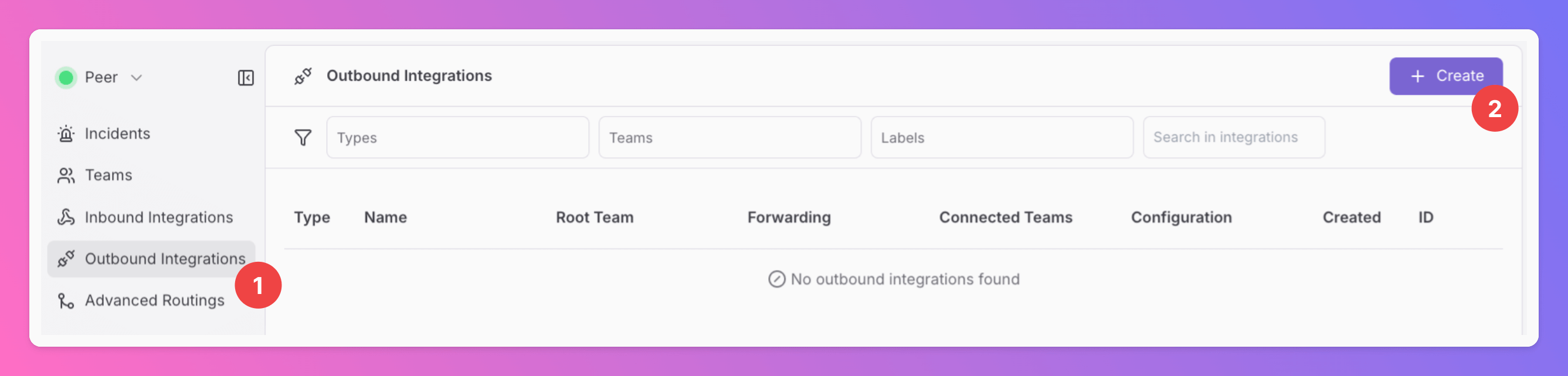
1. Click on the `Outbound Integrations` tab.
2. Click on `+ Create`.
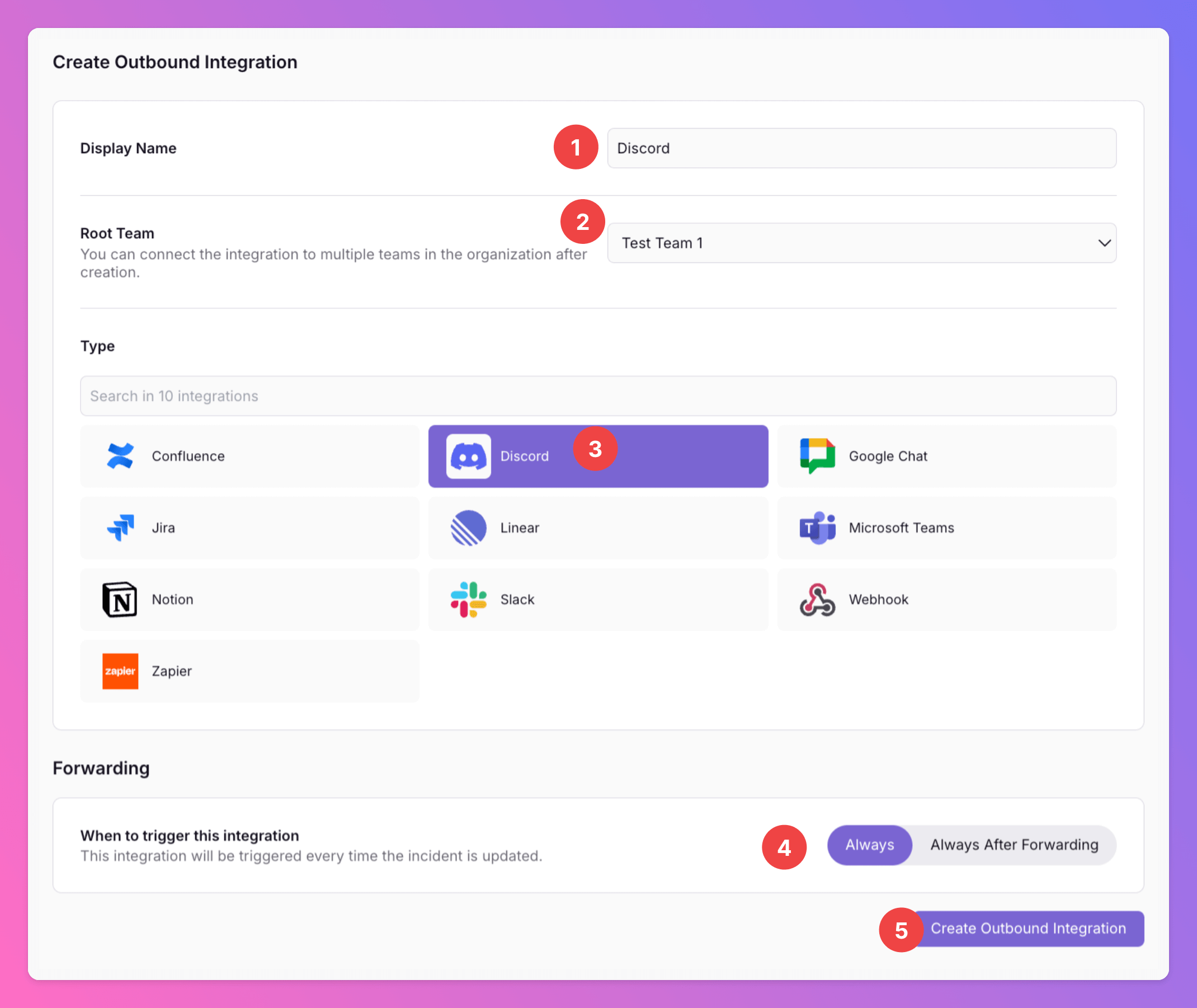
 1. Enter a `Display Name` for your integration, e.g. "Discord".
2. Select a `Team`. For Organizations with Pro and Enterprise plan: This is going to be the root team of your integration. You will be able to add additional teams in the next step.
3. Select `Discord` as the integration's type.
4. Forwarding settings:
1. **Default:** `Always` will automatically forward all incidents to your Discord channels, unless excluded by [advanced routing rules](/advanced/routing).
2. **Alternative**: `Always After Forwarding` - Messages will only be sent if users [manually forward specific incidents](/essentials/incident#forwarding) or if you set up [advanced routing rules](/advanced/routing) for your Discord integration that automatically forward incidents in specific scenarios. After the initial Forwarding, all updates will automatically be sent.
You can change your selection anytime.
5. Click `Create Outbound Integration`.
1. Enter a `Display Name` for your integration, e.g. "Discord".
2. Select a `Team`. For Organizations with Pro and Enterprise plan: This is going to be the root team of your integration. You will be able to add additional teams in the next step.
3. Select `Discord` as the integration's type.
4. Forwarding settings:
1. **Default:** `Always` will automatically forward all incidents to your Discord channels, unless excluded by [advanced routing rules](/advanced/routing).
2. **Alternative**: `Always After Forwarding` - Messages will only be sent if users [manually forward specific incidents](/essentials/incident#forwarding) or if you set up [advanced routing rules](/advanced/routing) for your Discord integration that automatically forward incidents in specific scenarios. After the initial Forwarding, all updates will automatically be sent.
You can change your selection anytime.
5. Click `Create Outbound Integration`.
 ### Add All Quiet to Your Server
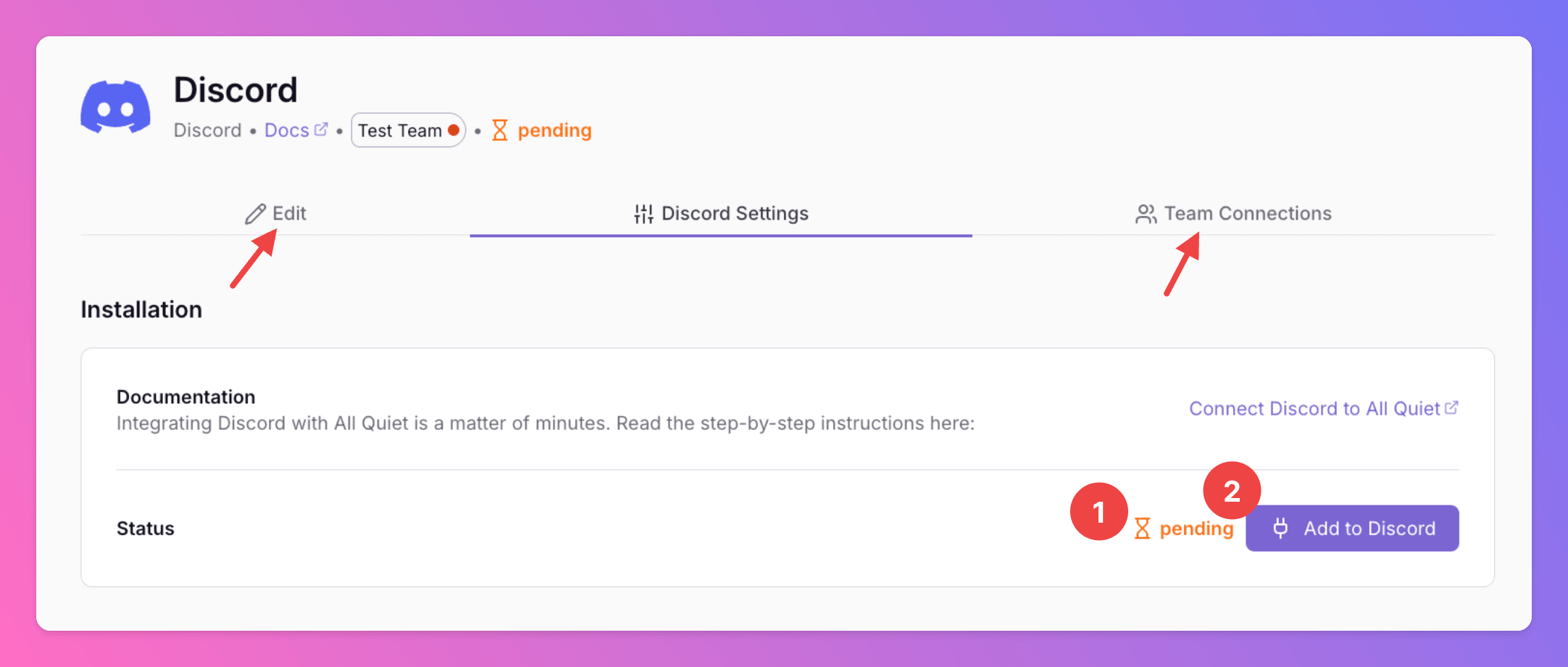
Once you've successfully created your new outbound integration, you'll automatically be redirected to its `Settings` page.
1. Observe that the installation status of the All Quiet integration is still pending.
2. To complete the integration with your Discord Server, click `Add to Discord`.
In the `Edit` tab, you can change general settings like the integration's [Forwarding settings](/integrations/outbound/discord#create-outbound-integration).
**Only for Pro and Enterprise plan** - Manage your `Team Connections`: The root team is pre-selected, and you can add the integration to further teams within the root team's organization. *Team Administrators* can add / remove those teams they are an Administrator in, *Organization Administrators* & *Organization Owners* can manage the connections to all teams of the organization.
### Add All Quiet to Your Server
Once you've successfully created your new outbound integration, you'll automatically be redirected to its `Settings` page.
1. Observe that the installation status of the All Quiet integration is still pending.
2. To complete the integration with your Discord Server, click `Add to Discord`.
In the `Edit` tab, you can change general settings like the integration's [Forwarding settings](/integrations/outbound/discord#create-outbound-integration).
**Only for Pro and Enterprise plan** - Manage your `Team Connections`: The root team is pre-selected, and you can add the integration to further teams within the root team's organization. *Team Administrators* can add / remove those teams they are an Administrator in, *Organization Administrators* & *Organization Owners* can manage the connections to all teams of the organization.
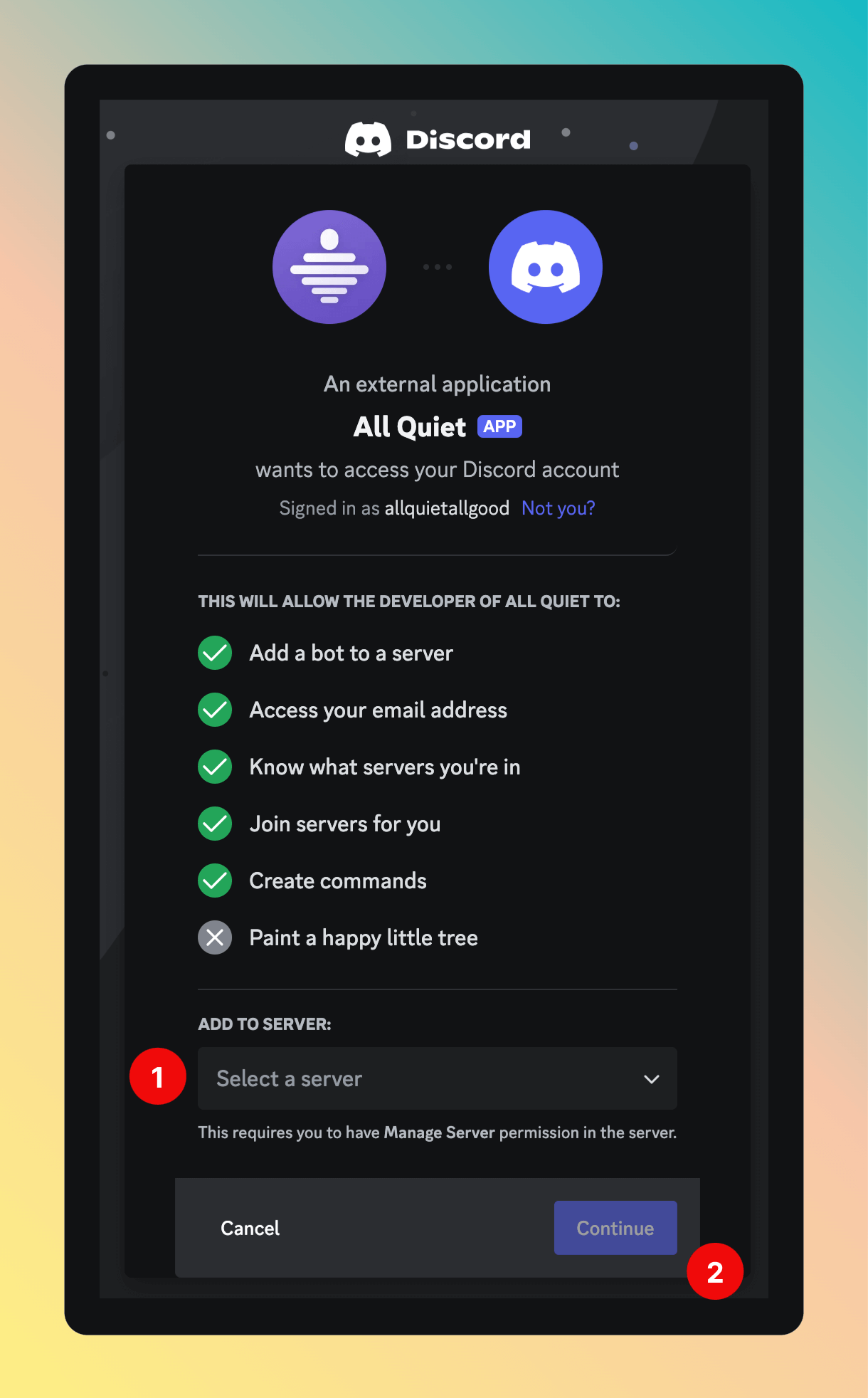
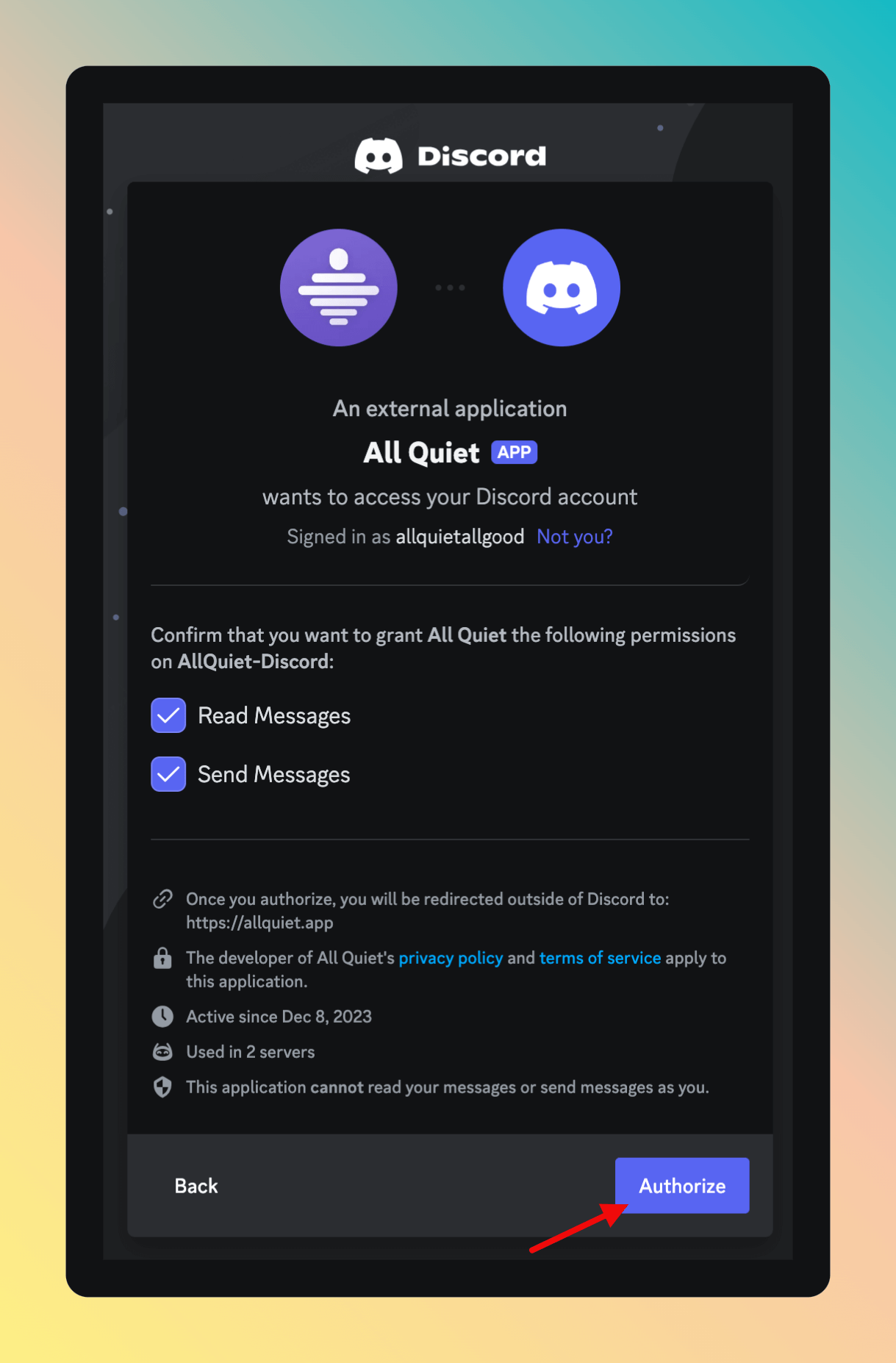
 You'll be redirected to Discord, where you'll need to grant permissions to the All Quiet Discord app.
We request only the permissions essential for All Quiet to operate correctly. These permissions are utilized solely when you interact with the app and are never used for any other purpose.
1. Select the servers where you wish to add All Quiet.
2. Click `Continue`.
You'll be redirected to Discord, where you'll need to grant permissions to the All Quiet Discord app.
We request only the permissions essential for All Quiet to operate correctly. These permissions are utilized solely when you interact with the app and are never used for any other purpose.
1. Select the servers where you wish to add All Quiet.
2. Click `Continue`.
 In the next step, you need to authorize the All Quiet App to read and write messages in your Discord Server to make full use of the integration.
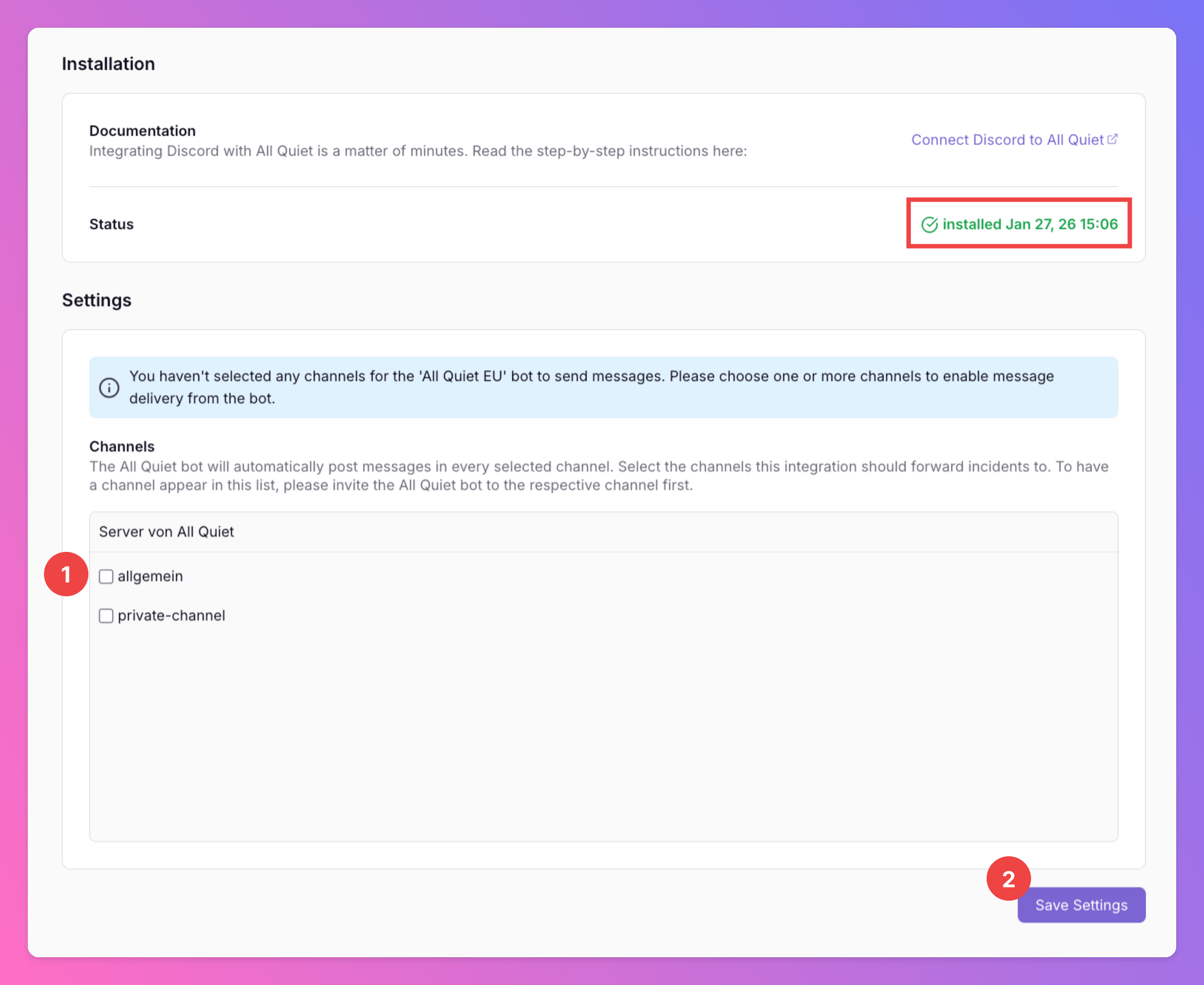
 After granting All Quiet access to your Discord servers, you'll be redirected back to the integration in All Quiet. Notice that the Installation Status now reads "Installed".
1. For All Quiet to send incidents to your Discord channels, you must select at least one channel.
When selecting a **private channel**, make sure to add the All Quiet App / All Quiet EU App as a member via the Discord channel settings > permissions.
2. Click `Save Settings` to confirm your channel selections.
After granting All Quiet access to your Discord servers, you'll be redirected back to the integration in All Quiet. Notice that the Installation Status now reads "Installed".
1. For All Quiet to send incidents to your Discord channels, you must select at least one channel.
When selecting a **private channel**, make sure to add the All Quiet App / All Quiet EU App as a member via the Discord channel settings > permissions.
2. Click `Save Settings` to confirm your channel selections.
 ## Engage with Incidents Directly in Discord
Whenever you engage with incidents via All Quiet, the Discord integration sends an interactive message to your designated channels. This allows for seamless incident management, mirroring the experience of our iOS, Android, and Web Apps, all within Discord.
If incident grouping is enabled, All Quiet will only include the grouping attributes in the Discord messages we send (the same fields used to group events into an incident). Learn more in our [Inbound Integrations docs](/essentials/inbound#optional-additional-attribute-keys).
## Engage with Incidents Directly in Discord
Whenever you engage with incidents via All Quiet, the Discord integration sends an interactive message to your designated channels. This allows for seamless incident management, mirroring the experience of our iOS, Android, and Web Apps, all within Discord.
If incident grouping is enabled, All Quiet will only include the grouping attributes in the Discord messages we send (the same fields used to group events into an incident). Learn more in our [Inbound Integrations docs](/essentials/inbound#optional-additional-attribute-keys).
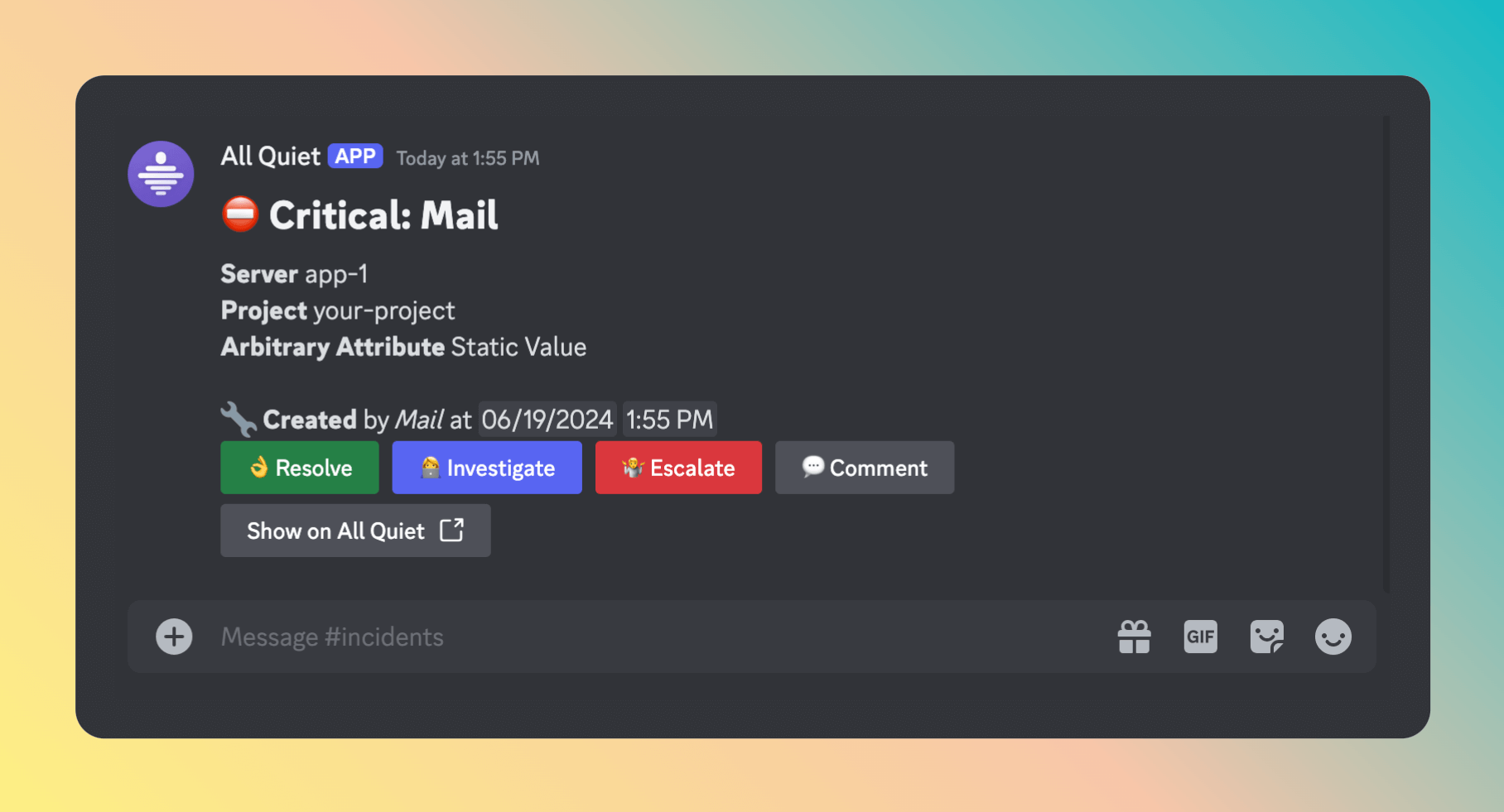 Discord is now integrated with All Quiet, streamlining incident management and communication within a familiar interface.
## Troubleshooting
**Team Administrators**, **Organization Administrators**, and **Organization Owners** can troubleshoot this integration using the **History** tab (**Outbound History**) on the integration details page. See **[Outbound History](/essentials/outbound#outbound-history)** for what is logged, who can access it, and how to read outcomes. For broader checks when outbound tools do not fire, see **[Outbound integrations — Troubleshooting](/essentials/outbound#outbound-troubleshooting-routing)** and **[advanced routing](/advanced/routing)**.
Discord is now integrated with All Quiet, streamlining incident management and communication within a familiar interface.
## Troubleshooting
**Team Administrators**, **Organization Administrators**, and **Organization Owners** can troubleshoot this integration using the **History** tab (**Outbound History**) on the integration details page. See **[Outbound History](/essentials/outbound#outbound-history)** for what is logged, who can access it, and how to read outcomes. For broader checks when outbound tools do not fire, see **[Outbound integrations — Troubleshooting](/essentials/outbound#outbound-troubleshooting-routing)** and **[advanced routing](/advanced/routing)**.