> ## Documentation Index
> Fetch the complete documentation index at: https://docs.allquiet.app/llms.txt
> Use this file to discover all available pages before exploring further.
# Webhook
> Connect any Webhook to All Quiet using `cURL`
Setup time: 7 Min
Effortlessly integrate webhooks with All Quiet using `cURL` requests. This guide offers practical implementation steps for seamless data transfer between systems.
## Create Webhook Integration
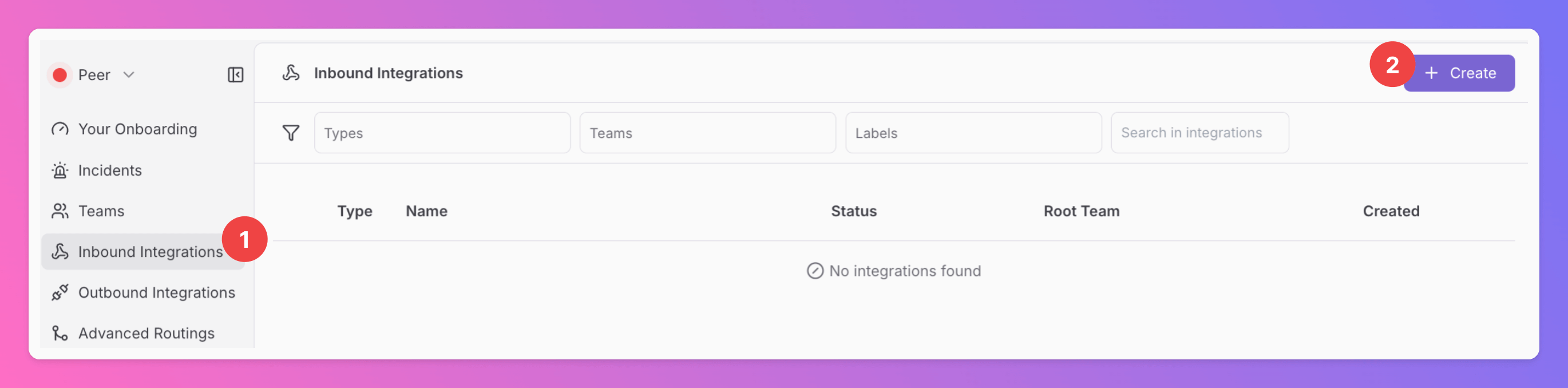
1. Click on the `Inbound Integrations` tab.
2. Click on `+ Create`.
 ### Select UptimeRobot for the integration's type
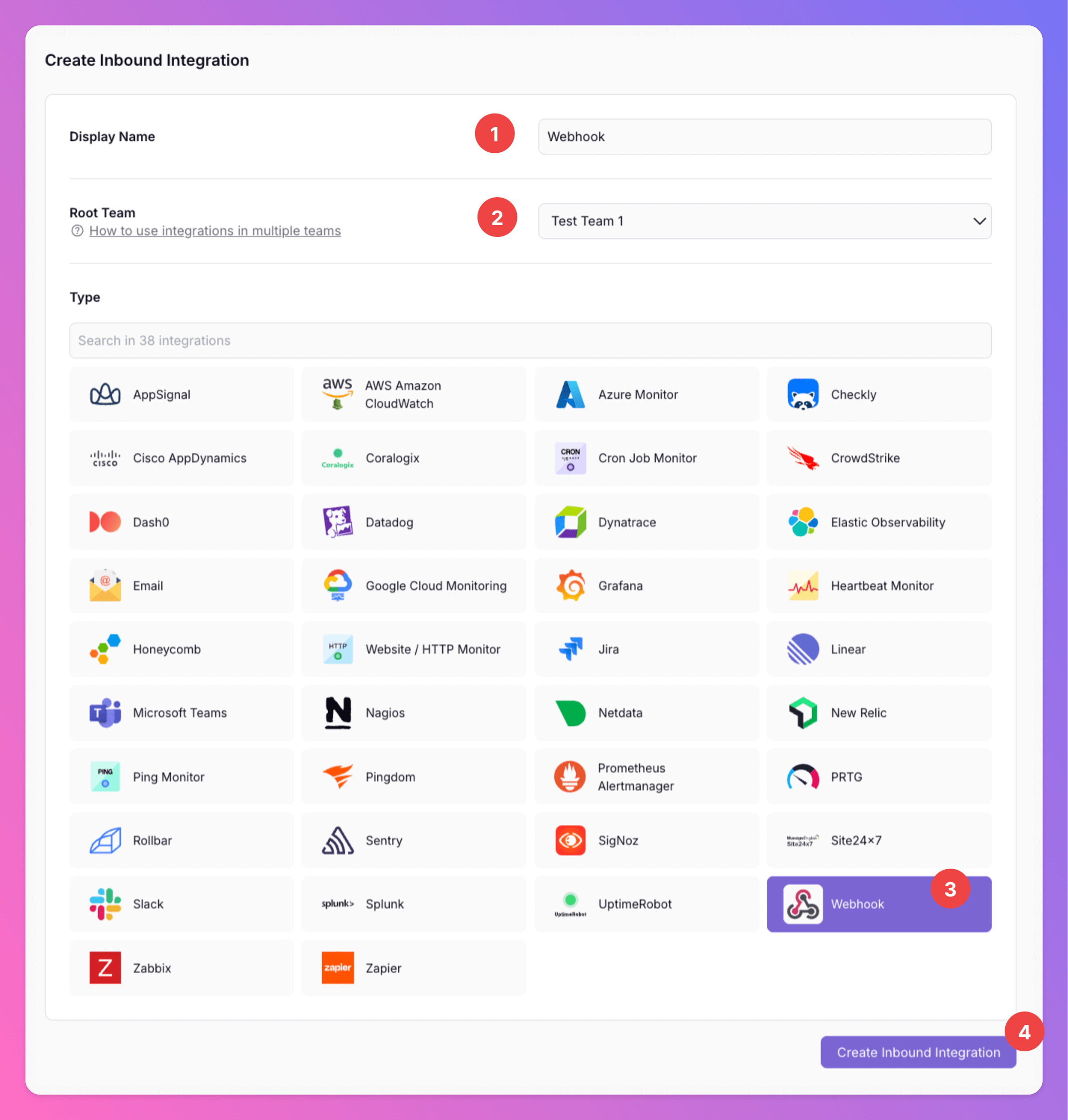
1. Enter a `Display Name` for your integration, e.g. "Webhook".
2. Select a `Team`.
3. Select `Webhook` as the integration's type.
4. Click `Create Inbound Integration`.
### Select UptimeRobot for the integration's type
1. Enter a `Display Name` for your integration, e.g. "Webhook".
2. Select a `Team`.
3. Select `Webhook` as the integration's type.
4. Click `Create Inbound Integration`.
 ### Get the All Quiet webhook URL
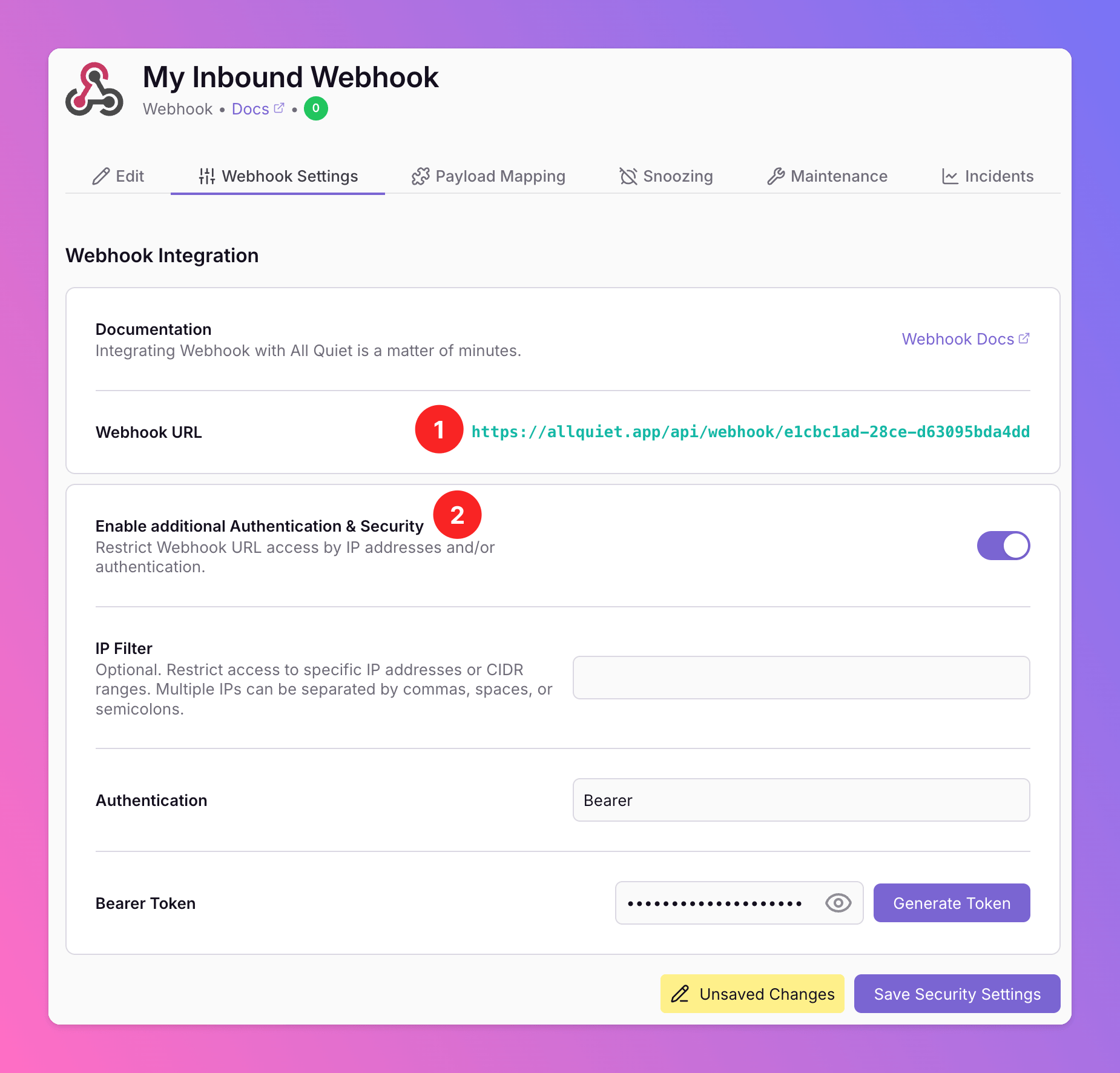
After creating the webhook integration on All Quiet
1. you can view and copy the URL of the newly generated webhook. You can now create All Quiet incidents by sending `cURL` and other requests to this unique URL.
2. Optionally toggle `Enable additional Authentication & Security` below the webhook URL to restrict who can POST payloads:
* **IP Filter** — Allow requests only from specific IPs or CIDR ranges. Failed checks return **404 Not Found**.
* **Bearer authentication** — Require `Authorization: Bearer YOUR_TOKEN`. Missing or invalid tokens return **401 Unauthorized**.
* If both are enabled, the request must pass both checks to be accepted.
### Get the All Quiet webhook URL
After creating the webhook integration on All Quiet
1. you can view and copy the URL of the newly generated webhook. You can now create All Quiet incidents by sending `cURL` and other requests to this unique URL.
2. Optionally toggle `Enable additional Authentication & Security` below the webhook URL to restrict who can POST payloads:
* **IP Filter** — Allow requests only from specific IPs or CIDR ranges. Failed checks return **404 Not Found**.
* **Bearer authentication** — Require `Authorization: Bearer YOUR_TOKEN`. Missing or invalid tokens return **401 Unauthorized**.
* If both are enabled, the request must pass both checks to be accepted.
 ## Send POST with cURL
The Webhook accepts all HTTP Verbs and supports the following values for the HTTP header `Content-Type` :
* `application/json` maps to property `jsonBody`
* `application/x-www-form-urlencoded` maps to property `formBody`
* `multipart/form-data` maps to property `formBody`
* `text/plain` maps to property `textBody`
* `text/xml`, `application/xml` and `application/xhtml+xml` map to property `xmlBody`
Use the CURL command below as an example to trigger the webhook.
```CURL theme={null}
curl -X POST 'https://allquiet.app/api/webhook/YOUR-WEBHOOK' \
-H 'Content-Type: application/json' \
-d '{"alertName": "Demo Alert", "alertStatus": "firing", "description": "This is a Demo Alert"}'
```
## Inspect your Webhook payload.
Once the cURL command has been executed, the corresponding payload will be visible on your integration's details page.
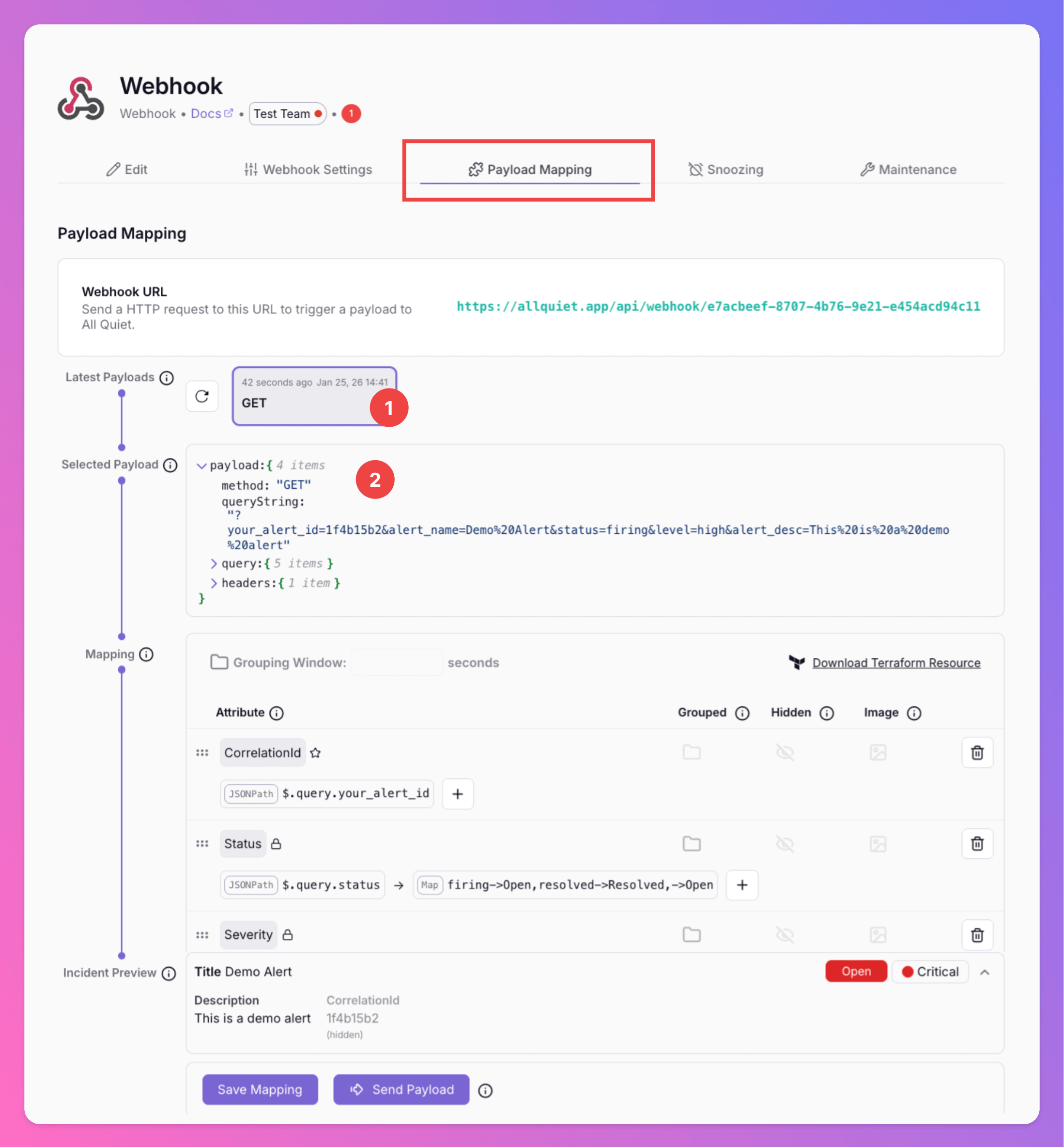
1. To view a specific payload, click the "Select" button next to the desired entry under "Latest payloads". This action will load the payload into the "Request Payload Example" section for review.
2. The "Selected Payload" field displays the actual payload generated by triggering the Webhook.
The JSON content within the `Selected Payload` field can be temporarily edited to test different scenarios.
## Send POST with cURL
The Webhook accepts all HTTP Verbs and supports the following values for the HTTP header `Content-Type` :
* `application/json` maps to property `jsonBody`
* `application/x-www-form-urlencoded` maps to property `formBody`
* `multipart/form-data` maps to property `formBody`
* `text/plain` maps to property `textBody`
* `text/xml`, `application/xml` and `application/xhtml+xml` map to property `xmlBody`
Use the CURL command below as an example to trigger the webhook.
```CURL theme={null}
curl -X POST 'https://allquiet.app/api/webhook/YOUR-WEBHOOK' \
-H 'Content-Type: application/json' \
-d '{"alertName": "Demo Alert", "alertStatus": "firing", "description": "This is a Demo Alert"}'
```
## Inspect your Webhook payload.
Once the cURL command has been executed, the corresponding payload will be visible on your integration's details page.
1. To view a specific payload, click the "Select" button next to the desired entry under "Latest payloads". This action will load the payload into the "Request Payload Example" section for review.
2. The "Selected Payload" field displays the actual payload generated by triggering the Webhook.
The JSON content within the `Selected Payload` field can be temporarily edited to test different scenarios.
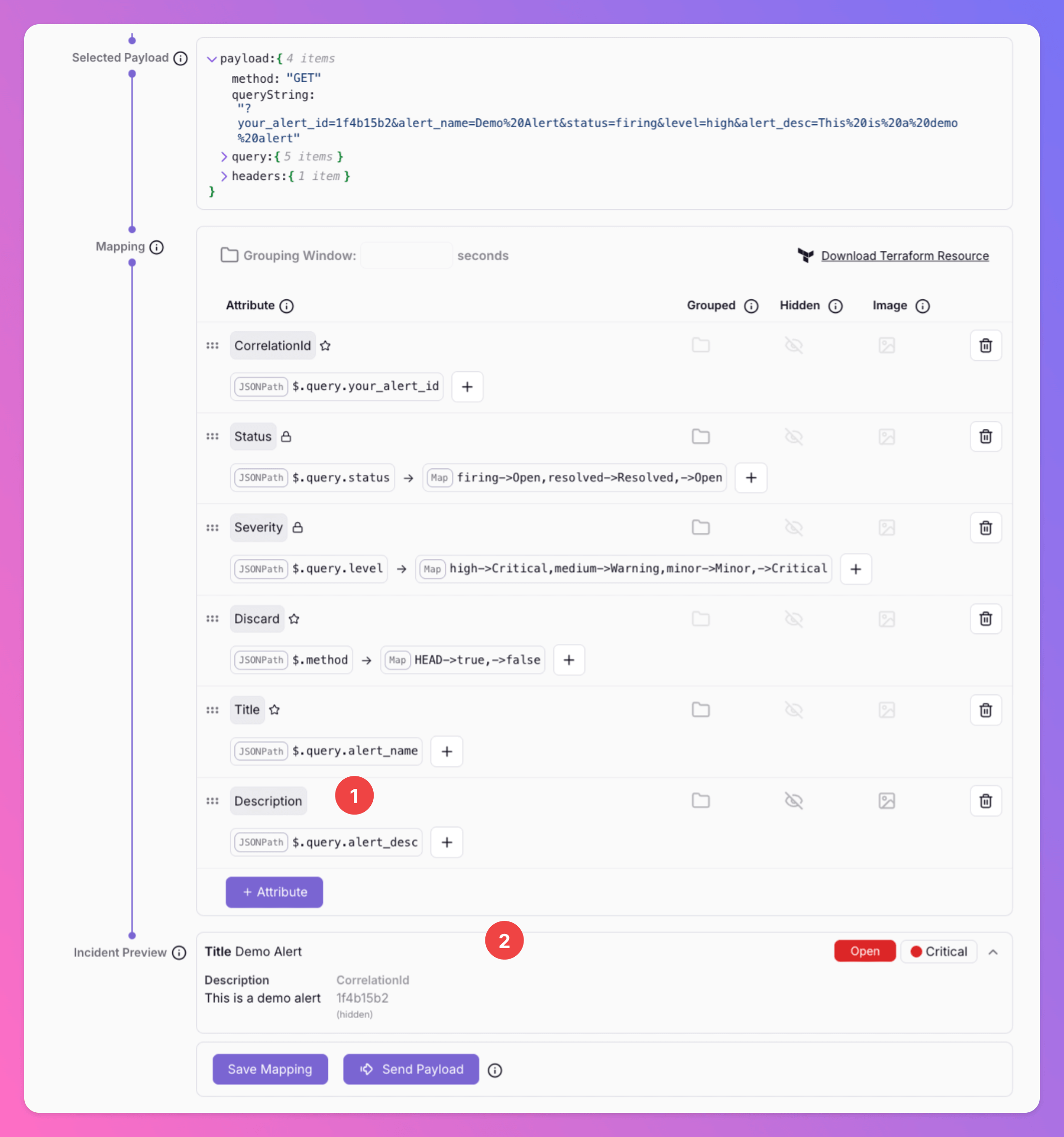
 ## Configure Attribute Mapping
If the payload has not been modified from the previous cURL example, the webhook's default attribute mapping should seamlessly translate the data into an All Quiet incident.
1. See how the mapping adds the `alert_desc` field from the payload to the All Quiet incident attribute `Description`.
2. Observe how the mapping transforms the whole selected payload into an All Quiet incident.
## Configure Attribute Mapping
If the payload has not been modified from the previous cURL example, the webhook's default attribute mapping should seamlessly translate the data into an All Quiet incident.
1. See how the mapping adds the `alert_desc` field from the payload to the All Quiet incident attribute `Description`.
2. Observe how the mapping transforms the whole selected payload into an All Quiet incident.
 ### More about Payload Mapping
For detailed guidance on `Payload Mapping`, you may check out our [payload mapping documentation](/essentials/inbound#how-does-attribute-mapping-work).
Using our Terraform provider? [Download](https://allquiet.app/api/integrations/terraform/default/Webhook.tf) the default mapping of the `allquiet_integration_mapping` resource for the Webhook integration. Simply copy the syntax to your .tf file and tailor the resource to your team's needs!
Your webhook is now seamlessly integrated with All Quiet through `cURL`, optimizing automated data flow and system performance.
### More about Payload Mapping
For detailed guidance on `Payload Mapping`, you may check out our [payload mapping documentation](/essentials/inbound#how-does-attribute-mapping-work).
Using our Terraform provider? [Download](https://allquiet.app/api/integrations/terraform/default/Webhook.tf) the default mapping of the `allquiet_integration_mapping` resource for the Webhook integration. Simply copy the syntax to your .tf file and tailor the resource to your team's needs!
Your webhook is now seamlessly integrated with All Quiet through `cURL`, optimizing automated data flow and system performance.