> ## Documentation Index
> Fetch the complete documentation index at: https://docs.allquiet.app/llms.txt
> Use this file to discover all available pages before exploring further.
# ServiceNow
> Receive ServiceNow incident updates as open or resolved payloads in All Quiet.
Setup time: 5 Min
The **ServiceNow Inbound** integration lets ServiceNow drive All Quiet incidents: when your ServiceNow workflow sends payloads, All Quiet can **open** new incidents or **resolve** existing ones to match ServiceNow.
Use this together with the [ServiceNow Outbound integration](/integrations/outbound/servicenow) to keep All Quiet and ServiceNow incidents in sync in both directions. The outbound side creates and updates ServiceNow from All Quiet; the inbound side applies ServiceNow state to All Quiet.
## What this integration does
* Accepts inbound traffic from ServiceNow (for example when an incident is opened or reaches a resolved state).
* Maps those events to **open** or **resolved** All Quiet incidents according to your configuration.
* Works **on its own** if you only need ServiceNow → All Quiet updates, or **alongside** the outbound integration for full loop synchronization.
## Create ServiceNow Inbound integration
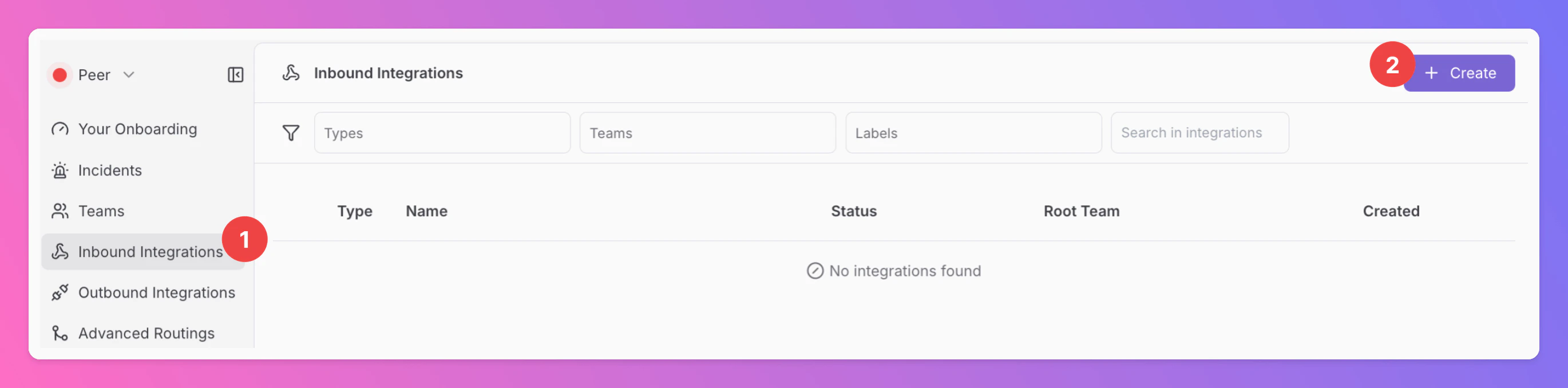
1. In All Quiet, open the `Inbound Integrations` tab.
2. Click `+ Create`.
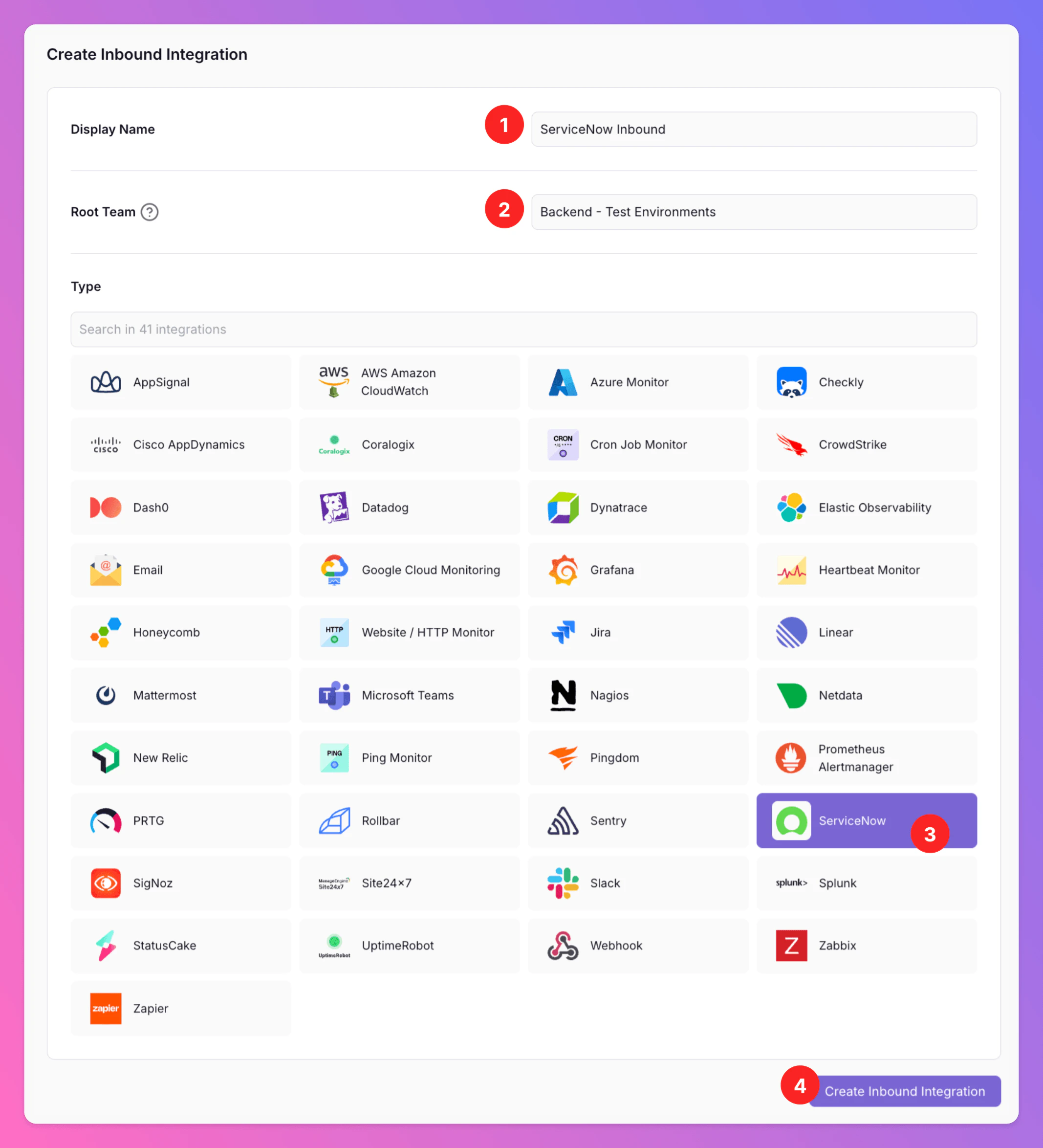
 1. Enter a **Display Name** (for example `ServiceNow Inbound`).
2. Select a **Team** for this integration.
3. Choose **ServiceNow** as the `integration type`.
4. Click `Create Inbound Integration`.
1. Enter a **Display Name** (for example `ServiceNow Inbound`).
2. Select a **Team** for this integration.
3. Choose **ServiceNow** as the `integration type`.
4. Click `Create Inbound Integration`.
 ### After creating the inbound integration
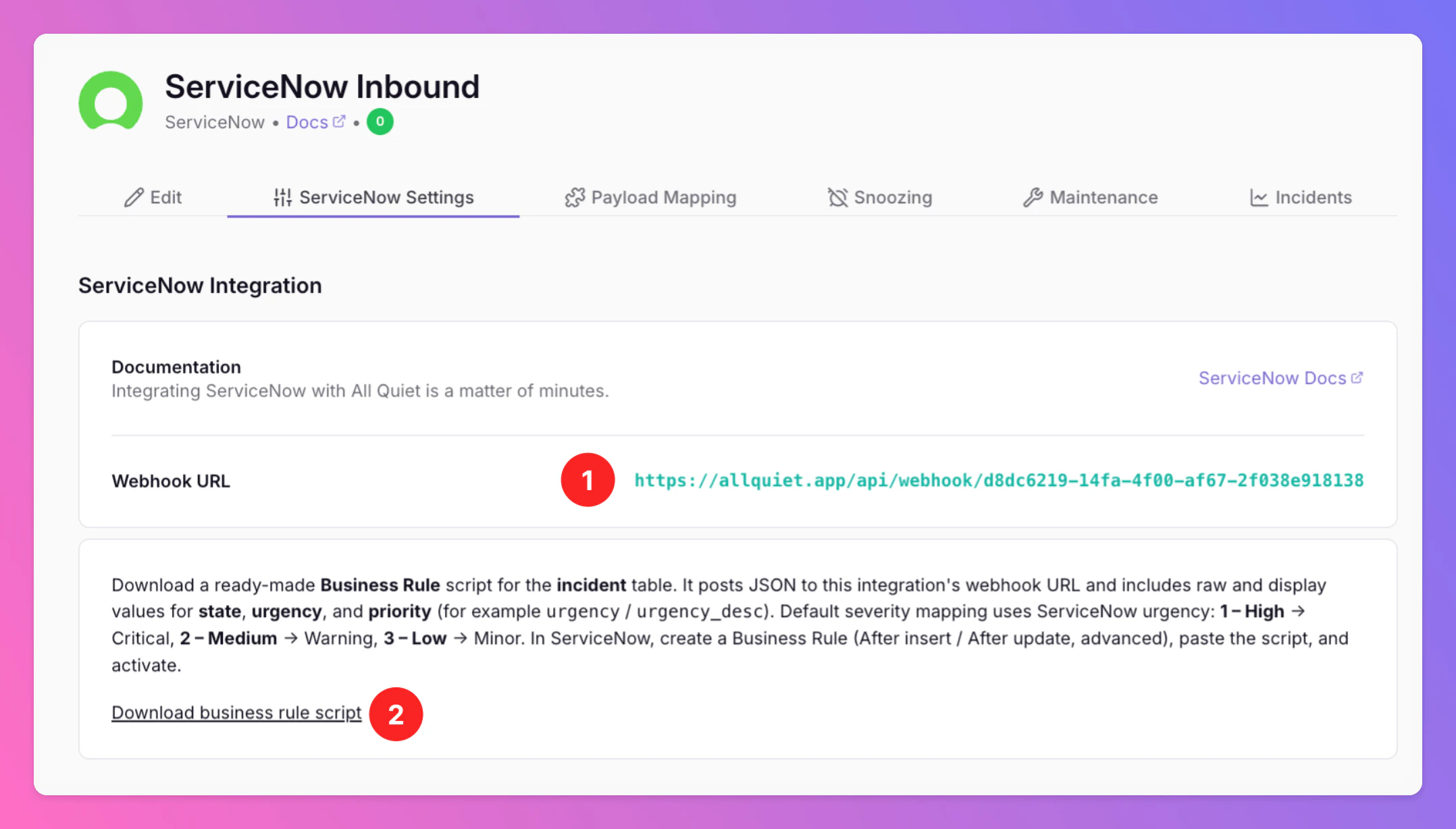
Open the `ServiceNow Settings` tab of your new ServiceNow inbound integration in All Quiet. You will find two important things:
1. **Find and copy the webhook URL**. You will use this URL in ServiceNow.
2. In ServiceNow, you will need to create a **Business Rule** that runs the script you can download here. This script will ensure each relevant incident change posts to that URL.
### After creating the inbound integration
Open the `ServiceNow Settings` tab of your new ServiceNow inbound integration in All Quiet. You will find two important things:
1. **Find and copy the webhook URL**. You will use this URL in ServiceNow.
2. In ServiceNow, you will need to create a **Business Rule** that runs the script you can download here. This script will ensure each relevant incident change posts to that URL.
 Optionally toggle `Enable additional Authentication & Security` below the webhook URL to restrict who can POST payloads.
* **IP Filter** — Allow requests only from specific IPs or CIDR ranges. Failed checks return **404 Not Found**.
* **Bearer authentication** — Require `Authorization: Bearer YOUR_TOKEN`. Missing or invalid tokens return **401 Unauthorized**.
If both are enabled, the request must pass both checks to be accepted.
## Step 2 — Create a Business Rule in ServiceNow
In ServiceNow, there are multipe ways to navigate to the Business Rules page. We recommend using the Filter navigator (search field, usually top left) and typing "Business Rules".
1. Navigate to **System Definition** → **Business Rules**.
If you don't seee Business Rules in the menu, sign in with a user that can create Business Rules (often a admin or someone with business\_rule\_admin / equivalent).
2. Click **New**.
3. Configure the rule. You need to set the following fields:
| Field | Value |
| ------------ | ---------------------------- |
| **Name** | `Send Incident to All Quiet` |
| **Table** | `Incident` |
| **When** | `after` |
| **Insert** | ✅ (enabled) |
| **Update** | ✅ (enabled) |
| **Advanced** | ✅ (enabled) |
| **Active** | ✅ (enabled) |
This ensures the webhook runs **after** changes are saved.
You can of course adjust the name of the rule to your liking. Also, the table you are looking for might be called differently than "Incident" in your instance.
## Step 3 — Add the script
Open the "**Advanced**" Tab of your new Business rule. Paste the script you dowloaded on the [ServiceNow Settings tab](/integrations/inbound/servicenow#after-creating-the-inbound-integration) into the **Script** field.
If you missed it, here it is again:
```script servicenow business rule script theme={null}
(function executeRule(current, previous /*null when async*/) {
var webhookUrl = 'https://YOUR-ALL-QUIET-WEBHOOK';
try {
var rm = new sn_ws.RESTMessageV2();
rm.setEndpoint(webhookUrl);
rm.setHttpMethod('post');
rm.setRequestHeader('Content-Type', 'application/json');
var payload = {
source: "servicenow",
eventType: getEventType(current, previous),
incident: {
sys_id: current.sys_id.toString(),
number: current.number.toString(),
state: current.state.getValue(),
state_desc: current.state.getDisplayValue(),
priority: current.priority.getValue(),
priority_desc: current.priority.getDisplayValue(),
urgency: current.urgency.getValue(),
urgency_desc: current.urgency.getDisplayValue(),
impact: current.impact.getValue(),
impact_desc: current.impact.getDisplayValue(),
short_description: current.short_description.toString(),
description: current.description ? current.description.toString() : "",
assigned_to: current.assigned_to.nil() ? "" : current.assigned_to.getDisplayValue(),
assignment_group: current.assignment_group.nil() ? "" : current.assignment_group.getDisplayValue(),
service: primaryIncidentService(current),
updated_at: new GlideDateTime().getDisplayValue(),
url: normalizeInstanceBase(getInstanceUrl()) + "incident.do?sys_id=" + current.sys_id
}
};
rm.setRequestBody(JSON.stringify(payload));
var response = rm.execute();
var status = response.getStatusCode();
gs.info("All Quiet webhook sent. Status: " + status);
} catch (ex) {
gs.error("All Quiet webhook failed: " + ex.message);
}
function getEventType(current, previous) {
if (!previous) return "created";
if (current.state.changes()) {
var state = current.state.getDisplayValue().toLowerCase();
if (state.includes("resolved") || state.includes("closed")) {
return "resolved";
}
}
return "updated";
}
function primaryIncidentService(inc) {
try {
if (!inc.cmdb_ci.nil()) {
var ciName = inc.cmdb_ci.getDisplayValue();
if (ciName) {
return ciName.toString().trim();
}
}
if (inc.isValidField("service_offering") && !inc.service_offering.nil()) {
var soName = inc.service_offering.getDisplayValue();
if (soName) {
return soName.toString().trim();
}
}
var gr = new GlideRecord("task_ci");
gr.addQuery("task", inc.sys_id);
gr.query();
if (gr.next() && !gr.ci_item.nil()) {
var taskCiName = gr.ci_item.getDisplayValue();
if (taskCiName) {
return taskCiName.toString().trim();
}
}
} catch (e) {
}
return "";
}
function getInstanceUrl() {
return gs.getProperty("glide.servlet.uri");
}
function normalizeInstanceBase(base) {
if (!base) {
return "";
}
return base.charAt(base.length - 1) === "/" ? base : base + "/";
}
})(current, previous);
```
## Step 4 — Replace the webhook URL
Make sure your replace
`https://YOUR-ALL-QUIET-WEBHOOK`
with your **actual All Quiet webhook URL** ([copied](/integrations/inbound/servicenow#after-creating-the-inbound-integration) from the inbound integration).
## Step 5 — Test the integration
Open any incident in ServiceNow.
You should see the corresponding incident in All Quiet. If you update the incident in ServiceNow (e.g resolve it), you will see the update in All Quiet as well.
### Payload example
This is what All Quiet receives:
```json jsonBody of the payload theme={null}
{
"source": "servicenow",
"eventType": "updated",
"incident": {
"sys_id": "abc123",
"number": "INC0010001",
"state": "2",
"state_desc": "In Progress",
"priority": "3",
"priority_desc": "3 - Moderate",
"urgency": "2",
"urgency_desc": "2 - Medium",
"impact": "3",
"impact_desc": "3 - Moderate",
"short_description": "Interaction",
"description": "Description",
"assigned_to": "Assignee Name",
"assignment_group": "",
"service": "Example Service",
"updated_at": "2026-03-31 11:08:03",
"url": "https://yourservicenowinstance.com//incident.do?sys_id=abc123"
}
```
### How All Quiet correlates incidents
All Quiet uses **`incident.sys_id`** as the primary identifier so updates map to the **same** All Quiet incident over time.
### Default Severity Mapping
Default severity mapping uses ServiceNow `urgency`: 1 – High → Critical, 2 – Medium → Warning, 3 – Low → Minor. You can adjust this mapping in the [payload mapping](/essentials/inbound#reserved-and-required-attributes) anytime.
### Optional improvements
**Only send important updates**
You can reduce noise by adding a **condition** on the Business Rule, for example:
```text theme={null}
current.state.changes() || current.priority.changes()
```
**Add authentication (recommended)**
You can add a header in the script, for example:
```javascript theme={null}
rm.setRequestHeader('Authorization', 'Bearer YOUR_TOKEN');
```
**Custom field mapping**
If your ServiceNow instance uses custom fields, extend the payload object, for example:
```javascript theme={null}
custom_field: current.u_custom_field.toString()
```
You're ready. All Quiet will now create incidents based on all your ServiceNow alerts.
### Adjust Payload Mapping
Looking to customize the fields of your incidents by adjusting the pre-built payload mapping? Simply head over to the “Payload” tab within your integration and make the necessary edits to the mapping. For detailed guidance, you may check out our [payload mapping documentation](/essentials/inbound#how-does-attribute-mapping-work).
Using our Terraform provider? [Download](https://allquiet.app/api/integrations/terraform/default/ServiceNow.tf) the default mapping of the `allquiet_integration_mapping` resource for the SigNoz integration. Simply copy the syntax to your .tf file and tailor the resource to your team's needs!
## Troubleshooting
**Nothing happens**
* Ensure the Business Rule is **Active**.
* Open **System Logs** → **All** and look for log lines such as `All Quiet webhook sent`.
* If the rule fails, check for `All Quiet webhook failed` and the error message in the logs.
## Work with ServiceNow Outbound
If you also enable [ServiceNow Outbound](/integrations/outbound/servicenow), All Quiet incidents created or updated from ServiceNow can be reflected back in ServiceNow, and incidents that originate in All Quiet can still be linked to ServiceNow records depending on your forwarding and routing rules.
Incidents that **did not** start in ServiceNow (for example from an observability tool) can still be represented in ServiceNow when outbound is configured—the outbound integration creates and updates ServiceNow incidents from All Quiet regardless of the original source.
## Related
* [ServiceNow Outbound](/integrations/outbound/servicenow) — create and update ServiceNow incidents from All Quiet
* [Inbound Integrations](/essentials/inbound) — payloads, mapping, and behavior
* [Advanced routing](/advanced/routing) — optional rules per integration
Optionally toggle `Enable additional Authentication & Security` below the webhook URL to restrict who can POST payloads.
* **IP Filter** — Allow requests only from specific IPs or CIDR ranges. Failed checks return **404 Not Found**.
* **Bearer authentication** — Require `Authorization: Bearer YOUR_TOKEN`. Missing or invalid tokens return **401 Unauthorized**.
If both are enabled, the request must pass both checks to be accepted.
## Step 2 — Create a Business Rule in ServiceNow
In ServiceNow, there are multipe ways to navigate to the Business Rules page. We recommend using the Filter navigator (search field, usually top left) and typing "Business Rules".
1. Navigate to **System Definition** → **Business Rules**.
If you don't seee Business Rules in the menu, sign in with a user that can create Business Rules (often a admin or someone with business\_rule\_admin / equivalent).
2. Click **New**.
3. Configure the rule. You need to set the following fields:
| Field | Value |
| ------------ | ---------------------------- |
| **Name** | `Send Incident to All Quiet` |
| **Table** | `Incident` |
| **When** | `after` |
| **Insert** | ✅ (enabled) |
| **Update** | ✅ (enabled) |
| **Advanced** | ✅ (enabled) |
| **Active** | ✅ (enabled) |
This ensures the webhook runs **after** changes are saved.
You can of course adjust the name of the rule to your liking. Also, the table you are looking for might be called differently than "Incident" in your instance.
## Step 3 — Add the script
Open the "**Advanced**" Tab of your new Business rule. Paste the script you dowloaded on the [ServiceNow Settings tab](/integrations/inbound/servicenow#after-creating-the-inbound-integration) into the **Script** field.
If you missed it, here it is again:
```script servicenow business rule script theme={null}
(function executeRule(current, previous /*null when async*/) {
var webhookUrl = 'https://YOUR-ALL-QUIET-WEBHOOK';
try {
var rm = new sn_ws.RESTMessageV2();
rm.setEndpoint(webhookUrl);
rm.setHttpMethod('post');
rm.setRequestHeader('Content-Type', 'application/json');
var payload = {
source: "servicenow",
eventType: getEventType(current, previous),
incident: {
sys_id: current.sys_id.toString(),
number: current.number.toString(),
state: current.state.getValue(),
state_desc: current.state.getDisplayValue(),
priority: current.priority.getValue(),
priority_desc: current.priority.getDisplayValue(),
urgency: current.urgency.getValue(),
urgency_desc: current.urgency.getDisplayValue(),
impact: current.impact.getValue(),
impact_desc: current.impact.getDisplayValue(),
short_description: current.short_description.toString(),
description: current.description ? current.description.toString() : "",
assigned_to: current.assigned_to.nil() ? "" : current.assigned_to.getDisplayValue(),
assignment_group: current.assignment_group.nil() ? "" : current.assignment_group.getDisplayValue(),
service: primaryIncidentService(current),
updated_at: new GlideDateTime().getDisplayValue(),
url: normalizeInstanceBase(getInstanceUrl()) + "incident.do?sys_id=" + current.sys_id
}
};
rm.setRequestBody(JSON.stringify(payload));
var response = rm.execute();
var status = response.getStatusCode();
gs.info("All Quiet webhook sent. Status: " + status);
} catch (ex) {
gs.error("All Quiet webhook failed: " + ex.message);
}
function getEventType(current, previous) {
if (!previous) return "created";
if (current.state.changes()) {
var state = current.state.getDisplayValue().toLowerCase();
if (state.includes("resolved") || state.includes("closed")) {
return "resolved";
}
}
return "updated";
}
function primaryIncidentService(inc) {
try {
if (!inc.cmdb_ci.nil()) {
var ciName = inc.cmdb_ci.getDisplayValue();
if (ciName) {
return ciName.toString().trim();
}
}
if (inc.isValidField("service_offering") && !inc.service_offering.nil()) {
var soName = inc.service_offering.getDisplayValue();
if (soName) {
return soName.toString().trim();
}
}
var gr = new GlideRecord("task_ci");
gr.addQuery("task", inc.sys_id);
gr.query();
if (gr.next() && !gr.ci_item.nil()) {
var taskCiName = gr.ci_item.getDisplayValue();
if (taskCiName) {
return taskCiName.toString().trim();
}
}
} catch (e) {
}
return "";
}
function getInstanceUrl() {
return gs.getProperty("glide.servlet.uri");
}
function normalizeInstanceBase(base) {
if (!base) {
return "";
}
return base.charAt(base.length - 1) === "/" ? base : base + "/";
}
})(current, previous);
```
## Step 4 — Replace the webhook URL
Make sure your replace
`https://YOUR-ALL-QUIET-WEBHOOK`
with your **actual All Quiet webhook URL** ([copied](/integrations/inbound/servicenow#after-creating-the-inbound-integration) from the inbound integration).
## Step 5 — Test the integration
Open any incident in ServiceNow.
You should see the corresponding incident in All Quiet. If you update the incident in ServiceNow (e.g resolve it), you will see the update in All Quiet as well.
### Payload example
This is what All Quiet receives:
```json jsonBody of the payload theme={null}
{
"source": "servicenow",
"eventType": "updated",
"incident": {
"sys_id": "abc123",
"number": "INC0010001",
"state": "2",
"state_desc": "In Progress",
"priority": "3",
"priority_desc": "3 - Moderate",
"urgency": "2",
"urgency_desc": "2 - Medium",
"impact": "3",
"impact_desc": "3 - Moderate",
"short_description": "Interaction",
"description": "Description",
"assigned_to": "Assignee Name",
"assignment_group": "",
"service": "Example Service",
"updated_at": "2026-03-31 11:08:03",
"url": "https://yourservicenowinstance.com//incident.do?sys_id=abc123"
}
```
### How All Quiet correlates incidents
All Quiet uses **`incident.sys_id`** as the primary identifier so updates map to the **same** All Quiet incident over time.
### Default Severity Mapping
Default severity mapping uses ServiceNow `urgency`: 1 – High → Critical, 2 – Medium → Warning, 3 – Low → Minor. You can adjust this mapping in the [payload mapping](/essentials/inbound#reserved-and-required-attributes) anytime.
### Optional improvements
**Only send important updates**
You can reduce noise by adding a **condition** on the Business Rule, for example:
```text theme={null}
current.state.changes() || current.priority.changes()
```
**Add authentication (recommended)**
You can add a header in the script, for example:
```javascript theme={null}
rm.setRequestHeader('Authorization', 'Bearer YOUR_TOKEN');
```
**Custom field mapping**
If your ServiceNow instance uses custom fields, extend the payload object, for example:
```javascript theme={null}
custom_field: current.u_custom_field.toString()
```
You're ready. All Quiet will now create incidents based on all your ServiceNow alerts.
### Adjust Payload Mapping
Looking to customize the fields of your incidents by adjusting the pre-built payload mapping? Simply head over to the “Payload” tab within your integration and make the necessary edits to the mapping. For detailed guidance, you may check out our [payload mapping documentation](/essentials/inbound#how-does-attribute-mapping-work).
Using our Terraform provider? [Download](https://allquiet.app/api/integrations/terraform/default/ServiceNow.tf) the default mapping of the `allquiet_integration_mapping` resource for the SigNoz integration. Simply copy the syntax to your .tf file and tailor the resource to your team's needs!
## Troubleshooting
**Nothing happens**
* Ensure the Business Rule is **Active**.
* Open **System Logs** → **All** and look for log lines such as `All Quiet webhook sent`.
* If the rule fails, check for `All Quiet webhook failed` and the error message in the logs.
## Work with ServiceNow Outbound
If you also enable [ServiceNow Outbound](/integrations/outbound/servicenow), All Quiet incidents created or updated from ServiceNow can be reflected back in ServiceNow, and incidents that originate in All Quiet can still be linked to ServiceNow records depending on your forwarding and routing rules.
Incidents that **did not** start in ServiceNow (for example from an observability tool) can still be represented in ServiceNow when outbound is configured—the outbound integration creates and updates ServiceNow incidents from All Quiet regardless of the original source.
## Related
* [ServiceNow Outbound](/integrations/outbound/servicenow) — create and update ServiceNow incidents from All Quiet
* [Inbound Integrations](/essentials/inbound) — payloads, mapping, and behavior
* [Advanced routing](/advanced/routing) — optional rules per integration