> ## Documentation Index
> Fetch the complete documentation index at: https://docs.allquiet.app/llms.txt
> Use this file to discover all available pages before exploring further.
# Rollbar
> Connect Rollbar to All Quiet
Setup time: 2 Min
Integrate Rollbar into All Quiet by using our custom integration.
## 1. Add Rollbar Integration to Your All Quiet Team
### Create a Rollbar integration
1. Click on the `Inbound Integrations` tab.
2. Click on `+ Create`.
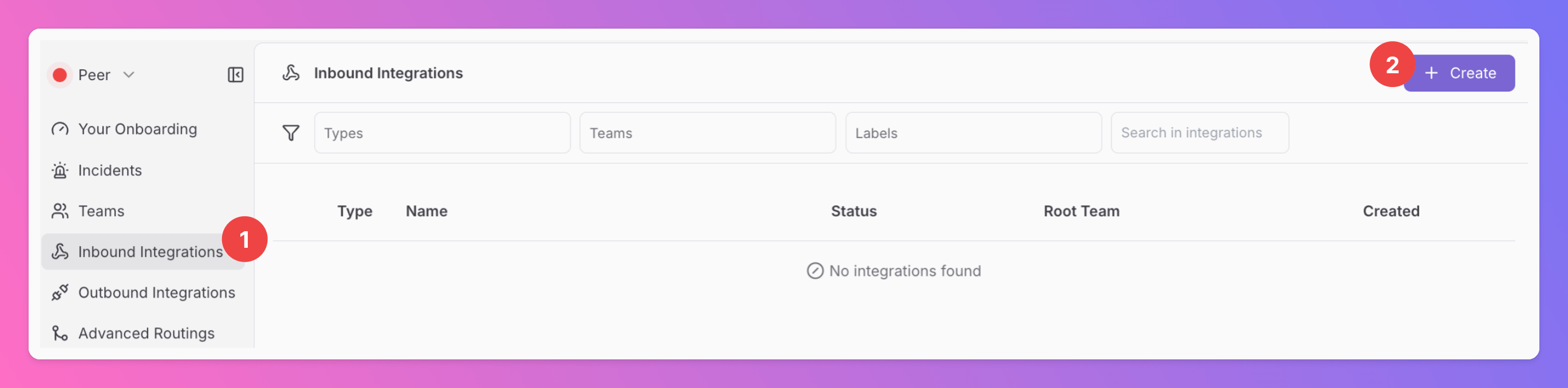 ### Select Rollbar as the Integration's Type
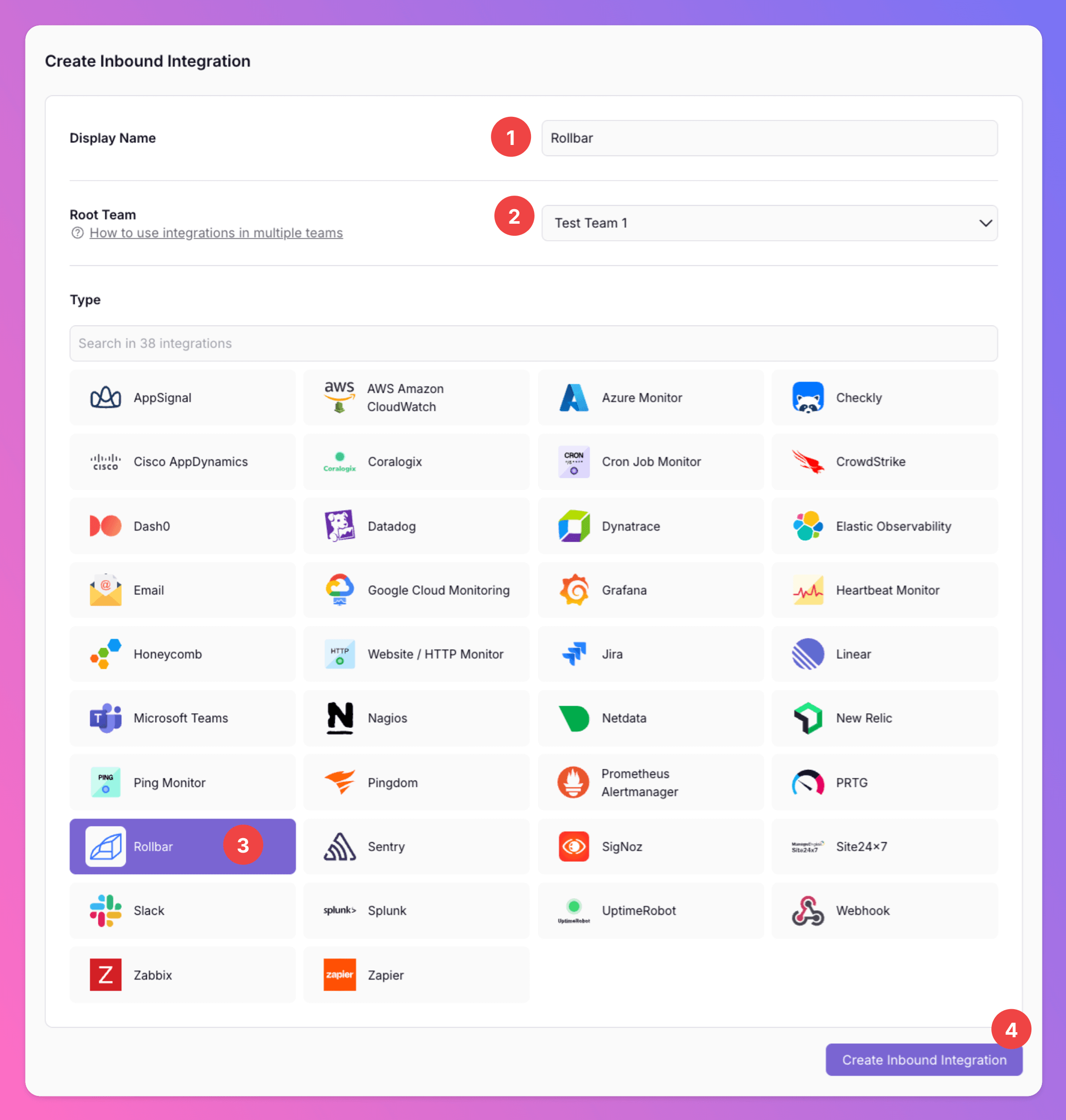
1. Enter a `Display Name` for your integration, e.g. "Rollbar".
2. Select a `Team`.
3. Select `Rollbar` as the integration's type.
4. Click `Create Inbound Integration`.
### Select Rollbar as the Integration's Type
1. Enter a `Display Name` for your integration, e.g. "Rollbar".
2. Select a `Team`.
3. Select `Rollbar` as the integration's type.
4. Click `Create Inbound Integration`.
 ### Get the All Quiet webhook URL
After creating the integration on All Quiet, you can view and copy the webhook URL. You will require this URL in step 2 when configuring the integration on Rollbar's website.
### Get the All Quiet webhook URL
After creating the integration on All Quiet, you can view and copy the webhook URL. You will require this URL in step 2 when configuring the integration on Rollbar's website.
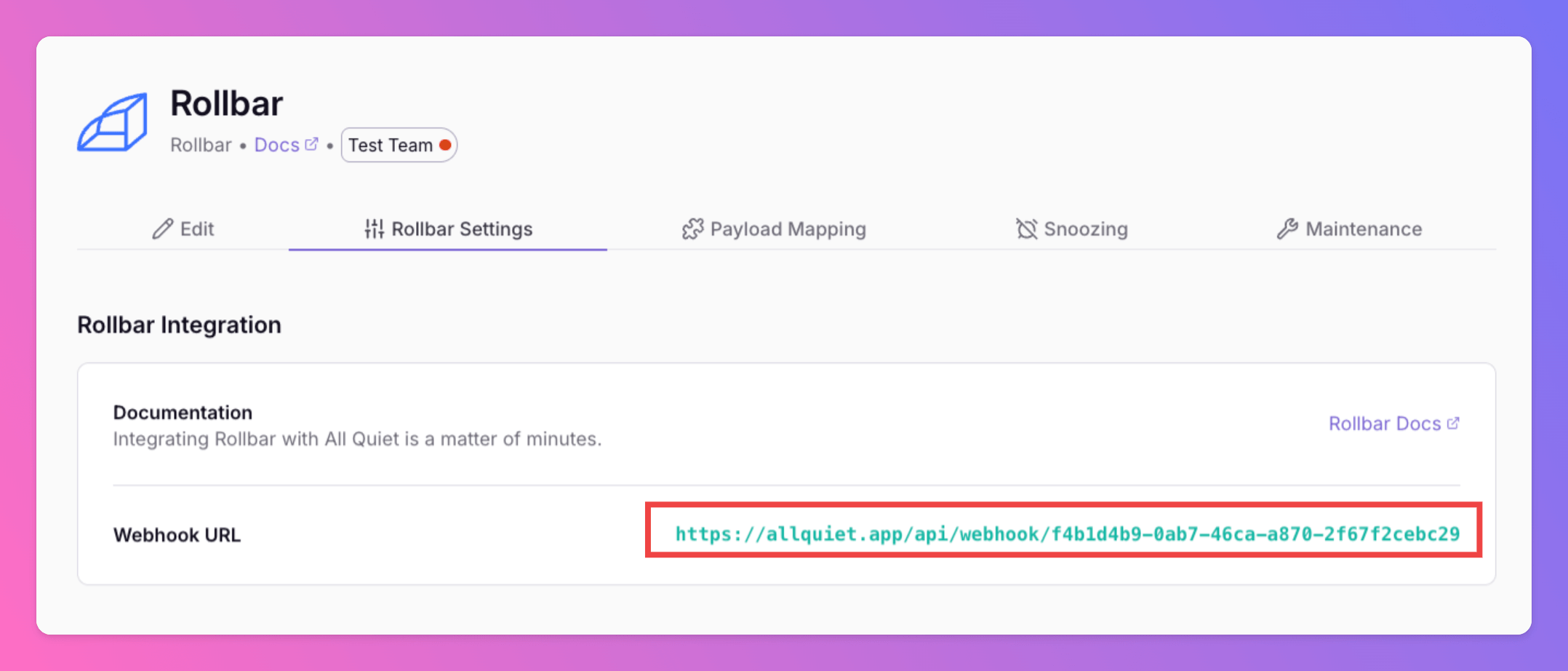 Optionally toggle `Enable additional Authentication & Security` below the webhook URL to restrict who can POST payloads.
* **IP Filter** — Allow requests only from specific IPs or CIDR ranges. Failed checks return **404 Not Found**.
* **Bearer authentication** — Require `Authorization: Bearer YOUR_TOKEN`. Missing or invalid tokens return **401 Unauthorized**.
If both are enabled, the request must pass both checks to be accepted.
## 2. Create a custom integration on Rollbar
Sign in to your Rollbar Account.
1. Open `Projects`
2. Select the project you would like to add our integration to. Then click on `+`.
Optionally toggle `Enable additional Authentication & Security` below the webhook URL to restrict who can POST payloads.
* **IP Filter** — Allow requests only from specific IPs or CIDR ranges. Failed checks return **404 Not Found**.
* **Bearer authentication** — Require `Authorization: Bearer YOUR_TOKEN`. Missing or invalid tokens return **401 Unauthorized**.
If both are enabled, the request must pass both checks to be accepted.
## 2. Create a custom integration on Rollbar
Sign in to your Rollbar Account.
1. Open `Projects`
2. Select the project you would like to add our integration to. Then click on `+`.
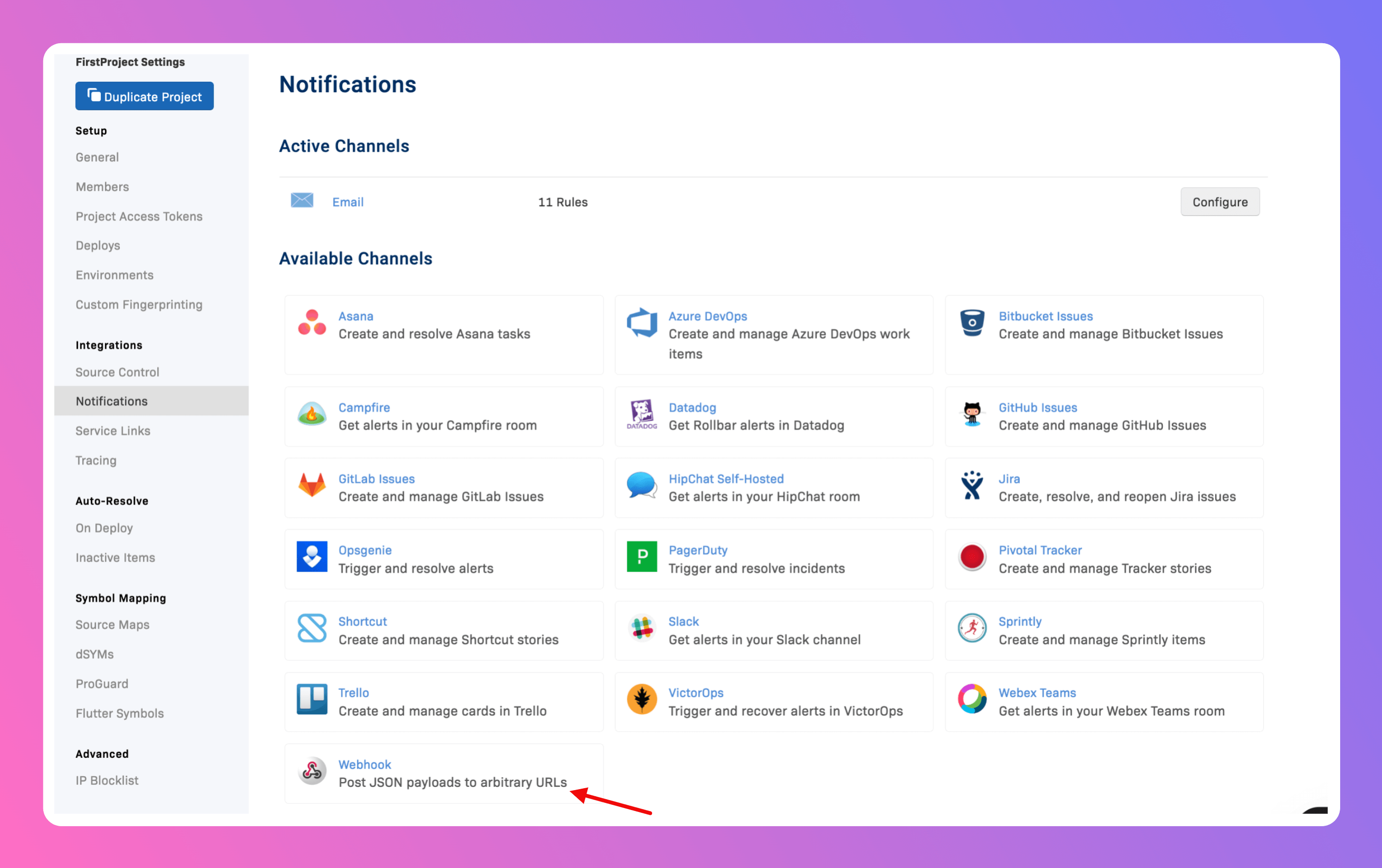
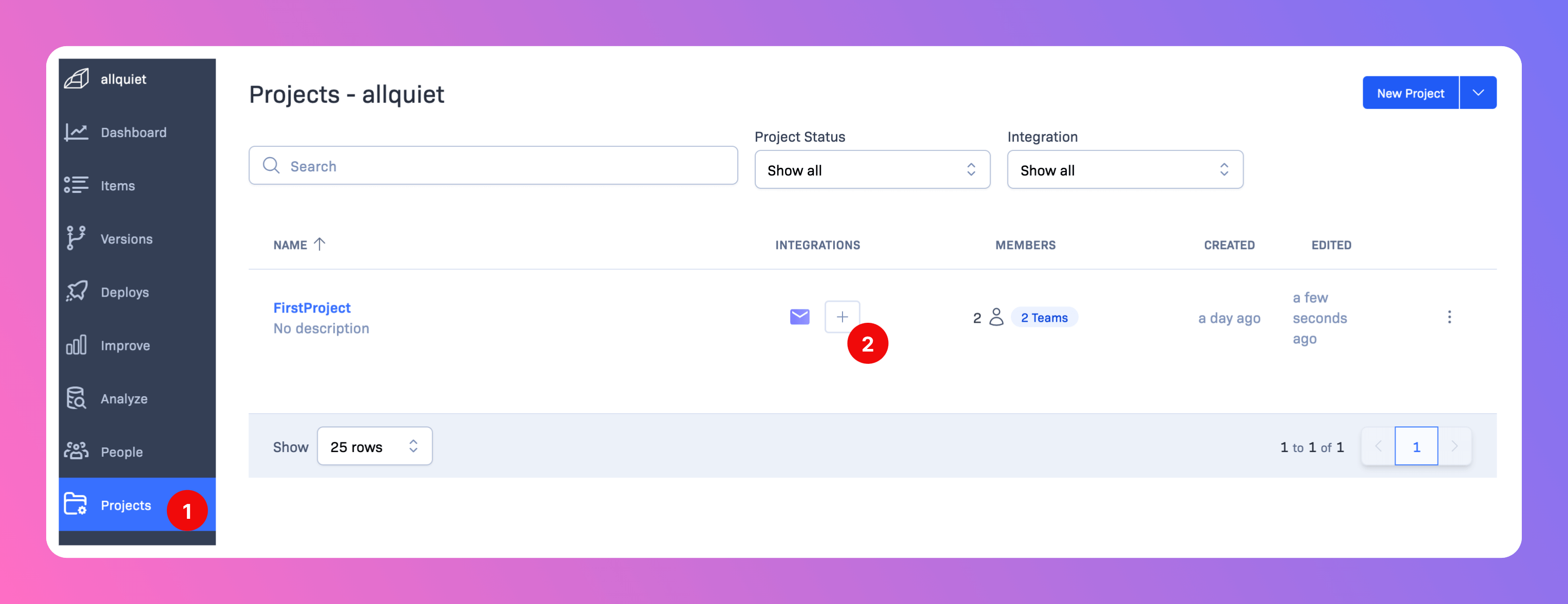 Our integration can be added via `Webhook`.
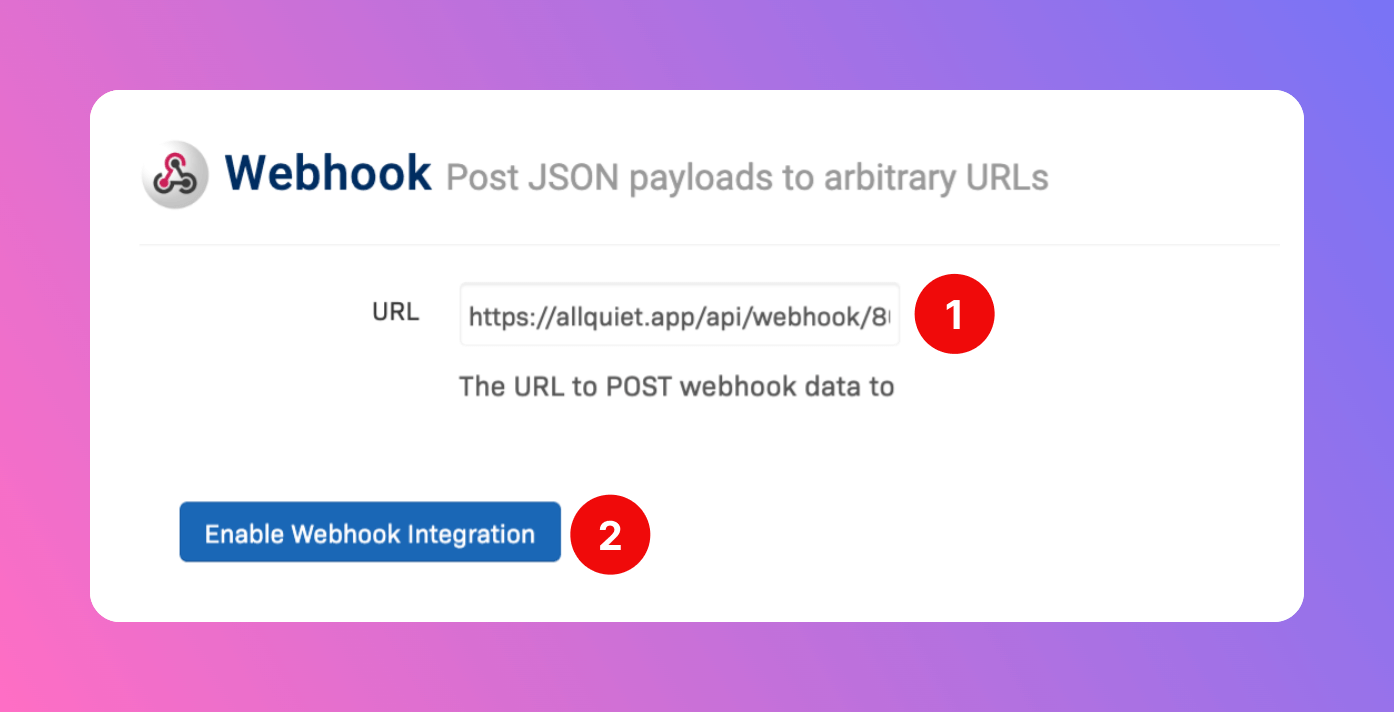
 1. As `URL`, paste in the All Quiet webhook URL you've obtained in step [Get The All Quiet Webhook URL](/integrations/inbound/rollbar#get-the-all-quiet-webhook-url).
2. Click `Enable Webhook Integration`.
1. As `URL`, paste in the All Quiet webhook URL you've obtained in step [Get The All Quiet Webhook URL](/integrations/inbound/rollbar#get-the-all-quiet-webhook-url).
2. Click `Enable Webhook Integration`.
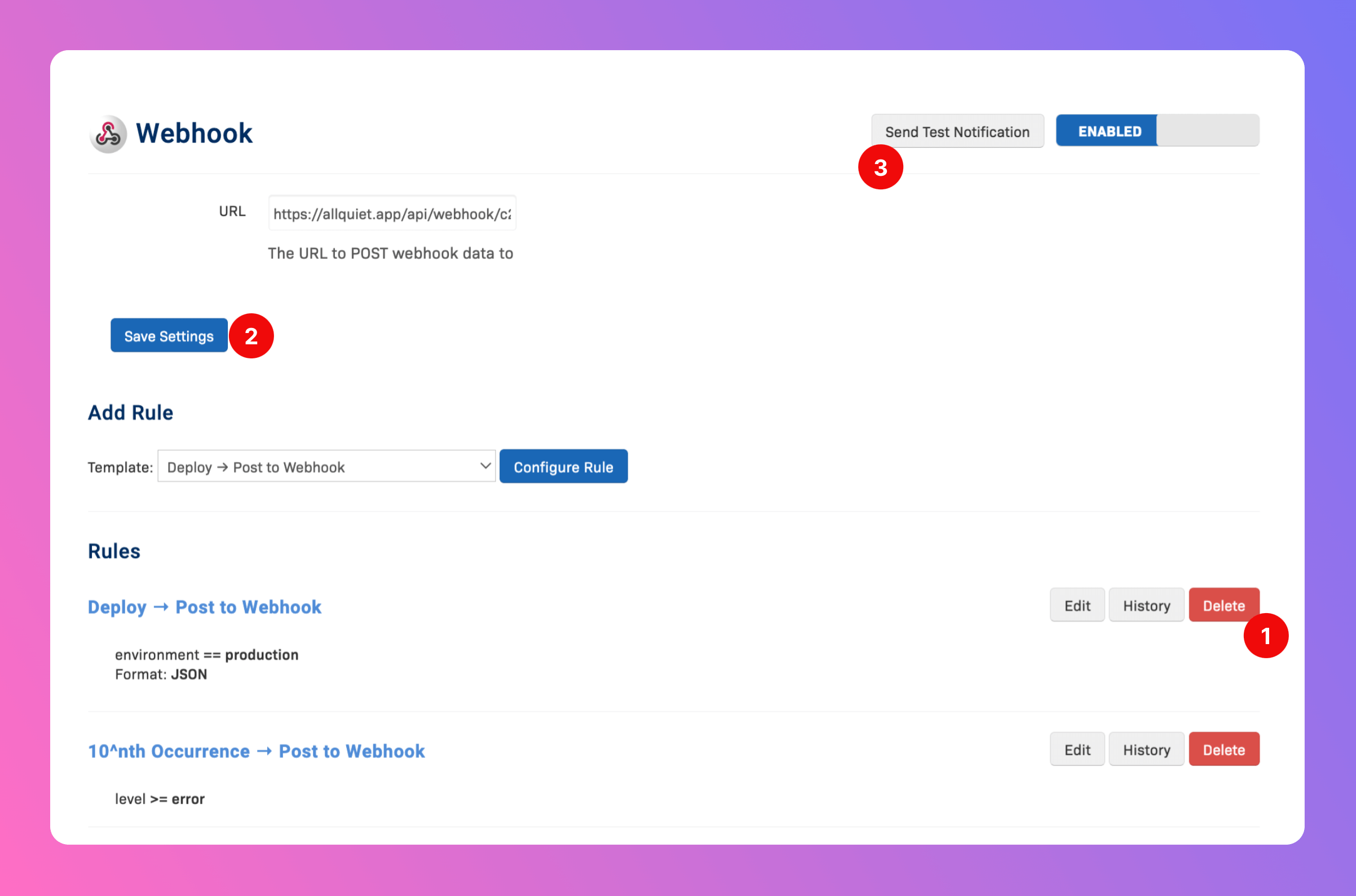
 After the integration is created, you will receive as success message. Then, do the following:
1. Delete the `Deploy -> Post to Webhook` rule that is auto-created. It's not working with us.
2. Click `Save Settings`.
3. `Send Test Notification`.
After the integration is created, you will receive as success message. Then, do the following:
1. Delete the `Deploy -> Post to Webhook` rule that is auto-created. It's not working with us.
2. Click `Save Settings`.
3. `Send Test Notification`.
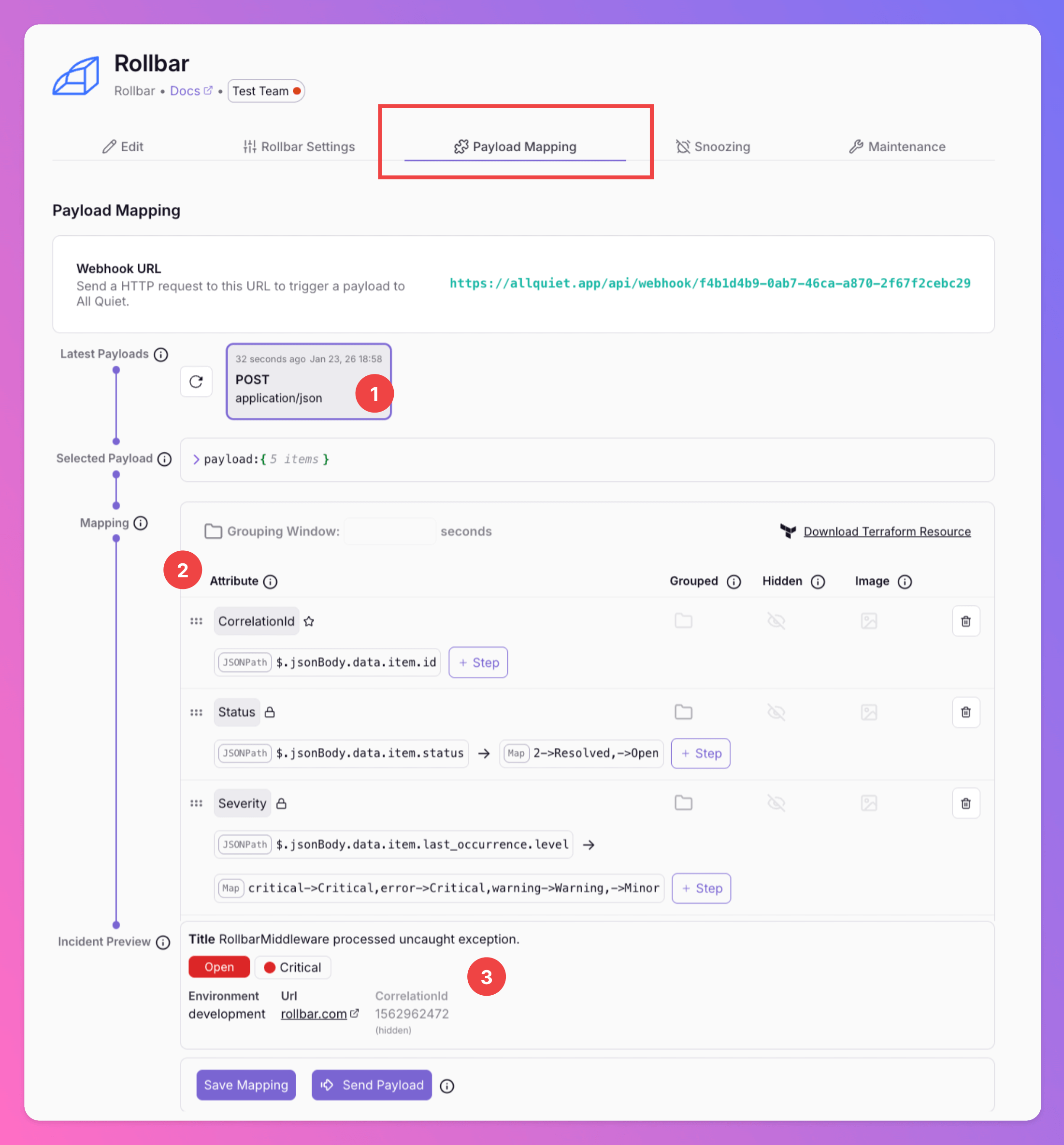
 Open the All Quiet Web App and navigate to your Rollbar Integration. Open the `Payload Mapping` tab.
1. Find the test payload in the`latest payloads`.
2. Our pre-configured `payload mapping` will transform Rollbar notifications into All Quiet incidents. You can adjust the mapping to your liking anytime.
3. Observe how the mapping transforms the selected Rollbar payload into an All Quiet incident.
Open the All Quiet Web App and navigate to your Rollbar Integration. Open the `Payload Mapping` tab.
1. Find the test payload in the`latest payloads`.
2. Our pre-configured `payload mapping` will transform Rollbar notifications into All Quiet incidents. You can adjust the mapping to your liking anytime.
3. Observe how the mapping transforms the selected Rollbar payload into an All Quiet incident.
 Using our Terraform provider? [Download](https://allquiet.app/api/integrations/terraform/default/Rollbar.tf) the default mapping of the `allquiet_integration_mapping` resource for the Rollbar integration. Simply copy the syntax to your .tf file and tailor the resource to your team's needs!
Rollbar is now successfully integrated with All Quiet.
Using our Terraform provider? [Download](https://allquiet.app/api/integrations/terraform/default/Rollbar.tf) the default mapping of the `allquiet_integration_mapping` resource for the Rollbar integration. Simply copy the syntax to your .tf file and tailor the resource to your team's needs!
Rollbar is now successfully integrated with All Quiet.