> ## Documentation Index
> Fetch the complete documentation index at: https://docs.allquiet.app/llms.txt
> Use this file to discover all available pages before exploring further.
# Netdata
> Connect Netdata Monitoring with All Quiet
Setup time: 2 Min
Easily integrate Netdata with All Quiet. With webhooks, you can automatically send alerts from your Netdata monitoring directly to All Quiet, streamlining your incident management.
## 1. Create Netdata Integration on All Quiet
Sign in to your All Quiet account.
### Create Integration
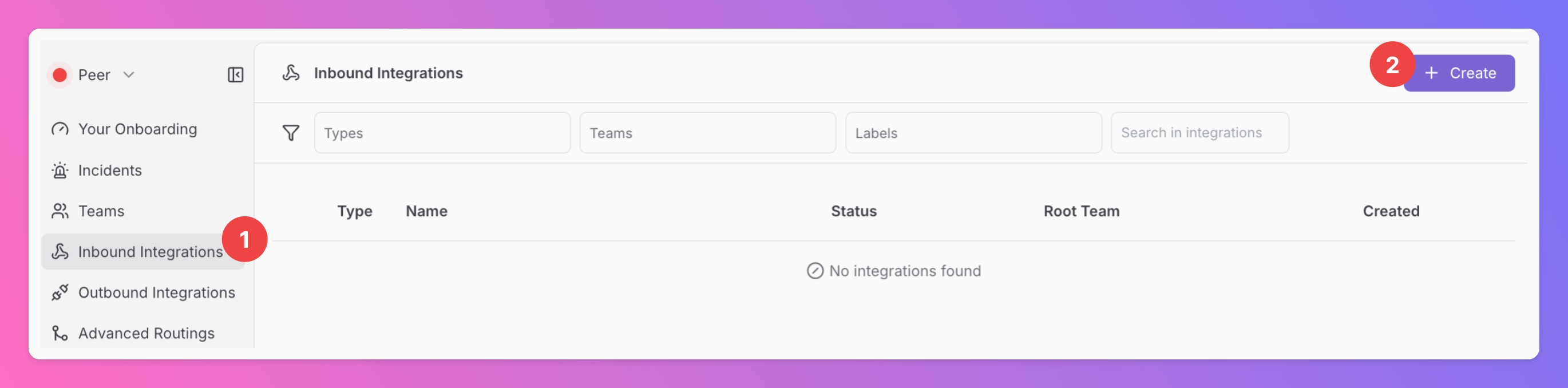
1. Click on the `Inbound Integrations` tab.
2. Click on `+ Create`.
 ### Select Netdata as the integration's type
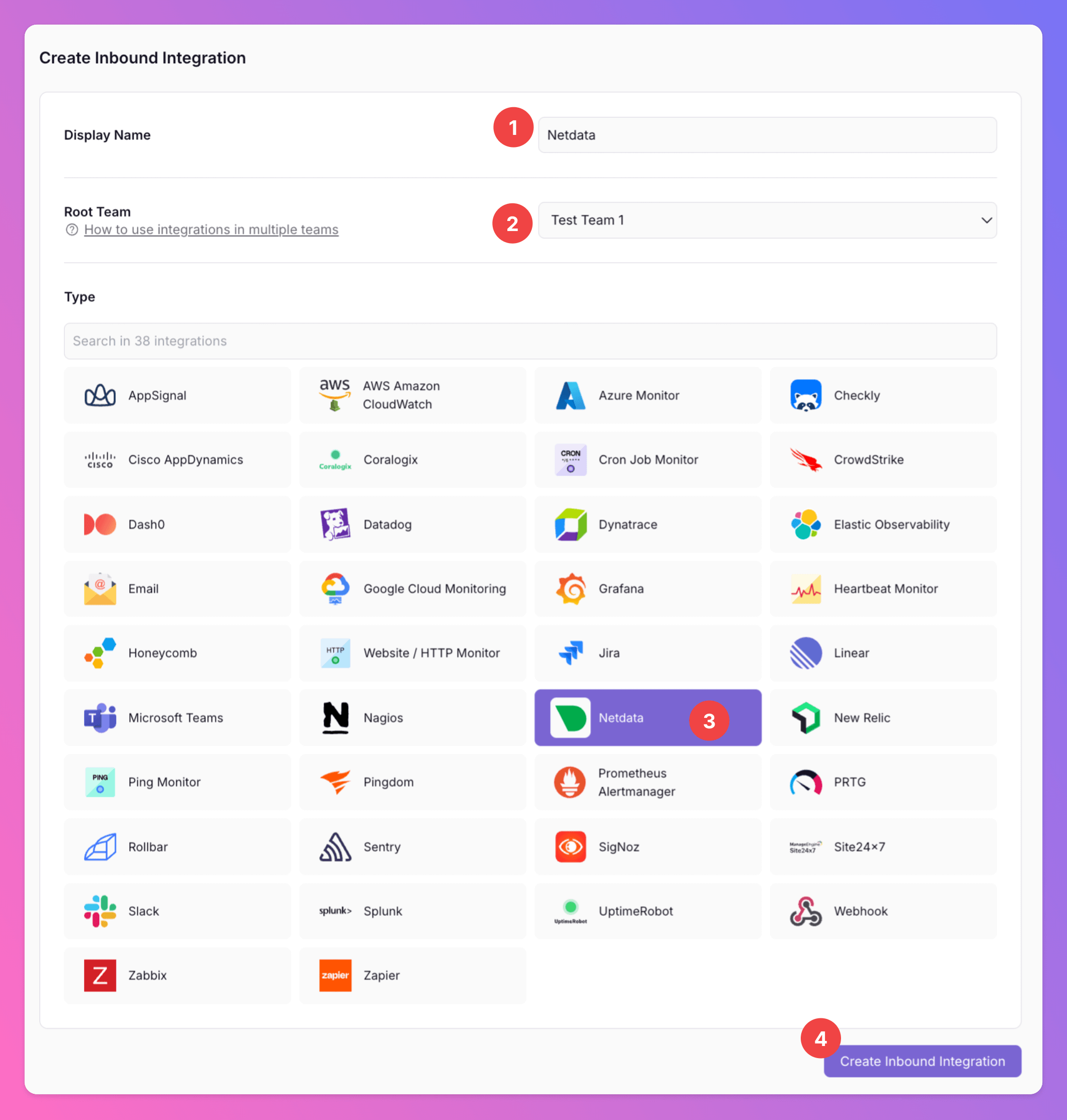
1. Enter a `Display Name` for your integration, e.g. "Netdata".
2. Select a `Team`.
3. Select `Netdata` as the integration's type.
4. Click `Create Inbound Integration`.
### Select Netdata as the integration's type
1. Enter a `Display Name` for your integration, e.g. "Netdata".
2. Select a `Team`.
3. Select `Netdata` as the integration's type.
4. Click `Create Inbound Integration`.
 ### Webhook URL and Netdata Challenge Secret
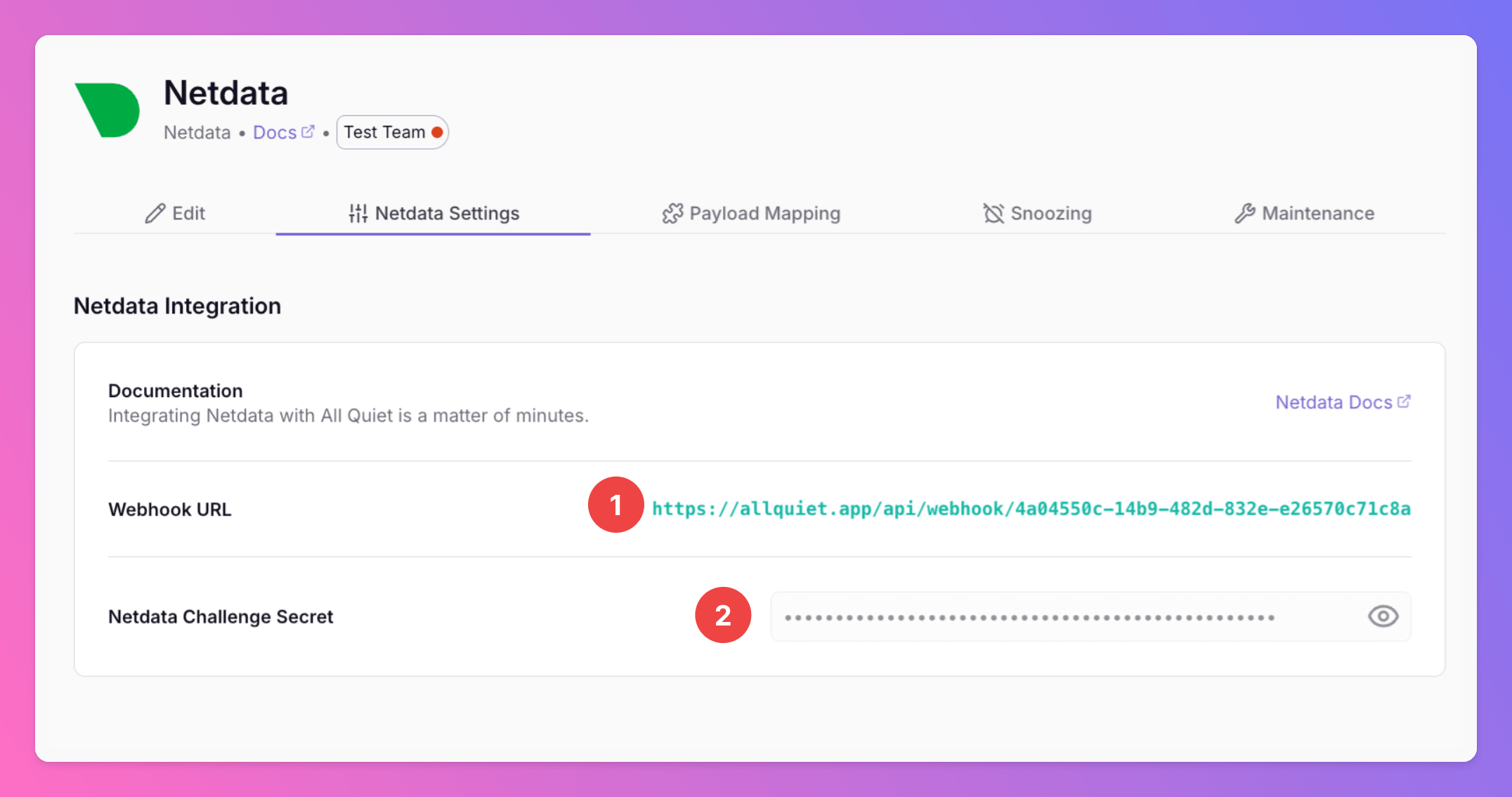
After creating the integration on All Quiet, you can view
1. the `Webhook URL`.
2. the `Netdata Challenge Secret`.
You will require both, the URL and the Challenge Secret in step 2 when configuring the custom integration on Netdata.
### Webhook URL and Netdata Challenge Secret
After creating the integration on All Quiet, you can view
1. the `Webhook URL`.
2. the `Netdata Challenge Secret`.
You will require both, the URL and the Challenge Secret in step 2 when configuring the custom integration on Netdata.
 Optionally toggle `Enable additional Authentication & Security` below the webhook URL to restrict who can POST payloads.
* **IP Filter** — Allow requests only from specific IPs or CIDR ranges. Failed checks return **404 Not Found**.
* **Bearer authentication** — Require `Authorization: Bearer YOUR_TOKEN`. Missing or invalid tokens return **401 Unauthorized**.
If both are enabled, the request must pass both checks to be accepted.
## 2. Configure a custom integration with Netdata
Once you've set up an integration of type "Netdata" with All Quiet, the next crucial steps involve configuring your Netdata account. This is essential for ensuring that your monitoring setup can effectively send incidents to the All Quiet webhook. In this part of the guide, we will walk you through the process of linking Netdata with All Quiet via webhook.
First, you need to sign in to your Netdata Account and open `Settings`
Optionally toggle `Enable additional Authentication & Security` below the webhook URL to restrict who can POST payloads.
* **IP Filter** — Allow requests only from specific IPs or CIDR ranges. Failed checks return **404 Not Found**.
* **Bearer authentication** — Require `Authorization: Bearer YOUR_TOKEN`. Missing or invalid tokens return **401 Unauthorized**.
If both are enabled, the request must pass both checks to be accepted.
## 2. Configure a custom integration with Netdata
Once you've set up an integration of type "Netdata" with All Quiet, the next crucial steps involve configuring your Netdata account. This is essential for ensuring that your monitoring setup can effectively send incidents to the All Quiet webhook. In this part of the guide, we will walk you through the process of linking Netdata with All Quiet via webhook.
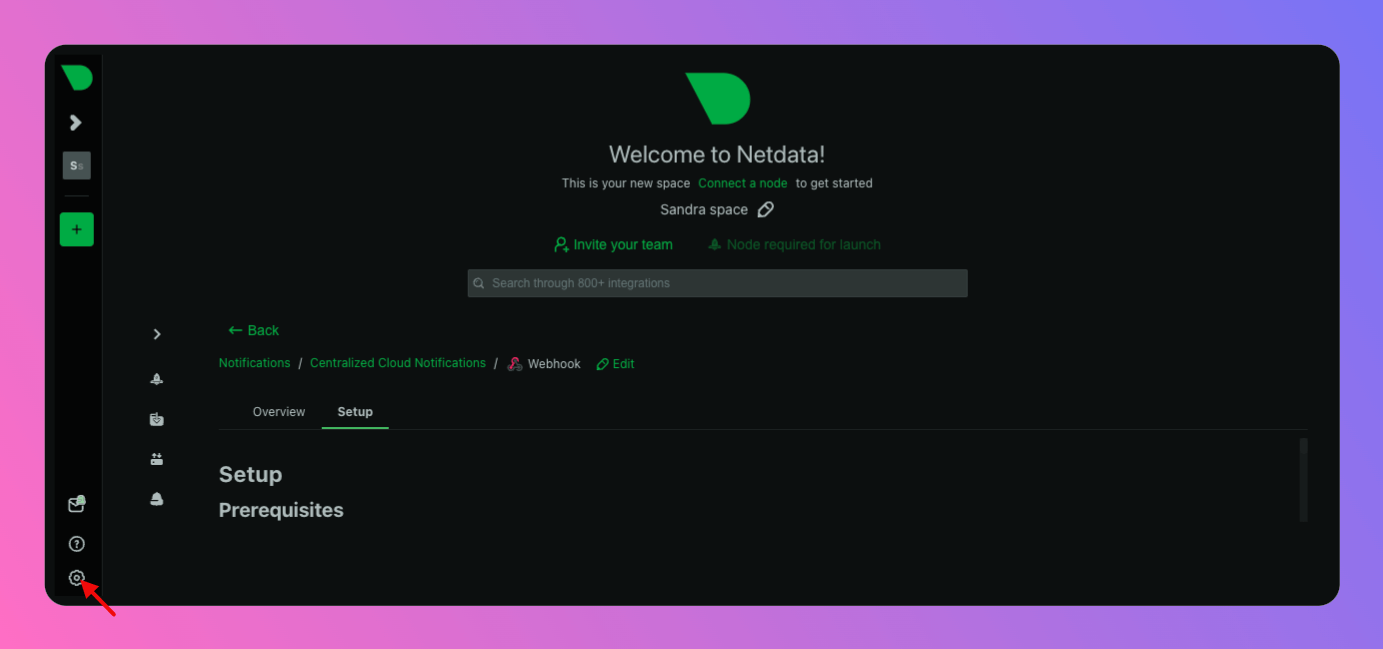
First, you need to sign in to your Netdata Account and open `Settings`
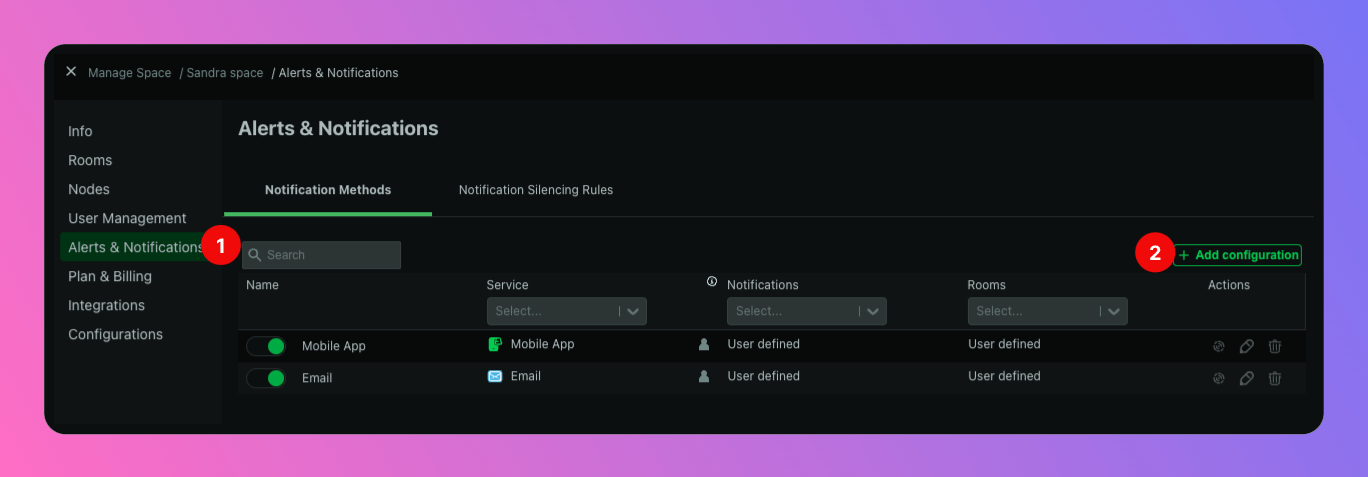
 1. Select `Alerts & Notifications`
2. Click `+ Add configuration`
1. Select `Alerts & Notifications`
2. Click `+ Add configuration`
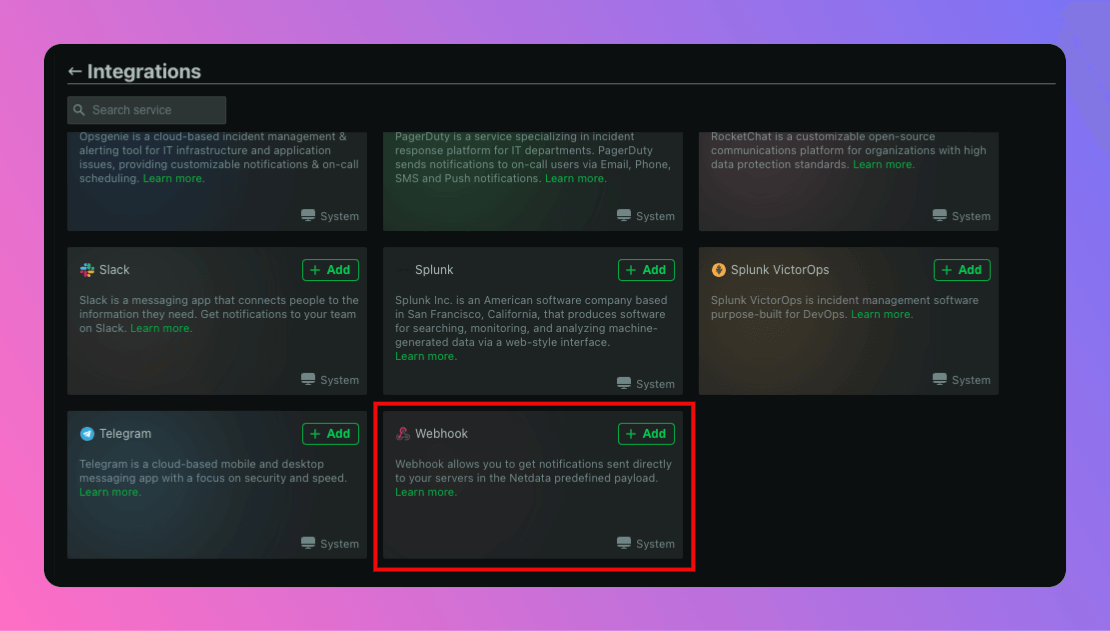
 Add `Webhook`
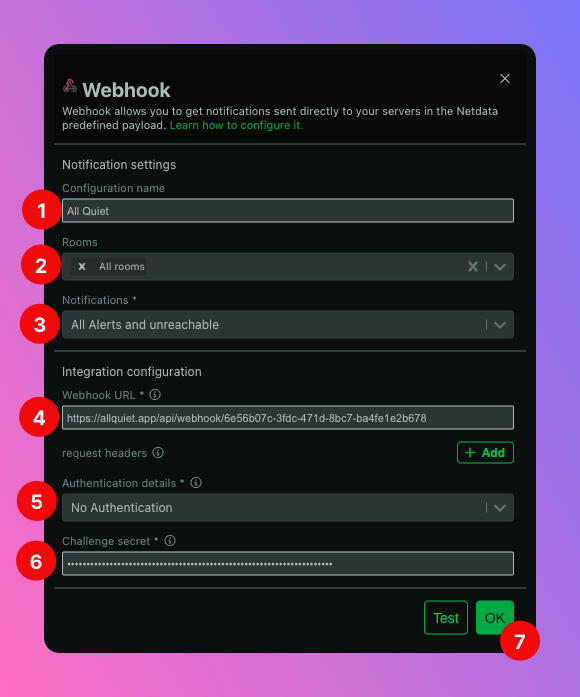
 Now, it's time to set up the integration.
1. Select a `Configuration name`, e.g. "All Quiet".
2. Select the `Rooms` from which you would like to forward alerts to All Quiet.
3. Select the type of `Notifications` you would like to forward.
4. As `Webhook URL`, paste in the All Quiet Webhook URL you've obtained in step [Webhook URL and Netdata Challenge Secret](/integrations/inbound/netdata#webhook-url-and-netdata-challenge-secret).
5. As `Authentification details`, select "No Authentification".
6. As `Challenge secret`, paste in the Netdata Challenge Secret you've obtained in step [Webhook URL and Netdata Challenge Secret](/integrations/inbound/netdata#webhook-url-and-netdata-challenge-secret).
7. Click `OK` to save your settings. You can also test them, first (see 2nd Screenshot below).
Now, it's time to set up the integration.
1. Select a `Configuration name`, e.g. "All Quiet".
2. Select the `Rooms` from which you would like to forward alerts to All Quiet.
3. Select the type of `Notifications` you would like to forward.
4. As `Webhook URL`, paste in the All Quiet Webhook URL you've obtained in step [Webhook URL and Netdata Challenge Secret](/integrations/inbound/netdata#webhook-url-and-netdata-challenge-secret).
5. As `Authentification details`, select "No Authentification".
6. As `Challenge secret`, paste in the Netdata Challenge Secret you've obtained in step [Webhook URL and Netdata Challenge Secret](/integrations/inbound/netdata#webhook-url-and-netdata-challenge-secret).
7. Click `OK` to save your settings. You can also test them, first (see 2nd Screenshot below).
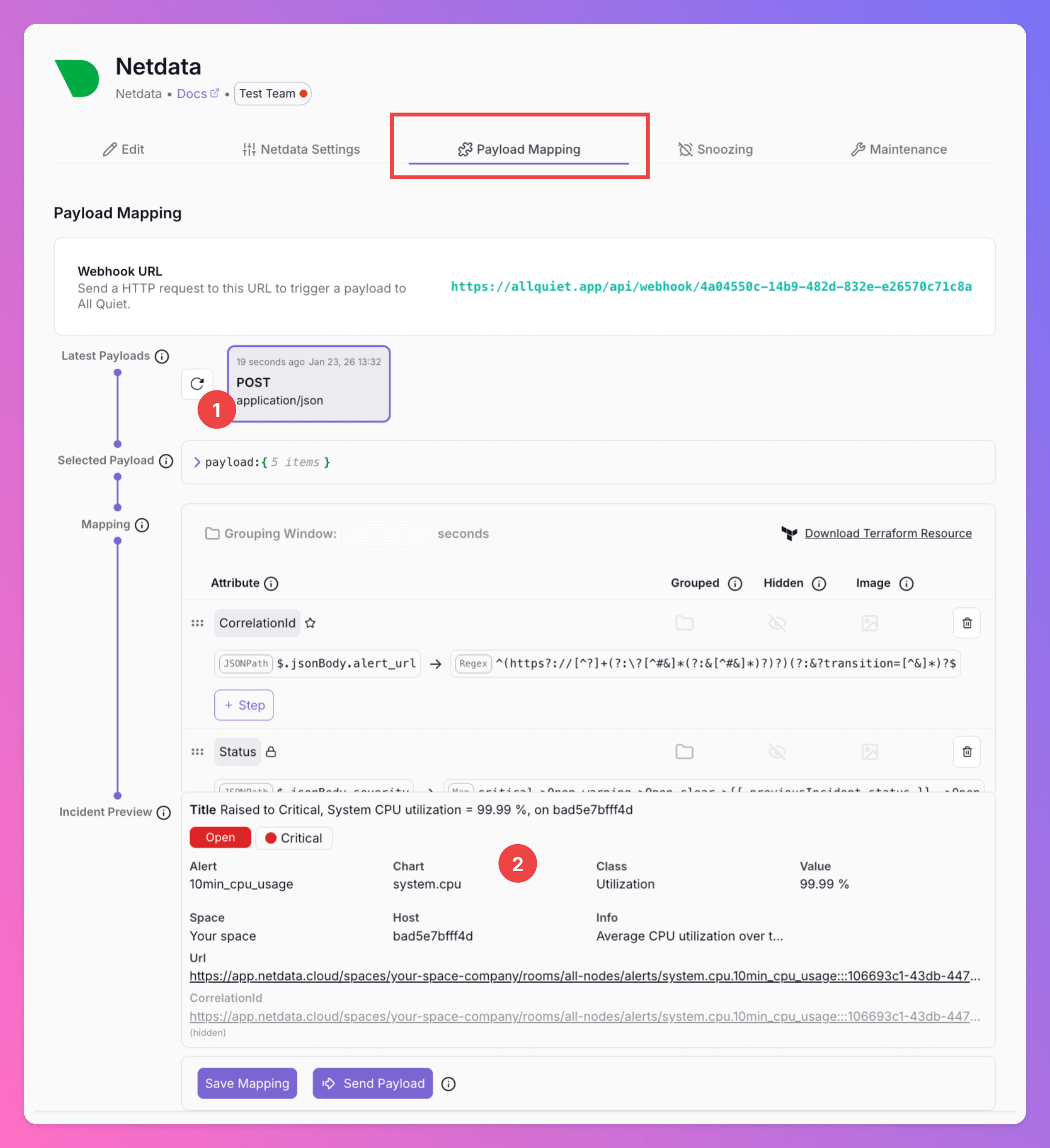
 If test is successful, you will receive a test payload from Netdata that can be found in the "Payload Mapping" tab of your All Quiet Netdata Integration.
1. The payload is there.
2. We **cannot map the test notification** as it missing some required attributes that we need to create incidents. Howewer, our **predefined mapping** engine will be able to **create incidents from real Netdata alerts**. Use our mapping engine to add further data to All Quiet incidents.
If test is successful, you will receive a test payload from Netdata that can be found in the "Payload Mapping" tab of your All Quiet Netdata Integration.
1. The payload is there.
2. We **cannot map the test notification** as it missing some required attributes that we need to create incidents. Howewer, our **predefined mapping** engine will be able to **create incidents from real Netdata alerts**. Use our mapping engine to add further data to All Quiet incidents.
 All Quiet will now create incidents based on your Netdata monitoring.
### Adjust Payload Mapping
Looking to customize the fields of your incidents by adjusting the pre-built payload mapping? Simply head over to the “Payload” tab within your integration and make the necessary edits to the mapping. For detailed guidance, you may check out our [payload mapping documentation](/essentials/inbound#how-does-attribute-mapping-work).
Using our Terraform provider? [Download](https://allquiet.app/api/integrations/terraform/default/Netdata.tf) the default mapping of the `allquiet_integration_mapping` resource for the Netdata integration. Simply copy the syntax to your .tf file and tailor the resource to your team's needs!
All Quiet will now create incidents based on your Netdata monitoring.
### Adjust Payload Mapping
Looking to customize the fields of your incidents by adjusting the pre-built payload mapping? Simply head over to the “Payload” tab within your integration and make the necessary edits to the mapping. For detailed guidance, you may check out our [payload mapping documentation](/essentials/inbound#how-does-attribute-mapping-work).
Using our Terraform provider? [Download](https://allquiet.app/api/integrations/terraform/default/Netdata.tf) the default mapping of the `allquiet_integration_mapping` resource for the Netdata integration. Simply copy the syntax to your .tf file and tailor the resource to your team's needs!