> ## Documentation Index
> Fetch the complete documentation index at: https://docs.allquiet.app/llms.txt
> Use this file to discover all available pages before exploring further.
# Email
> Transform emails into incidents within All Quiet
Setup time: 4 Min
Integrate your email notifications with All Quiet using our this guide. Automatically generate a unique email address and send alerts from observability platforms straight to All Quiet. Learn how to fine-tune attribute mapping for accurate incident capture.
## Create Email Integrations
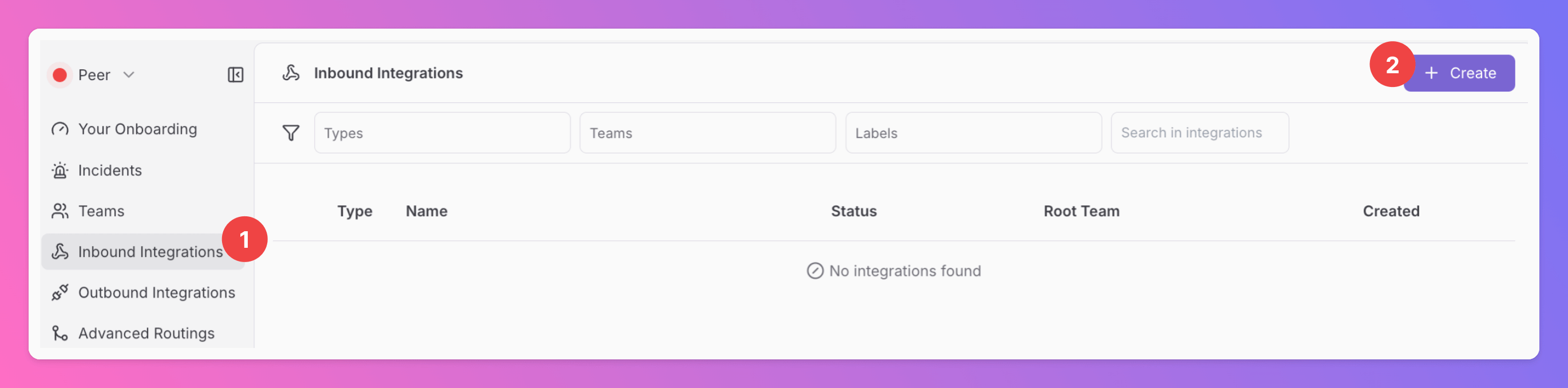
1. Click on the `Inbound Integrations` tab.
2. Click on `+ Create`.
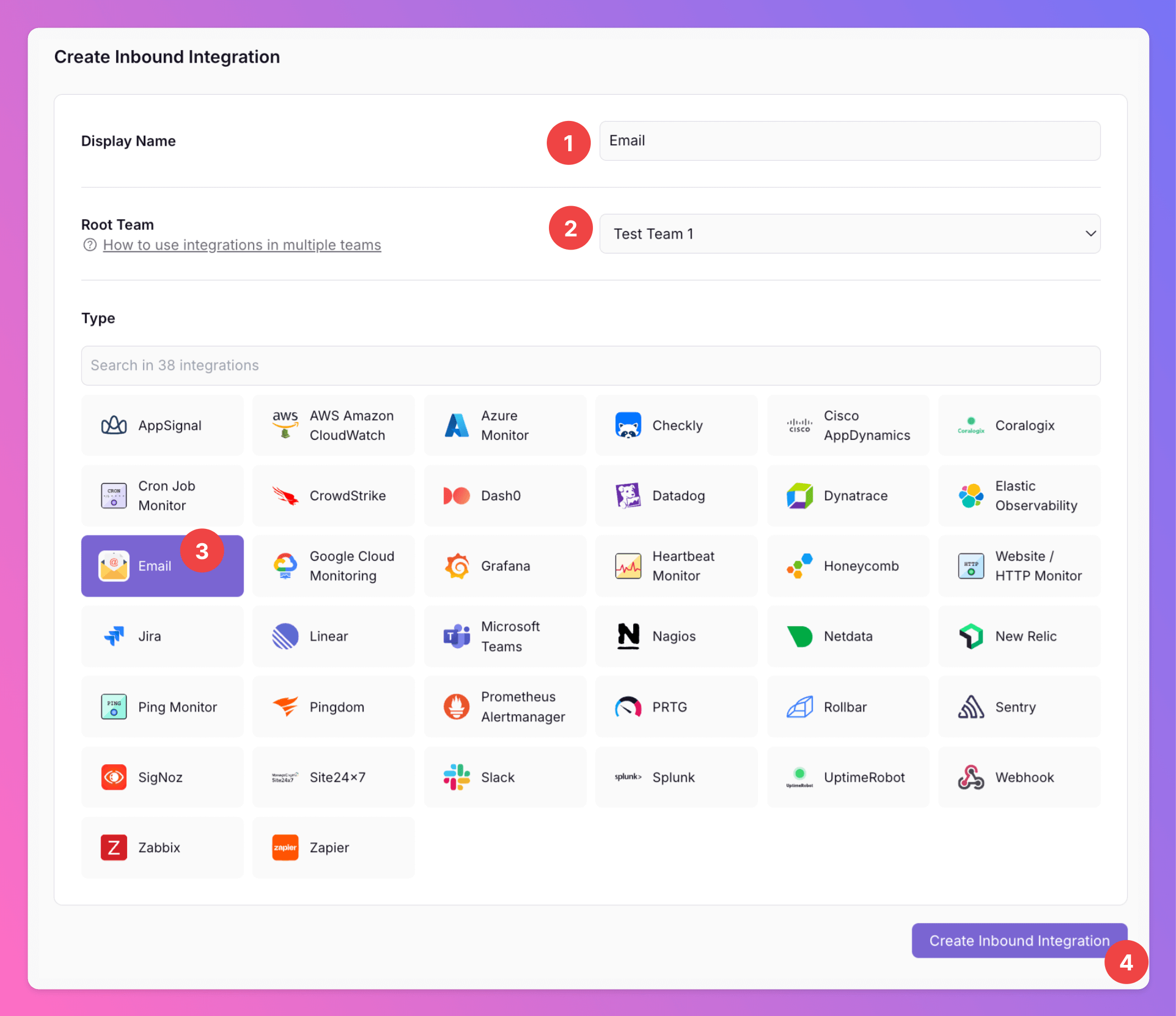
 1. Enter a `Display Name` for your integration, e.g. "Email".
2. Select a `Team`.
3. Select `Email` as the integration's type.
4. Click `Create Inbound Integration`.
1. Enter a `Display Name` for your integration, e.g. "Email".
2. Select a `Team`.
3. Select `Email` as the integration's type.
4. Click `Create Inbound Integration`.
 ## Individual Email Recipient
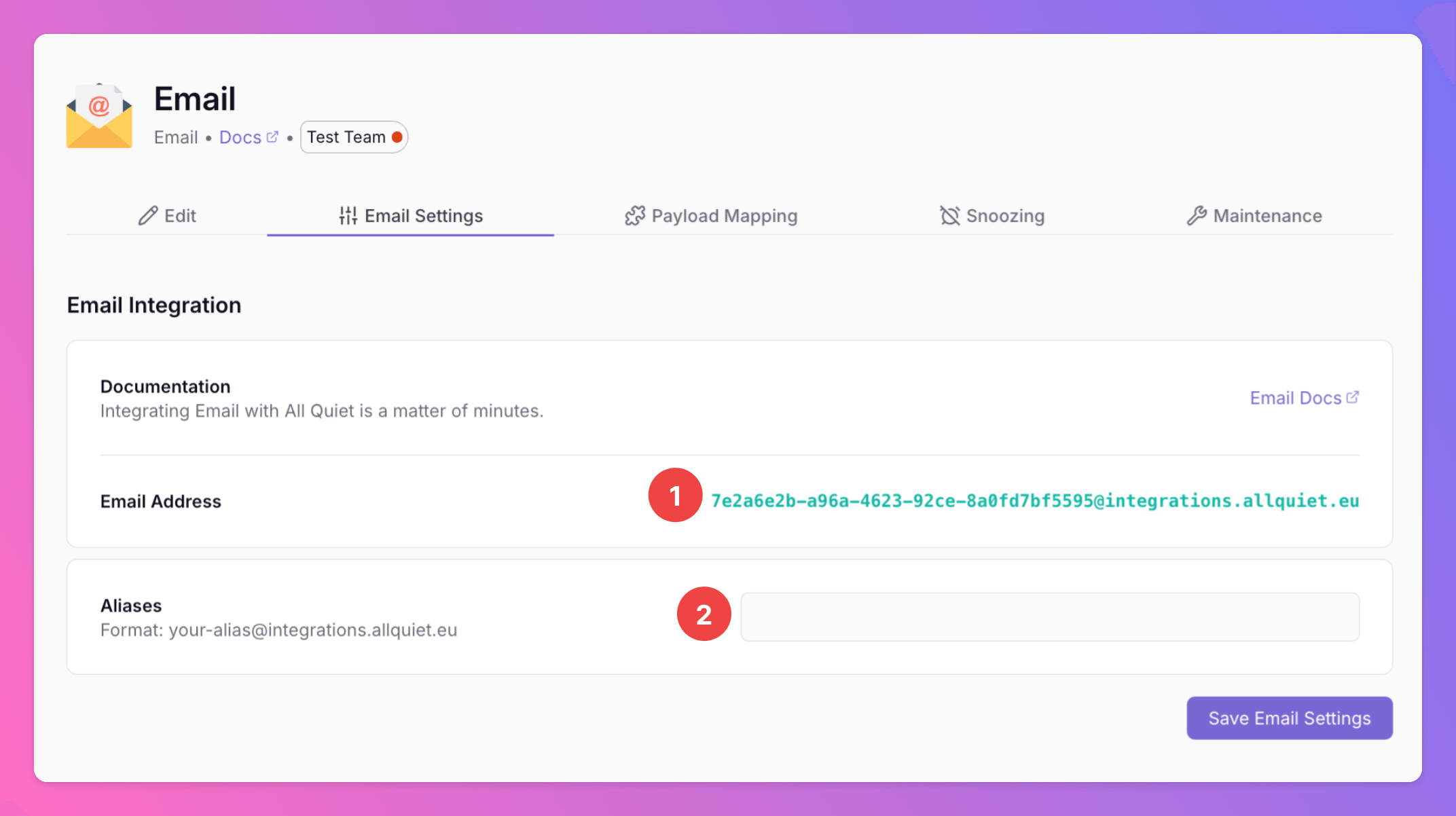
1. Locate the unique email address under `Email Settings`. This is the address you'll use to send emails that automatically create incidents in the integration's team.
2. If you prefer to use a different email address, you can set up aliases in here.
## Individual Email Recipient
1. Locate the unique email address under `Email Settings`. This is the address you'll use to send emails that automatically create incidents in the integration's team.
2. If you prefer to use a different email address, you can set up aliases in here.
 ### Send a Test Email
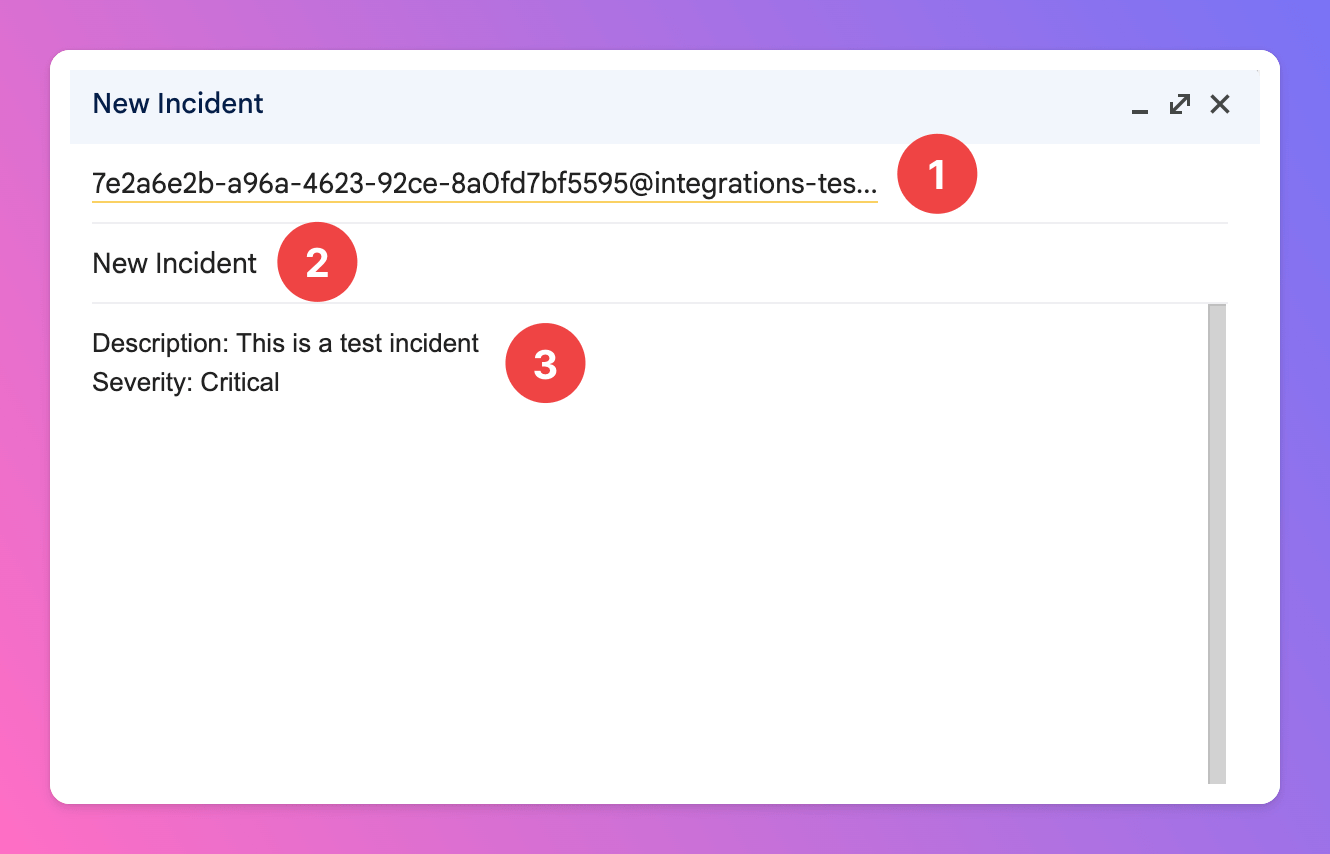
Begin by opening your preferred email client to compose a test message. This is simply a dry run to understand how emails are turned into structured incident reports in All Quiet. The exact content isn't important - it's just to illustrate the process. Once your email client is open, follow these steps:
1. As recepient, select the unique email address generated by your All Quiet email integration setup (or one the aliases you added).
2. Compose a sample email, entering a subject such as `New Incident` to represent the title of incident you'd like to report.
3. In the email `Body`, draft a mockup of incident details, for instance, adding a description and severity. You might as well add the environment it's in.
Next, send the email and wait a few seconds.
### Send a Test Email
Begin by opening your preferred email client to compose a test message. This is simply a dry run to understand how emails are turned into structured incident reports in All Quiet. The exact content isn't important - it's just to illustrate the process. Once your email client is open, follow these steps:
1. As recepient, select the unique email address generated by your All Quiet email integration setup (or one the aliases you added).
2. Compose a sample email, entering a subject such as `New Incident` to represent the title of incident you'd like to report.
3. In the email `Body`, draft a mockup of incident details, for instance, adding a description and severity. You might as well add the environment it's in.
Next, send the email and wait a few seconds.
 ### Inspect Email Payload
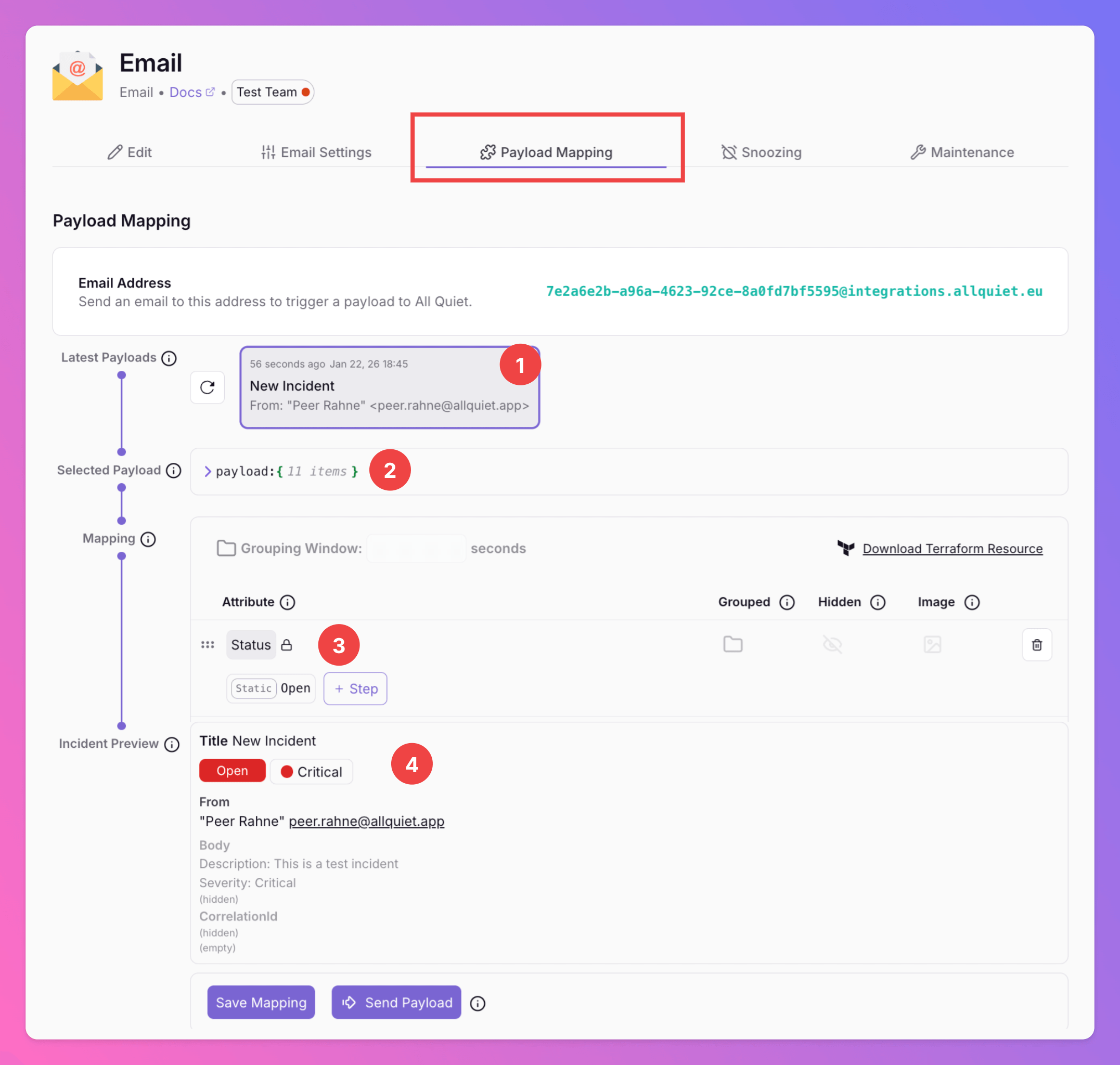
Back in All Quiet, open the `Payload Mapping` tab of your Email integration.
1. You can see the email you just sent in latest email payloads received by the All Quiet platform.
2. Open the selected payload for more details. In will contain the actual data sent from your email client, including fields such as 'Message-ID', 'Subject', and 'To'.
3. Use the payload mapping to ensure the content of the email is mapped to an All Quiet incident that work for you. More details [below](/integrations/inbound/email#map-payload-attributes)
4. You can always see a preview of an All Quiet incident, based on the currently selected payload and your mapping.
### Inspect Email Payload
Back in All Quiet, open the `Payload Mapping` tab of your Email integration.
1. You can see the email you just sent in latest email payloads received by the All Quiet platform.
2. Open the selected payload for more details. In will contain the actual data sent from your email client, including fields such as 'Message-ID', 'Subject', and 'To'.
3. Use the payload mapping to ensure the content of the email is mapped to an All Quiet incident that work for you. More details [below](/integrations/inbound/email#map-payload-attributes)
4. You can always see a preview of an All Quiet incident, based on the currently selected payload and your mapping.
 ## Map Payload Attributes
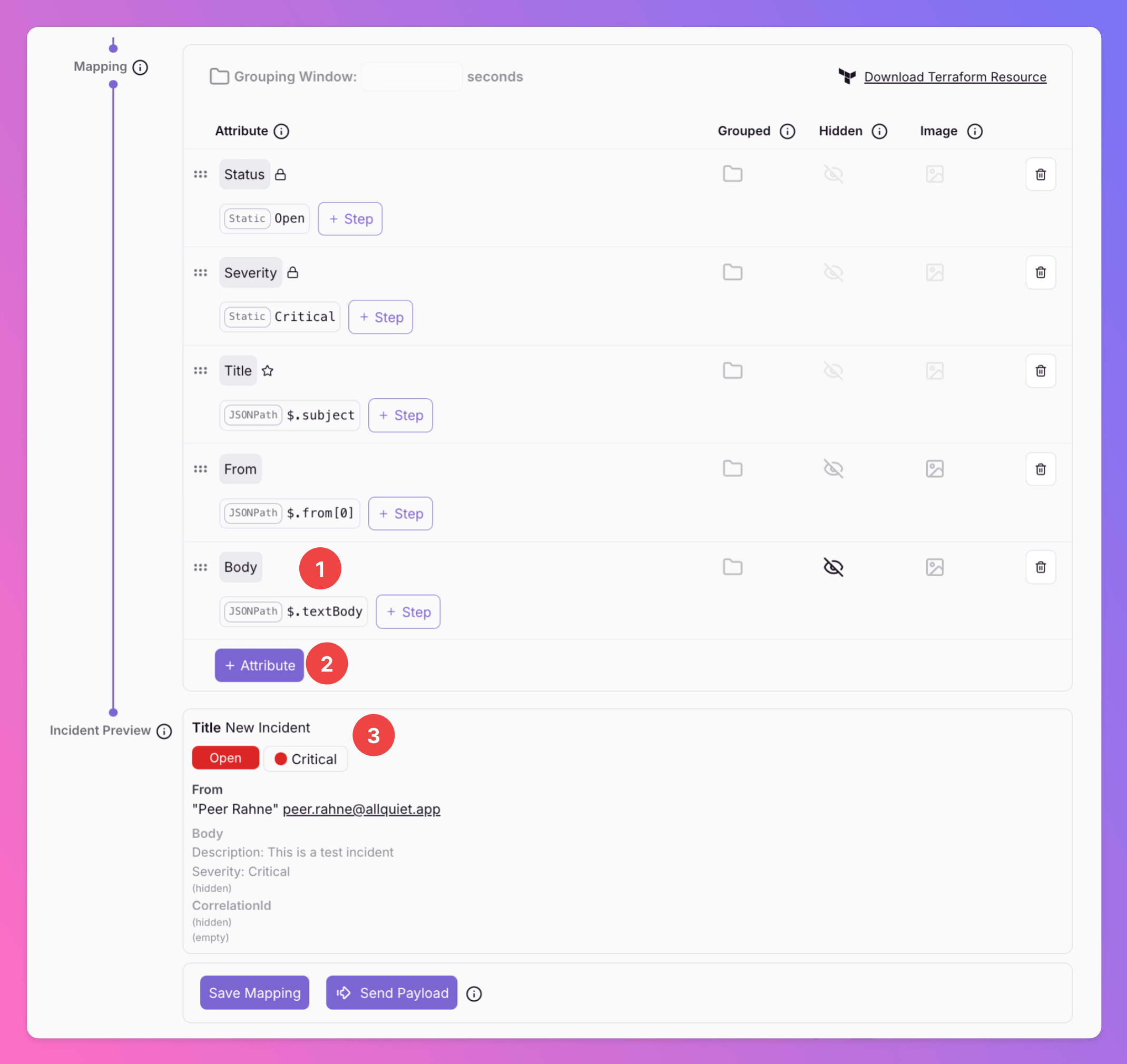
Review the attribute mapping configuration, which specifies how email content is mapped to incident attributes.
1. In this example, the `Body` attribute contains the whole body content. You may want to adjust this by adding [mapping steps](/essentials/inbound#mapping-payloads) to only extract a specific part.
2. Also, you can add additional attributes to enrich the incident with more info from the payload mappping.
3. Look at the incident preview in section to verify that the mapping has correctly transformed the email content into a structured incident, displaying fields such as `From` or `Body`. Note that due to the settings in this specific case, the `Body` is marked as `Hidden` and, therefore, will only be shown in incident details and not on the overview.
## Map Payload Attributes
Review the attribute mapping configuration, which specifies how email content is mapped to incident attributes.
1. In this example, the `Body` attribute contains the whole body content. You may want to adjust this by adding [mapping steps](/essentials/inbound#mapping-payloads) to only extract a specific part.
2. Also, you can add additional attributes to enrich the incident with more info from the payload mappping.
3. Look at the incident preview in section to verify that the mapping has correctly transformed the email content into a structured incident, displaying fields such as `From` or `Body`. Note that due to the settings in this specific case, the `Body` is marked as `Hidden` and, therefore, will only be shown in incident details and not on the overview.
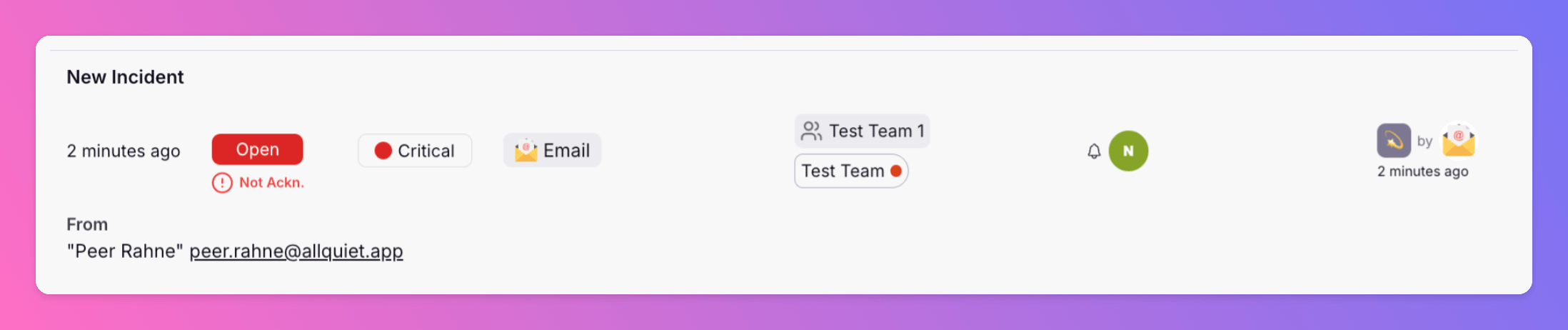
 Find the All Quiet incident triggered by the email below.
 Using our Terraform provider? [Download](https://allquiet.app/api/integrations/terraform/default/Email.tf) the default mapping of the `allquiet_integration_mapping` resource for the Email integration. Simply copy the syntax to your .tf file and tailor the resource to your team's needs!
Attribute mappings have simplified transforming standard emails into structured incidents in All Quiet, bridging the gap between observability alerts and All Quiet's incident management for a smoother workflow.
#### Can emails automatically resolve an existing incident?
Yes — as long as your mapping can reliably set `Status` to `Resolved` for “OK” / recovery emails and can correlate those emails to the same incident.
In practice, you typically configure:
* `CorrelationId`: map a stable identifier (e.g. service, check name, host, environment) so follow-up emails update the same incident instead of creating a new one.
* `Status`: map `Open` vs `Resolved` based on some field in the email payload (for example the subject or a status field extracted from the body).
Important: make sure the JSONPath(s) you use for your mapping are **stable across all relevant emails** (alert + recovery). If the recovery email’s payload structure differs, adjust the mapping so both variants are handled correctly.
Learn more about [required/reserved attributes](/essentials/inbound#reserved-and-required-attributes). and [multiple payloads](/essentials/inbound#handling-multiple-payloads) in our Inbound Integrations docs.
Using our Terraform provider? [Download](https://allquiet.app/api/integrations/terraform/default/Email.tf) the default mapping of the `allquiet_integration_mapping` resource for the Email integration. Simply copy the syntax to your .tf file and tailor the resource to your team's needs!
Attribute mappings have simplified transforming standard emails into structured incidents in All Quiet, bridging the gap between observability alerts and All Quiet's incident management for a smoother workflow.
#### Can emails automatically resolve an existing incident?
Yes — as long as your mapping can reliably set `Status` to `Resolved` for “OK” / recovery emails and can correlate those emails to the same incident.
In practice, you typically configure:
* `CorrelationId`: map a stable identifier (e.g. service, check name, host, environment) so follow-up emails update the same incident instead of creating a new one.
* `Status`: map `Open` vs `Resolved` based on some field in the email payload (for example the subject or a status field extracted from the body).
Important: make sure the JSONPath(s) you use for your mapping are **stable across all relevant emails** (alert + recovery). If the recovery email’s payload structure differs, adjust the mapping so both variants are handled correctly.
Learn more about [required/reserved attributes](/essentials/inbound#reserved-and-required-attributes). and [multiple payloads](/essentials/inbound#handling-multiple-payloads) in our Inbound Integrations docs.