> ## Documentation Index
> Fetch the complete documentation index at: https://docs.allquiet.app/llms.txt
> Use this file to discover all available pages before exploring further.
# Datadog
> Connect Datadog monitoring to All Quiet
Setup time: 5 Min
Integrate Datadog's notifications with All Quiet's Webhooks for streamlined incident management.
## 1. Create an integration on All Quiet
### Create a Datadog integration
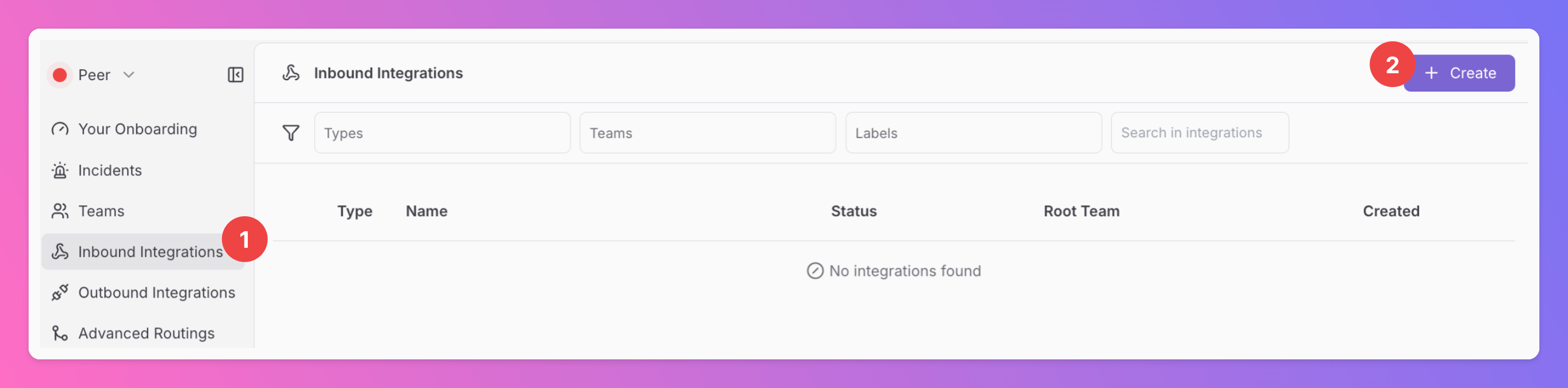
1. Click on the `Inbound Integrations` tab.
2. Click on `+ Create`.
 ### Select Datadog as the integration's type
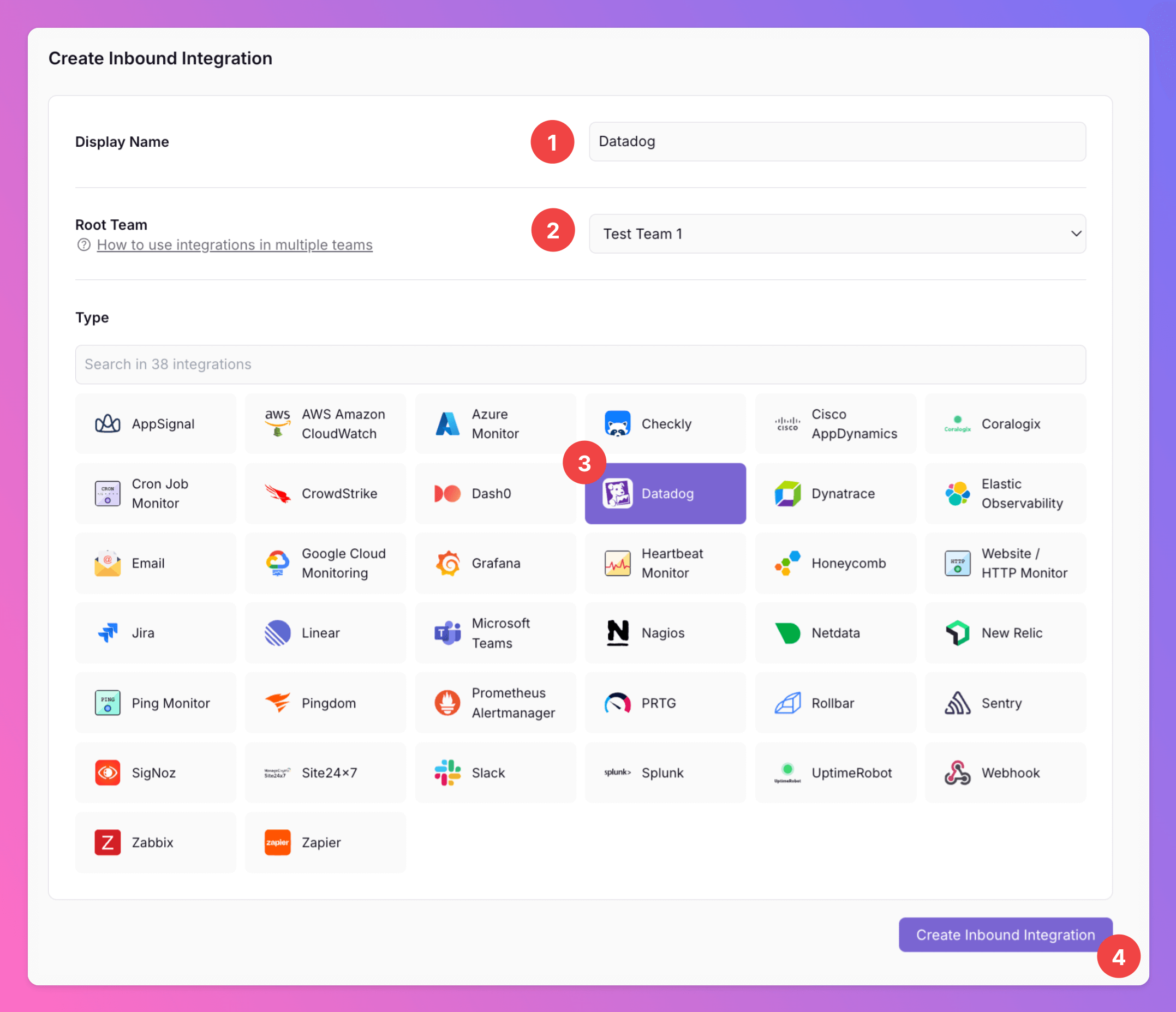
1. Enter a `Display Name` for your integration, e.g. "Datadog".
2. Select a `Team`.
3. Select `Datadog` as the integration's type.
4. Click `Create Inbound Integration`.
### Select Datadog as the integration's type
1. Enter a `Display Name` for your integration, e.g. "Datadog".
2. Select a `Team`.
3. Select `Datadog` as the integration's type.
4. Click `Create Inbound Integration`.
 ### Get the All Quiet webhook URL
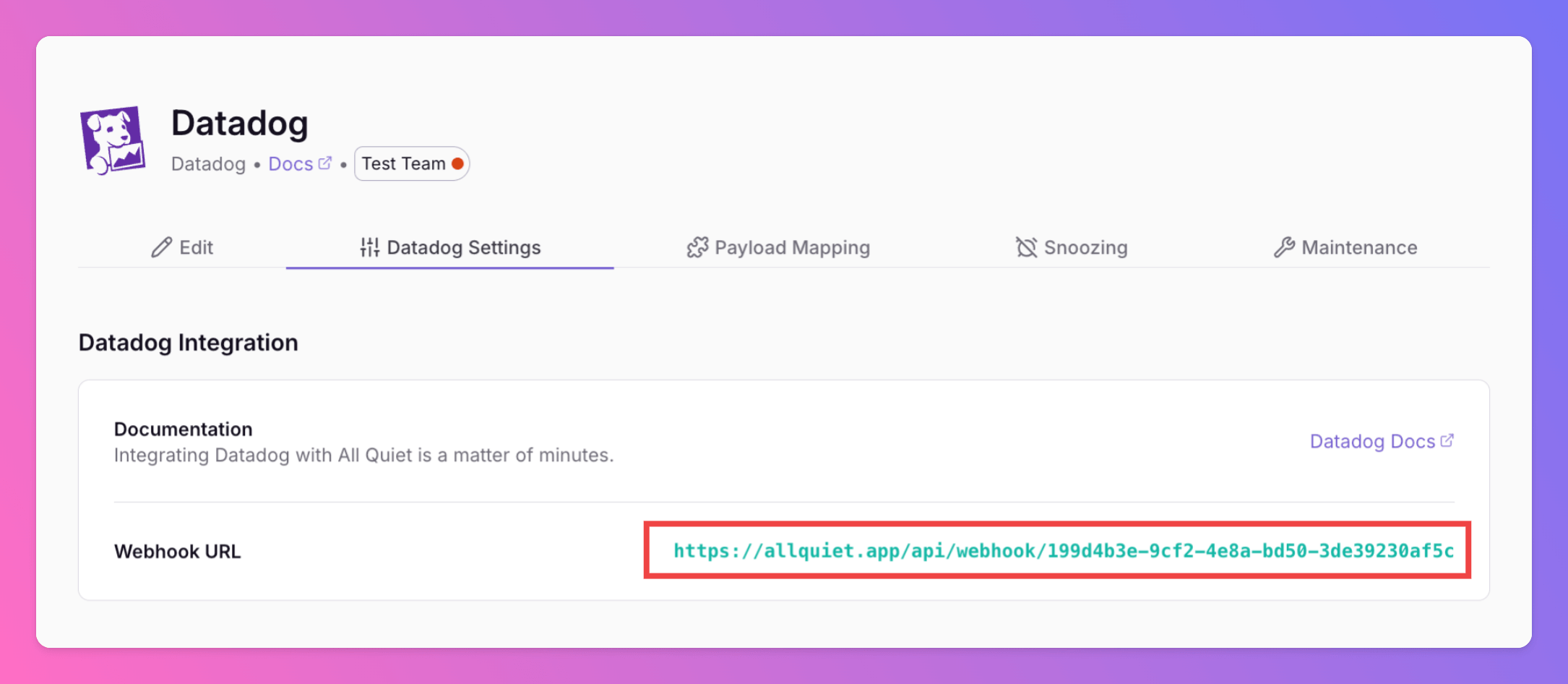
Copy your integration's webhook URL. You'll need it later on the Datadog platform to connect Datadog alerts with All Quiet.
### Get the All Quiet webhook URL
Copy your integration's webhook URL. You'll need it later on the Datadog platform to connect Datadog alerts with All Quiet.
 Optionally toggle `Enable additional Authentication & Security` below the webhook URL to restrict who can POST payloads.
* **IP Filter** — Allow requests only from specific IPs or CIDR ranges. Failed checks return **404 Not Found**.
* **Bearer authentication** — Require `Authorization: Bearer YOUR_TOKEN`. Missing or invalid tokens return **401 Unauthorized**.
If both are enabled, the request must pass both checks to be accepted.
## 2. Configure DataDog
The following steps will be done on the Datadog platform. So, log in to Datadog with your account.
### Install Webhooks integration
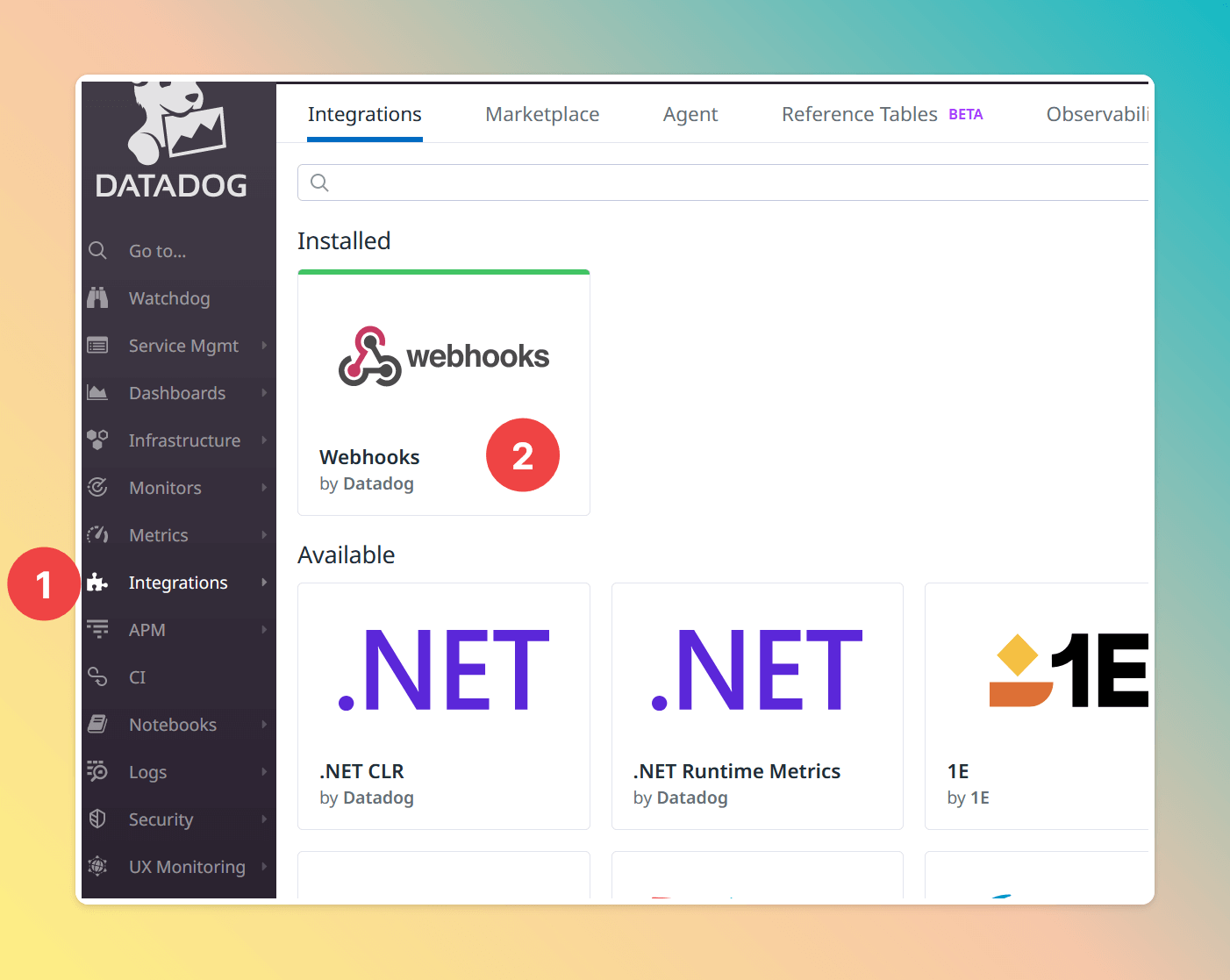
1. In the navigation menu, click on `Integrations`
2. Install the `Webhooks` integration and configure it
Optionally toggle `Enable additional Authentication & Security` below the webhook URL to restrict who can POST payloads.
* **IP Filter** — Allow requests only from specific IPs or CIDR ranges. Failed checks return **404 Not Found**.
* **Bearer authentication** — Require `Authorization: Bearer YOUR_TOKEN`. Missing or invalid tokens return **401 Unauthorized**.
If both are enabled, the request must pass both checks to be accepted.
## 2. Configure DataDog
The following steps will be done on the Datadog platform. So, log in to Datadog with your account.
### Install Webhooks integration
1. In the navigation menu, click on `Integrations`
2. Install the `Webhooks` integration and configure it
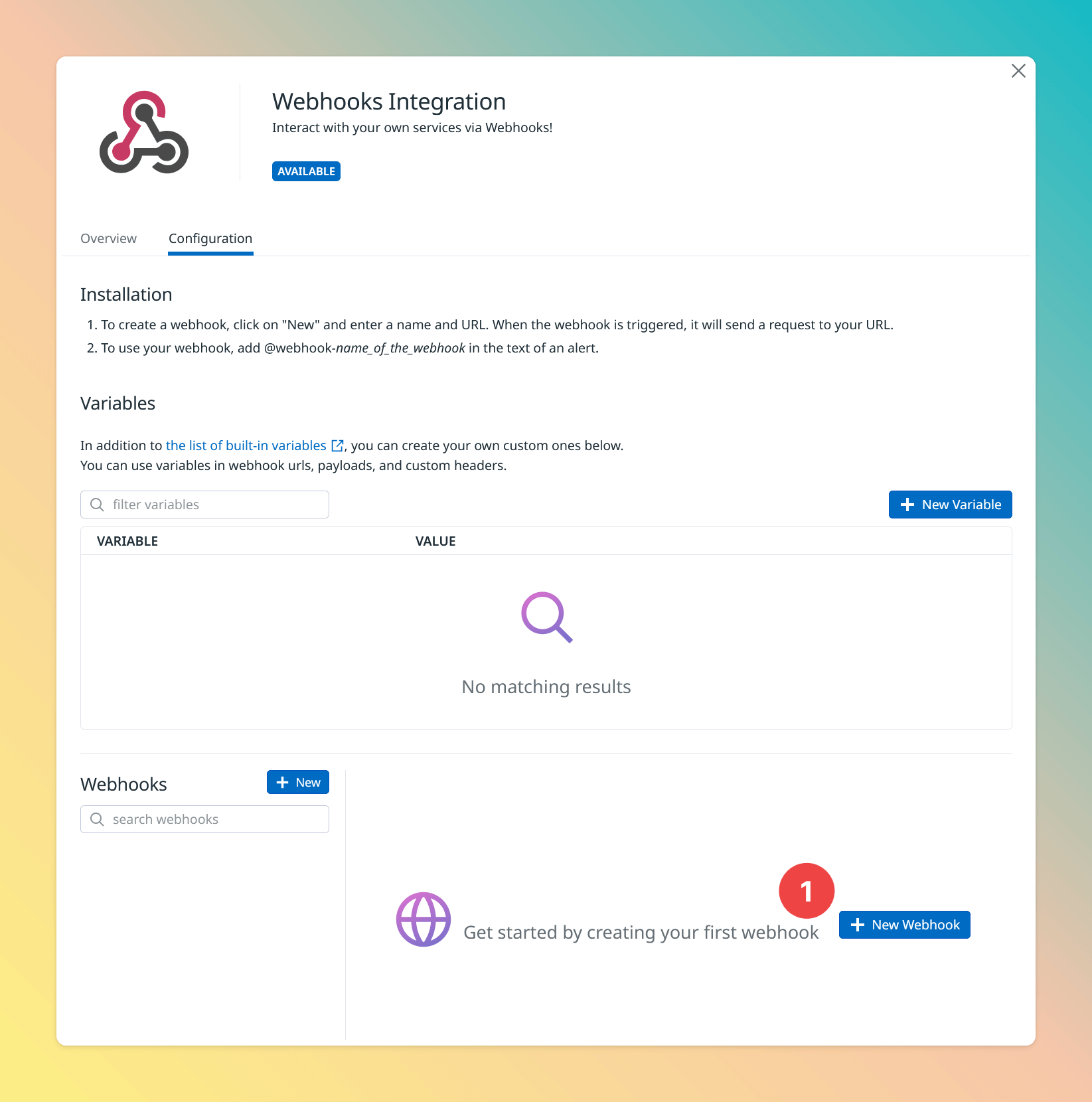
 ### Create a new webhook
In the `Configuration` tab, click on `New Webhook`
### Create a new webhook
In the `Configuration` tab, click on `New Webhook`
 ### Configure DataDog webhook
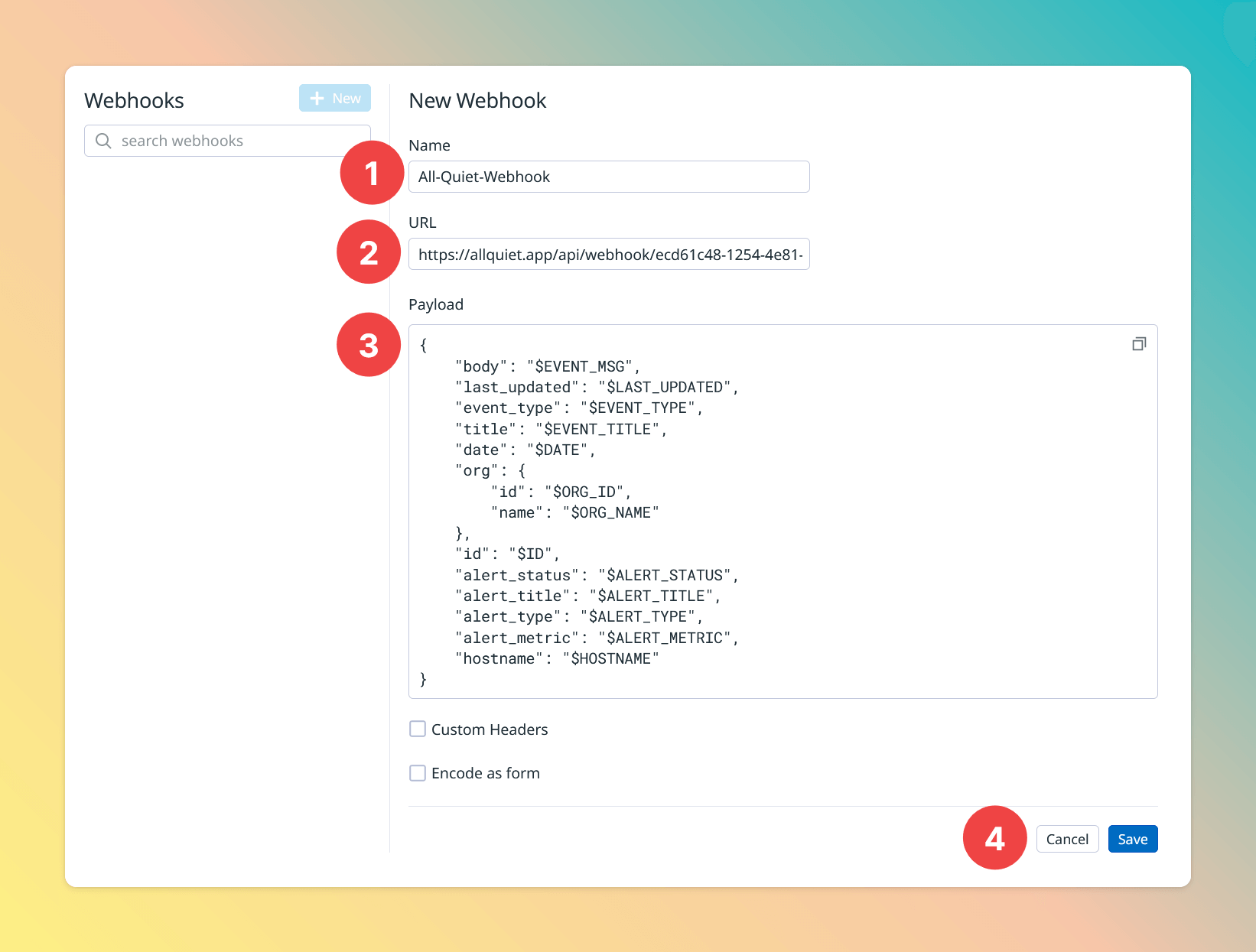
1. Give your webhook a name, e.g. "All-Quiet-Webhook"
2. Paste in the All Quiet webhook URL you've obtained in step [Get The All Quiet Webhook URL](/integrations/inbound/datadog#get-the-all-quiet-webhook-url).
3. Configure the payload that Datadog should send to All Quiet. You can copy & paste the JSON snippet `datadog-payload.json` provided below.
4. Finally, save the integration.
```JSON datadog-payload.json theme={null}
{
"body": "$EVENT_MSG",
"last_updated": "$LAST_UPDATED",
"event_type": "$EVENT_TYPE",
"title": "$EVENT_TITLE",
"date": "$DATE",
"org": {
"id": "$ORG_ID",
"name": "$ORG_NAME"
},
"id": "$ID",
"alert_id": "$ALERT_ID",
"alert_status": "$ALERT_STATUS",
"alert_title": "$ALERT_TITLE",
"alert_type": "$ALERT_TYPE",
"alert_metric": "$ALERT_METRIC",
"alert_priority": "$ALERT_PRIORITY",
"link":"$LINK",
"snapshot":"$SNAPSHOT"
}
```
### Configure DataDog webhook
1. Give your webhook a name, e.g. "All-Quiet-Webhook"
2. Paste in the All Quiet webhook URL you've obtained in step [Get The All Quiet Webhook URL](/integrations/inbound/datadog#get-the-all-quiet-webhook-url).
3. Configure the payload that Datadog should send to All Quiet. You can copy & paste the JSON snippet `datadog-payload.json` provided below.
4. Finally, save the integration.
```JSON datadog-payload.json theme={null}
{
"body": "$EVENT_MSG",
"last_updated": "$LAST_UPDATED",
"event_type": "$EVENT_TYPE",
"title": "$EVENT_TITLE",
"date": "$DATE",
"org": {
"id": "$ORG_ID",
"name": "$ORG_NAME"
},
"id": "$ID",
"alert_id": "$ALERT_ID",
"alert_status": "$ALERT_STATUS",
"alert_title": "$ALERT_TITLE",
"alert_type": "$ALERT_TYPE",
"alert_metric": "$ALERT_METRIC",
"alert_priority": "$ALERT_PRIORITY",
"link":"$LINK",
"snapshot":"$SNAPSHOT"
}
```
 ### Configure your monitor
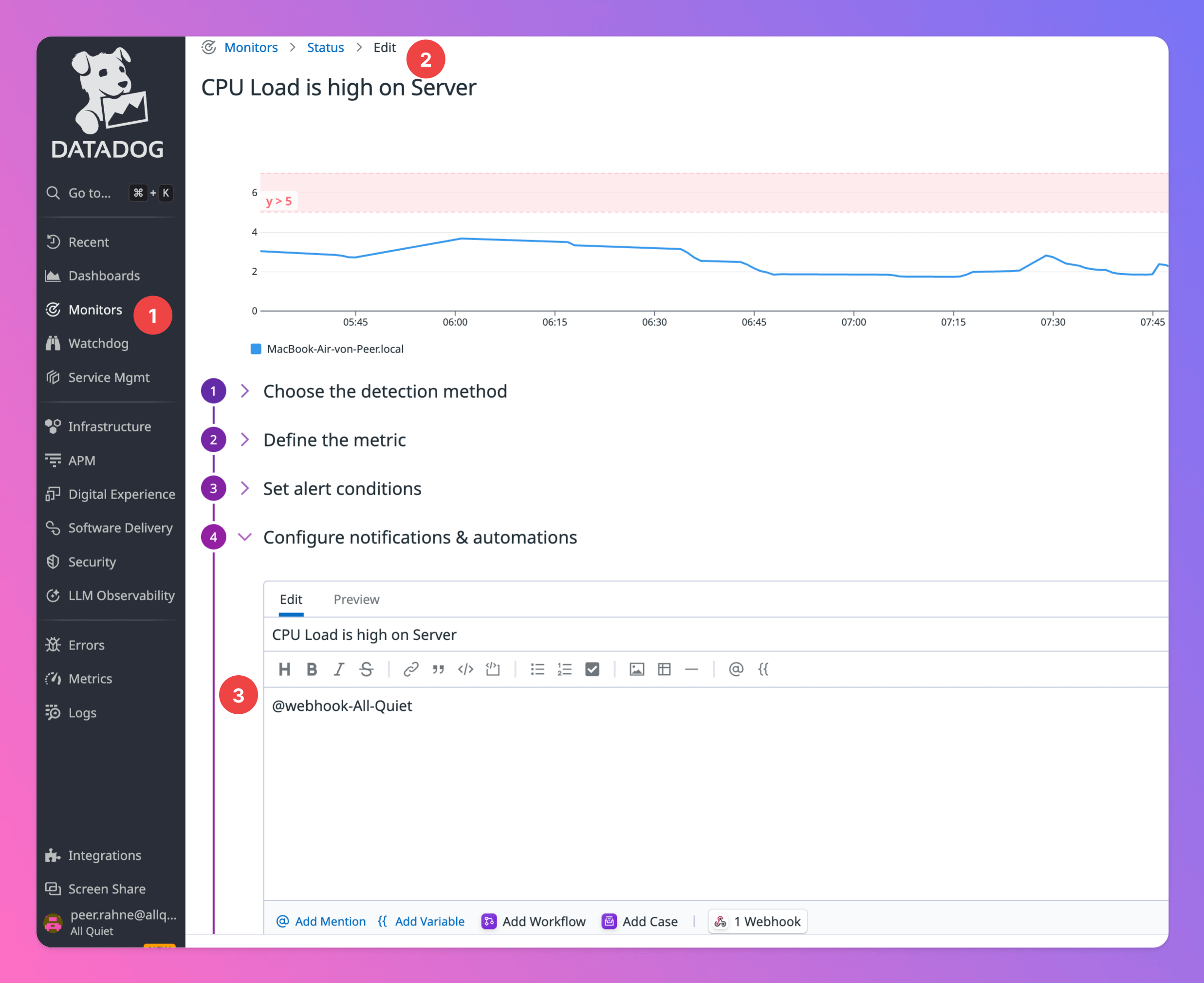
1. Click on `Monitors`
2. Select one of your monitors and open its edit page. In this example, the monitor's name was "My Watchdog Monitor".
3. In the subsection "Configure notifications & automations", tag your newly created hook with "@webhook-Your-Webhook-Name". This will tell Datadog to use your webhook integration as a notification destination.
### Configure your monitor
1. Click on `Monitors`
2. Select one of your monitors and open its edit page. In this example, the monitor's name was "My Watchdog Monitor".
3. In the subsection "Configure notifications & automations", tag your newly created hook with "@webhook-Your-Webhook-Name". This will tell Datadog to use your webhook integration as a notification destination.
 ### Set your monitor's priority
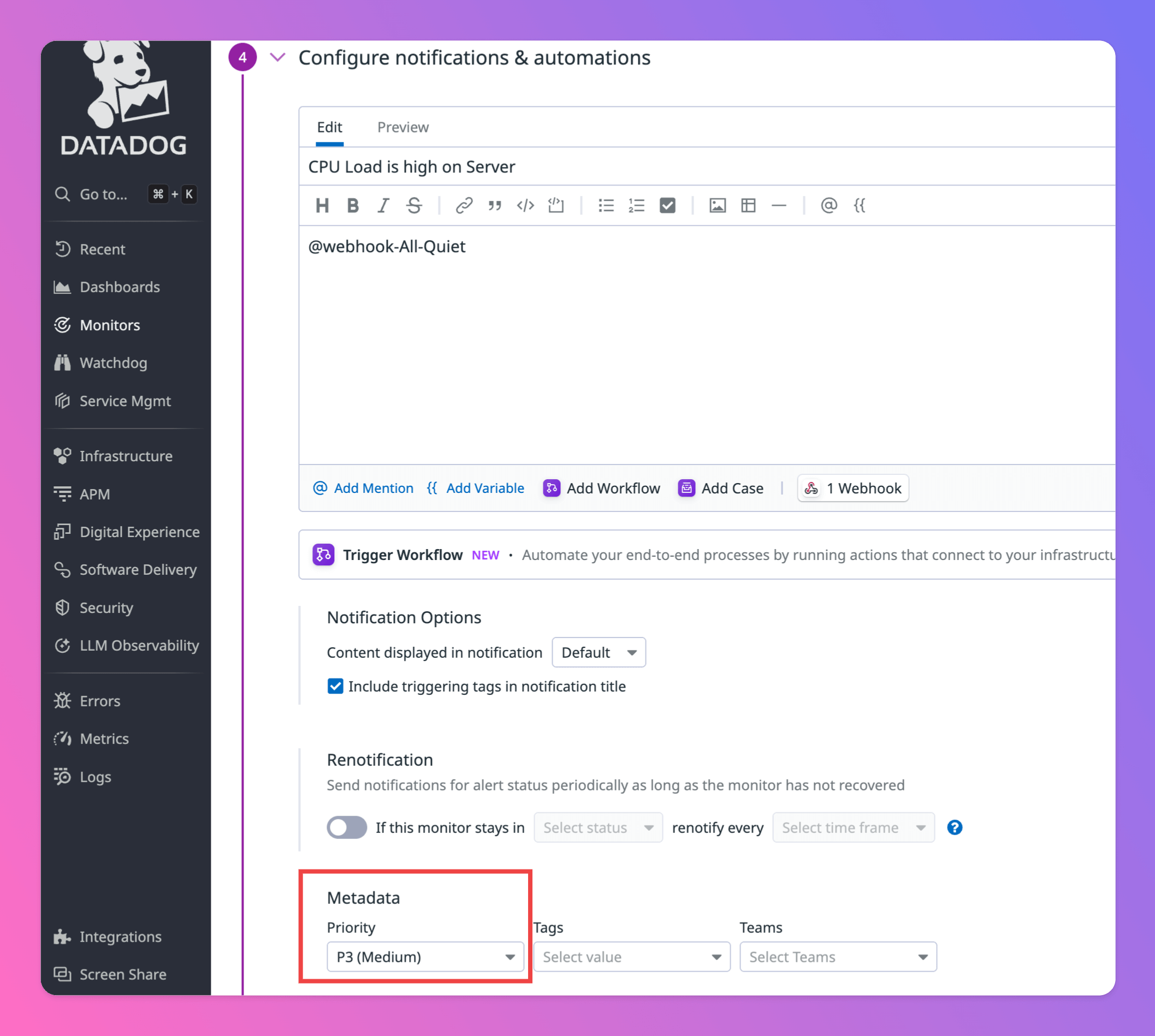
1. Within step "Configure notifications & automations", scroll down to section "Metadata"
2. You'll find a select box to set the priority of your monitor.
3. `P1`,`P2` will map to severity `Critical`
4. `P3`,`P4` will map to severity `Warning`
5. `P5` will map to severity `Minor`
6. If you don't specify a priority, the incident's severity will be `Critical`
### Set your monitor's priority
1. Within step "Configure notifications & automations", scroll down to section "Metadata"
2. You'll find a select box to set the priority of your monitor.
3. `P1`,`P2` will map to severity `Critical`
4. `P3`,`P4` will map to severity `Warning`
5. `P5` will map to severity `Minor`
6. If you don't specify a priority, the incident's severity will be `Critical`
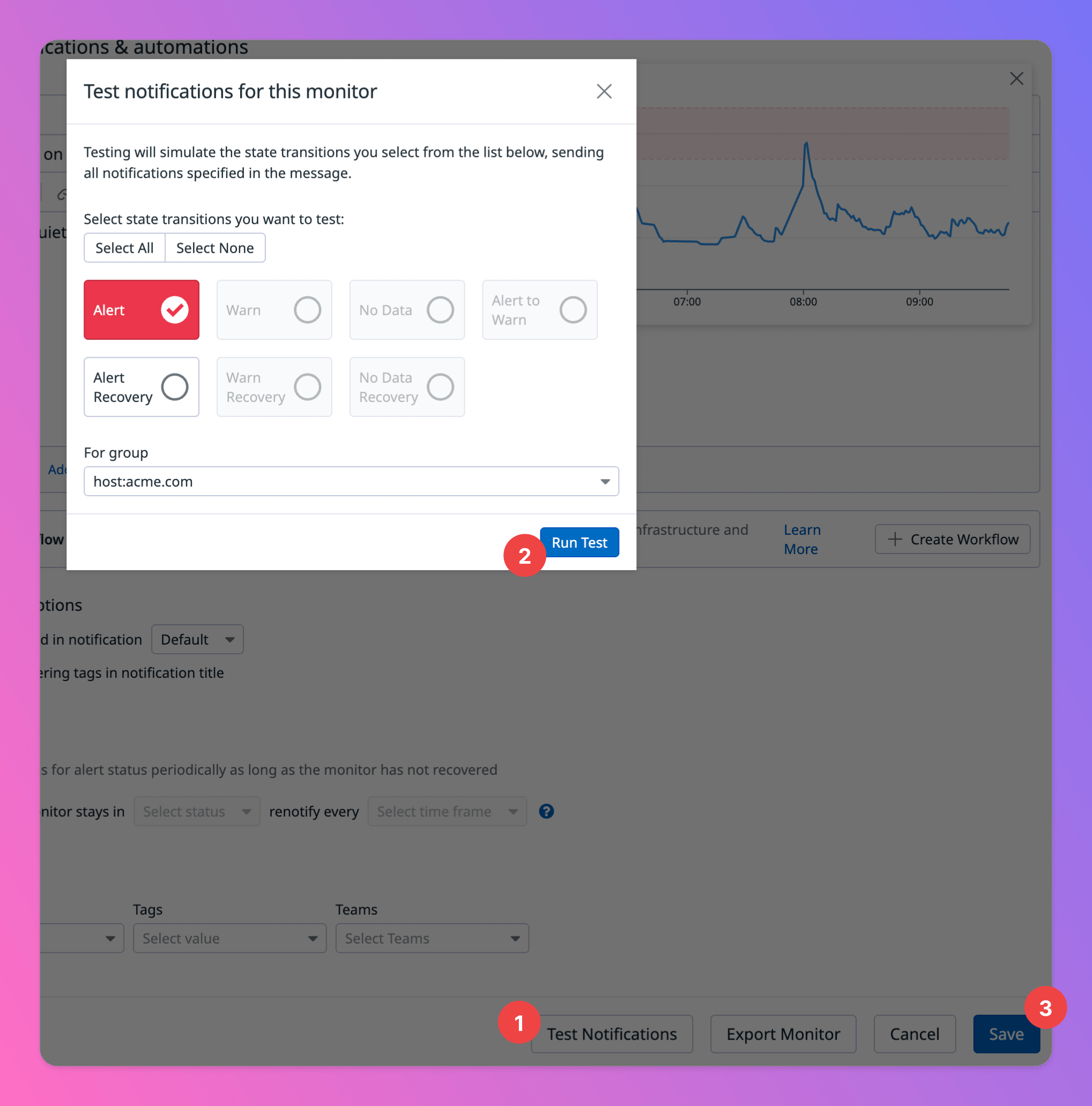
 ## 3. Test Notifications
These steps are important to successfully test your Datadog integration on the All Quiet side.
1. Click on `Test notifications` at the very bottom of the edit page.
2. Select `Alert` and click on `Run Test` to send out notifications to your newly created All Quiet integration.
3. Finally, don't forget to `Save` your integration!
## 3. Test Notifications
These steps are important to successfully test your Datadog integration on the All Quiet side.
1. Click on `Test notifications` at the very bottom of the edit page.
2. Select `Alert` and click on `Run Test` to send out notifications to your newly created All Quiet integration.
3. Finally, don't forget to `Save` your integration!
 {" "}
Datadog's notifications with Webhooks are now successfully integrated into All
Quiet, offering enhanced incident management capabilities and efficient policy
management through an intuitive interface.
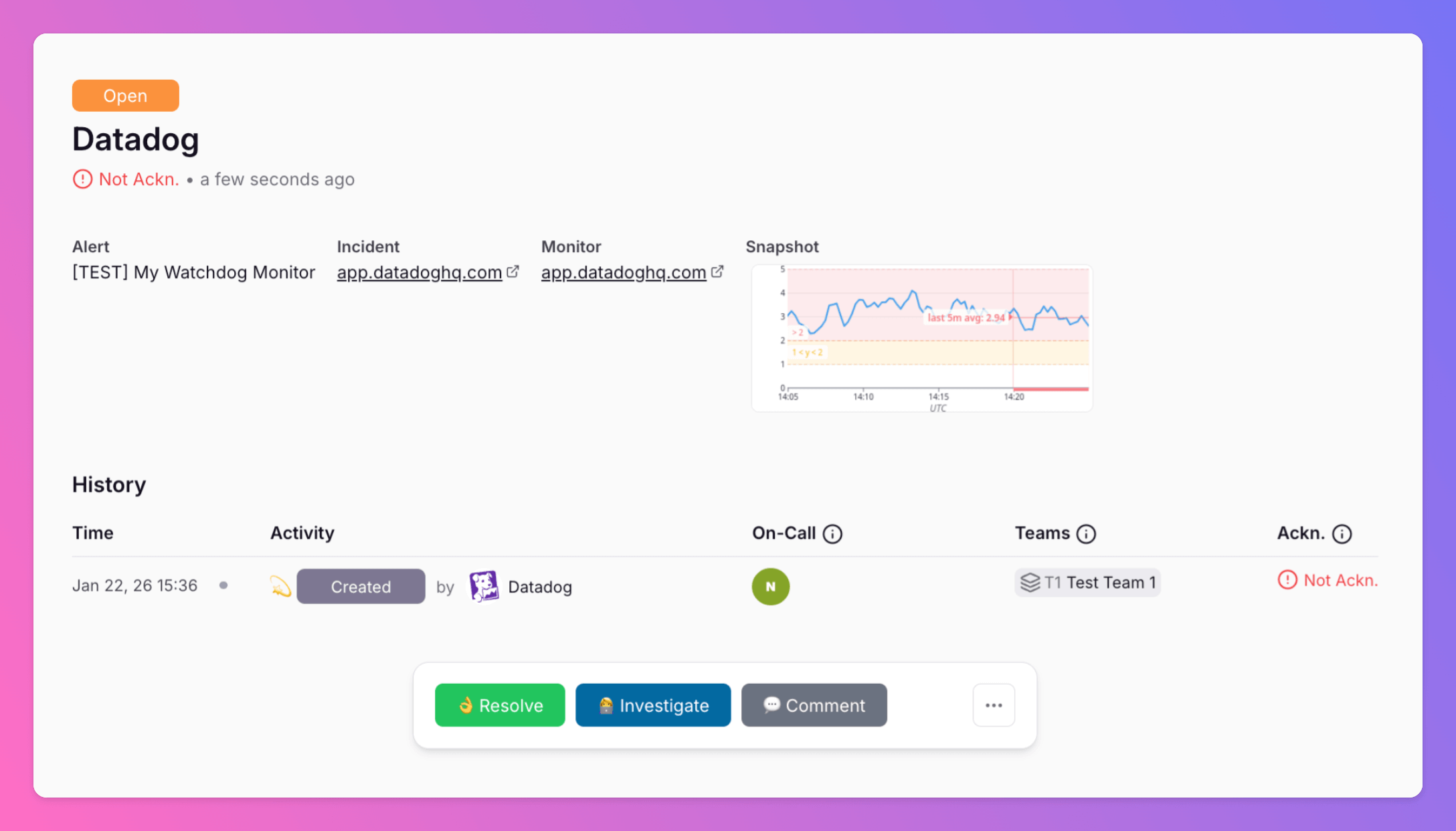
### Datadog Alert as All Quiet Incident
You're done. 🥳 The next steps are merely there to verify if everything's setup correctly!
Go back to the All Quiet Web App and navigate to the “Incidents” overview. You will see the test incident created by Datadog. Open the details page to see the incident created. If you are missing anything, you can adjust the Alert on Datadog to send the info required and map it against an All Quiet incident in the payload mapping section of your Datadog inbound integration page on All Quiet.
{" "}
Datadog's notifications with Webhooks are now successfully integrated into All
Quiet, offering enhanced incident management capabilities and efficient policy
management through an intuitive interface.
### Datadog Alert as All Quiet Incident
You're done. 🥳 The next steps are merely there to verify if everything's setup correctly!
Go back to the All Quiet Web App and navigate to the “Incidents” overview. You will see the test incident created by Datadog. Open the details page to see the incident created. If you are missing anything, you can adjust the Alert on Datadog to send the info required and map it against an All Quiet incident in the payload mapping section of your Datadog inbound integration page on All Quiet.
 ### Adjust Payload Mapping
Looking to customize the fields of your incidents by adjusting the pre-built payload mapping? Simply head over to the “Payload” tab within your integration and make the necessary edits to the mapping. For detailed guidance, you may check out our [payload mapping documentation](/essentials/inbound#how-does-attribute-mapping-work).
Using our Terraform provider? [Download](https://allquiet.app/api/integrations/terraform/default/Datadog.tf) the default mapping of the `allquiet_integration_mapping` resource for the Datadog integration. Simply copy the syntax to your .tf file and tailor the resource to your team's needs!
### Adjust Payload Mapping
Looking to customize the fields of your incidents by adjusting the pre-built payload mapping? Simply head over to the “Payload” tab within your integration and make the necessary edits to the mapping. For detailed guidance, you may check out our [payload mapping documentation](/essentials/inbound#how-does-attribute-mapping-work).
Using our Terraform provider? [Download](https://allquiet.app/api/integrations/terraform/default/Datadog.tf) the default mapping of the `allquiet_integration_mapping` resource for the Datadog integration. Simply copy the syntax to your .tf file and tailor the resource to your team's needs!