> ## Documentation Index
> Fetch the complete documentation index at: https://docs.allquiet.app/llms.txt
> Use this file to discover all available pages before exploring further.
# All Quiet Cron Job Monitor
> Use our Cron Job Monitor - your built-in dead man's switch - to watch your cron jobs' health and alert you the moment a job fails to run or is delayed.
Setup time: 2 Min
Set up our All Quiet Cron Job Monitor to ensure your scheduled jobs, scripts, and automations run on time. The monitor is set up within a few clicks. After setting it up, we'll create incidents to if a job fails to run or is delayed.
## 1. Create All Quiet Cron Job Monitor
Sign in to your All Quiet account.
### Create Integration
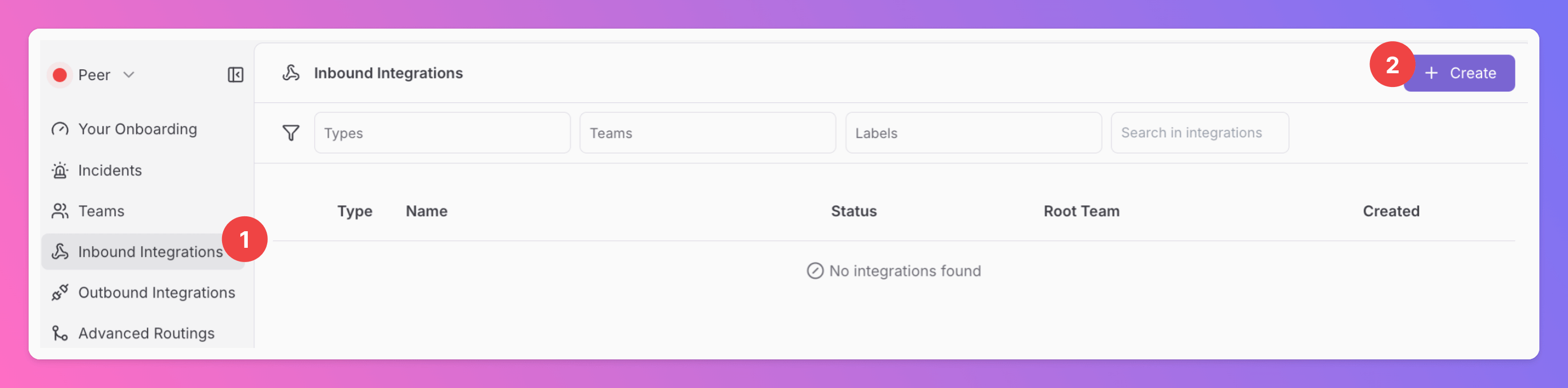
1. Click on the `Inbound Integrations` tab.
2. Click on `+ Create`.
 ### Select Cron Job Monitor as the integration's type
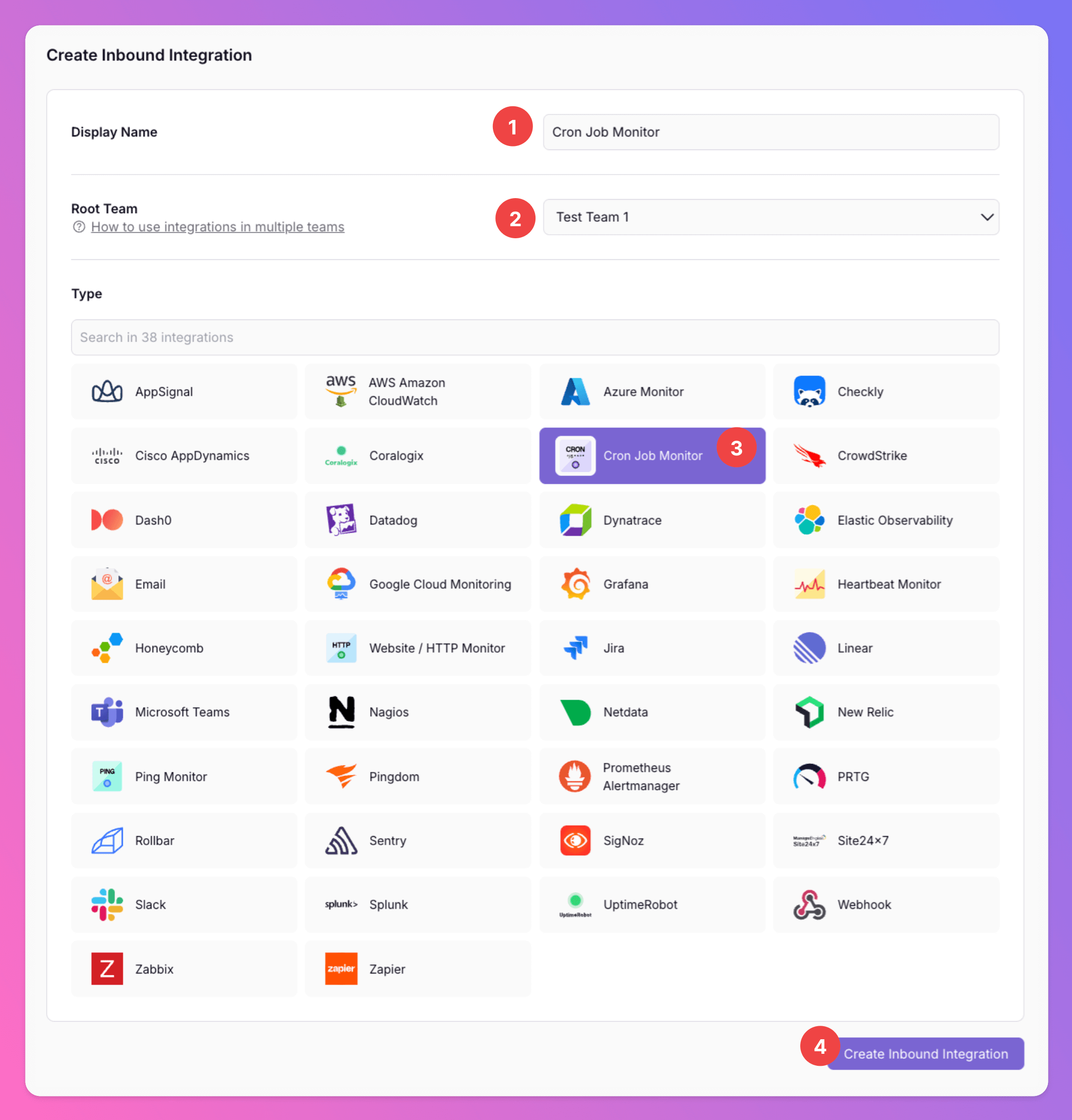
1. Enter a `Display Name` for your integration, e.g. "Cron Job Monitor".
Pick a name that makes it obvious which service the monitor belongs to.
2. Select a `Team`.
3. Select `Cron Job Monitor` as the integration's type.
4. Click `Create Inbound Integration`.
### Select Cron Job Monitor as the integration's type
1. Enter a `Display Name` for your integration, e.g. "Cron Job Monitor".
Pick a name that makes it obvious which service the monitor belongs to.
2. Select a `Team`.
3. Select `Cron Job Monitor` as the integration's type.
4. Click `Create Inbound Integration`.
 ## 2. Configure your Cron Job Monitor
Once you've set up the "Cron Job Monitor", it's time to configure it. This can be done on the the integration's page.
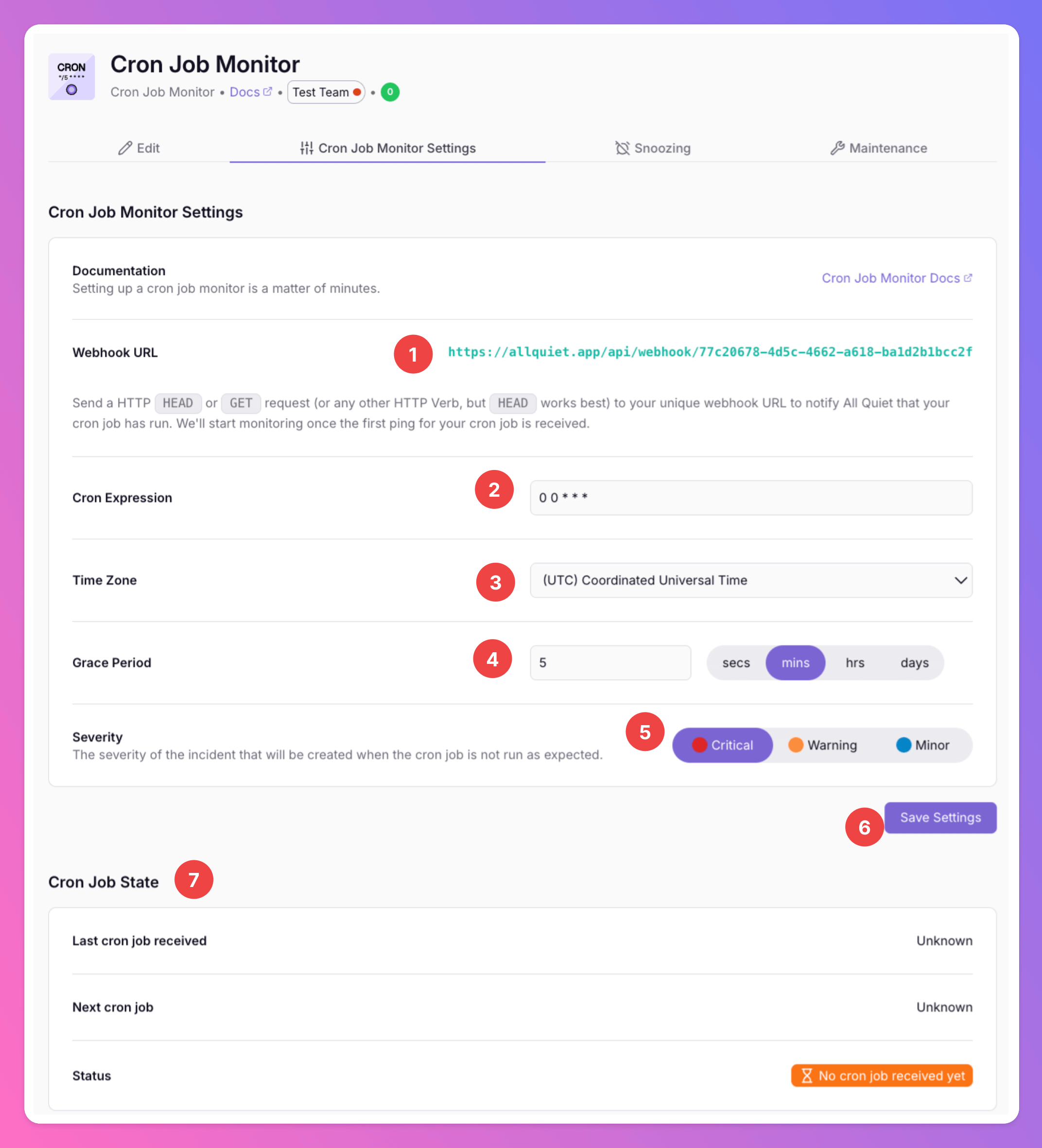
1. Here you find the unique Webhook URL that you need to ping.
2. Add a `Cron Expression` to define when you'd expect your cron job to run and ping the Webhook URL.
3. Add the cron job's timezone.
4. You may add a `Gace Period`. If the cron job is delayed but still finished and sending a ping to our Webhook URL within a `Grace Period`, we will not create an incident.
5. Define a severity for incidents being created if the cron job monitor fails.
6. `Save` your settings.
7. As you can see the monitor is not activated yet.
## 2. Configure your Cron Job Monitor
Once you've set up the "Cron Job Monitor", it's time to configure it. This can be done on the the integration's page.
1. Here you find the unique Webhook URL that you need to ping.
2. Add a `Cron Expression` to define when you'd expect your cron job to run and ping the Webhook URL.
3. Add the cron job's timezone.
4. You may add a `Gace Period`. If the cron job is delayed but still finished and sending a ping to our Webhook URL within a `Grace Period`, we will not create an incident.
5. Define a severity for incidents being created if the cron job monitor fails.
6. `Save` your settings.
7. As you can see the monitor is not activated yet.
 Optionally toggle `Enable additional Authentication & Security` below the cron job settings to restrict who can POST payloads.
* **IP Filter** — Allow requests only from specific IPs or CIDR ranges. Failed checks return **404 Not Found**.
* **Bearer authentication** — Require `Authorization: Bearer YOUR_TOKEN`. Missing or invalid tokens return **401 Unauthorized**.
If both are enabled, the request must pass both checks to be accepted.
Your monitor is now set up and ready to be activated.
### Start Cron Job Monitoring
To start monitoring, ping the Webhook URL you retrieved in the previous step.
On the bottom of the page, you will see
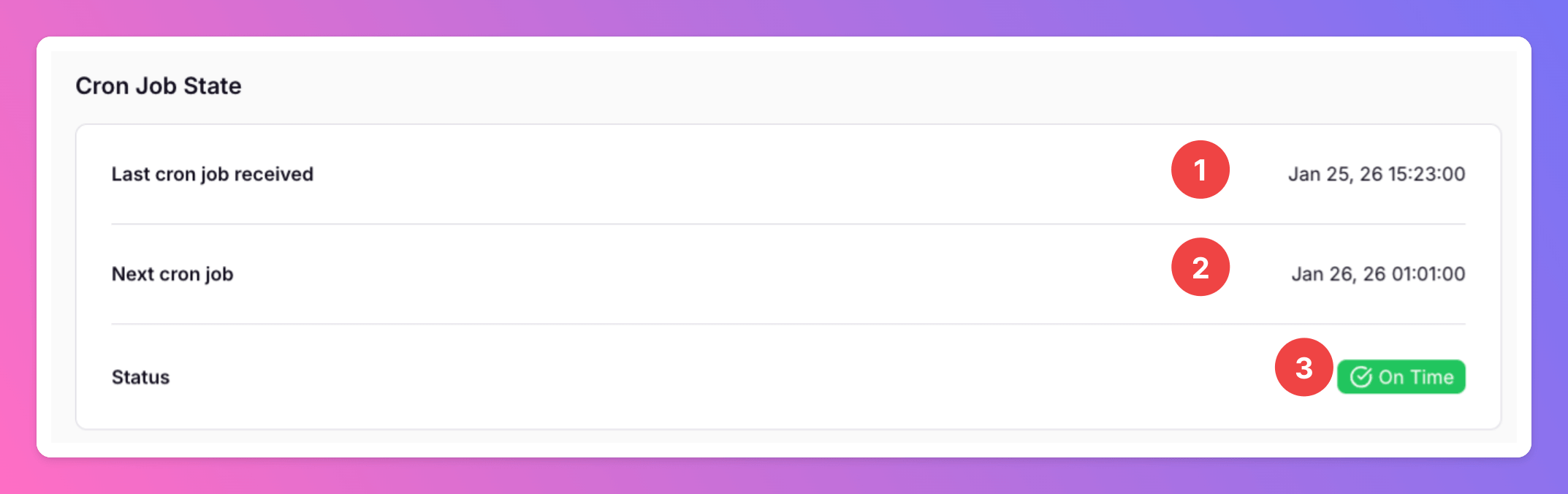
1. The last time a ping was received.
2. The next time a ping is expected based on your settings. If we don't receive a ping until then, we'll create an All Quiet incident and notify you.
3. After the second ping, we will start showing the current status of the Monitor
* `On Time` if the last cron job was finished within the expected timeframe (plus optional grace period)
* `Overdue` if we created an incident because we didn't receive the latest ping on time.
Optionally toggle `Enable additional Authentication & Security` below the cron job settings to restrict who can POST payloads.
* **IP Filter** — Allow requests only from specific IPs or CIDR ranges. Failed checks return **404 Not Found**.
* **Bearer authentication** — Require `Authorization: Bearer YOUR_TOKEN`. Missing or invalid tokens return **401 Unauthorized**.
If both are enabled, the request must pass both checks to be accepted.
Your monitor is now set up and ready to be activated.
### Start Cron Job Monitoring
To start monitoring, ping the Webhook URL you retrieved in the previous step.
On the bottom of the page, you will see
1. The last time a ping was received.
2. The next time a ping is expected based on your settings. If we don't receive a ping until then, we'll create an All Quiet incident and notify you.
3. After the second ping, we will start showing the current status of the Monitor
* `On Time` if the last cron job was finished within the expected timeframe (plus optional grace period)
* `Overdue` if we created an incident because we didn't receive the latest ping on time.
 Your monitor is active.
After changing your monitor's settings, you’ll need to reactivate it by sending a new ping to the Webhook URL.
Your monitor is active.
After changing your monitor's settings, you’ll need to reactivate it by sending a new ping to the Webhook URL.