> ## Documentation Index
> Fetch the complete documentation index at: https://docs.allquiet.app/llms.txt
> Use this file to discover all available pages before exploring further.
# Inbound Integrations
> Connect your observability stack to our platform
Find the list of all built-in inbound integrations at the [bottom of this page](/essentials/inbound#built-in-integrations).
Inbound Integrations are dynamic and flexible. The integration process is simple and involves a three steps:
1. Create the integration
2. Receiving a **payload**
3. Mapping payload **attributes** to incidents
Later, you may add snooze settings and maintenance windows.
## Create Inbound Integration
Only Team Administrators, Organization Administrators and Organization Owners have the permissions to create and edit Integrations. **Call Routing Numbers** are an exception: only **Organization Administrators** and **Organization Owners** can create them. **Team Administrators** can edit existing numbers whose **Root Team** is a team they administer. See [Live Call Routing](/advanced/live-call-routing).
To create a new integration,
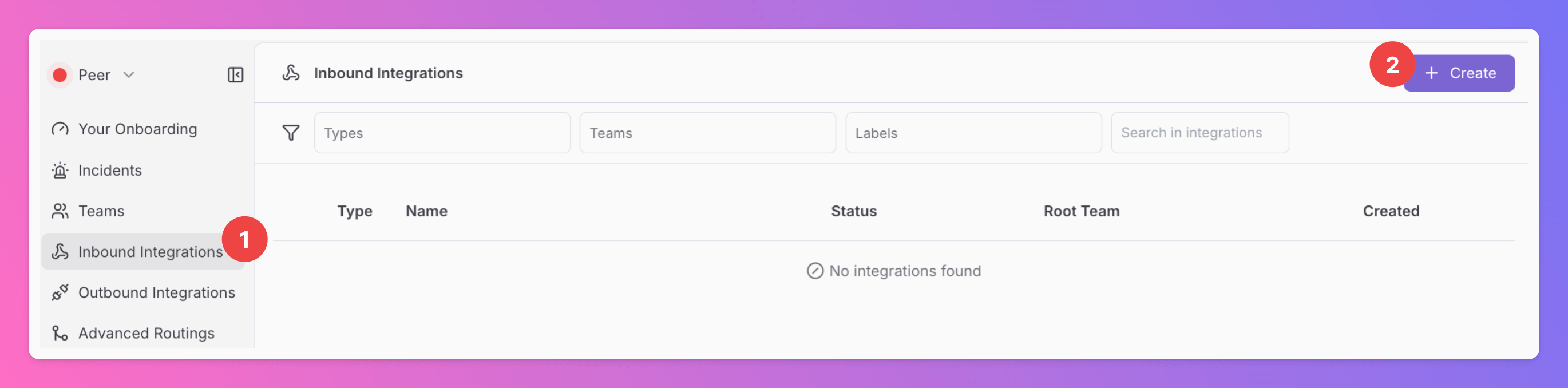
1. navigate to the `Inbound Integrations` tab.
2. Click on `+ Create`.
From there,
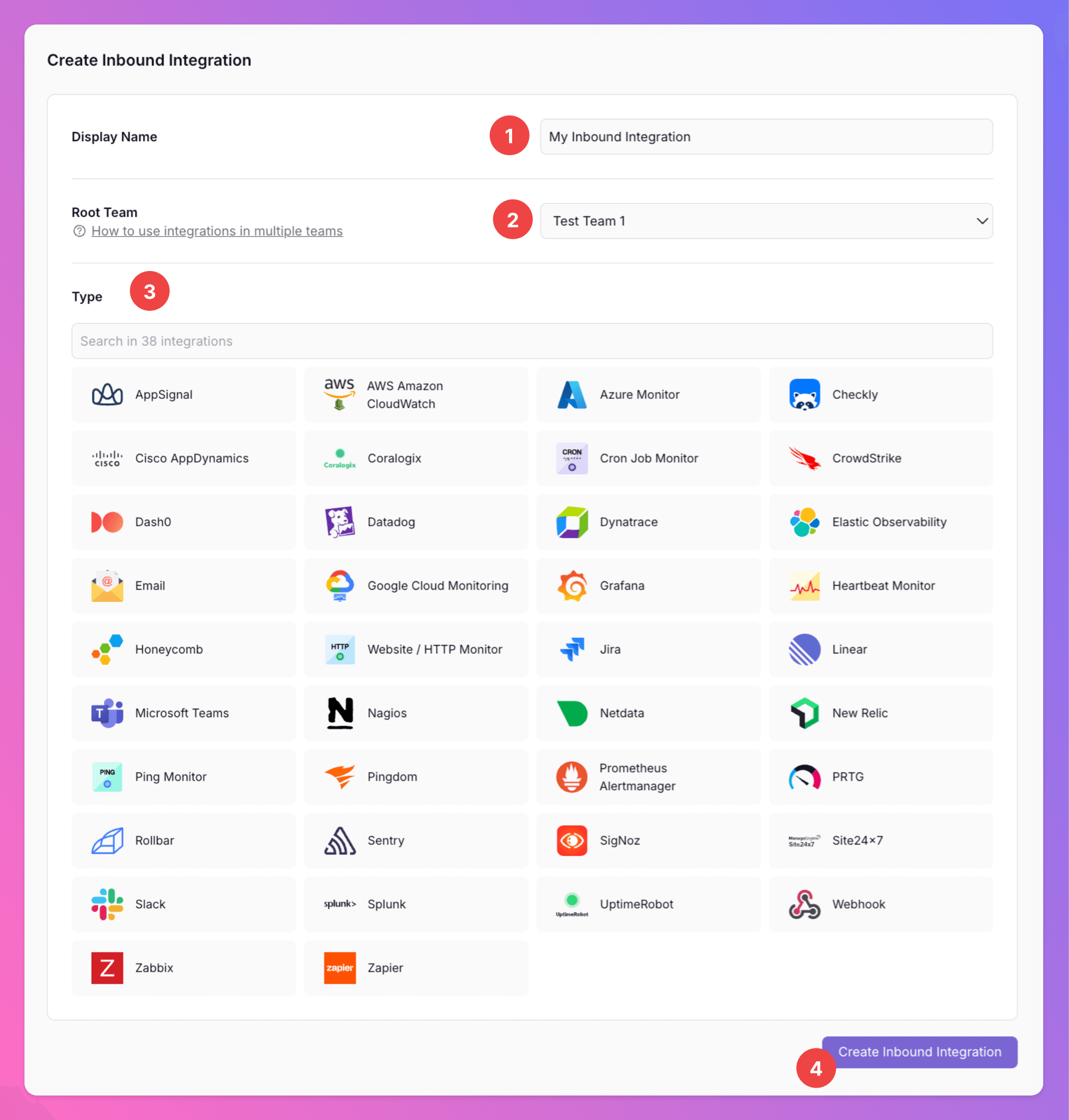
1. Give your integration a `Display Name`, such as "My Inbound Webhook".
2. You'll also need to choose which team the integration should belong to, as this can't be changed later.
3. Select the type of integration. Keep in mind that the integration type can't be changed later.
4. Click `Create Inbound Integration`
Next, we need to configure the integration. This includes:
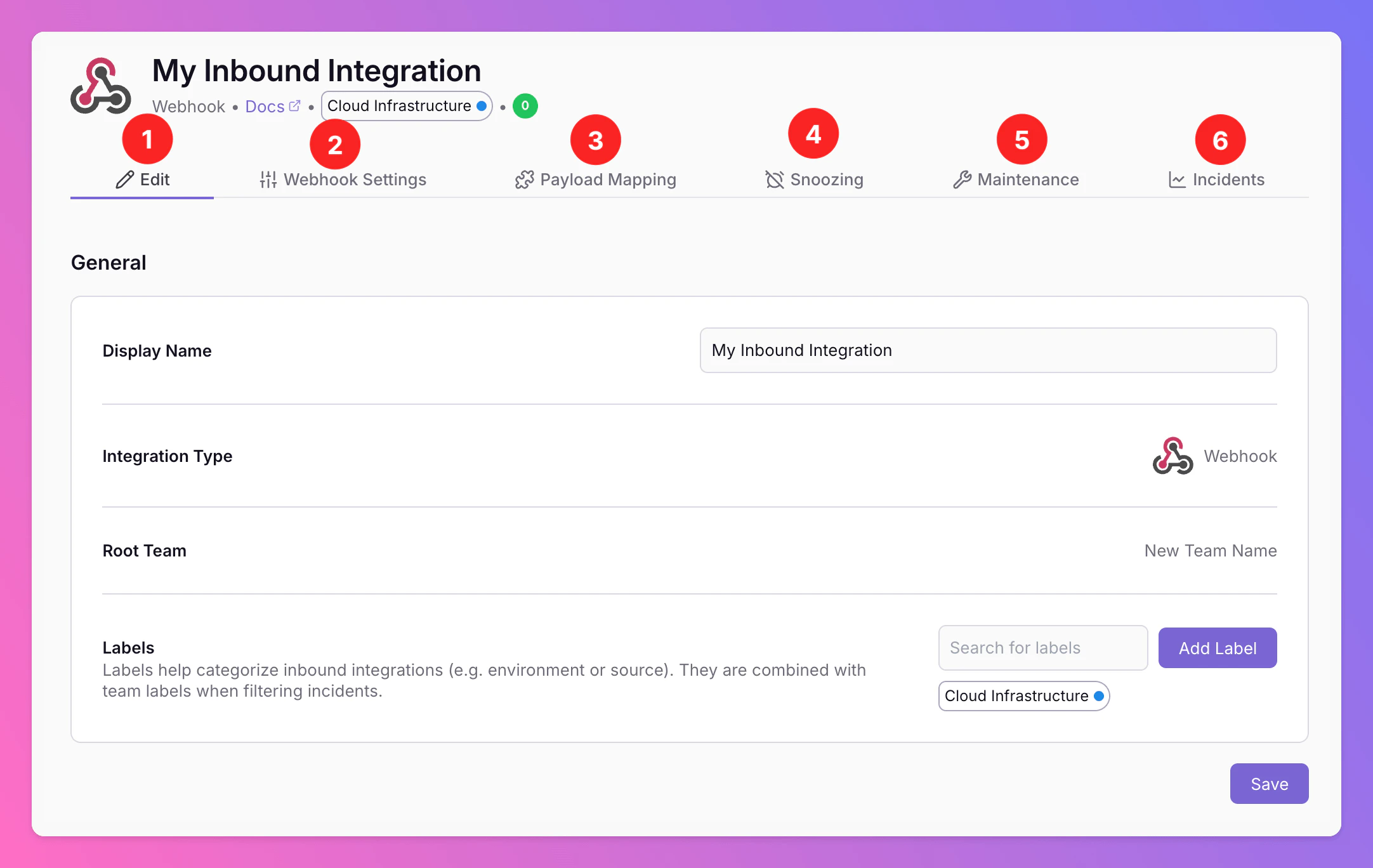
1. The [Edit tab](/essentials/inbound#edit-your-integration’s-general-settings), in which you can find some generic information about your integration.
2. [Receiving a **payload**](/essentials/inbound#receiving-payloads) by connecting All Quiet to your Inbound Integration using a **unique Webhook URL**.
3. [**Mapping payload attributes**](/essentials/inbound#mapping-payloads) to All Quiet incidents.
4. Later, you may add [**Snooze settings**](/essentials/inbound#snoozing-inbound-integrations)
5. and [**Maintenance Windows**](/essentials/inbound#maintenance-for-inbound-integrations) for your integration.
6. Last, for each integration you can find your [Incident KPIs](/advanced/report#integration-level) in the `Incidents` tab.
We'll walk you through these steps by the example of a `Webhook` Integration.
## Edit Your Integration's General Settings
In this tab, you can make some general changes to your integration:
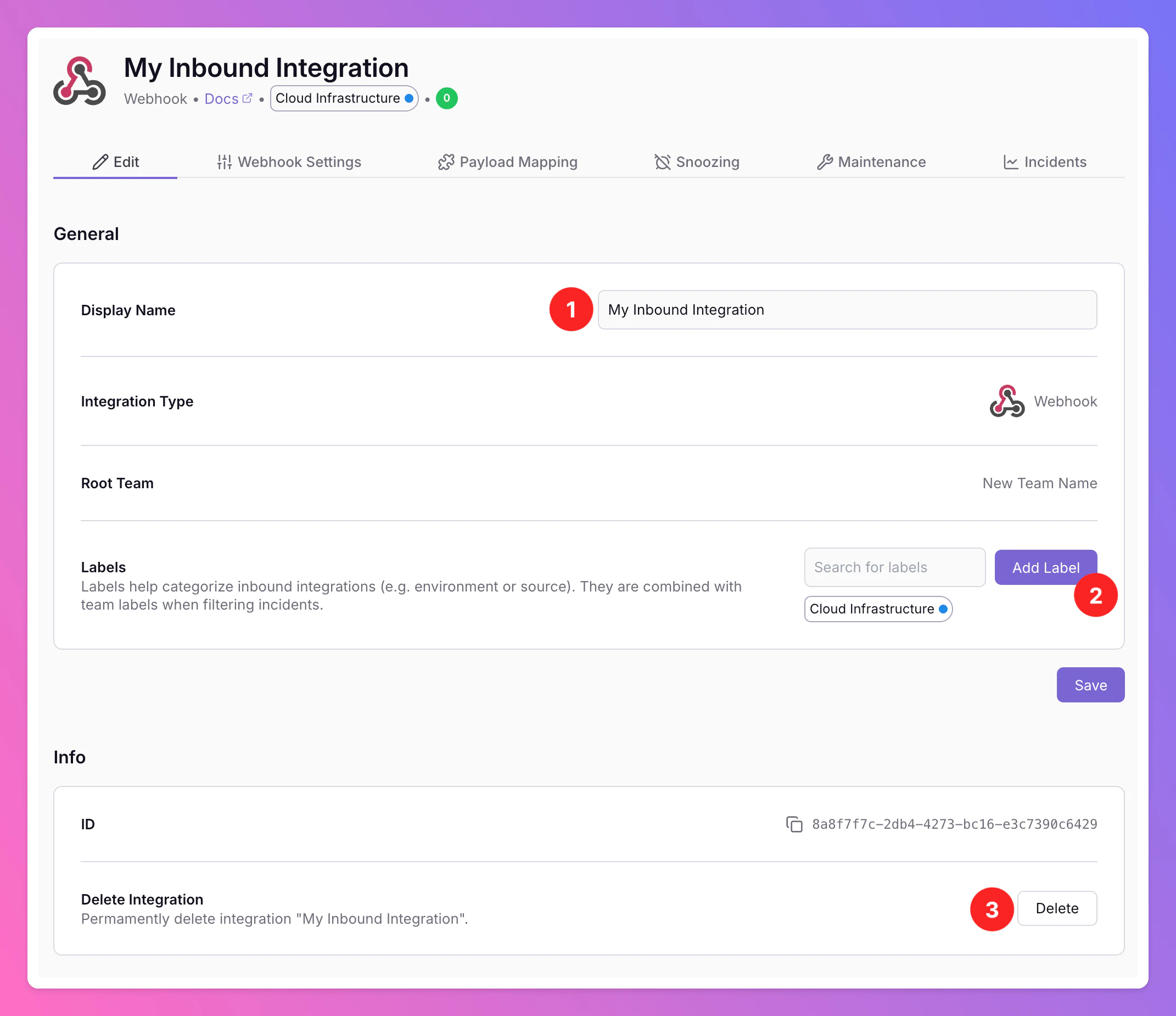
1. You can change your integration's `Display Name` for your team.
2. You may add `Labels` to your integration. Labels help categorize inbound integrations (e.g. by environment or source). They are combined with [team labels](/essentials/teams#edit-team) when [filtering incidents](/essentials/incident#filtering-incidents).
## Receiving Payloads
Try to avoid personal data and security relevant information like credentials in the payloads sent to All Quiet. **For U.S. companies**: We are not HIPAA certified, so don't share individually identifiable health information protected by the HIPAA act. Make sure to exclude this kind of data from payloads sent to us.
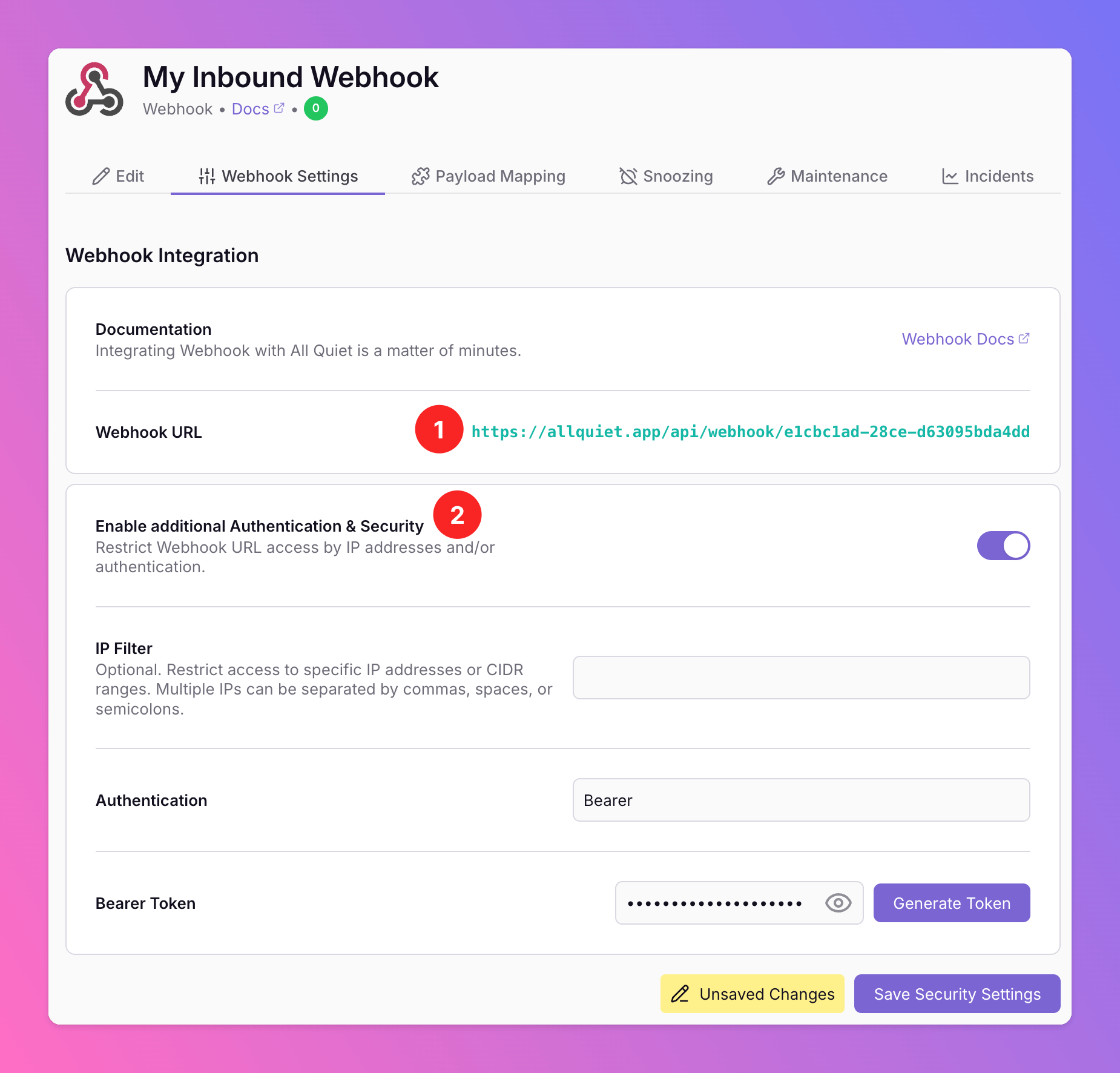
1. After creating a new integration, we find ourselved on the `Settings` tab of the integration details page. Here you can find integration's **unique Webhook URL**. Every request sent to this address will show up as a new payload in the [`Payload Mapping` tab](/essentials/inbound#mapping-payloads), from which we'll extract attributes and map these to incidents.
2. On webhook-based inbound integrations, optionally toggle `Enable additional Authentication & Security` below the webhook URL to restrict who can POST payloads:
* **IP Filter** — Allow requests only from specific IPs or CIDR ranges. Failed checks return **404 Not Found**.
* **Bearer authentication** — Require `Authorization: Bearer YOUR_TOKEN`. Missing or invalid tokens return **401 Unauthorized**.
* If both are enabled, the request must pass both checks to be accepted.
1. Now it's time to look at the `Payload Mapping` tab.
2. You can find the `Webhook URL` you need to send alerts to All Quiet on top of the tab. Click on it to copy it.
3. You can see payloads that were received by All Quiet in the top row pane and select them as a template / example for your attribute mapping. For each payload, you can see which incident it belongs to. Navigate to the incident by clicking on the shortened incident id on the payload tile.
**No payload in Latest Payloads?** If nothing shows up, the request never reached this integration. Most often the upstream system is posting to the **wrong Webhook URL** (wrong integration, old URL, or copy-paste error)—use the URL from this integration’s **Payload Mapping** or **Settings** tab. Also confirm the [integration](/essentials/inbound#built-in-integrations) is connected correctly, auth matches your setup, and the body is under **3MB**.
4. The payload will always be in JSON format and wrap other formats like HTML or XML depending on your payload. We show the JSON in a `json-edit-react` component for better visability and usability.
5. Below you can find the mapping component that maps the payload to an All Quiet incident. More on that in the [next section](/essentials/inbound#mapping-payloads). You can download your current payload mapping as Terraform resource by clicking the Terraform icon.
6. We always show a live preview of an incident created from payload and mapping, so you always get immediate feedback when configuring the mapping.
7. You can safe mapping changes and trigger test incidents to see if everything works as expected and save your mapping.
To send a payload to your Webhook, issue the following `cURL` command to send a form post to a webhook integration. The payload will show up under the field `Latest Payloads`. Please note that you need to adjust the URL to your unique integration's URL.
```CURL theme={null}
curl -X POST 'https://allquiet.app/api/webhook/12fa90f1-9f01-41a8-8fe5-b5d385dac03d' \
-H 'Content-Type: application/json' \
-d '{"alertName": "My Monitor", "alertStatus": "Failed", "description": "From cURL"}'
```
Learn more about generic webhooks here: [Connect Generic Webhooks](https://allquiet.app/blog/connect-generic-webhooks).
Each Inbound Integration type needs to be set up differently. Please refer to [each specific type's integration guideline](/essentials/inbound#built-in-integrations) for detailed setup instructions.
## Mapping Payloads
To map a payload's JSON to an actual incident you need to define a set of mapping rules. Those rules are defined in an intuitive UI. To allow you to conveniently configure your mapping, your changes are automatically applied to a preview of an incident.
### How does attribute mapping work?
With **attribute mapping** you can map the payload of your integration to the defined data structure of All Quiet's incidents.
#### Quick Example
Let's assume, we've created an integration of type Webhook. We can use the following CURL command below as an example to trigger the webhook:
```CURL theme={null}
curl -X POST 'https://allquiet.app/api/webhook/12fa90f1-9f01-41a8-8fe5-b5d385dac03d' \
-H 'Content-Type: application/json' \
-d '{"alertName": "My Monitor", "alertStatus": "Failed", "description": "From cURL"}'
```
Then, we can map the payload to an incident with this deafault attribute mapping below:
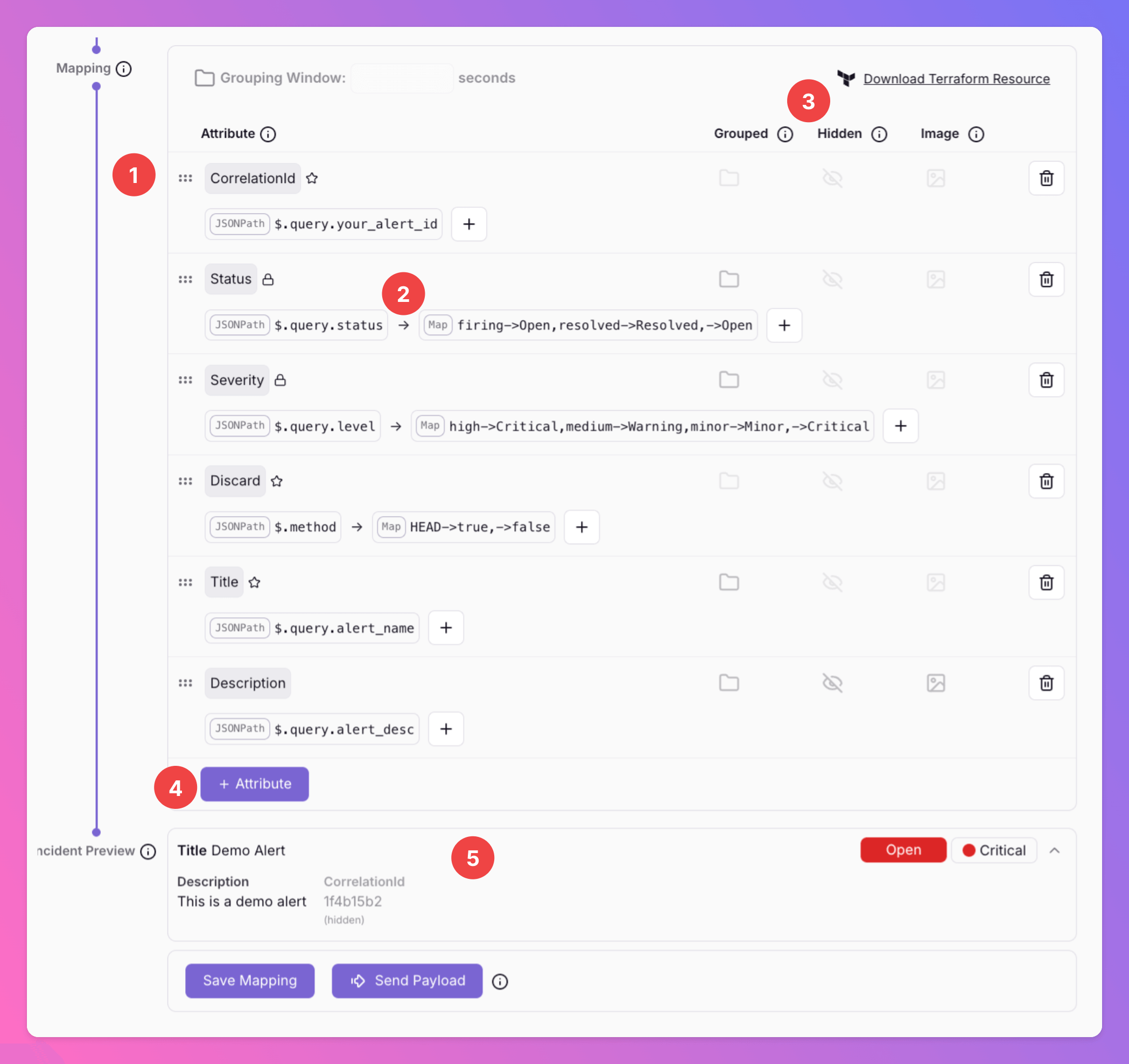
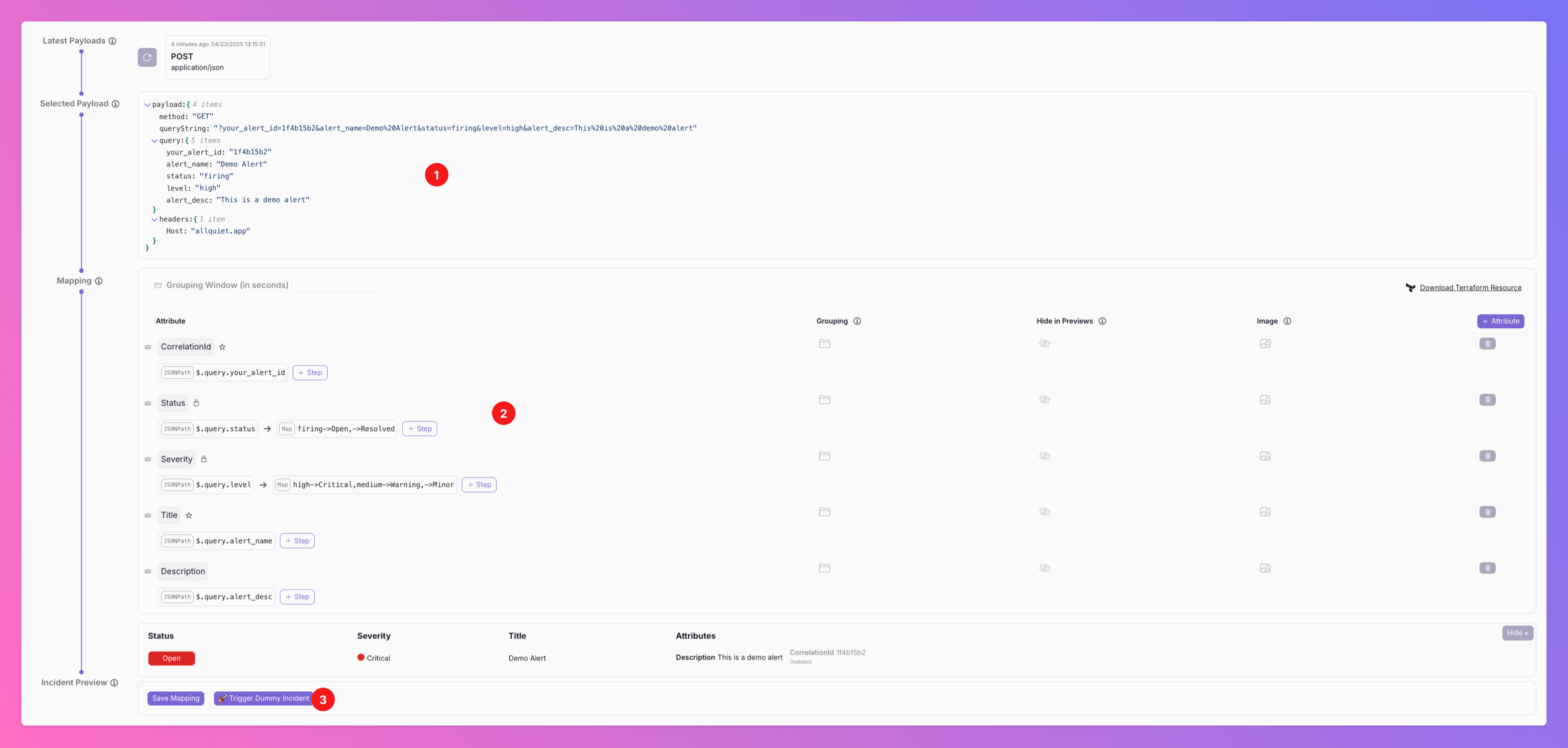
1. We can see all attributes. We will evaluate all attributes from first to last element. Learn more about reserved and required as attribute types [below](/essentials/inbound#reserved-and-required-attributes).
2. For each `attribute` in `attributes` we will evaluate all mappings from the first to the last element. The result of a mapping will be passed on to the next mapping element as an input. The last result will be the attribute's value. In this example, the attribute `Status` is first mapped by a jsonPath and then by a map evaluation. See below for more about our [evaluation types](/essentials/inbound#evaluation-types) and [mapping variables](/essentials/inbound#variables).
3. You can mark each attribute with `Grouped`, `Hidden`, `Image` or `Expand` key. More on this, [here](/essentials/inbound#optional-additional-attribute-keys).
4. You can add further attributes for customization anytime.
5. Below, you will always see a live preview of your All Quiet incident based on the current mapping.
#### Handling Multiple Payloads
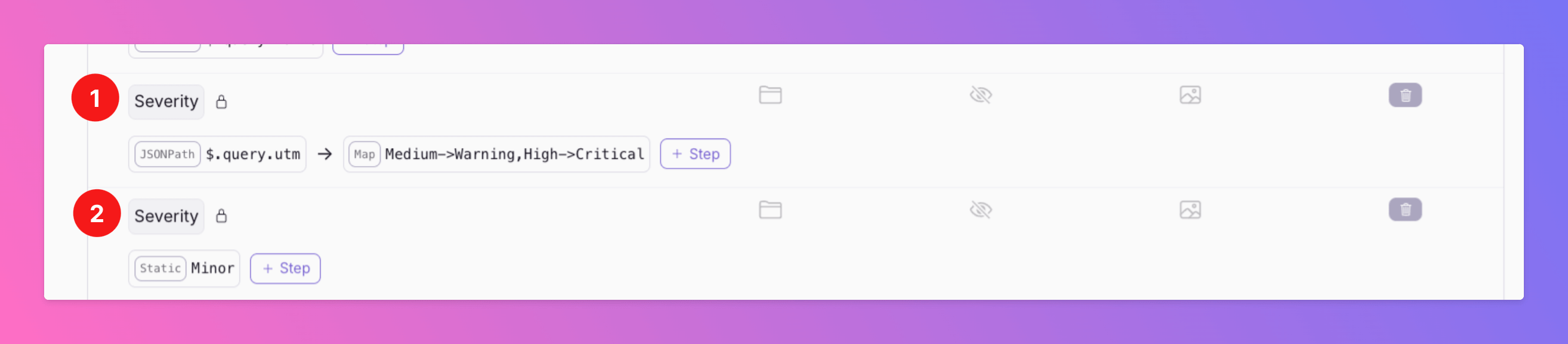
If your payloads can have different structures, you can adjust your payload mapping to account for that. You can simply add several entries for the same attributes that are evaluating different part of the payload. The first attribute that can be evaluated successfully will be added to the incident.
In the example below,
1. we first check if the JSONPath `$.query.utm` contains the value `Medium` or `High` to define the Severity.
2. If none of those values can be found, we use the second Severity attribute in our mapping to statically set the Severity to Minor as our fallback.
Make sure to also check our our video about handling multiple request formats and our mapping types, [below](/essentials/inbound#evaluation-types).
#### Payload Mapping in Terraform
For our Terraform Provider, we've written a separate payload mapping ressource [allquiet\_integration\_mapping](https://registry.terraform.io/providers/AllQuietApp/allquiet/latest/docs/resources/integration_mapping).
If you don't use this resource, your integrations will implicitly follow our default mappings.
If you want to adjust the mapping, we've prepared template `allquiet_integration_mapping` resources.
* Template Download (Example with Integration\_ID = "Datadog"): [https://allquiet.app/api/integrations/terraform/default/Datadog.tf](https://allquiet.app/api/integrations/terraform/default/Datadog.tf).
* Each Integration\_ID can be found here: [https://allquiet.app/api/public/v1/inbound-integration/types](https://allquiet.app/api/public/v1/inbound-integration/types)
### Reserved and required attributes
You can map as many attributes with any name you like. There are a few reserved and required attributes though:
| Property | Description | Allowed Values | |
| --------------- | ----------- | ------------------------------------------------------------------------------------------------------------------------------------------------------------------------------------------------------------------------------------------------------------------------------------------------------------------------------------------------------------------------------------------------------------------------------------------------------------------------------------------------------------------------------------ | - |
| `CorrelationId` | Optional | Use this attribute to uniquely identify and correlate your incidents. If omitted, a hash of all mapped custom attribute values is used — a payload is linked to the same incident **if and only if** all mapped attribute values are exactly the same. This is recommended to avoid creating new incidents when sending changing metrics (for example CPU consumption). | |
| `Status` | Required | `Open`, `Resolved` | |
| `Severity` | Required | `Minor`, `Warning`, `Critical`. | |
| `Title` | Optional | If omitted, defaults to your integration's name. | |
| `Discard` | Optional | `True`, `False`: Setting `Discard` = `true` in **payload mapping** discards the incident **before it is created**. This is useful if you want to ignore certain payloads for instance based on HTTP method. Note that incidents Discarded via payload mapping are therefore **not included in [incident reports](/advanced/report#incident-report) / statistics**. In contrast, incidents discarded via a [**routing rule**](/advanced/routing#configure-actions) are created first and are therefore **counted in the statistics**. | |
#### CorrelationId Flowchart
When a new payload is mapped, All Quiet uses `CorrelationId` to decide whether to open a new incident or merge into an existing one:
```mermaid theme={null}
flowchart TD
A[New payload arrives] --> B{Open incident with this CorrelationId?}
B -->|Yes| C[Update or resolve incident]
B -->|No| D[Create new incident]
```
The payload’s mapped **`Status`** (`Open` or `Resolved`) determines whether the matched incident is updated or resolved. If you omit `CorrelationId`, All Quiet hashes all mapped custom attribute values instead — the same flow applies, but a payload is linked to an existing incident **only if every mapped attribute value matches exactly**.
### Optional, additional attribute Keys
| Type | Description | Values | How it Works |
| --------- | ----------- | ------- | --------------------------------------------------------------------------------------------------------------------------------------------------------------------------------------------------------------------------------------------------------------------------------------------------------------------------------------------------------------------------------------------------------------------------------------------------------------------------------------------------------------------------------------------------------------------------------------------------------------------------------------------------------------------------------------------------------------------------------------------------------------------------------------------------------------------------------------------------------------------------------------------------------------------------------------------------------------------------------------------------- |
| `Image` | Optional | Boolean | If your payload includes a URL, you can use this as an additional specification of an object to show the image in All Quiet |
| `Hidden` | Optional | Boolean | When activated for attributes, these will not be shown in incident email and on the incident overview in Web and App, but only in the incident details. |
| `Grouped` | Optional | Boolean | When setting Grouping = true for certain attributes, incidents that have the same values for these attributes will be [grouped](/essentials/incident#incident-grouping) as long as one of the group is `Open` and not `Resolved`. If you set isGroupingKey = true for more than one attribute, incidents will only be grouped if the values for all attributes match. When grouping is active for an integration, All Quiet checks the grouping attribute(s) **before** `CorrelationId`. A payload can only be correlated to (and update or resolve) an existing incident if the grouping attribute(s) also match. By including "groupingWindowInSeconds" in your mapping, any new incidents that match the grouping criteria will only create incidents within the group within the grouping window that is defined by seconds since last update of any incident in the group. After the grouping window is over, new incidents will create new incident groups and alert your on-call colleagues. |
| `Expand ` | Optional | Boolean | When enabled, after all mapping steps for this attribute the pipeline value is parsed as JSON. Each top-level object key or array index becomes a separate incident attribute (for example, jsonBody.cluster, jsonBody.alertname) for use in routing rules. Nested values stay a single string per key. The **last value must be valid JSON** (object, array, or scalar), otherwise `Expand` = true will break the attribute. Use any mapping steps you need to produce that string. |
#### Grouped Flowchart
When **`Grouped`** is enabled on one or more attributes, All Quiet checks grouping **before** `CorrelationId`. Incidents with the same values for all grouping attributes are collected into one group while that group is `Open`:
```mermaid theme={null}
flowchart TD
A[New payload arrives] --> B{Open group with matching grouping attribute values?}
B -->|No| F[Create new incident — starts a new group]
B -->|Yes| GW{Grouping window enabled?}
GW -->|No| C{CorrelationId matches a subincident in the group?}
GW -->|Yes| W{Payload within grouping window after last update in group?}
W -->|No| F
W -->|Yes| C
C -->|Yes| D[Update or resolve subincident]
C -->|No| E[Add new subincident to group]
```
If you mark more than one attribute as `Grouped`, values must match on **all** of them for incidents to land in the same group. After the group is `Resolved`, the next matching payload creates a new group and alerts your on-call colleagues again.
Map **`groupingWindowInSeconds`** to enable the grouping window. The window is measured in seconds since the **last update** on any incident in the group. After it expires, matching payloads create a new group — even if a previous group with the same grouping values is still `Open`.
More on **Incident Grouping** in the video below.
### Evaluation Types
Each attribute must hold exactly one of the following *evaluation types*:
| Type | Description |
| ---------- | ----------------------------------------------------------------------------------------------------------------------------------------------------------------------------------------------------------------------------------------------------------------------------------------- |
| `jsonPath` | A JSONPath expression to map JSON ([goessner.net/articles/JsonPath](https://goessner.net/articles/JsonPath/)) |
| `xPath` | A XPath expression to map HTML or XML. ( [w3schools](https://www.w3schools.com/xml/xpath_intro.asp)) |
| `regex` | A regular expression to extract parts of text. The regex is evaluated with the .NET/C# flavor. If groups are matched, the named group "result" is returned. If no group is named "result" the last group is returned. If no groups are found the whole match is returned. ( regex101.com) |
| `map` | A simple map expression mapping values from A to B. The expression A->1,B->2,->3 will map the value "A" to "1" and "B" to "2" and fallback to "3" if no match is found. You can also omit the fallback. The result will then evaluate to the original value. |
| `static` | A static string. The result will always be this string. |
### Variables
You can also use **variables** in any of your mapping steps if the related attribute was already defined above.
For example: `{{ previousIncident.status }}` will work if attribute "status" was already defined in a mapping above. If the attribute "status" is defined below the attribute that uses the variable `{{ previousIncident.status }}`, the variable won't work.
Variables are evaluated once all mappings within an attribute have been evaluated. The names are case-insensitive.
You can reference the current incident with `{{ currentIncident.someAttributeName }}` and the previous incident with `{{ previousIncident.someAttributeName }}`.
### Common examples
#### Combine strings of other attributes
To combine the values of the "Category" and "Threshold" attributes use the following attribute mappings:
```JSON ConcatenationWithVariables.JSON theme={null}
{
"Attributes": [
{
"Name": "Category",
"Mappings": [
{
"Static": "Alerts"
}
]
},
{
"Name": "Threshold",
"Mappings": [
{
"Static": "42"
}
]
},
{
"Name": "Combined",
"Mappings": [
{
"Static": "The category is {{ currentIncident.category }} with a threshold of {{ currentIncident.threshold }}"
}
]
}
]
}
```
#### JSONPath examples
**Extract elements by property**
To get the value of the "Return-Path" field of the "headers" array, use `$.headers[?(@.field=='Return-Path')].value` for the following JSON:
```JSON JSONPathExample.JSON theme={null}
{ "headers": [{ "field": "Return-Path", "value": "" }] }
```
#### XPath examples
Extract elements by preceding tag value
To get the value of the "Server" field, i.e. the value of the td that follows a td with value "Server" use `//table/tr[td='Server']/td[2]` for the following HTML:
```HTML theme={null}
Severity
Critical
Server
prod1
```
#### Regex examples
To get the value "my-server" after a colon followed by space use `[: ](?[^: ]*)$` for the following text:
```
Any label here: my-server
```
Note the use of the named group "result". Since it's the only group, the naming of the group could also be ommitted.
To get the value "my-server" after a label e.g. "SPECIFIC label here: " use `(SPECIFIC label here: )(.*)` for the following text:
```
SPECIFIC label here: my-server
```
Note that the groups are not named because the result is in the last group which is returned by default.
To get the value "ERROR" before a colon use `^[^:]*` for the following text:
```
ERROR: your-check on your-project on server app-1
```
### Triggering Dummy Incidents
To get a practical understanding of All Quiet's incident handling, you have the option to initiate a dummy incident. This feature allows you to simulate a real incident by using the current request payload example alongside your established mapping configurations.
When you trigger a dummy incident, the system will execute all the usual processing steps. This includes sending out notifications to your teams and managing any outgoing integrations. This simulation is an effective way to experience firsthand how All Quiet will respond in an actual operational scenario. It's an invaluable tool for verifying that your configurations and mappings will behave as expected during a live incident.
Here’s how to trigger a dummy incident:
1. Navigate to the Payload section, where you'll see your saved request payload for testing.
2. Review your Mapping settings to ensure they're correctly configured to simulate the desired incident conditions.
3. Click on `Send Payload` to start the simulation. You'll observe the full cycle of incident processing as if it were a genuine alert.
## Snoozing Inbound Integrations
Is your integration unreliable, sometimes triggering incidents that auto-resolve just minutes later? Or would you prefer to suppress incidents during specific times and have them surface later? Reduce noise and minimize stress for your on-call colleagues.
*Team Administrators* can enable `Snoozing` for the integration.
* When activated, newly created incidents are automatically snoozed. They will only alert on-call members once the snooze window ends or if the incident is [manually unsnoozed](/essentials/incident#manually-snooze-%2F-unsnooze). Choose between two modes:
* Snooze mode **Relative**: Snooze incidents for a specified timeframe, e.g. 10 minutes.
* Snooze mode **Absolute**: Snooze an incident until a specified time of day. By default, the incident will unsnooze the next time ("Next Possible") the selected time is reached after the snooze period ends. Optionally, you can choose a weekday to specify exactly when it should unsnooze.
* While snoozed, there are no auto-escalations, and no notifications are sent regarding the incident. Also, [outbound integrations](/essentials/outbound) are muted while an incident is snoozed - except incidents are explicitly [forwarded](/essentials/incident#forwarding). In this case, a one-time request is sent to the specific outbund integration.
* Once unsnoozed - no matter if manually or because the snooze window ends - Tier 1 on-call members are alerted and any potential [auto-escalations](/essentials/escalations#automatic-escalation) will begin.
* If an incident resolves itself during the snooze period, it remains snoozed and does not alert your team.
* To view and manage snoozed incidents, enable the `Include Snoozed` [filter](/essentials/incident#include-snoozed-incidents) in the incident overview.
## Maintenance for Inbound Integrations
In this tab, Team Administrators\_ can add `Maintenance Windows` for the integration.
* **Muted:** For muted integrations, you will receive a payload and we'll create an incident. However, we won't send any notifications.
* **Maintenance:** For maintenanced integrations, you will receive a payload. However, we won't create an incident nor will we send any notifications.
## Incident Report for Inbound Integrations
To learn more about your Integration's Incident KPIs, check our your [Integration's Incident Report](/advanced/report#incident-report).
## Troubleshooting: Missing or Unexpected Incidents
If an alert did not show up the way you expected—**no new incident was created**, **no notification was sent**, or it feels like the event “disappeared”—that rarely means the payload is missing. Inbound requests **typically appear** in the integration’s **Latest Payloads** on the **[Payload Mapping](#mapping-payloads)** tab. What varies is **what All Quiet did with the payload**:
* The incident may have been **discarded** (maintenance, payload mapping, or routing ruled that the payload should not be creating an incident).
* It may have **updated an existing Open incident** (same **`CorrelationId`**, Grouping attributes, or equivalent matching) instead of creating a new one. Can especially happen with **older Open incidents that weren't Resolved** that are **muted**, **snoozed**, **archived**, or otherwise **not notifying**, so you only see a quiet update.
* **[Advanced routing](/advanced/routing)** can still **mute channels**, **mute outbound integrations**, or **snooze** and **discard** after creation.
To debug, start by opening **Latest Payloads** and the incident linked from the payload tile (below). Then work through the sections that match what you see.
### Latest Payloads: See Which Incident Received the Payload
1. Open the integration’s **[Payload Mapping](#mapping-payloads)** tab and inspect **Latest Payloads**.
2. Each tile shows which incident the payload was applied to. Click the **shortened incident id** on the tile to open that incident—this is the fastest way to see whether a **new** incident was created or an **existing** one was updated.
If a payload is **genuinely** not listed in **Latest Payloads**, it **did not reach** All Quiet. In practice that almost always means it was **not sent to the correct endpoint**: copy the **Webhook URL** from the integration’s **[Payload Mapping](#mapping-payloads)** tab (or **Settings**) and fix the sender configuration—wrong team, wrong integration, or a stale URL is the usual cause. After that, still verify **authentication** (if configured), **network** reachability, and the **request size limit** (see [Receiving Payloads](#receiving-payloads)).
### The Payload was Discarded
1. **`Discard` in payload mapping:** If mapping evaluates **`Discard`** to `true` for this payload, nothing is created—see [Reserved and required attributes](#reserved-and-required-attributes).
2. **Routing rule with Discard:** [Advanced routing](/advanced/routing) can **[Discard](/advanced/routing#configure-actions)** matching incidents **after** creation.
3. **Integration maintenance:** Under **[Maintenance for inbound integrations](#maintenance-for-inbound-integrations)**, **Maintenance** mode accepts the payload but **does not** create an incident.
4. **Team maintenance:** **[Maintenance](/essentials/teams#maintenance-mode)** (non-**Muted**) on the team prevents **new** incidents during the window.
### The Payload Updated an Existing Incident and No Notification was Sent
New payloads are often merged into an **already `Open`** incident that shares the same **`CorrelationId`** (or the same mapped attributes when `CorrelationId` is not set). See [Reserved and required attributes](#reserved-and-required-attributes). It could also match an existing `Open` incident Grouping and create a new subincident.
Per default, notifications for simple **updates** of incident attributes or new subincidents are not sent.
1. Use **Latest Payloads** (above) to see **which** incident received the update.
2. Inspect that incident: it may be **[snoozed](#snoozing-inbound-integrations)** or sitting under an [integration](#maintenance-for-inbound-integrations) / [team](/essentials/teams#maintenance-mode) that is **muted**, so **no notifications** fire even though the payload was processed.
3. Find the **`CorrelationId`** (or [Grouping](/essentials/incident#incident-grouping) attributes) and search for other **Open** incidents with the same value. **Resolve** or clean up incidents that should no longer receive correlation so new events surface as expected.
4. Check **[archived](/essentials/incident#archiving)** incidents and use **[Include Snoozed](/essentials/incident#include-snoozed-incidents)** on the overview so hidden incident that might have swollowed the payload because of matching correlation are visible.
**Grouping:** If you use **grouping** keys, correlation also depends on those attributes—see [Incident grouping](/essentials/incident#incident-grouping) and [optional attribute keys](#optional%2C-additional-attribute-keys).
### New Incident Exists but Still no Notification
If **Latest Payloads** shows a **new** incident was created, but nobody was alerted:
1. **Created as `Resolved`?** Check **incident details**, or go to **Payload Mapping**, select the payload tile under **Latest Payloads**, and read the **preview**. If the mapping produces a **`Resolved`** incident, you will not get the usual notifications and escalations as for an `Open` incident.
2. **Integration snooze?** New incidents can be created already **[snoozed](#snoozing-inbound-integrations)**—use **[Include Snoozed](/essentials/incident#include-snoozed-incidents)**.
3. **Integration or team muted?** **[Muted](#maintenance-for-inbound-integrations)** integration or team **[maintenance (Muted)](/essentials/teams#maintenance-mode)** suppresses notifications.
4. **Advanced routing:** Check whether any **[routing rule](/advanced/routing)** whose **conditions match** this incident (after payload mapping) runs an action that suppresses alerting—for example **`Discard`** or or **Snooze** via [Configure Actions](/advanced/routing#configure-actions). Under [Choose Channels](/advanced/routing#choos-channels), you can mute all channels, all outbound integrations, or a subset of channels or outbound integrations. If this all is not the case, and outbound tools still never see the incident, also review [Forwarding](/essentials/incident#forwarding).
For a short list of these and other common flows, see [Troubleshooting & FAQs](/miscellaneous/troubleshooting).
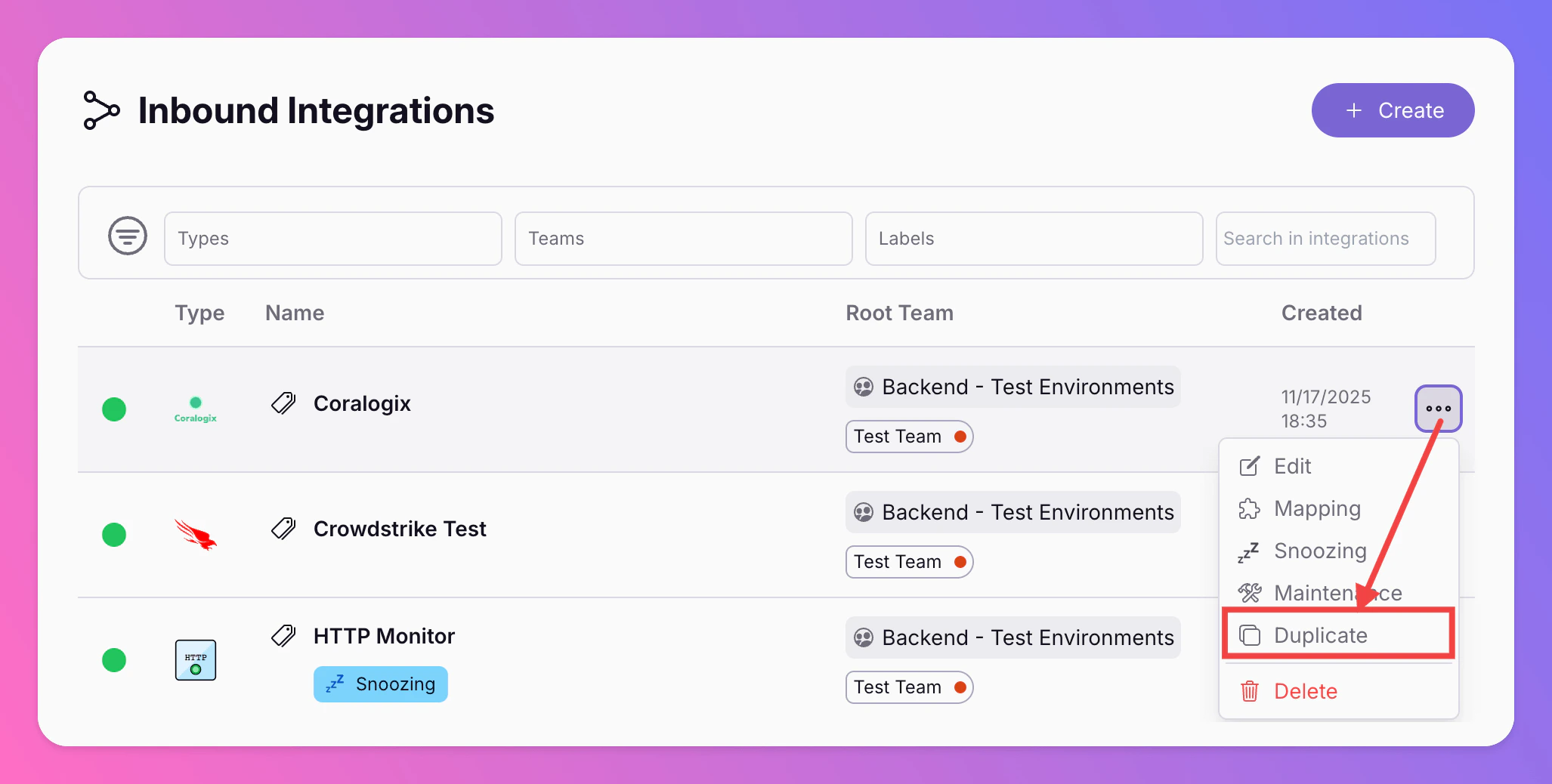
## Duplicating Integrations
If you want to create a new integration based on one you've already set up, you can duplicate it via the inbound integrations overview.
You can add the cloned version to a different team. The cloned version keeps the same payload mapping. If you you want to replace the old integration with the clode, update your observability tool by replacing the old webhook URL with the new one so alerts go to the new integration.
## How to Use One Integration For Several Teams
To route incidents from one integration to several teams, all teams need to be within one [Organization](/advanced/organizations). Organizations are available on Pro and Enterprise plans.
Use a single shared inbound integration when several teams should receive alerts from the same source, but each team owns its own on-call and escalations. Common examples:
* **Same source, different on-call:** One Datadog monitor, AWS account, or webhook sends everything to All Quiet; [routing](/advanced/routing) assigns incidents to Platform, Backend, or Mobile so each team’s [escalation policy](/essentials/escalations) runs.
* **Split by topic or ownership:** Payload fields such as `service`, `team`, `product`, or `namespace` (mapped in [payload mapping](/essentials/inbound#mapping-payloads)) decide which team gets the incident—one integration, many destinations.
* **Severity-based handoff:** Critical incidents from the same integration go to a platform or incident-response team; Warnings and Minors stay with the product team that owns the service.
* **Environment or region:** One integration for staging and production (or `eu` vs `us`); route by `ENV`, `region`, or similar attributes so only the right team is paged.
* **Central “Root” team, no on-call there:** Integrations live in a Root team with no schedules; all real paging happens in domain teams after **Assign to Team** routing.
Here's how you can send incidents from one integration to multiple teams:
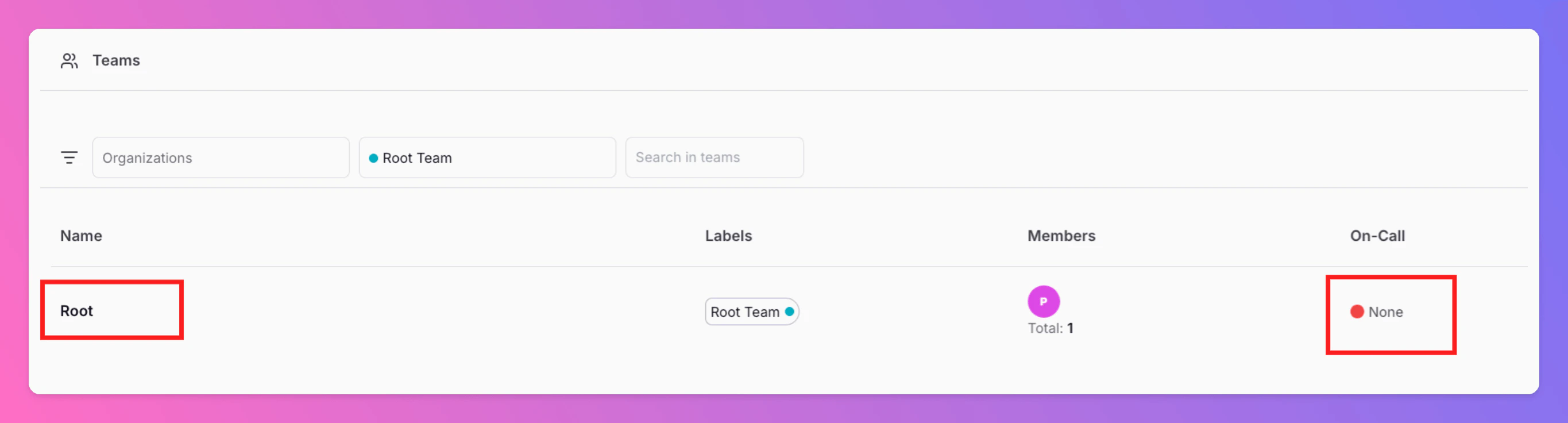
1. Create a "Root" [team](/essentials/teams#create-a-team). This team is only used to create integrations that are shared across several teams. There should be no on-call schedules for your Root team.
2. Create the integrations you want to share across multiple teams in your “Root” team.
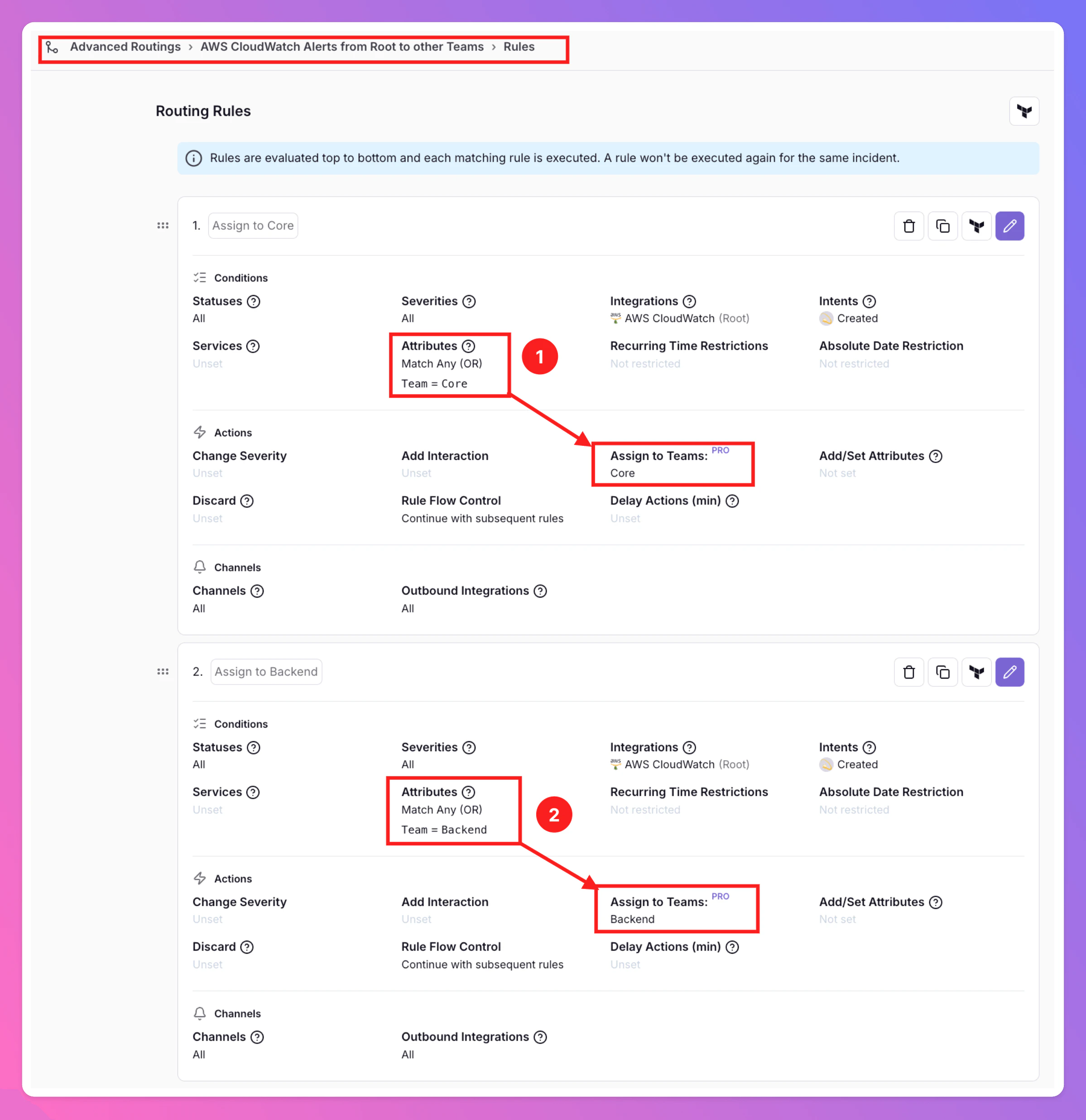
3. Create [advanced routing rules](/advanced/routing) in the root team. Define for which conditions incidents are assigned to different teams.
Below, you can find examples of different [routings](/advanced/routing) for incidents created via "Root" team's AWS CloudWatch integration. In the [payload mapping](/essentials/inbound#mapping-payloads), we added the attribute "Team". Based on the values of the attribute, we route incidents to different teams:
1. Condition: **Team = Core** → Then Action: **Assign to Team "Core"** → Escalations in Team "Core" start
2. Condition: **Title = Backend** → Then Action: **Assign to Team "Backend"** → Escalations in "Backend" start
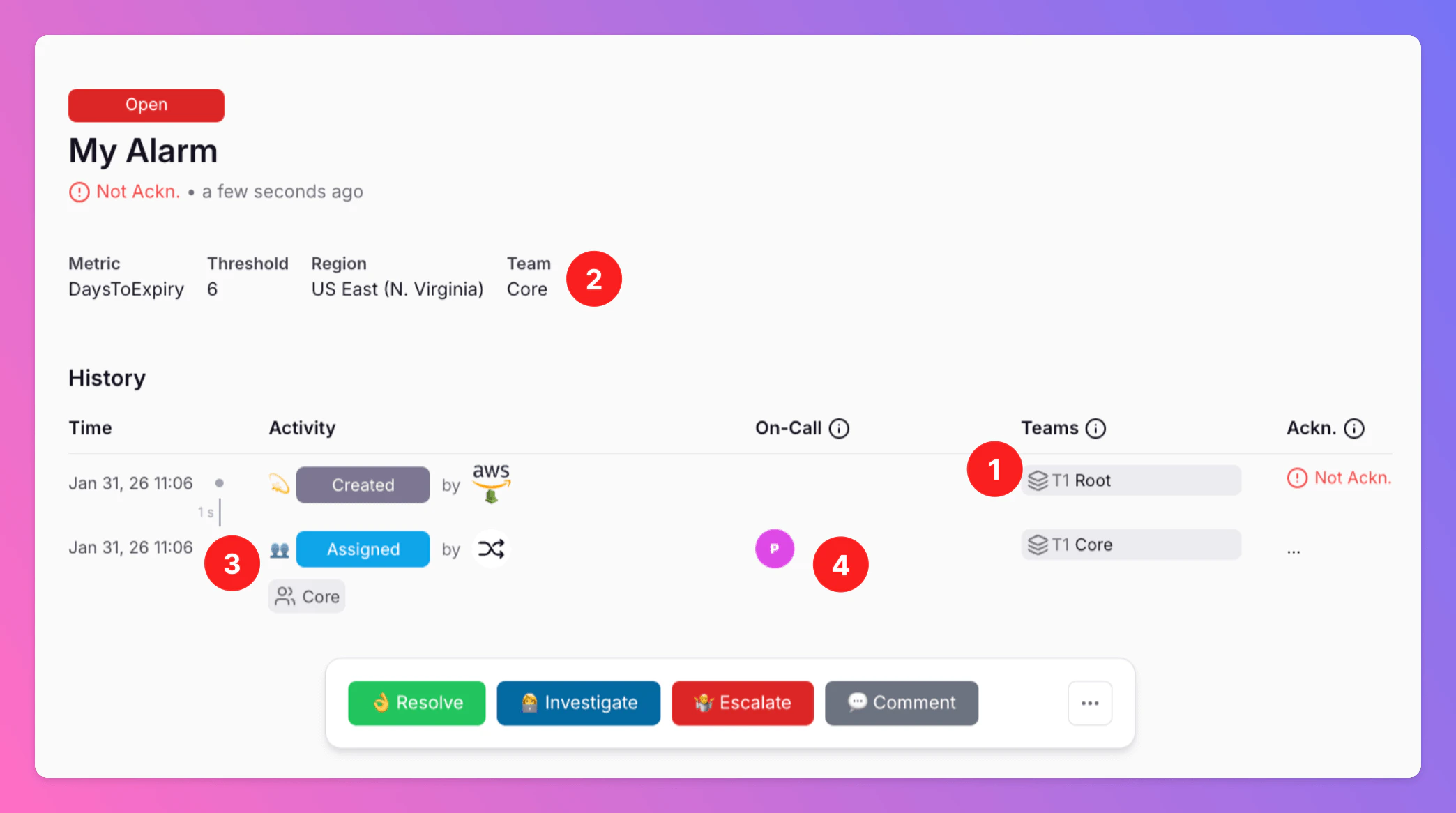
Here's an example for an incident that got routed from "Root" to the team "Core".
1. Notice that the incident was created in the “Root” team, the team associated with the AWS CloudWatch integration.
2. As the incident included the attribute "Team" with value "Core"...
3. ...the incidents was instantly assigned to "Core" team...
4. ...and Core's Tier 1 members were notified.
## Built-in Integrations
Receive alerts from your observability tools. We offer generic email and webhook as well as a growing number of pre-built integrations:
## Propose a new integration
Didn't find your tool here? Reach out to [support@allquiet.app](mailto:support@allquiet.app) and let us know your preferred integration. We're always happy to grow our integrations list.
## API and Webhook Rate Limits
Our current rate limits for all integrations in order to protect the functionality of the platform for all customers
* **API**: 30 unique requests per URL within 20s
* **Webhook Payloads**: 20 requests per integration within 3s, 50 requests per integration within 20s, 180 requests per integration within 300s
* **Incident Updates From Integration**: Max 256 updates without user interaction in between are saved for a single incident; once limit is reached, newer updates will override older attribute information.
* **Incident Creation via API**: 4 incidents within 30s, 10 incidents within 2min, 20 incidents within 5min.
* **Incident Updates via API**: 4 updates per incident within 30s, 10 updates per incident within 2min, 20 updates per incident within 5min.
 From there,
1. Give your integration a `Display Name`, such as "My Inbound Webhook".
2. You'll also need to choose which team the integration should belong to, as this can't be changed later.
3. Select the type of integration. Keep in mind that the integration type can't be changed later.
4. Click `Create Inbound Integration`
From there,
1. Give your integration a `Display Name`, such as "My Inbound Webhook".
2. You'll also need to choose which team the integration should belong to, as this can't be changed later.
3. Select the type of integration. Keep in mind that the integration type can't be changed later.
4. Click `Create Inbound Integration`
 Next, we need to configure the integration. This includes:
1. The [Edit tab](/essentials/inbound#edit-your-integration’s-general-settings), in which you can find some generic information about your integration.
2. [Receiving a **payload**](/essentials/inbound#receiving-payloads) by connecting All Quiet to your Inbound Integration using a **unique Webhook URL**.
3. [**Mapping payload attributes**](/essentials/inbound#mapping-payloads) to All Quiet incidents.
4. Later, you may add [**Snooze settings**](/essentials/inbound#snoozing-inbound-integrations)
5. and [**Maintenance Windows**](/essentials/inbound#maintenance-for-inbound-integrations) for your integration.
6. Last, for each integration you can find your [Incident KPIs](/advanced/report#integration-level) in the `Incidents` tab.
We'll walk you through these steps by the example of a `Webhook` Integration.
Next, we need to configure the integration. This includes:
1. The [Edit tab](/essentials/inbound#edit-your-integration’s-general-settings), in which you can find some generic information about your integration.
2. [Receiving a **payload**](/essentials/inbound#receiving-payloads) by connecting All Quiet to your Inbound Integration using a **unique Webhook URL**.
3. [**Mapping payload attributes**](/essentials/inbound#mapping-payloads) to All Quiet incidents.
4. Later, you may add [**Snooze settings**](/essentials/inbound#snoozing-inbound-integrations)
5. and [**Maintenance Windows**](/essentials/inbound#maintenance-for-inbound-integrations) for your integration.
6. Last, for each integration you can find your [Incident KPIs](/advanced/report#integration-level) in the `Incidents` tab.
We'll walk you through these steps by the example of a `Webhook` Integration.
 ## Edit Your Integration's General Settings
In this tab, you can make some general changes to your integration:
1. You can change your integration's `Display Name` for your team.
2. You may add `Labels` to your integration. Labels help categorize inbound integrations (e.g. by environment or source). They are combined with [team labels](/essentials/teams#edit-team) when [filtering incidents](/essentials/incident#filtering-incidents).
## Edit Your Integration's General Settings
In this tab, you can make some general changes to your integration:
1. You can change your integration's `Display Name` for your team.
2. You may add `Labels` to your integration. Labels help categorize inbound integrations (e.g. by environment or source). They are combined with [team labels](/essentials/teams#edit-team) when [filtering incidents](/essentials/incident#filtering-incidents).
 ## Receiving Payloads
 1. Now it's time to look at the `Payload Mapping` tab.
2. You can find the `Webhook URL` you need to send alerts to All Quiet on top of the tab.
1. Now it's time to look at the `Payload Mapping` tab.
2. You can find the `Webhook URL` you need to send alerts to All Quiet on top of the tab. 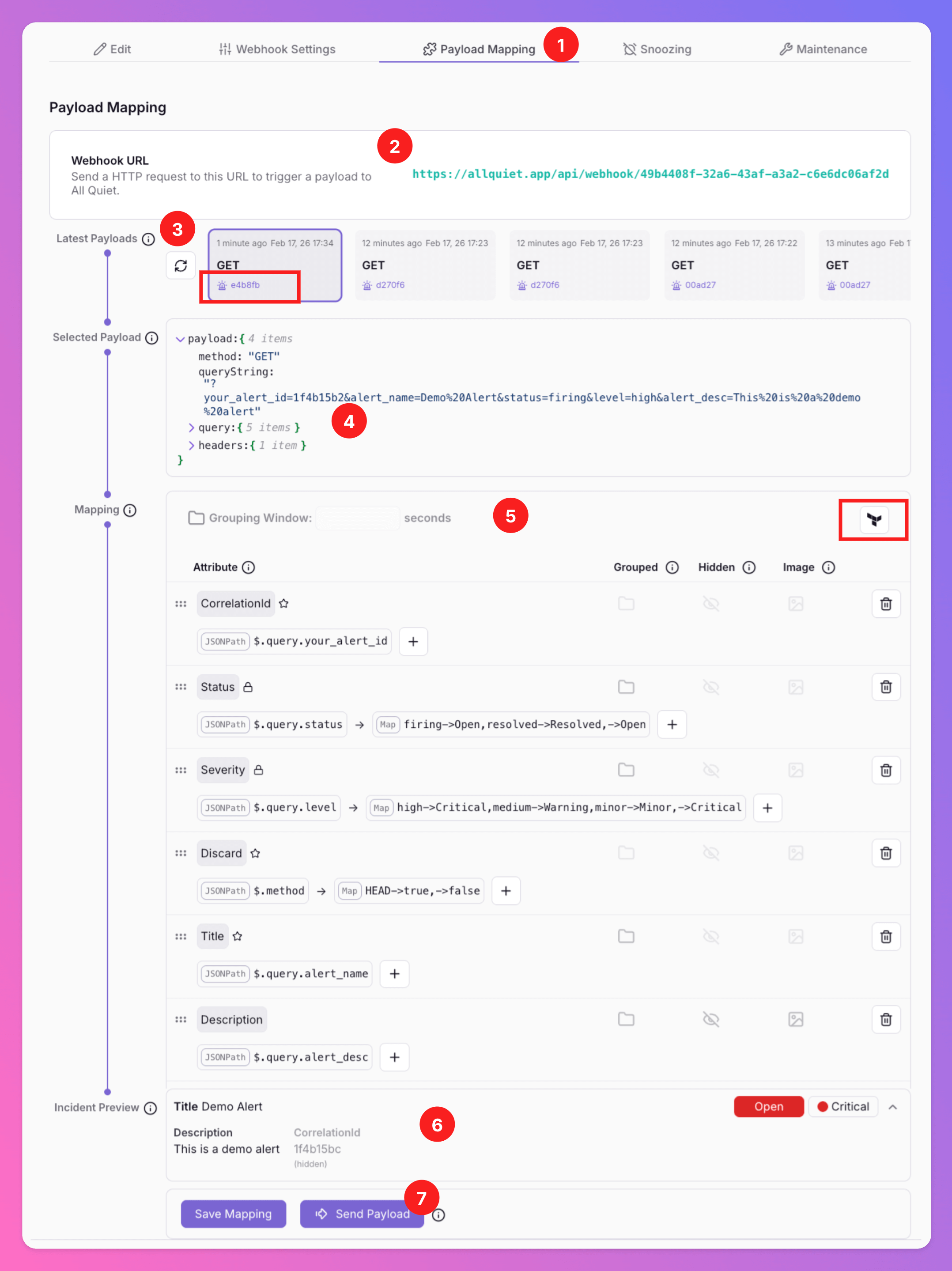 To send a payload to your Webhook, issue the following `cURL` command to send a form post to a webhook integration. The payload will show up under the field `Latest Payloads`. Please note that you need to adjust the URL to your unique integration's URL.
```CURL theme={null}
curl -X POST 'https://allquiet.app/api/webhook/12fa90f1-9f01-41a8-8fe5-b5d385dac03d' \
-H 'Content-Type: application/json' \
-d '{"alertName": "My Monitor", "alertStatus": "Failed", "description": "From cURL"}'
```
Learn more about generic webhooks here: [Connect Generic Webhooks](https://allquiet.app/blog/connect-generic-webhooks).
To send a payload to your Webhook, issue the following `cURL` command to send a form post to a webhook integration. The payload will show up under the field `Latest Payloads`. Please note that you need to adjust the URL to your unique integration's URL.
```CURL theme={null}
curl -X POST 'https://allquiet.app/api/webhook/12fa90f1-9f01-41a8-8fe5-b5d385dac03d' \
-H 'Content-Type: application/json' \
-d '{"alertName": "My Monitor", "alertStatus": "Failed", "description": "From cURL"}'
```
Learn more about generic webhooks here: [Connect Generic Webhooks](https://allquiet.app/blog/connect-generic-webhooks).
 #### Handling Multiple Payloads
If your payloads can have different structures, you can adjust your payload mapping to account for that. You can simply add several entries for the same attributes that are evaluating different part of the payload. The first attribute that can be evaluated successfully will be added to the incident.
In the example below,
1. we first check if the JSONPath `$.query.utm` contains the value `Medium` or `High` to define the Severity.
2. If none of those values can be found, we use the second Severity attribute in our mapping to statically set the Severity to Minor as our fallback.
#### Handling Multiple Payloads
If your payloads can have different structures, you can adjust your payload mapping to account for that. You can simply add several entries for the same attributes that are evaluating different part of the payload. The first attribute that can be evaluated successfully will be added to the incident.
In the example below,
1. we first check if the JSONPath `$.query.utm` contains the value `Medium` or `High` to define the Severity.
2. If none of those values can be found, we use the second Severity attribute in our mapping to statically set the Severity to Minor as our fallback.
 ## Snoozing Inbound Integrations
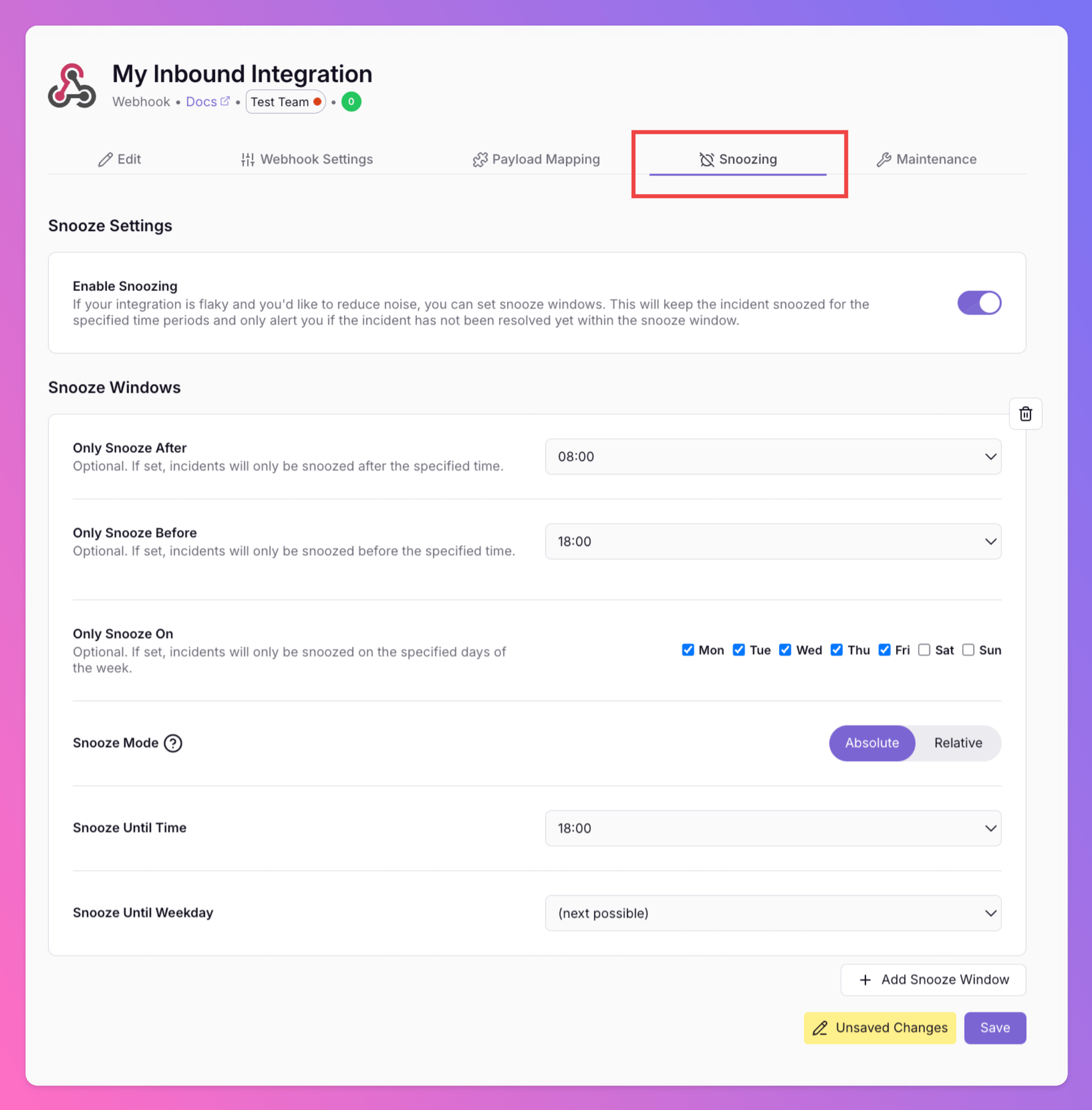
Is your integration unreliable, sometimes triggering incidents that auto-resolve just minutes later? Or would you prefer to suppress incidents during specific times and have them surface later? Reduce noise and minimize stress for your on-call colleagues.
*Team Administrators* can enable `Snoozing` for the integration.
* When activated, newly created incidents are automatically snoozed. They will only alert on-call members once the snooze window ends or if the incident is [manually unsnoozed](/essentials/incident#manually-snooze-%2F-unsnooze). Choose between two modes:
* Snooze mode **Relative**: Snooze incidents for a specified timeframe, e.g. 10 minutes.
* Snooze mode **Absolute**: Snooze an incident until a specified time of day. By default, the incident will unsnooze the next time ("Next Possible") the selected time is reached after the snooze period ends. Optionally, you can choose a weekday to specify exactly when it should unsnooze.
* While snoozed, there are no auto-escalations, and no notifications are sent regarding the incident. Also, [outbound integrations](/essentials/outbound) are muted while an incident is snoozed - except incidents are explicitly [forwarded](/essentials/incident#forwarding). In this case, a one-time request is sent to the specific outbund integration.
* Once unsnoozed - no matter if manually or because the snooze window ends - Tier 1 on-call members are alerted and any potential [auto-escalations](/essentials/escalations#automatic-escalation) will begin.
* If an incident resolves itself during the snooze period, it remains snoozed and does not alert your team.
* To view and manage snoozed incidents, enable the `Include Snoozed` [filter](/essentials/incident#include-snoozed-incidents) in the incident overview.
## Snoozing Inbound Integrations
Is your integration unreliable, sometimes triggering incidents that auto-resolve just minutes later? Or would you prefer to suppress incidents during specific times and have them surface later? Reduce noise and minimize stress for your on-call colleagues.
*Team Administrators* can enable `Snoozing` for the integration.
* When activated, newly created incidents are automatically snoozed. They will only alert on-call members once the snooze window ends or if the incident is [manually unsnoozed](/essentials/incident#manually-snooze-%2F-unsnooze). Choose between two modes:
* Snooze mode **Relative**: Snooze incidents for a specified timeframe, e.g. 10 minutes.
* Snooze mode **Absolute**: Snooze an incident until a specified time of day. By default, the incident will unsnooze the next time ("Next Possible") the selected time is reached after the snooze period ends. Optionally, you can choose a weekday to specify exactly when it should unsnooze.
* While snoozed, there are no auto-escalations, and no notifications are sent regarding the incident. Also, [outbound integrations](/essentials/outbound) are muted while an incident is snoozed - except incidents are explicitly [forwarded](/essentials/incident#forwarding). In this case, a one-time request is sent to the specific outbund integration.
* Once unsnoozed - no matter if manually or because the snooze window ends - Tier 1 on-call members are alerted and any potential [auto-escalations](/essentials/escalations#automatic-escalation) will begin.
* If an incident resolves itself during the snooze period, it remains snoozed and does not alert your team.
* To view and manage snoozed incidents, enable the `Include Snoozed` [filter](/essentials/incident#include-snoozed-incidents) in the incident overview.
 ## Maintenance for Inbound Integrations
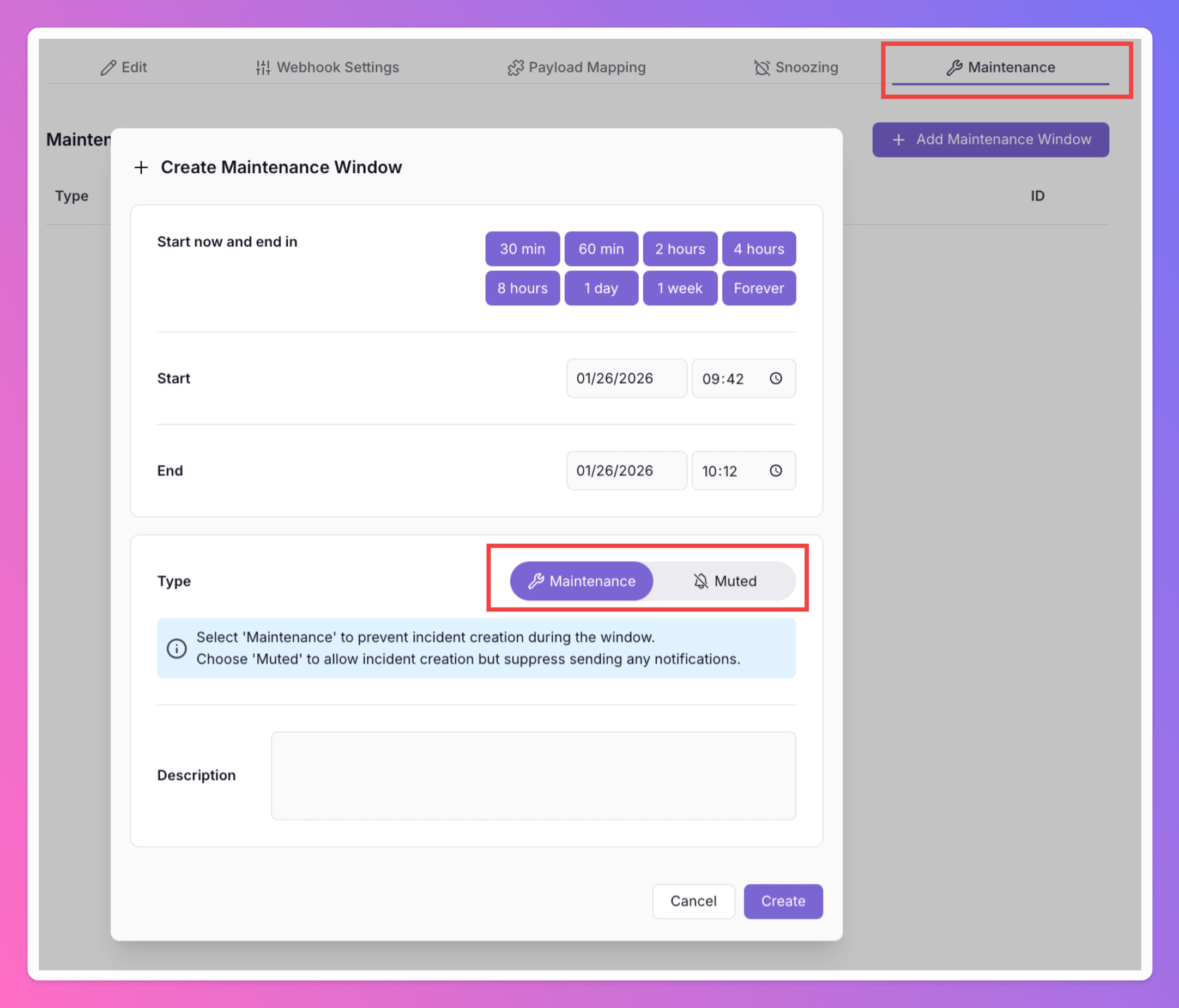
In this tab, Team Administrators\_ can add `Maintenance Windows` for the integration.
* **Muted:** For muted integrations, you will receive a payload and we'll create an incident. However, we won't send any notifications.
* **Maintenance:** For maintenanced integrations, you will receive a payload. However, we won't create an incident nor will we send any notifications.
## Maintenance for Inbound Integrations
In this tab, Team Administrators\_ can add `Maintenance Windows` for the integration.
* **Muted:** For muted integrations, you will receive a payload and we'll create an incident. However, we won't send any notifications.
* **Maintenance:** For maintenanced integrations, you will receive a payload. However, we won't create an incident nor will we send any notifications.
 ## Incident Report for Inbound Integrations
To learn more about your Integration's Incident KPIs, check our your [Integration's Incident Report](/advanced/report#incident-report).
## Troubleshooting: Missing or Unexpected Incidents
If an alert did not show up the way you expected—**no new incident was created**, **no notification was sent**, or it feels like the event “disappeared”—that rarely means the payload is missing. Inbound requests **typically appear** in the integration’s **Latest Payloads** on the **[Payload Mapping](#mapping-payloads)** tab. What varies is **what All Quiet did with the payload**:
* The incident may have been **discarded** (maintenance, payload mapping, or routing ruled that the payload should not be creating an incident).
* It may have **updated an existing Open incident** (same **`CorrelationId`**, Grouping attributes, or equivalent matching) instead of creating a new one. Can especially happen with **older Open incidents that weren't Resolved** that are **muted**, **snoozed**, **archived**, or otherwise **not notifying**, so you only see a quiet update.
* **[Advanced routing](/advanced/routing)** can still **mute channels**, **mute outbound integrations**, or **snooze** and **discard** after creation.
To debug, start by opening **Latest Payloads** and the incident linked from the payload tile (below). Then work through the sections that match what you see.
### Latest Payloads: See Which Incident Received the Payload
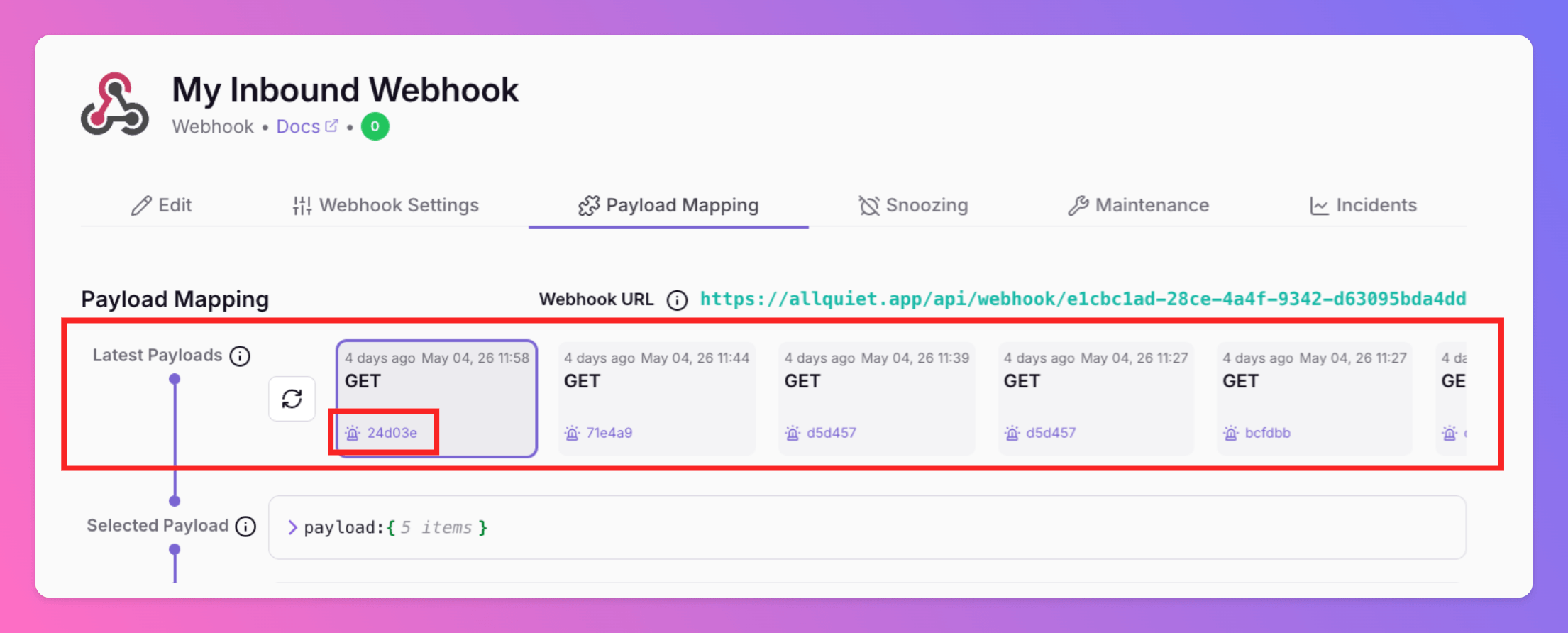
1. Open the integration’s **[Payload Mapping](#mapping-payloads)** tab and inspect **Latest Payloads**.
2. Each tile shows which incident the payload was applied to. Click the **shortened incident id** on the tile to open that incident—this is the fastest way to see whether a **new** incident was created or an **existing** one was updated.
## Incident Report for Inbound Integrations
To learn more about your Integration's Incident KPIs, check our your [Integration's Incident Report](/advanced/report#incident-report).
## Troubleshooting: Missing or Unexpected Incidents
If an alert did not show up the way you expected—**no new incident was created**, **no notification was sent**, or it feels like the event “disappeared”—that rarely means the payload is missing. Inbound requests **typically appear** in the integration’s **Latest Payloads** on the **[Payload Mapping](#mapping-payloads)** tab. What varies is **what All Quiet did with the payload**:
* The incident may have been **discarded** (maintenance, payload mapping, or routing ruled that the payload should not be creating an incident).
* It may have **updated an existing Open incident** (same **`CorrelationId`**, Grouping attributes, or equivalent matching) instead of creating a new one. Can especially happen with **older Open incidents that weren't Resolved** that are **muted**, **snoozed**, **archived**, or otherwise **not notifying**, so you only see a quiet update.
* **[Advanced routing](/advanced/routing)** can still **mute channels**, **mute outbound integrations**, or **snooze** and **discard** after creation.
To debug, start by opening **Latest Payloads** and the incident linked from the payload tile (below). Then work through the sections that match what you see.
### Latest Payloads: See Which Incident Received the Payload
1. Open the integration’s **[Payload Mapping](#mapping-payloads)** tab and inspect **Latest Payloads**.
2. Each tile shows which incident the payload was applied to. Click the **shortened incident id** on the tile to open that incident—this is the fastest way to see whether a **new** incident was created or an **existing** one was updated.
 If a payload is **genuinely** not listed in **Latest Payloads**, it **did not reach** All Quiet. In practice that almost always means it was **not sent to the correct endpoint**: copy the **Webhook URL** from the integration’s **[Payload Mapping](#mapping-payloads)** tab (or **Settings**) and fix the sender configuration—wrong team, wrong integration, or a stale URL is the usual cause. After that, still verify **authentication** (if configured), **network** reachability, and the **request size limit** (see [Receiving Payloads](#receiving-payloads)).
### The Payload was Discarded
1. **`Discard` in payload mapping:** If mapping evaluates **`Discard`** to `true` for this payload, nothing is created—see [Reserved and required attributes](#reserved-and-required-attributes).
2. **Routing rule with Discard:** [Advanced routing](/advanced/routing) can **[Discard](/advanced/routing#configure-actions)** matching incidents **after** creation.
3. **Integration maintenance:** Under **[Maintenance for inbound integrations](#maintenance-for-inbound-integrations)**, **Maintenance** mode accepts the payload but **does not** create an incident.
4. **Team maintenance:** **[Maintenance](/essentials/teams#maintenance-mode)** (non-**Muted**) on the team prevents **new** incidents during the window.
### The Payload Updated an Existing Incident and No Notification was Sent
New payloads are often merged into an **already `Open`** incident that shares the same **`CorrelationId`** (or the same mapped attributes when `CorrelationId` is not set). See [Reserved and required attributes](#reserved-and-required-attributes). It could also match an existing `Open` incident Grouping and create a new subincident.
Per default, notifications for simple **updates** of incident attributes or new subincidents are not sent.
1. Use **Latest Payloads** (above) to see **which** incident received the update.
2. Inspect that incident: it may be **[snoozed](#snoozing-inbound-integrations)** or sitting under an [integration](#maintenance-for-inbound-integrations) / [team](/essentials/teams#maintenance-mode) that is **muted**, so **no notifications** fire even though the payload was processed.
3. Find the **`CorrelationId`** (or [Grouping](/essentials/incident#incident-grouping) attributes) and search for other **Open** incidents with the same value. **Resolve** or clean up incidents that should no longer receive correlation so new events surface as expected.
4. Check **[archived](/essentials/incident#archiving)** incidents and use **[Include Snoozed](/essentials/incident#include-snoozed-incidents)** on the overview so hidden incident that might have swollowed the payload because of matching correlation are visible.
**Grouping:** If you use **grouping** keys, correlation also depends on those attributes—see [Incident grouping](/essentials/incident#incident-grouping) and [optional attribute keys](#optional%2C-additional-attribute-keys).
### New Incident Exists but Still no Notification
If **Latest Payloads** shows a **new** incident was created, but nobody was alerted:
1. **Created as `Resolved`?** Check **incident details**, or go to **Payload Mapping**, select the payload tile under **Latest Payloads**, and read the **preview**. If the mapping produces a **`Resolved`** incident, you will not get the usual notifications and escalations as for an `Open` incident.
2. **Integration snooze?** New incidents can be created already **[snoozed](#snoozing-inbound-integrations)**—use **[Include Snoozed](/essentials/incident#include-snoozed-incidents)**.
3. **Integration or team muted?** **[Muted](#maintenance-for-inbound-integrations)** integration or team **[maintenance (Muted)](/essentials/teams#maintenance-mode)** suppresses notifications.
4. **Advanced routing:** Check whether any **[routing rule](/advanced/routing)** whose **conditions match** this incident (after payload mapping) runs an action that suppresses alerting—for example **`Discard`** or or **Snooze** via [Configure Actions](/advanced/routing#configure-actions). Under [Choose Channels](/advanced/routing#choos-channels), you can mute all channels, all outbound integrations, or a subset of channels or outbound integrations. If this all is not the case, and outbound tools still never see the incident, also review [Forwarding](/essentials/incident#forwarding).
For a short list of these and other common flows, see [Troubleshooting & FAQs](/miscellaneous/troubleshooting).
## Duplicating Integrations
If you want to create a new integration based on one you've already set up, you can duplicate it via the inbound integrations overview.
If a payload is **genuinely** not listed in **Latest Payloads**, it **did not reach** All Quiet. In practice that almost always means it was **not sent to the correct endpoint**: copy the **Webhook URL** from the integration’s **[Payload Mapping](#mapping-payloads)** tab (or **Settings**) and fix the sender configuration—wrong team, wrong integration, or a stale URL is the usual cause. After that, still verify **authentication** (if configured), **network** reachability, and the **request size limit** (see [Receiving Payloads](#receiving-payloads)).
### The Payload was Discarded
1. **`Discard` in payload mapping:** If mapping evaluates **`Discard`** to `true` for this payload, nothing is created—see [Reserved and required attributes](#reserved-and-required-attributes).
2. **Routing rule with Discard:** [Advanced routing](/advanced/routing) can **[Discard](/advanced/routing#configure-actions)** matching incidents **after** creation.
3. **Integration maintenance:** Under **[Maintenance for inbound integrations](#maintenance-for-inbound-integrations)**, **Maintenance** mode accepts the payload but **does not** create an incident.
4. **Team maintenance:** **[Maintenance](/essentials/teams#maintenance-mode)** (non-**Muted**) on the team prevents **new** incidents during the window.
### The Payload Updated an Existing Incident and No Notification was Sent
New payloads are often merged into an **already `Open`** incident that shares the same **`CorrelationId`** (or the same mapped attributes when `CorrelationId` is not set). See [Reserved and required attributes](#reserved-and-required-attributes). It could also match an existing `Open` incident Grouping and create a new subincident.
Per default, notifications for simple **updates** of incident attributes or new subincidents are not sent.
1. Use **Latest Payloads** (above) to see **which** incident received the update.
2. Inspect that incident: it may be **[snoozed](#snoozing-inbound-integrations)** or sitting under an [integration](#maintenance-for-inbound-integrations) / [team](/essentials/teams#maintenance-mode) that is **muted**, so **no notifications** fire even though the payload was processed.
3. Find the **`CorrelationId`** (or [Grouping](/essentials/incident#incident-grouping) attributes) and search for other **Open** incidents with the same value. **Resolve** or clean up incidents that should no longer receive correlation so new events surface as expected.
4. Check **[archived](/essentials/incident#archiving)** incidents and use **[Include Snoozed](/essentials/incident#include-snoozed-incidents)** on the overview so hidden incident that might have swollowed the payload because of matching correlation are visible.
**Grouping:** If you use **grouping** keys, correlation also depends on those attributes—see [Incident grouping](/essentials/incident#incident-grouping) and [optional attribute keys](#optional%2C-additional-attribute-keys).
### New Incident Exists but Still no Notification
If **Latest Payloads** shows a **new** incident was created, but nobody was alerted:
1. **Created as `Resolved`?** Check **incident details**, or go to **Payload Mapping**, select the payload tile under **Latest Payloads**, and read the **preview**. If the mapping produces a **`Resolved`** incident, you will not get the usual notifications and escalations as for an `Open` incident.
2. **Integration snooze?** New incidents can be created already **[snoozed](#snoozing-inbound-integrations)**—use **[Include Snoozed](/essentials/incident#include-snoozed-incidents)**.
3. **Integration or team muted?** **[Muted](#maintenance-for-inbound-integrations)** integration or team **[maintenance (Muted)](/essentials/teams#maintenance-mode)** suppresses notifications.
4. **Advanced routing:** Check whether any **[routing rule](/advanced/routing)** whose **conditions match** this incident (after payload mapping) runs an action that suppresses alerting—for example **`Discard`** or or **Snooze** via [Configure Actions](/advanced/routing#configure-actions). Under [Choose Channels](/advanced/routing#choos-channels), you can mute all channels, all outbound integrations, or a subset of channels or outbound integrations. If this all is not the case, and outbound tools still never see the incident, also review [Forwarding](/essentials/incident#forwarding).
For a short list of these and other common flows, see [Troubleshooting & FAQs](/miscellaneous/troubleshooting).
## Duplicating Integrations
If you want to create a new integration based on one you've already set up, you can duplicate it via the inbound integrations overview.
 ## How to Use One Integration For Several Teams
 2. Create the integrations you want to share across multiple teams in your “Root” team.
 3. Create [advanced routing rules](/advanced/routing) in the root team. Define for which conditions incidents are assigned to different teams.
Below, you can find examples of different [routings](/advanced/routing) for incidents created via "Root" team's AWS CloudWatch integration. In the [payload mapping](/essentials/inbound#mapping-payloads), we added the attribute "Team". Based on the values of the attribute, we route incidents to different teams:
1. Condition: **Team = Core** → Then Action: **Assign to Team "Core"** → Escalations in Team "Core" start
2. Condition: **Title = Backend** → Then Action: **Assign to Team "Backend"** → Escalations in "Backend" start
3. Create [advanced routing rules](/advanced/routing) in the root team. Define for which conditions incidents are assigned to different teams.
Below, you can find examples of different [routings](/advanced/routing) for incidents created via "Root" team's AWS CloudWatch integration. In the [payload mapping](/essentials/inbound#mapping-payloads), we added the attribute "Team". Based on the values of the attribute, we route incidents to different teams:
1. Condition: **Team = Core** → Then Action: **Assign to Team "Core"** → Escalations in Team "Core" start
2. Condition: **Title = Backend** → Then Action: **Assign to Team "Backend"** → Escalations in "Backend" start
 Here's an example for an incident that got routed from "Root" to the team "Core".
1. Notice that the incident was created in the “Root” team, the team associated with the AWS CloudWatch integration.
2. As the incident included the attribute "Team" with value "Core"...
3. ...the incidents was instantly assigned to "Core" team...
4. ...and Core's Tier 1 members were notified.
Here's an example for an incident that got routed from "Root" to the team "Core".
1. Notice that the incident was created in the “Root” team, the team associated with the AWS CloudWatch integration.
2. As the incident included the attribute "Team" with value "Core"...
3. ...the incidents was instantly assigned to "Core" team...
4. ...and Core's Tier 1 members were notified.
 ## Built-in Integrations
Receive alerts from your observability tools. We offer generic email and webhook as well as a growing number of pre-built integrations:
## Built-in Integrations
Receive alerts from your observability tools. We offer generic email and webhook as well as a growing number of pre-built integrations: