> ## Documentation Index
> Fetch the complete documentation index at: https://docs.allquiet.app/llms.txt
> Use this file to discover all available pages before exploring further.
# Your On-Call Dashboard
> See if you are on-call, your next shifts, and what needs attention
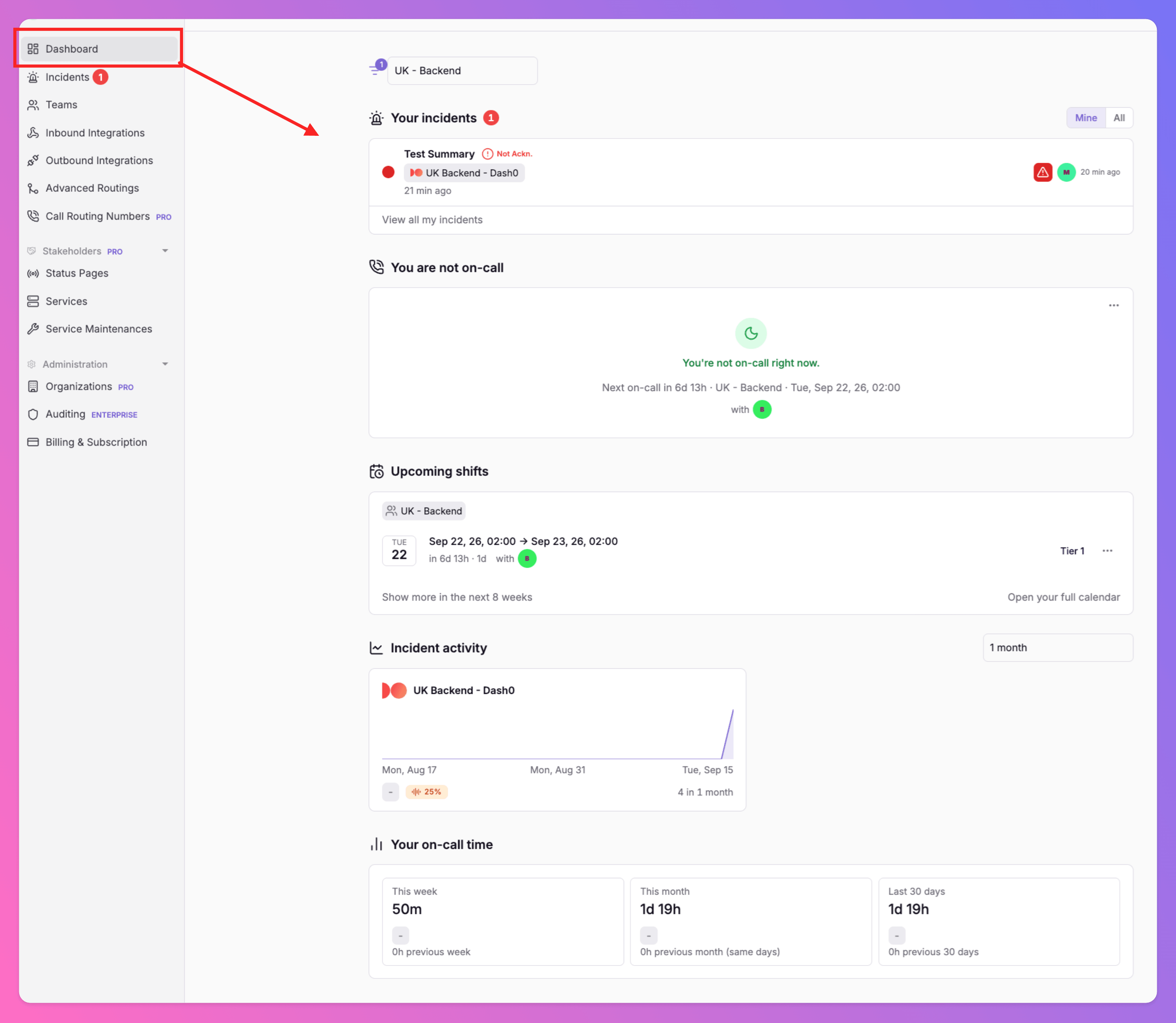
The Dashboard is your home page in All Quiet. It shows whether you are on-call right now, who you are on-call with, your next shifts, open incidents that need your attention, recent incident activity, and how much on-call time you have logged.
Open it from the sidebar: **Dashboard**. After you sign in, this is the default start page. You can switch the start page to [Incidents](/essentials/incident) if you prefer.
Anyone signed in to the app can use the Dashboard.
 ## Choose your start page
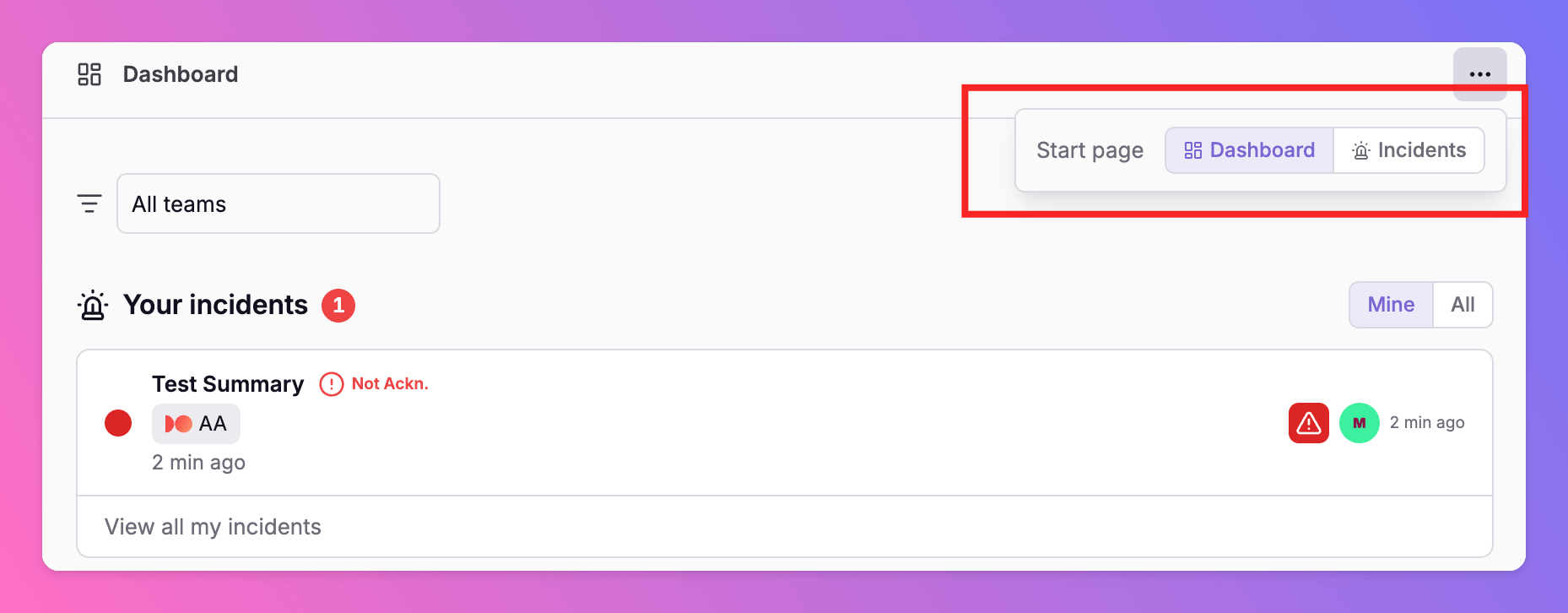
Pick whether All Quiet opens on the **Dashboard** or the **Incidents** list after you sign in.
1. Open the Dashboard overflow menu and choose **Start page**, or use the matching control on the on-call status card when you are not on-call.
2. Toggle **Dashboard** or **Incidents**.
The choice is stored in this browser. The sidebar marks whichever page is your start page.
## Choose your start page
Pick whether All Quiet opens on the **Dashboard** or the **Incidents** list after you sign in.
1. Open the Dashboard overflow menu and choose **Start page**, or use the matching control on the on-call status card when you are not on-call.
2. Toggle **Dashboard** or **Incidents**.
The choice is stored in this browser. The sidebar marks whichever page is your start page.
 ## Filter by team
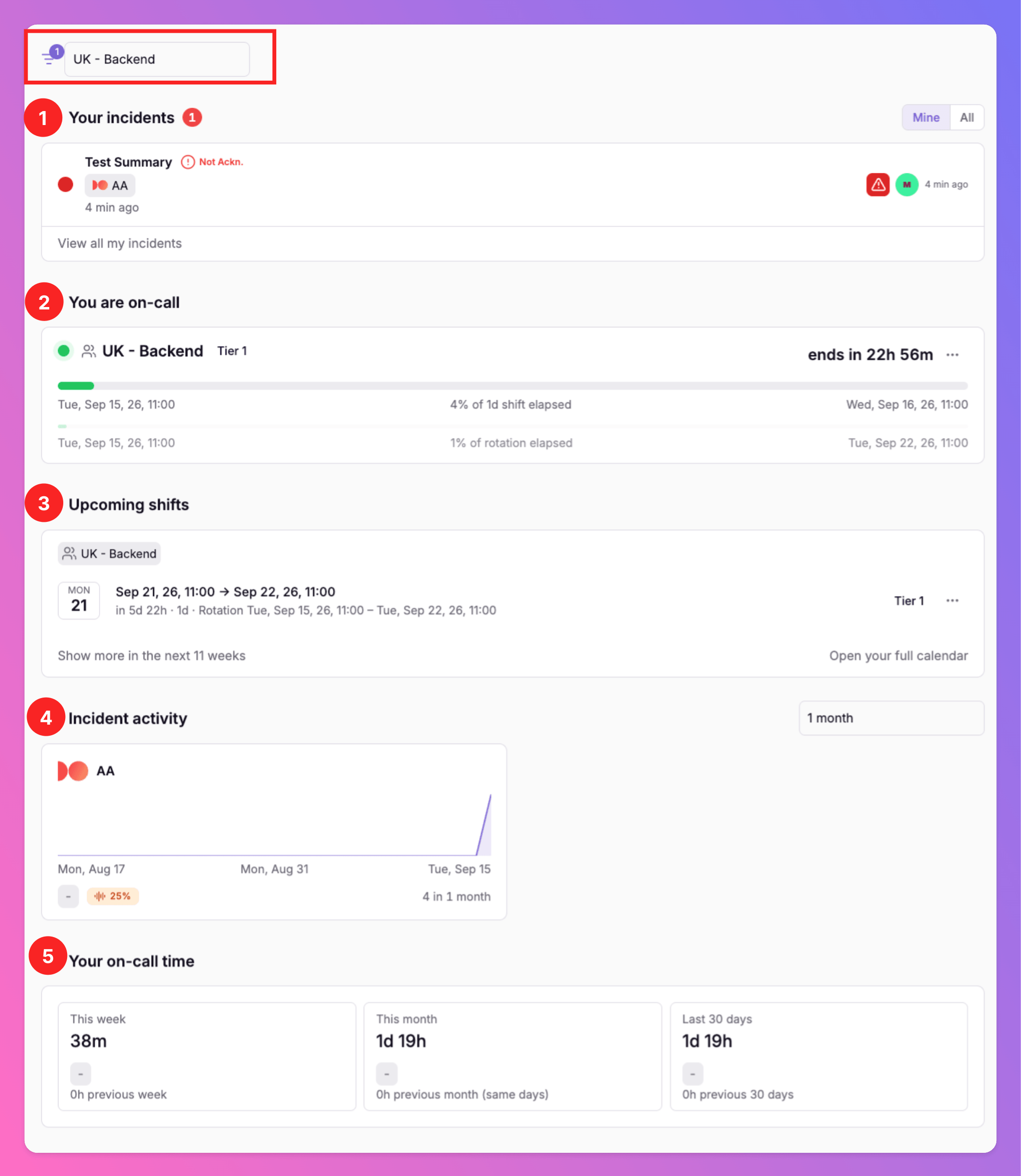
If you belong to more than one team, a **team** filter at the top of the page scopes:
1. [Your incidents](/essentials/dashboard#your-incidents)
2. [On-call status](/essentials/dashboard#you-are-on-call)
3. [Upcoming shifts](/essentials/dashboard#upcoming-shifts)
4. [Incident activity](/essentials/dashboard#incident-activity)
5. [Your on-call time](/essentials/dashboard#your-on-call-time)
Click a team in **Incident activity** to apply the same filter to the whole Dashboard. With a team selected, activity cards open that integration’s incident overview.
## Filter by team
If you belong to more than one team, a **team** filter at the top of the page scopes:
1. [Your incidents](/essentials/dashboard#your-incidents)
2. [On-call status](/essentials/dashboard#you-are-on-call)
3. [Upcoming shifts](/essentials/dashboard#upcoming-shifts)
4. [Incident activity](/essentials/dashboard#incident-activity)
5. [Your on-call time](/essentials/dashboard#your-on-call-time)
Click a team in **Incident activity** to apply the same filter to the whole Dashboard. With a team selected, activity cards open that integration’s incident overview.
 ## Your incidents
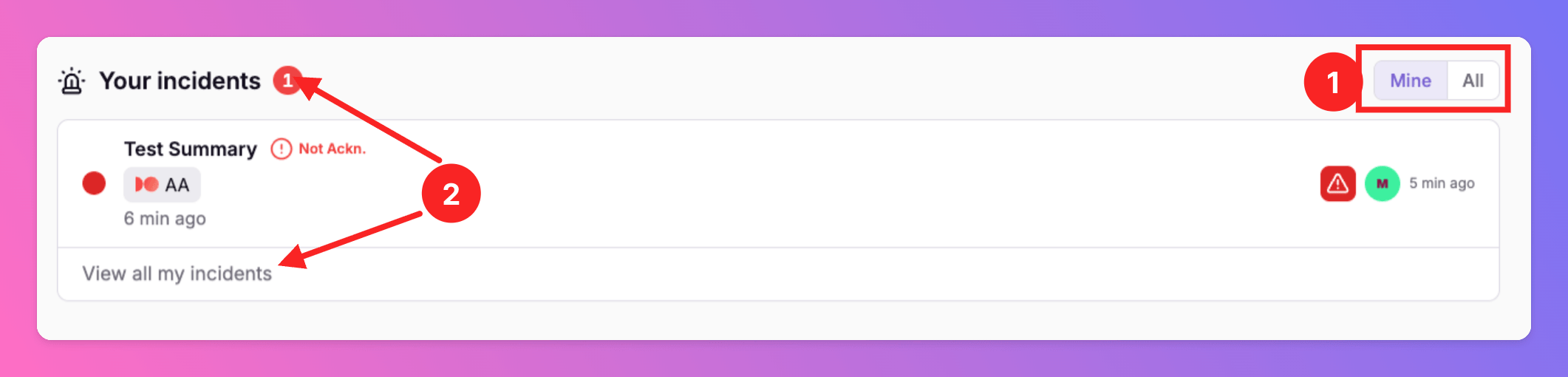
**Your incidents** lists open incidents assigned to you or needing your on-call attention. The list updates live.
1. Switch **Mine** / **All** to include every open incident on your teams.
2. The count badge opens the full [incidents list](/essentials/incident).
Of course, you can also open the incident details from the list.
## Your incidents
**Your incidents** lists open incidents assigned to you or needing your on-call attention. The list updates live.
1. Switch **Mine** / **All** to include every open incident on your teams.
2. The count badge opens the full [incidents list](/essentials/incident).
Of course, you can also open the incident details from the list.
 ## You are on-call
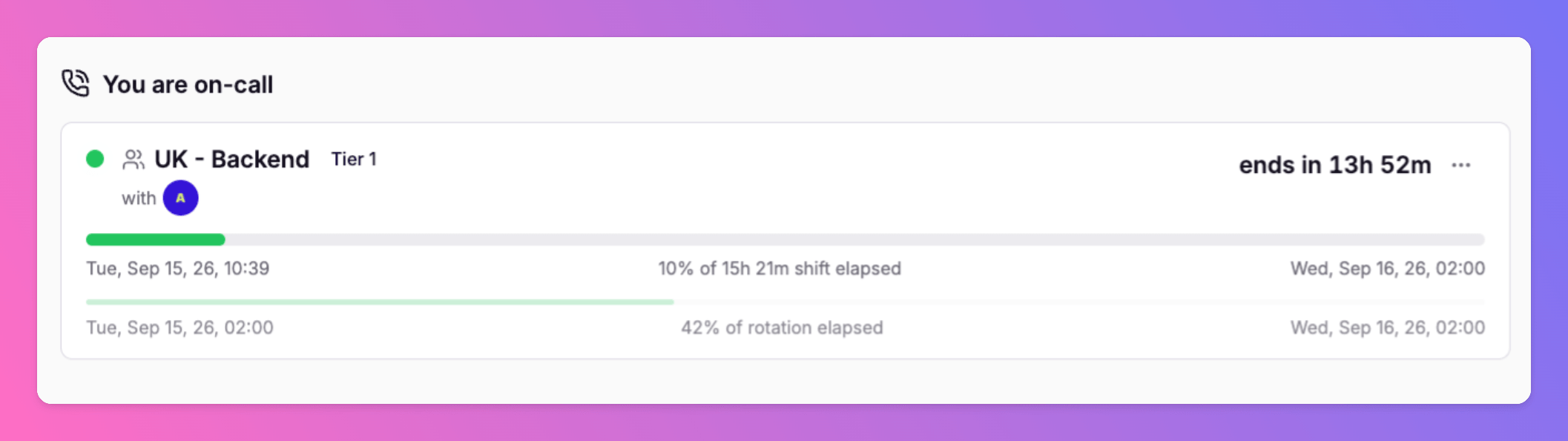
When you are on-call, this card shows the active team, the [escalation tier](/essentials/escalations#escalation-tiers), who else is on shift, and when coverage ends.
* **Shift** is the current on-call window you are in (for example today 08:00–17:00, or an overnight block). The card shows when that window ends, or that the shift is **open-ended**.
* **Rotation** is the cycle that put you on this schedule (daily, weekly, and so on). The card shows when that rotation hands off to the next person or group. See [Rotations](/essentials/escalations#rotations).
Shift end and rotation end are often different. A weekly rotation with weekday hours can end each day at 17:00 (**shift**) while you stay the on-call person until Monday (**rotation**). When they are the same — for example a 24/7 week that hands off at the shift boundary — the card does not repeat both.
## You are on-call
When you are on-call, this card shows the active team, the [escalation tier](/essentials/escalations#escalation-tiers), who else is on shift, and when coverage ends.
* **Shift** is the current on-call window you are in (for example today 08:00–17:00, or an overnight block). The card shows when that window ends, or that the shift is **open-ended**.
* **Rotation** is the cycle that put you on this schedule (daily, weekly, and so on). The card shows when that rotation hands off to the next person or group. See [Rotations](/essentials/escalations#rotations).
Shift end and rotation end are often different. A weekly rotation with weekday hours can end each day at 17:00 (**shift**) while you stay the on-call person until Monday (**rotation**). When they are the same — for example a 24/7 week that hands off at the shift boundary — the card does not repeat both.
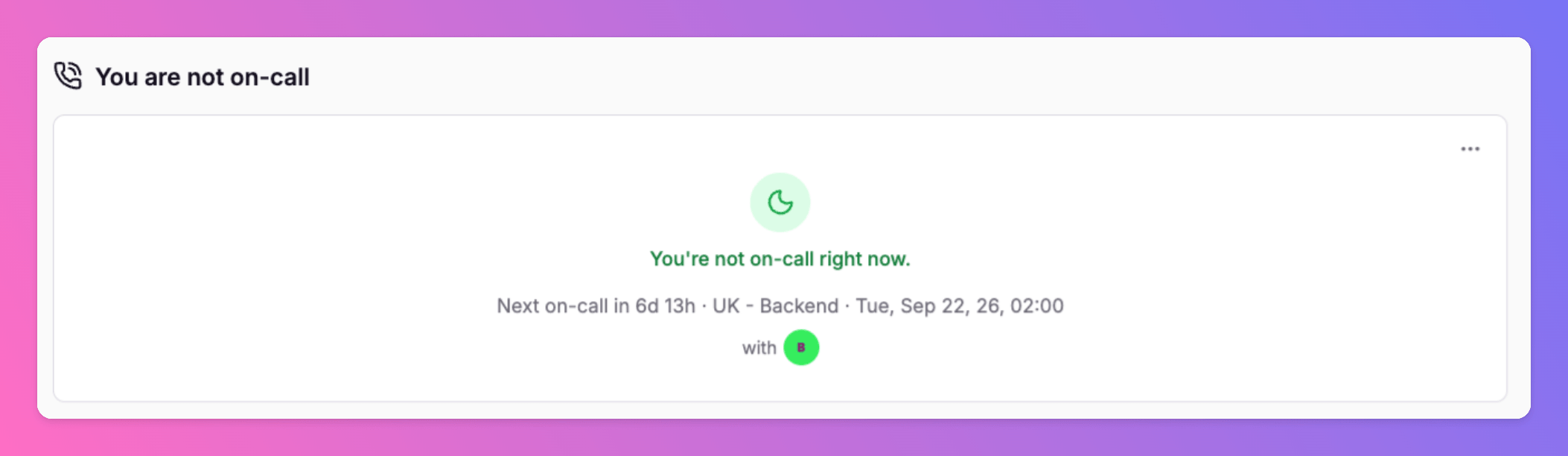
 If you are not on-call, it shows the next upcoming shift, or that none are scheduled.
 ### Start an override from the current or upcoming shift
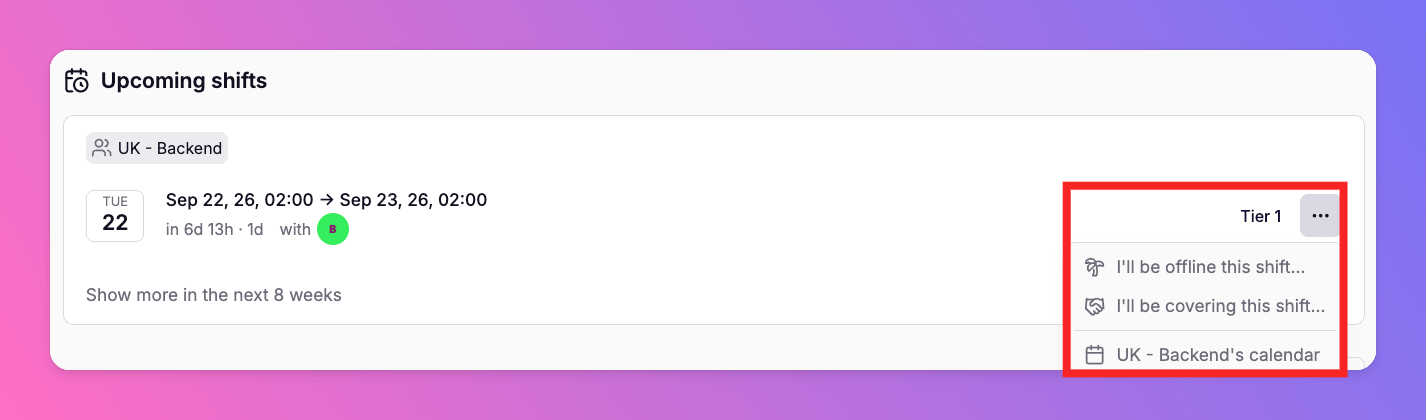
From the current or upcoming shift menu you can:
* **I'll be offline…** or **I'll be covering…** for this **shift**, or for the **full rotation** when that is different
* Add an override
* Manage all your [overrides](/essentials/escalations#personal-overrides)
* Open the [team calendar](/essentials/escalations#team-calendar)
The override form is the same one used under **Account → Overrides**, **Team → Overrides**, and the calendar. See [Personal Overrides](/essentials/escalations#personal-overrides).
### Start an override from the current or upcoming shift
From the current or upcoming shift menu you can:
* **I'll be offline…** or **I'll be covering…** for this **shift**, or for the **full rotation** when that is different
* Add an override
* Manage all your [overrides](/essentials/escalations#personal-overrides)
* Open the [team calendar](/essentials/escalations#team-calendar)
The override form is the same one used under **Account → Overrides**, **Team → Overrides**, and the calendar. See [Personal Overrides](/essentials/escalations#personal-overrides).
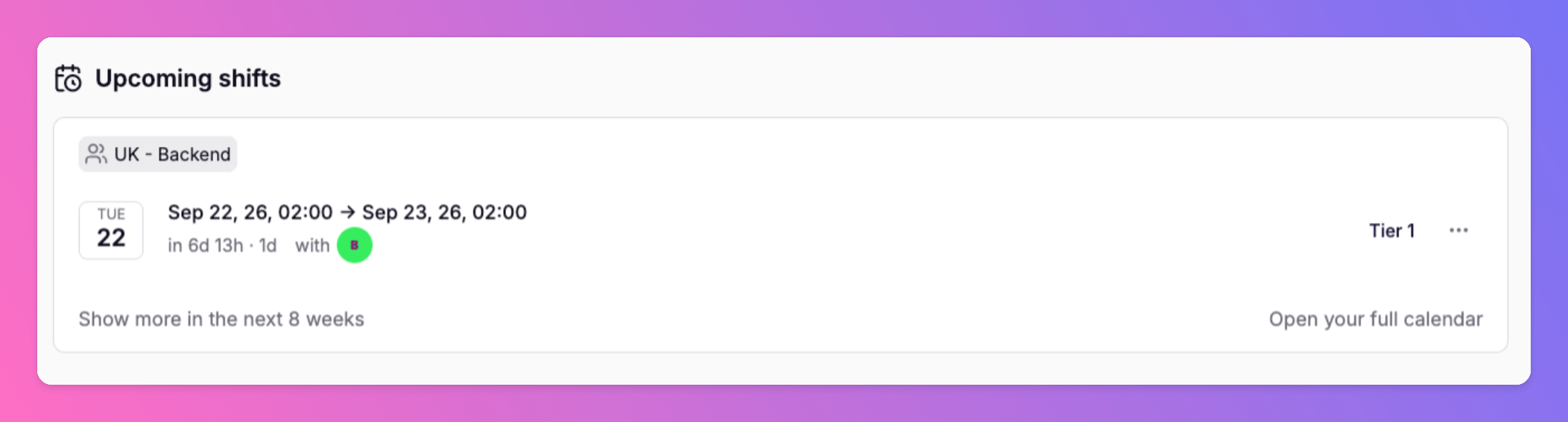
 ## Upcoming shifts
**Upcoming shifts** lists the next shifts per team, up to 90 days ahead. Expand the list to see more, or open your full [personal calendar](/essentials/escalations#personal-availability).
## Upcoming shifts
**Upcoming shifts** lists the next shifts per team, up to 90 days ahead. Expand the list to see more, or open your full [personal calendar](/essentials/escalations#personal-availability).
 ## Incident activity
**Incident activity** charts incident volume for **Last 7**, **14**, or **21 days**, **1 month**, or a custom range.
## Incident activity
**Incident activity** charts incident volume for **Last 7**, **14**, or **21 days**, **1 month**, or a custom range.
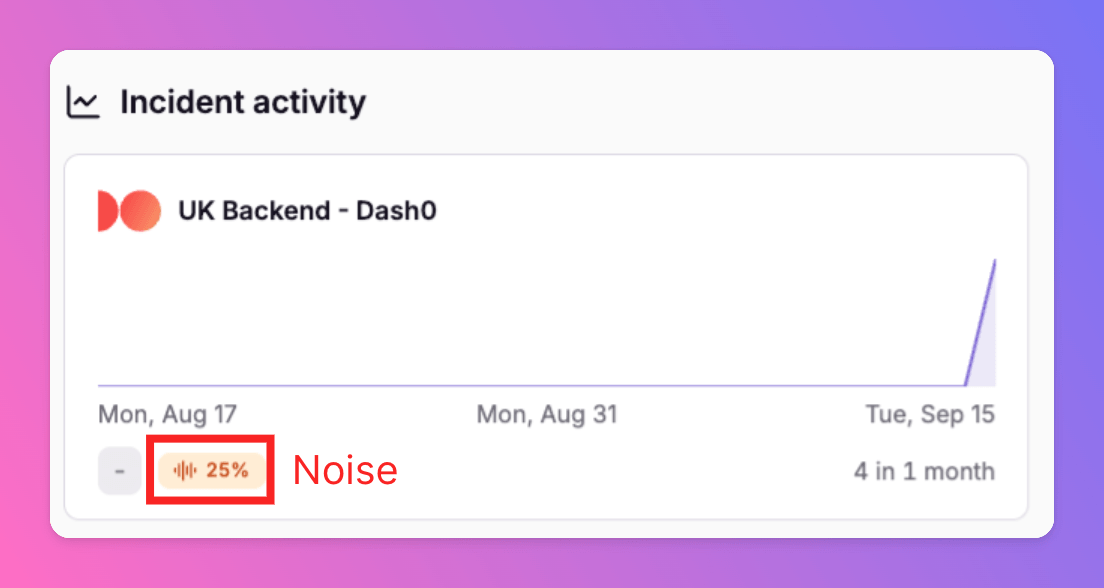
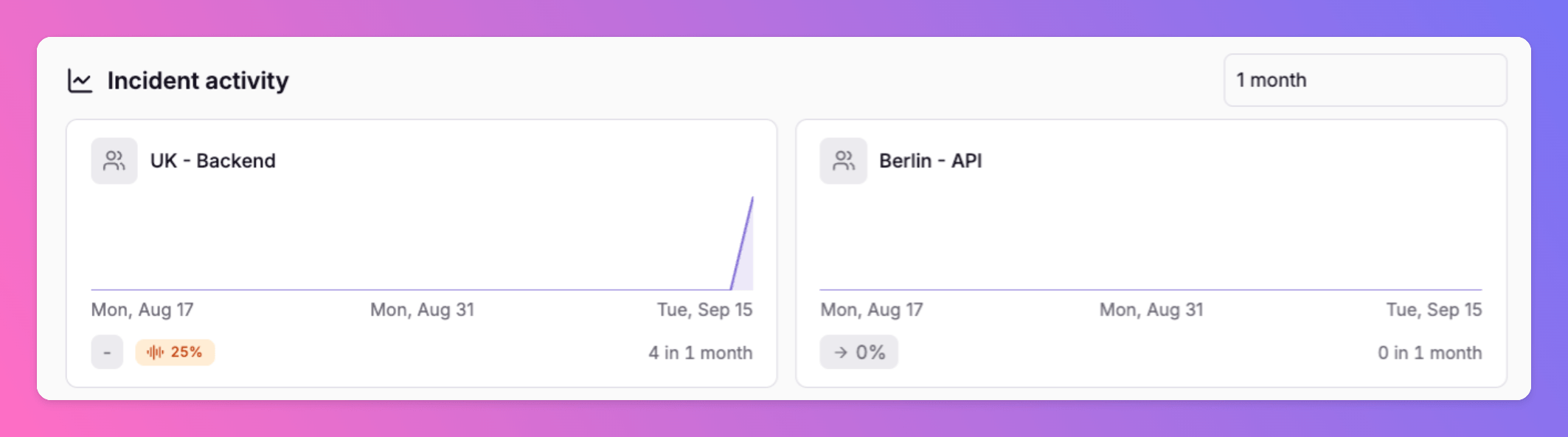 When a team is selected, the chart also shows incidents by integration. Each integration’s incidents are color-coded, and **noise** is shown as part of the graph, referring to incidents that integration created and auto-resolved within the integration’s [noise limit](/essentials/inbound#noise-detection).
 ## Your on-call time
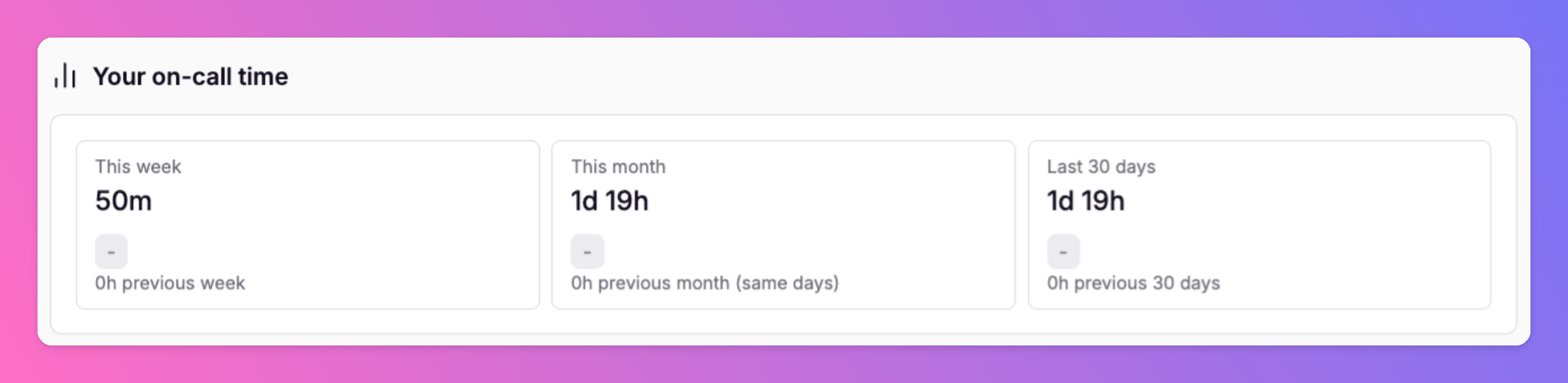
**Your on-call time** compares this week, this month, and the last 30 days with the previous period of the same length. You can either show it per team, or globally for all of your teams.
## Your on-call time
**Your on-call time** compares this week, this month, and the last 30 days with the previous period of the same length. You can either show it per team, or globally for all of your teams.